2OM-1011-002.pdf - 第140页
0305-001 Tg0858-PM-PM 2-121 4.6 PLACEMENT DA T A (P) Display Example: C o p yi n g t h e d a t a i n S t e p N o . 0 0 1 3 t o s e t i t a s the pa- rameters in Step No. 0100 (1) Open the “PLACEMENT DA T A (P) U01” displ…
0305-001 Tg0858-PM-PM
*1
2-120
4.6 PLACEMENT DATA (P) Display
4.6.4 Special Operation (Step Copy) for Placement Data
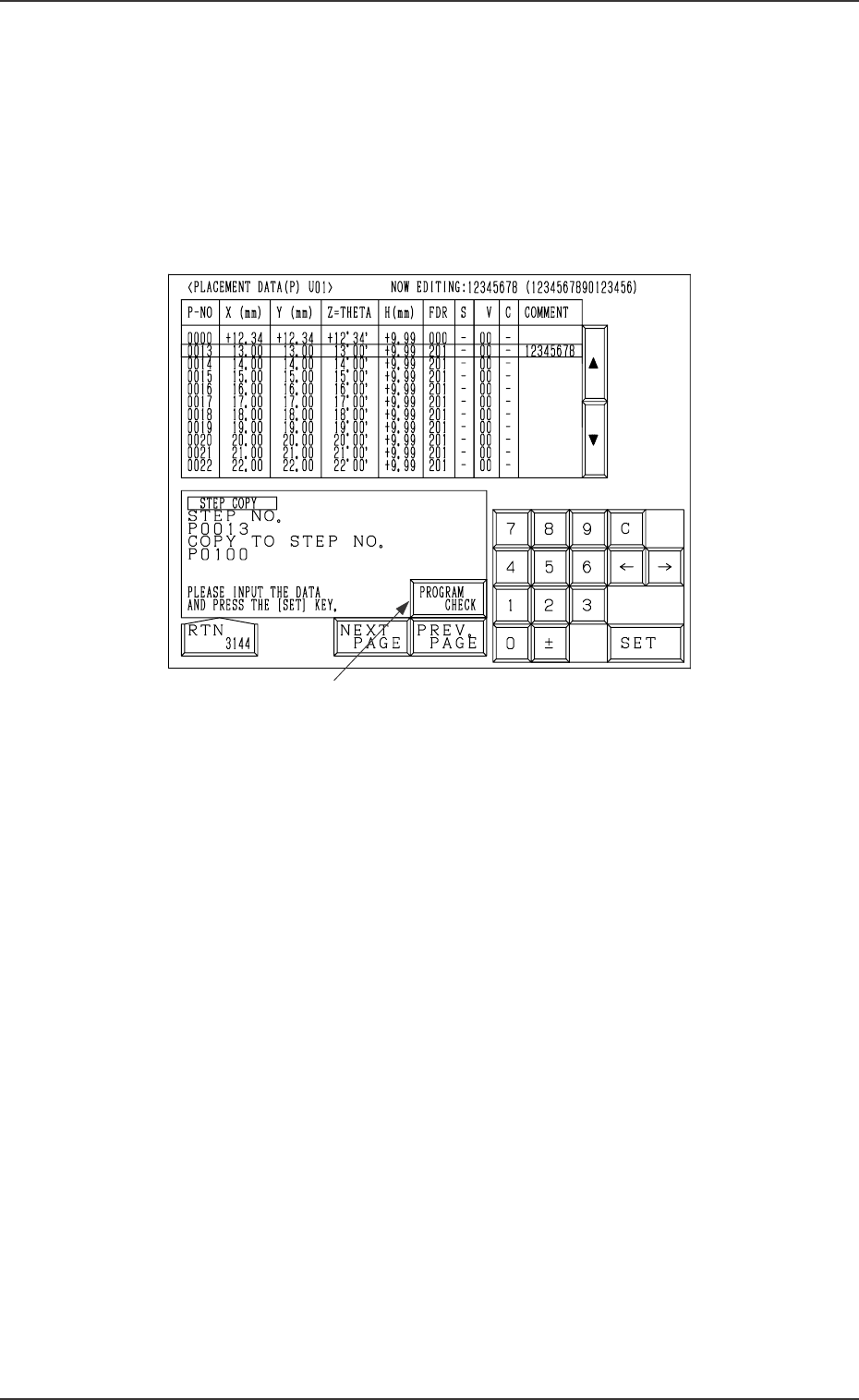
(1) When the [STEP COPY] key is pressed at the “PLACEMENT DATA
(P) U01” display (Fig. 2B168 or Fig. 2B169), the following display ap-
pears on the screen.
Pressing the [STEP COPY] key at the “PLACEMENT DATA
(O) U01” or the “PLACEMENT DATA (V) U01” display follows
the similar hierarchical sequence.
Fig. 2B172
(2) Move the line cursor to the step No. of the data to be copied.
(3) Enter the destination step No., using the ten-key pad and press the [SET]
key.
The parameters of the step No. (selected by the line cursor) are copied to
the text line of the destination step No.
The destination step No. appears under step No. 0000 and the subse-
quent Nos. follow.
0305-001 Tg0858-PM-PM2-121
4.6 PLACEMENT DATA (P) Display
Example: Copying the data in Step No. 0013 to set it as the pa-
rameters in Step No. 0100
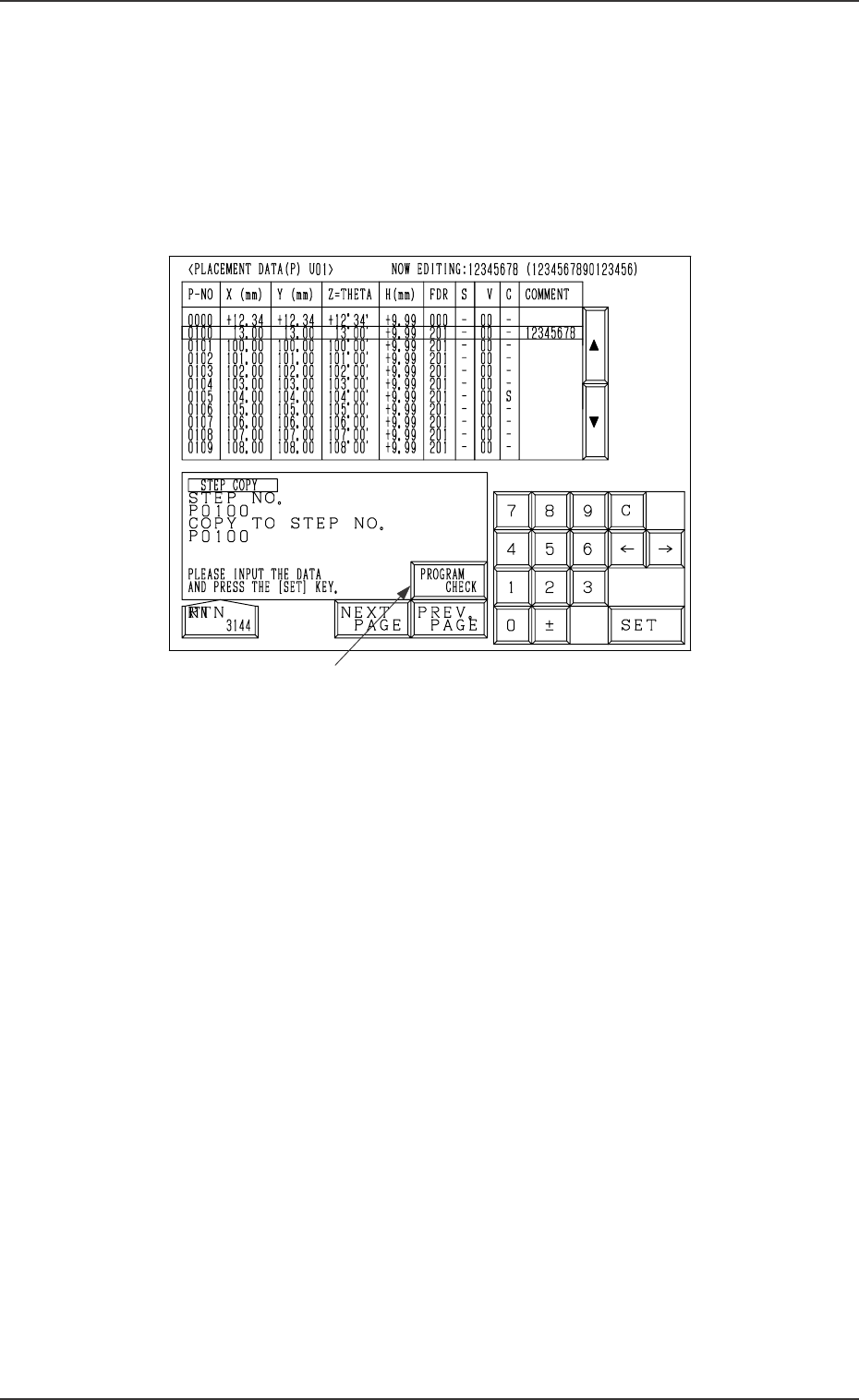
(1) Open the “PLACEMENT DATA (P) U01” display (Fig. 2B172).
Move the line cursor to the P0013 step.
(2) Enter “0100”, using the ten-key pad and press the [SET] key.
The data is copied and appears as the parameters in Step No. 0100 under
Step No. 0000 as shown in the following figure.
Fig. 2B173
Ref.: When the [PROGRAM CHECK] key *1 is pressed, the current pat-
tern program is checked.
*1
0305-001 Tg0858-PM-PM
*1
4.6 PLACEMENT DATA (P) Display
4.6.5 Special Operation (Step Move) for Placement Data
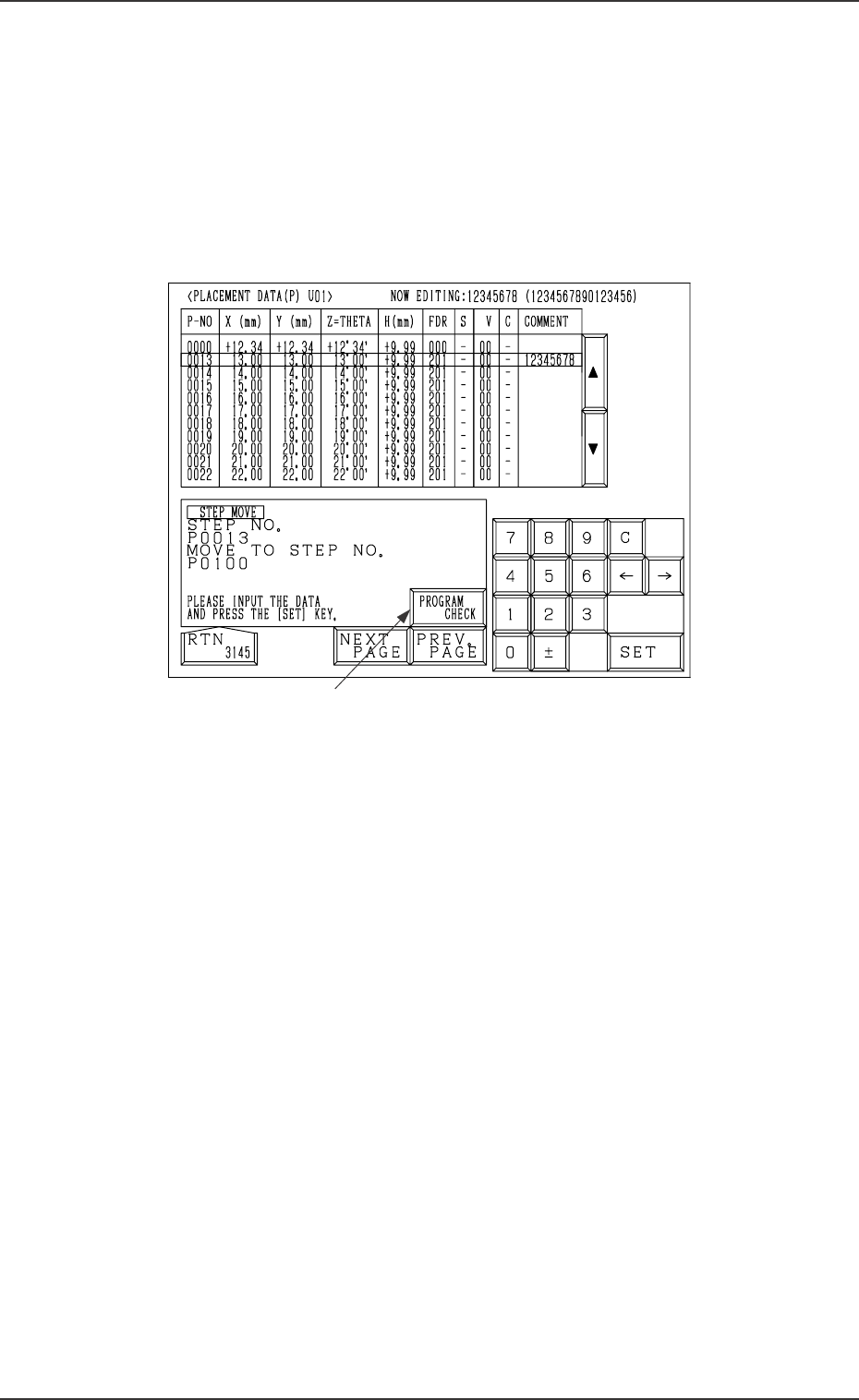
(1) When the [STEP MOVE] key is pressed at the “PLACEMENT DATA
(P) U01” display (Fig. 2B168 or Fig. 2B169), the following display ap-
pears on the screen.
Pressing the [STEP MOVE] key at the “PLACEMENT DATA
(O) U01” or the “PLACEMENT DATA (V) U01” display follows
the similar hierarchical sequence.
Fig. 2B174
(2) Move the line cursor to the step No. of the data to be moved.
(3) Enter the destination step No., using the ten-key pad and press the [SET]
key.
The parameters of the step No. (selected by the line cursor) are moved to
the text line of the destination step No.
The destination step No. appears under step No. 0000 and the subse-
quent Nos. follow.
2-122