4H4CEOM1.pdf - 第90页
Page 3-12 Production Settings 3-2-7 T ray Counter Y ou can check or change the first pick-up position for the next production. • Select the tray feeder you will check or change. • T oggle the display . Set Adrs: Displays…
Page 3-11
FUNCTIONS
3
Production Settings
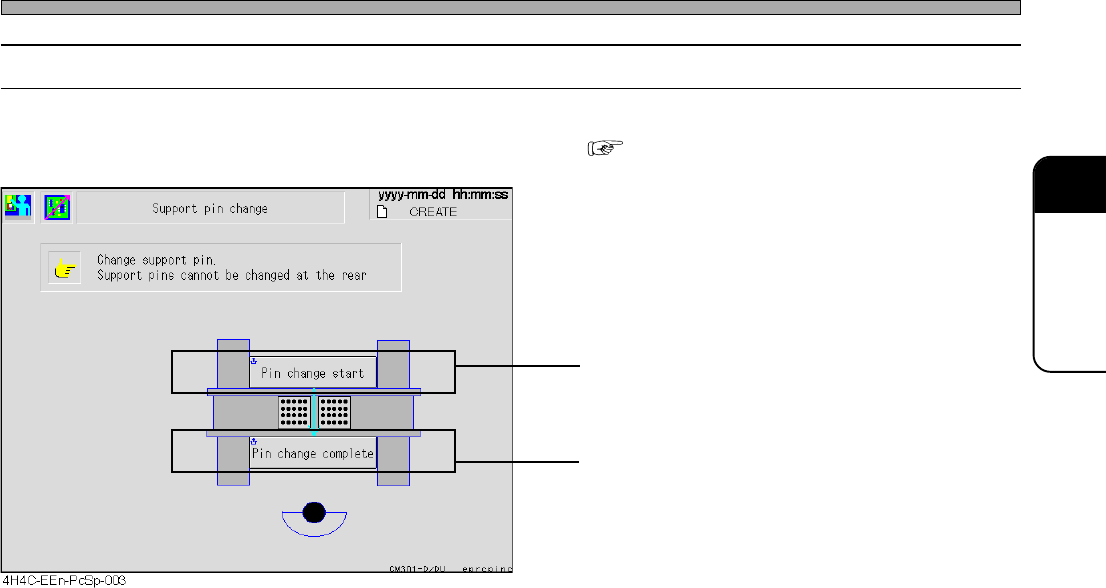
3-2-6 Changing Support Pins
This part describes changing support pins together with board support blocks.
• Detailed information about how to change them “9-3 Setting the Support Pin”
• Board support blocks rise up so that you can
draw out them.
• Board support blocks lower.
4H4C-E-OMA03-A01-03
Page 3-12
Production Settings
3-2-7 Tray Counter
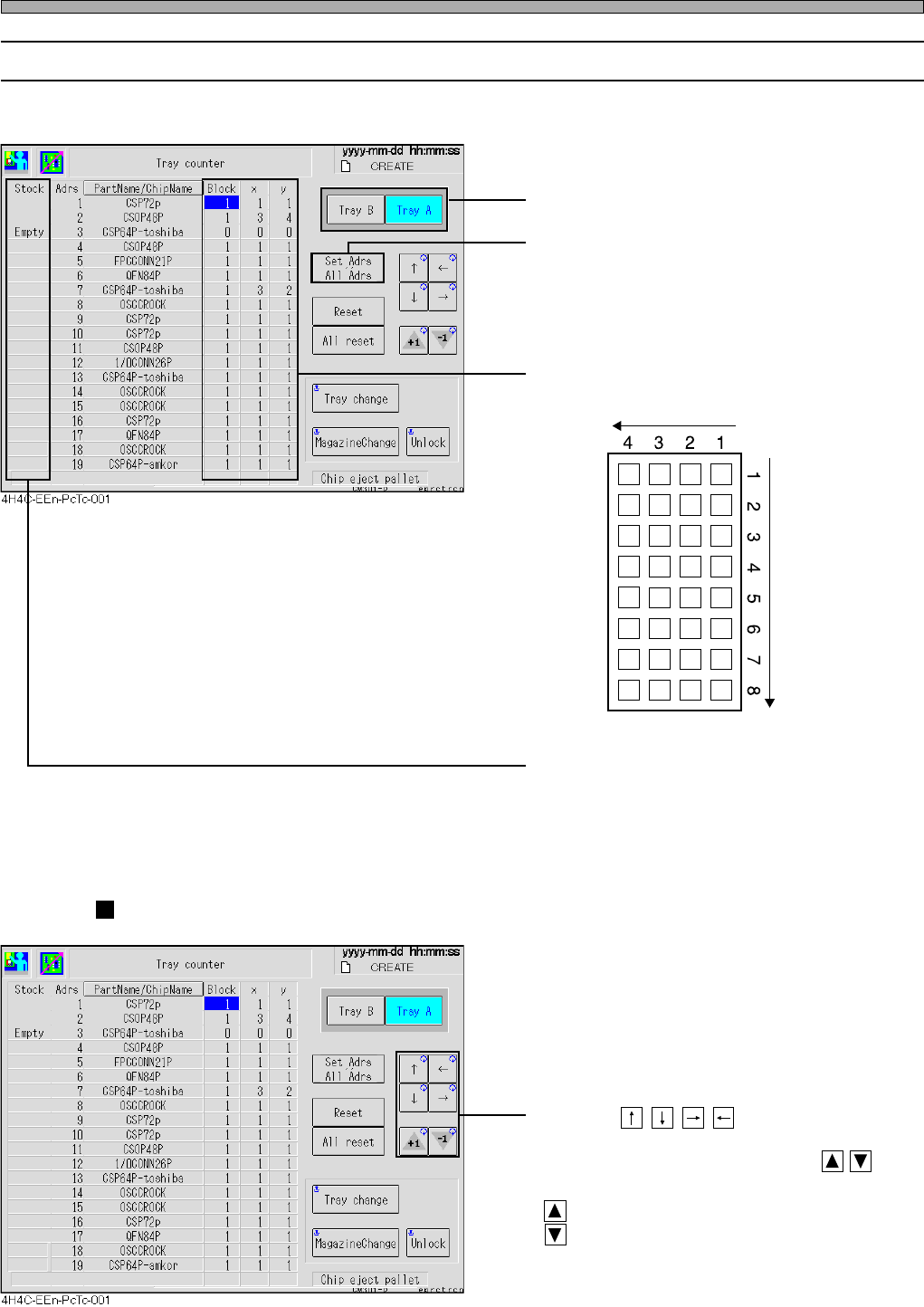
You can check or change the first pick-up position for the next production.
• Select the tray feeder you will check or change.
• Toggle the display.
Set Adrs: Displays only the addresses which
have the chips that are registered in
stock data.
All Adrs: Displays all addresses.
• Displays the next pick-up position for each tray
as an X-Y arrangement.
•“Empty” is displayed at the head of the chip
address where production cannot be continued
due to the lack of chips.
Changing the Pick-up Start Position
• Pressing moves a cursor to the
field of the arrangement of the tray whose
position will be changed. Pressing
changes the value.
: Increases the value by one.
: Decreases the value by one.
4H4C-E-OMA03-A01-01
433C-044E
x
y
Tray Origin
Page 3-13
FUNCTIONS
3
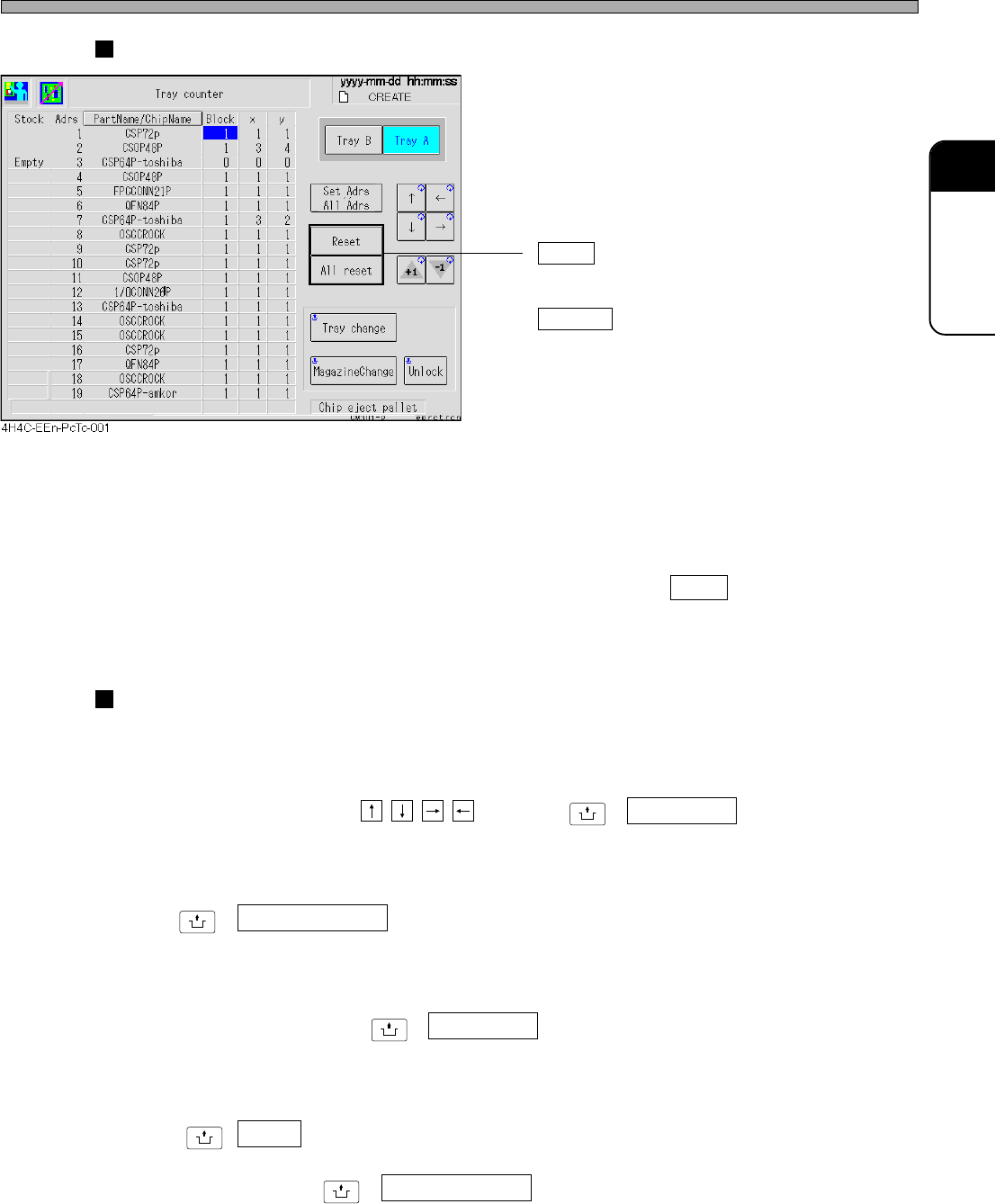
Reset/All Reset
• Reset
Sets the pick-up start position of the address
pointed by a cursor to (X = 1 , Y = 1).
All reset
Sets all addresses to (X = 1 , Y = 1).
∗ Also the defective chip eject pallet will be reset
to the initial position.
Resetting the defective chip eject pallet
Once a defective chip is ejected on some position, the next one is ejected on the next position
because the machine memorizes the position where the chip has already been ejected so that this
chip will not be piled on that chip.
After removing the chips on the pallet, press “Chip eject pallet” then Reset to delete this memory.
Next time, the chip are ejected on from the first position onward again.
Changing Parts
a) Changing Tray
Draws out the specified tray pallet to the supply position.
Select the desired tray using , and press
UNLOCK
+ Tray change .
b) Changing Magazine
Used when changing tray magazines.
Press
UNLOCK
+ MagazineChange .
c) Changing Defective Chip Eject Pallets
Draws out the defective chip eject pallet to the supply position.
Press “Chip eject pallet” then
UNLOCK
+ Tray change .
d) Unlocking Magazine Door
Unlocks the magazine door.
Press
UNLOCK
+ Unlock .
∗ If each axis of the tray is not at the magazine changeable position, the door can not be unlocked.
In such a case, press
UNLOCK
+ MagazineChange first .
Production Settings
4H4C-E-OMA03-A01-01