00193631-0602.pdf - 第100页
7 Entering the addresses of the masterdrive s Adjustment Instructions MTC 2 7.1 Masterdrives 12/2007 Edition 100 User registration -->Click button "Next". choose your target dr ive, on which your wish to…
Adjustment Instructions MTC 2 7 Entering the addresses of the masterdrives
12/2007 Edition 7.1 Masterdrives
99
r
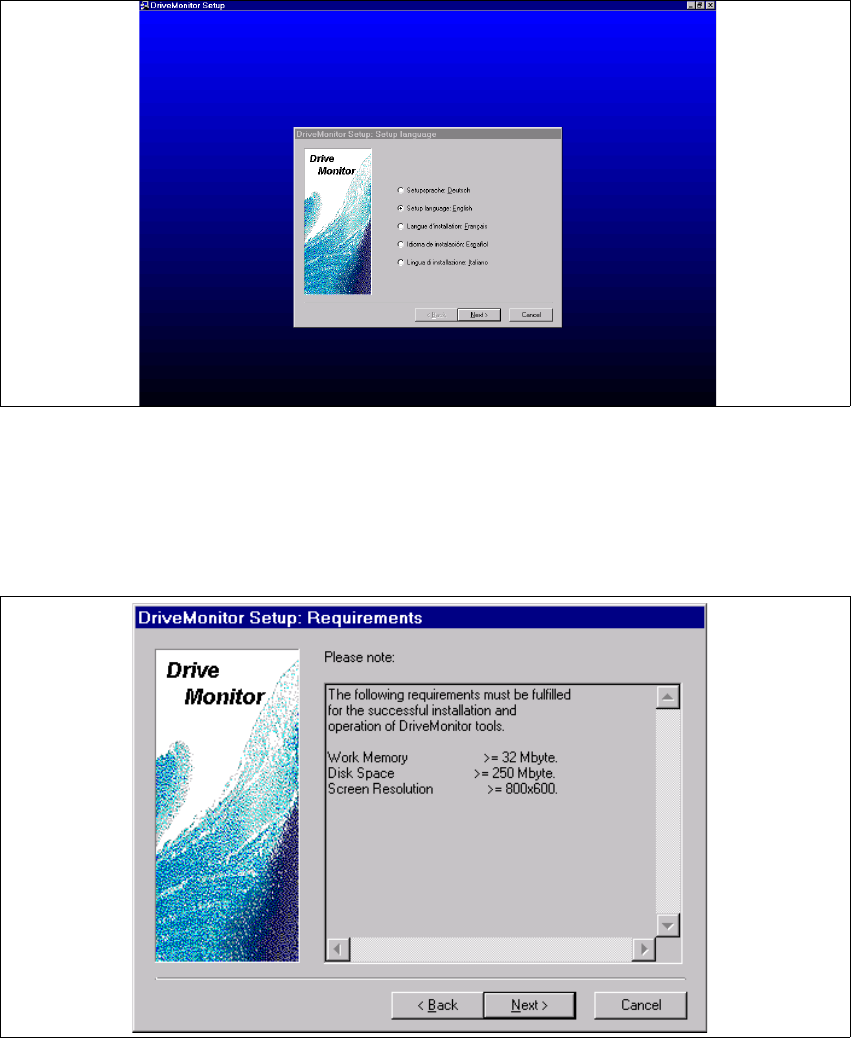
Fig. 1.1 - 5 select language
Click the button "Next".
Click the button "Next"again.
agree the software licence "YES" .
Fig. 1.1 - 6 Computer requirements
Click the button "Next".
7 Entering the addresses of the masterdrives Adjustment Instructions MTC 2
7.1 Masterdrives 12/2007 Edition
100
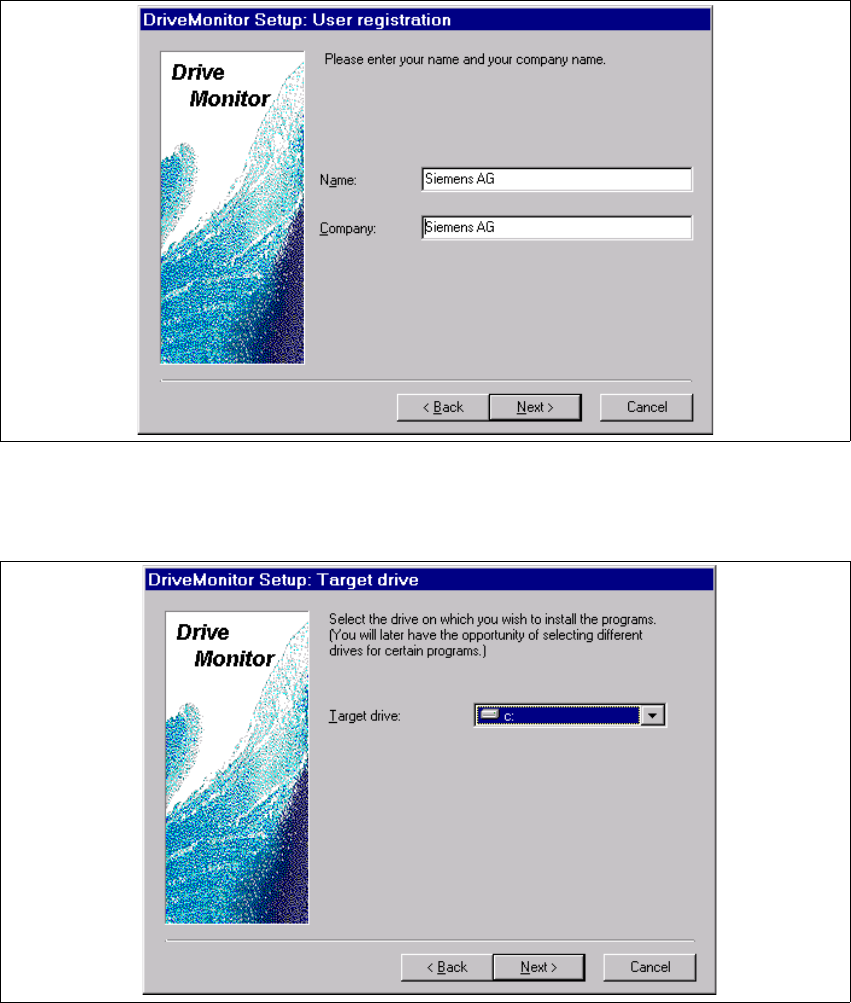
User registration -->Click button "Next".
choose your target drive, on which your wish to install the program.
Click button "Next".
Adjustment Instructions MTC 2 7 Entering the addresses of the masterdrives
12/2007 Edition 7.1 Masterdrives
101
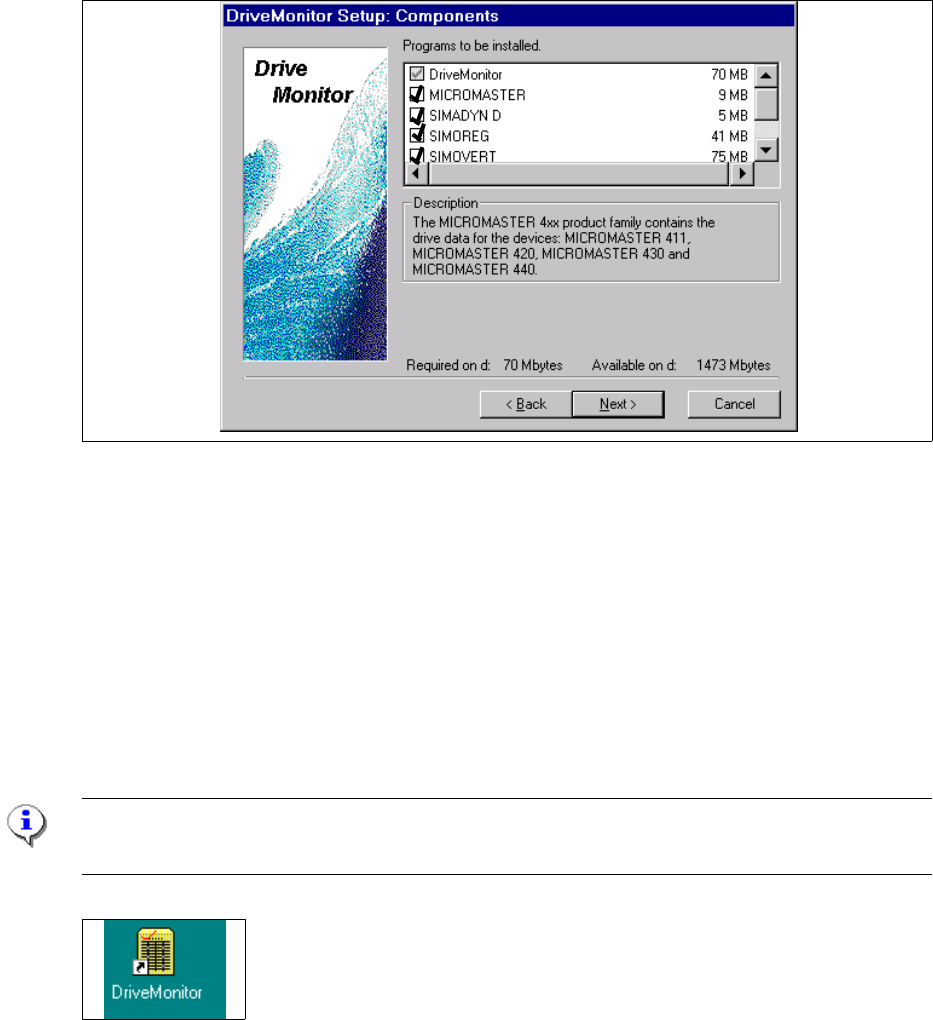
Choose all software parts from the Software "Drive Monitor".
Clicken the button "Next".
Software installation will be started.
Shutdown the computer and start again.
Start Drive Monitor
Connect the cabel (serial interface) between the Masterdrives and Servicenotebook.
Note:
During the installation, the software create an ikon on the desktop.
Double click Ikon "Drive Monitor"