00193631-0602.pdf - 第104页
7 Entering the addresses of the masterdrive s Adjustment Instructions MTC 2 7.1 Masterdrives 12/2007 Edition 104 Fig. 1.1 - 7 Upload parameter set
Adjustment Instructions MTC 2 7 Entering the addresses of the masterdrives
12/2007 Edition 7.1 Masterdrives
103
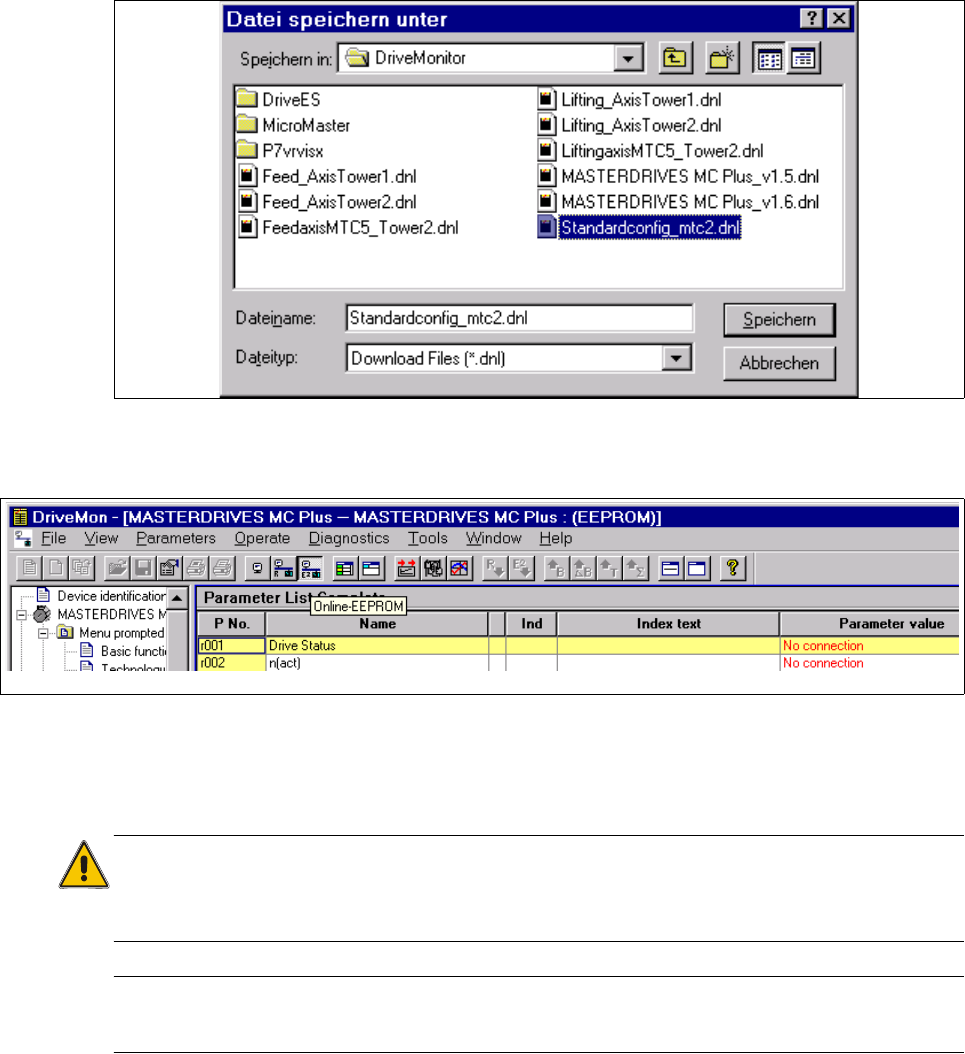
Click the button "SAVE"
Select "Online EEPROM"
When the settings for the serial interface correct you are connected directly with the drive now.
Caution:
All parameters which you change now will be send to the drive directly and they are immediately
active.
The serial interface could you check in the SW drive monitor under
"TOOLS" --> "ONLINE SETTINGS".
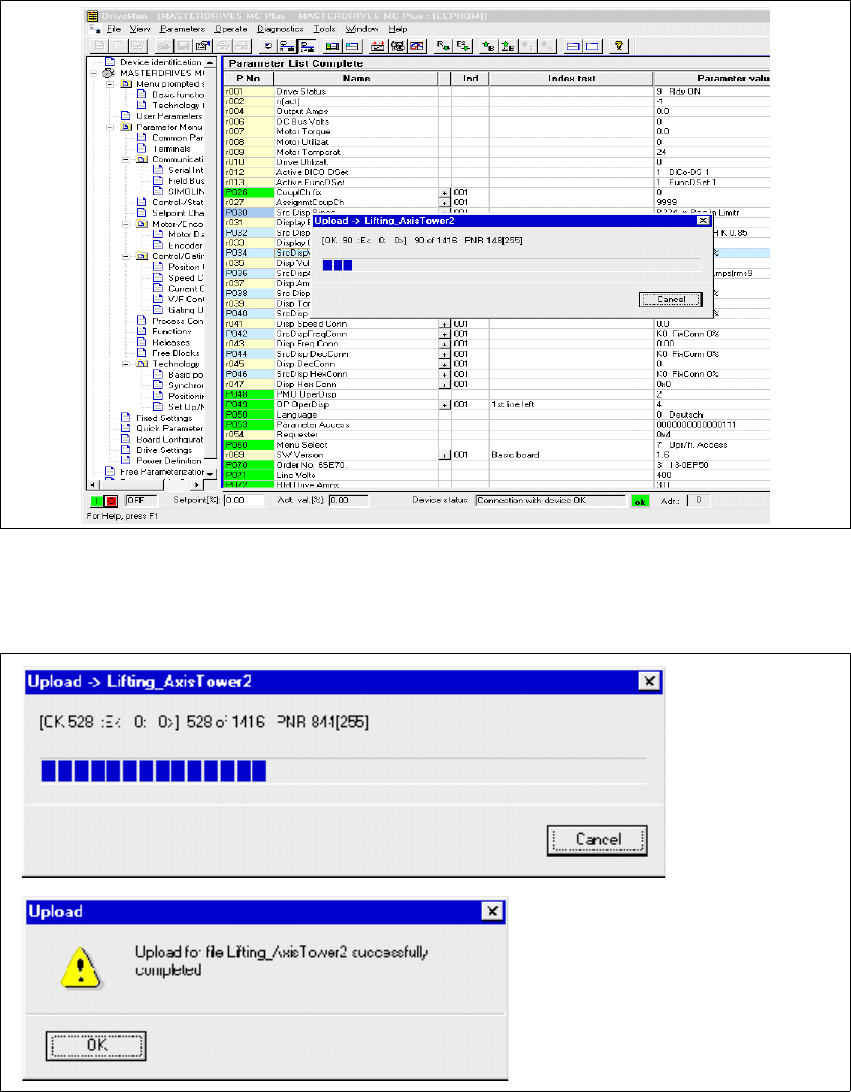
Upload Parameter set: (Storage the parameter set)
Choose "File" --> "UPLOAD" --> "BASIC DEVICE COMPLETE"
Save the parameter set under a name which make sense, for example feed axis tower 1 and
additionally the serial number of the MTC2.
7 Entering the addresses of the masterdrives Adjustment Instructions MTC 2
7.1 Masterdrives 12/2007 Edition
104
Fig. 1.1 - 7 Upload parameter set
Adjustment Instructions MTC 2 7 Entering the addresses of the masterdrives
12/2007 Edition 7.1 Masterdrives
105
Download parameter set:
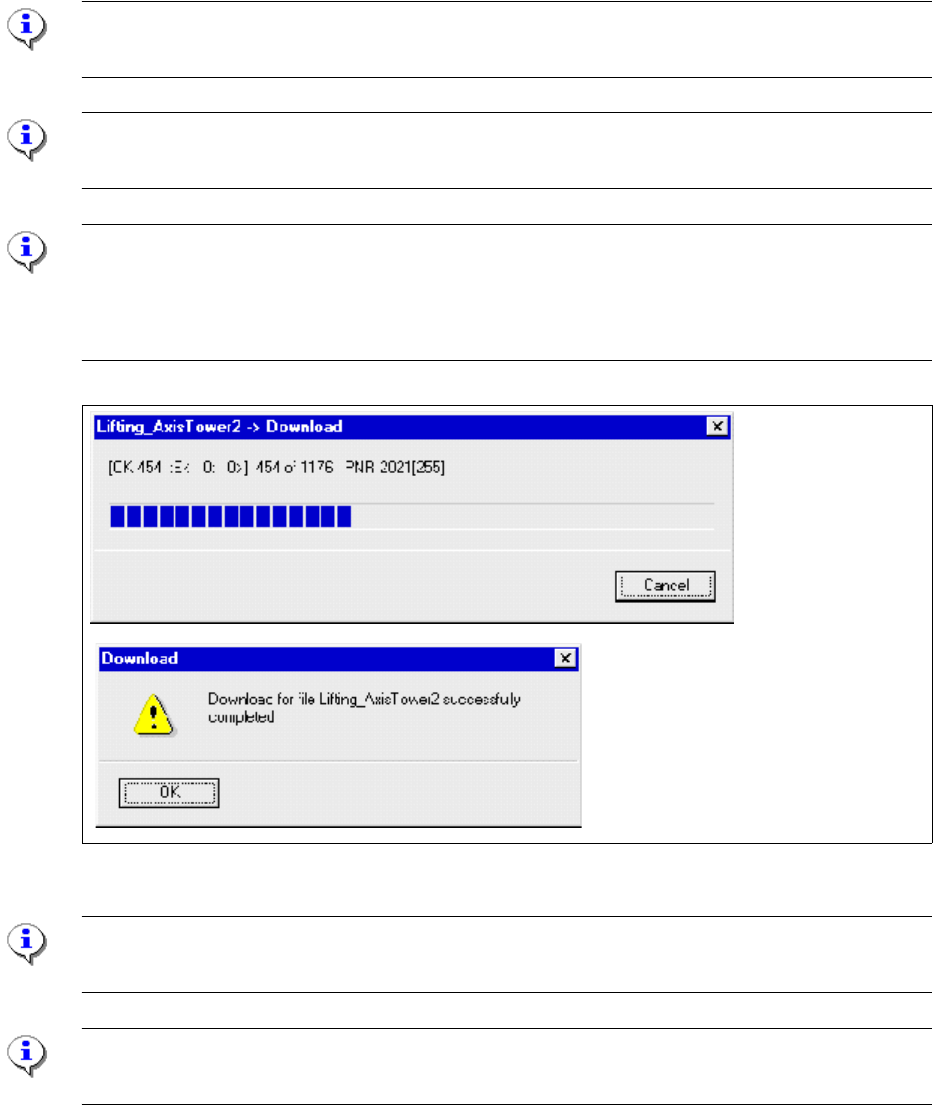
Select "File" --> "DOWNLOAD" --> "Save (EEPROM)"
Switch OFF and ON the MTC and start the reference run.
Note:
Before you start the download, the master drive should be reset to factory defaults (see 7.1.3)
Note:
The axis concerned must not be subject to position control!
TIP
There are two ways of deactivating position control:
- Open the door of the MTC.
- Switch the MTC on and do not perform a reference run.
Fig. 1.1 - 8 Download Parametersatz
Note:
Save om EEPROM!
Note:
When errors are counted in the field E:(Error), abort the download immediately and try again.