00193631-0602.pdf - 第102页
7 Entering the addresses of the masterdrive s Adjustment Instructions MTC 2 7.1 Masterdrives 12/2007 Edition 102 Create a new file based on factory settings, stan dar dconfig.dnl (see pictur e above), this include the …
Adjustment Instructions MTC 2 7 Entering the addresses of the masterdrives
12/2007 Edition 7.1 Masterdrives
101
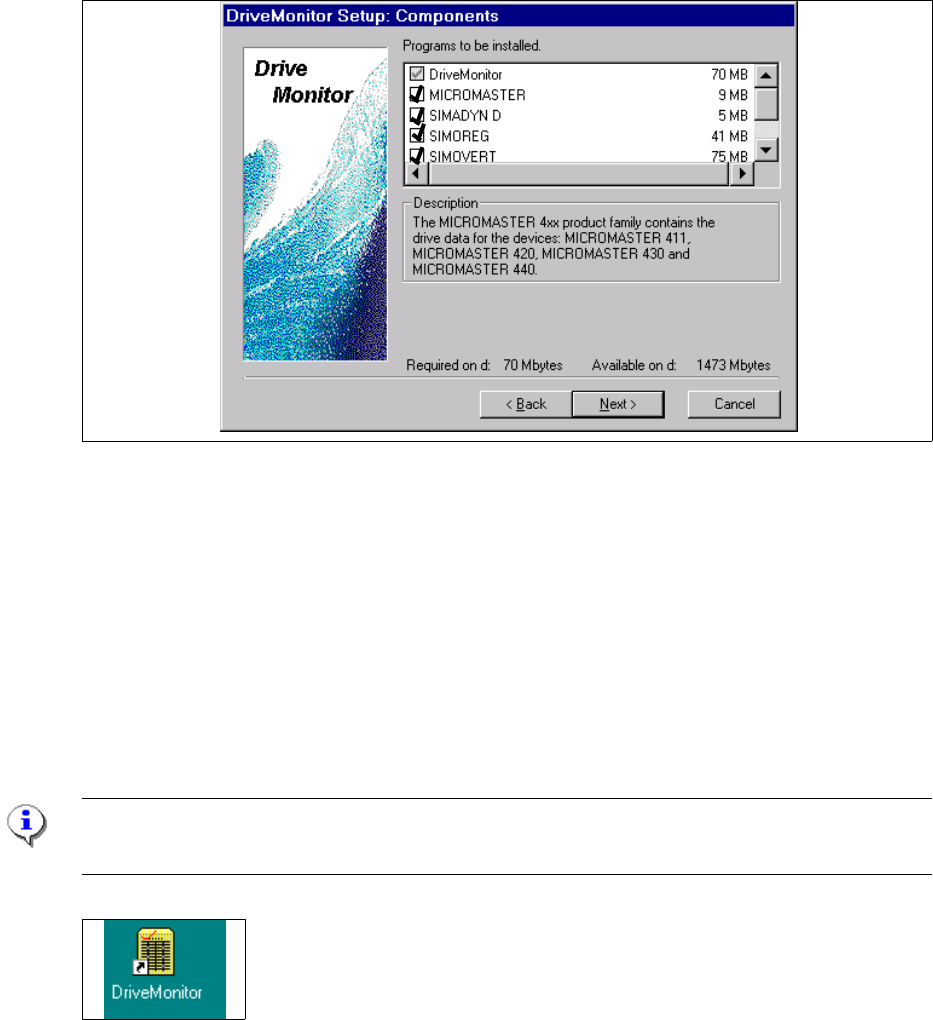
Choose all software parts from the Software "Drive Monitor".
Clicken the button "Next".
Software installation will be started.
Shutdown the computer and start again.
Start Drive Monitor
Connect the cabel (serial interface) between the Masterdrives and Servicenotebook.
Note:
During the installation, the software create an ikon on the desktop.
Double click Ikon "Drive Monitor"
7 Entering the addresses of the masterdrives Adjustment Instructions MTC 2
7.1 Masterdrives 12/2007 Edition
102
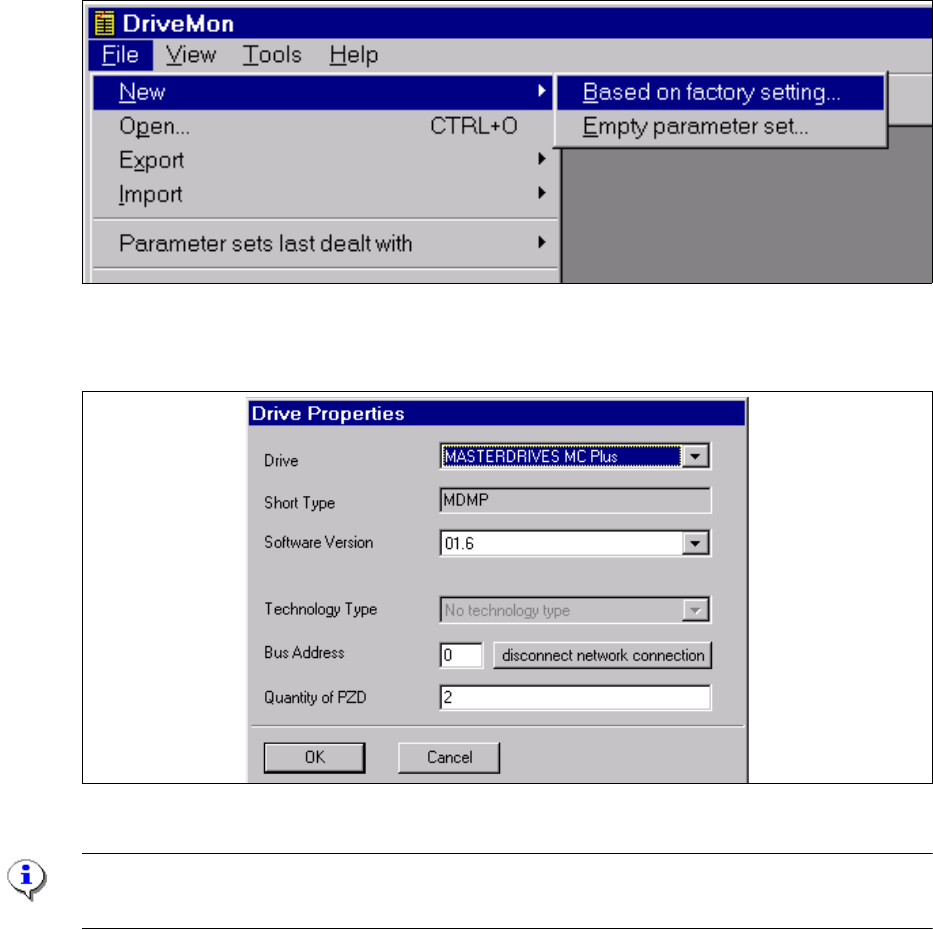
Create a new file based on factory settings, standardconfig.dnl (see picture above), this include
the parameter see picture below.
Choose the drive "Masterdrive MC Plus" and the software for MTC2 it is 1.6.
Note:
Software for the MTC 1 is 1.5!
Click the button "OK".
Adjustment Instructions MTC 2 7 Entering the addresses of the masterdrives
12/2007 Edition 7.1 Masterdrives
103
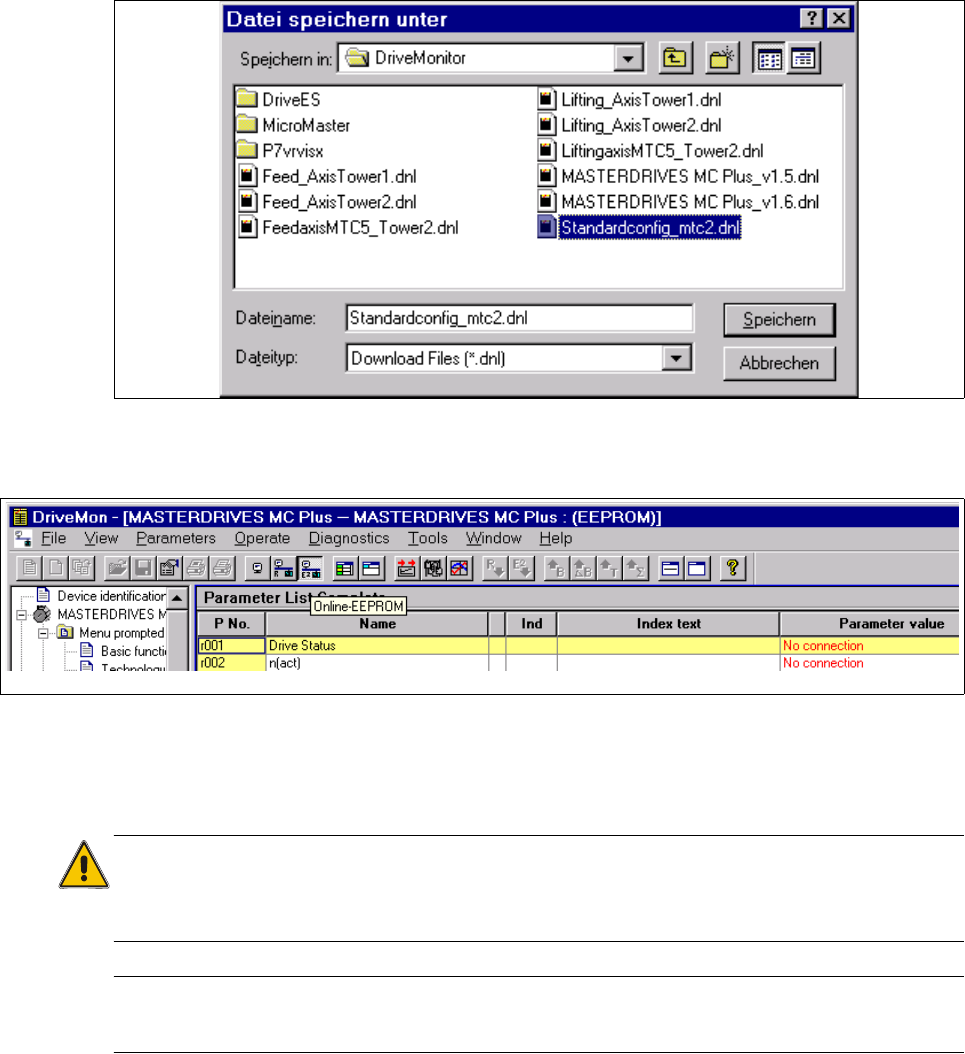
Click the button "SAVE"
Select "Online EEPROM"
When the settings for the serial interface correct you are connected directly with the drive now.
Caution:
All parameters which you change now will be send to the drive directly and they are immediately
active.
The serial interface could you check in the SW drive monitor under
"TOOLS" --> "ONLINE SETTINGS".
Upload Parameter set: (Storage the parameter set)
Choose "File" --> "UPLOAD" --> "BASIC DEVICE COMPLETE"
Save the parameter set under a name which make sense, for example feed axis tower 1 and
additionally the serial number of the MTC2.