80S-20用户手册.pdf - 第287页
SIPLACE 80S -20/F4 User Manual 6 Vision functions Software version SR.407.xx 01/2001 US Edition 6.6 Test Component 287 6.6.3.1 Camera T ype O ption NOTE 6 The butto ns for sel ecting the different cam era types can on ly…
6 Vision functions SIPLACE 80S-20/F4 User Manual
6.6 Test Component Software version SR.407.xx 01/2001 US Edition
286
The Load GF data button will, for example, only be active if you have previously clicked on a
package form in the lists field.
The Save GF data button will only be active if you have changed the package form parameters.
You can switch from the ’Test component ’ menu to the Main menu at any time in order to start
actions such as "Fill track" etc. The settings in the ’Test component’ menu will be retained, which
means that the same conditions will be set up when you return to the ’Test component’ menu. 6
However, if you have changed the fiducial data or taught a new fiducial, and then switch from the
Main menu to the ’Test component’, ’Single functions’, ’SITEST’ or ’Continue placement’ menu,
the ’Save fiducial data’ selection box will appear when you leave the ’Teach fiducial’ option. You
can then either save the modified or new data or delete it. 6
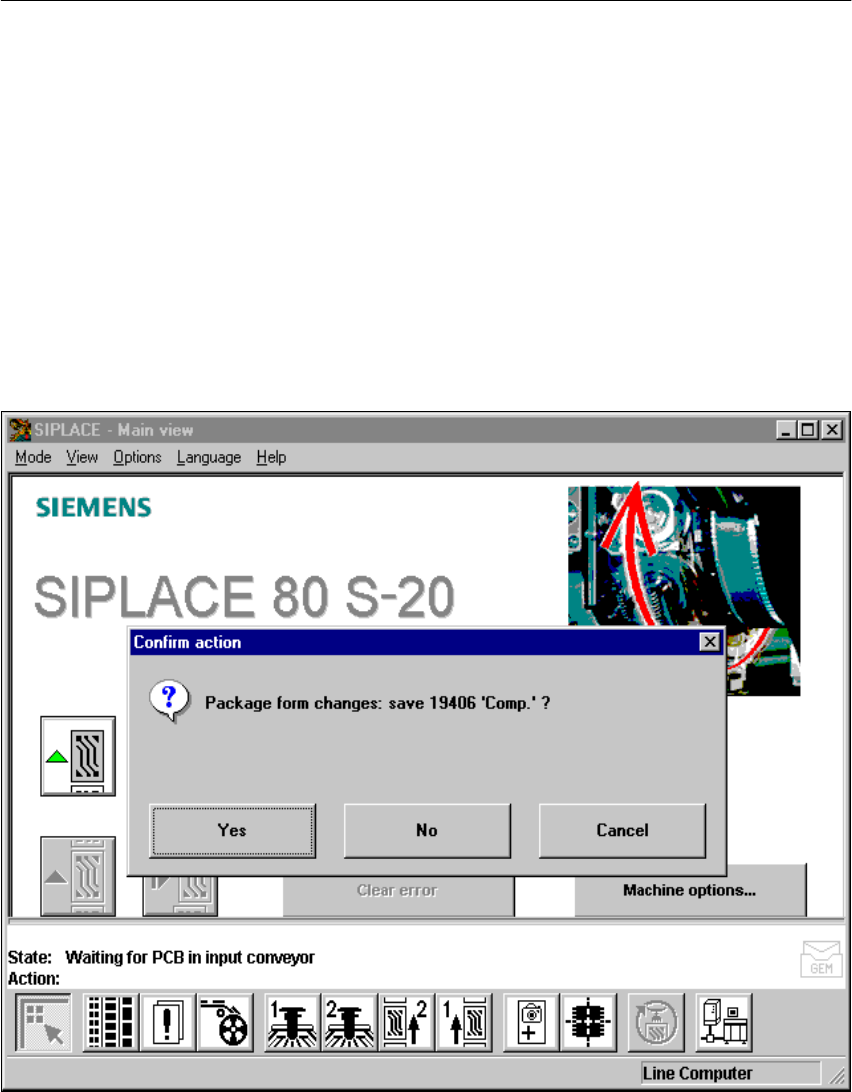
By selecting the Save GF data option you cause the station computer to send the package form
data to the line computer, where it is saved. The modified package form data is updated in the
remaining stations as well. The next time a cluster is loaded the modified GF data is sent to all
stations in the line. 6
6
Fig. 6.6 - 10 Save GF data option box
SIPLACE 80S-20/F4 User Manual 6 Vision functions
Software version SR.407.xx 01/2001 US Edition 6.6 Test Component
287
6.6.3.1 Camera Type Option
NOTE 6
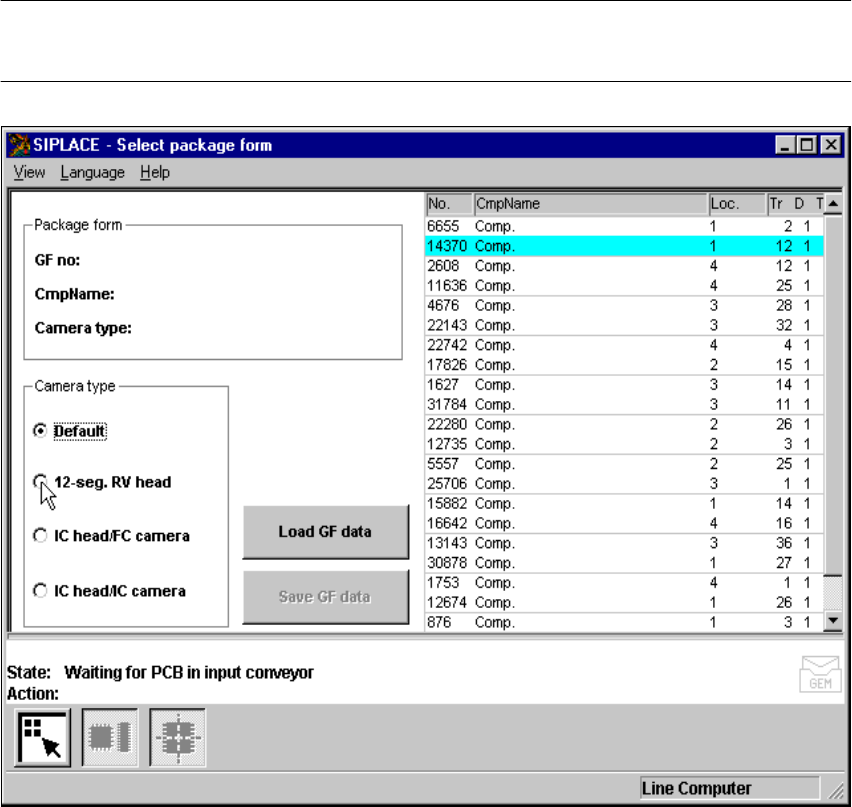
The buttons for selecting the different camera types can only be used with the F
machines.
6
Fig. 6.6 - 11 Select package form menu, Camera type option
Å Select the camera type if the component is to be centered with another camera type, in addition
to the default camera.
6
6 Vision functions SIPLACE 80S-20/F4 User Manual
6.6 Test Component Software version SR.407.xx 01/2001 US Edition
288
6.6.3.2 Load GF data Option
NOTE 6
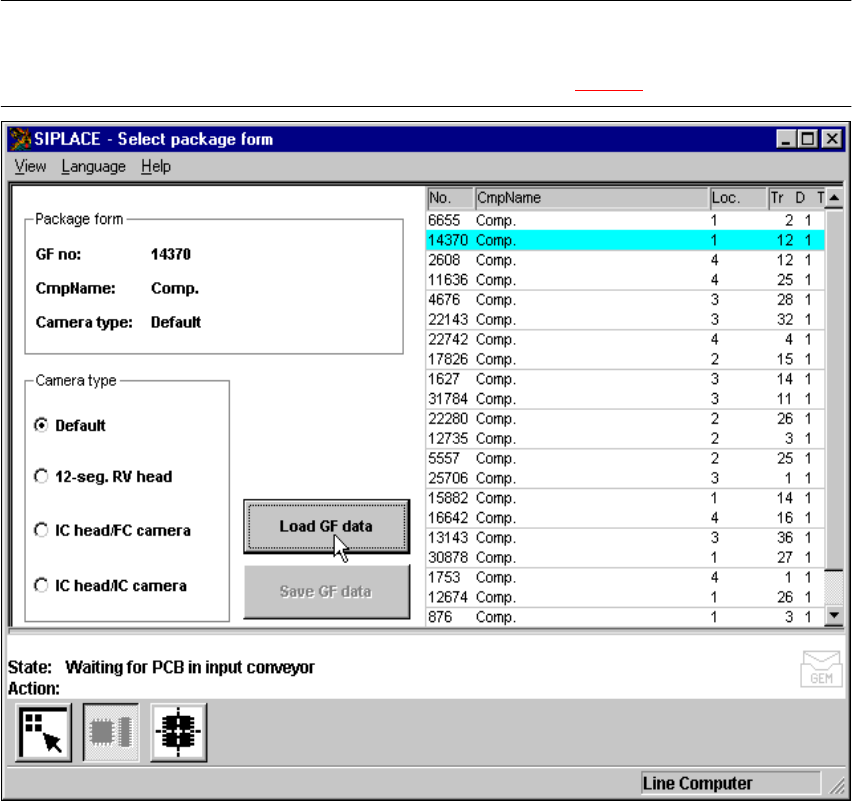
When you call the Load GF data option, first of all the Save GF data box will drop down, pro-
vided that you have already processed a package form (see Fig. 6.6 - 10).
Fig. 6.6 - 12 Select package form menu, Load GF data package
If you wish to save your data, the package form file will be transmitted to the line computer. Fol-
lowing this inquiry the component which has just been processed will be rejected and the package
form number list updated. 6
Å From the list field use the mouse pointer to select a particular package form. The selected
package form will appear against a cyan-colored bar.
Å Click on the Load GF data button. In the Package form display field the package form and the
package form will be displayed.
The station computer will request the package form data of the selected package form from the
line computer. The interpreter edits the data and generates the teaching command. With this com-
mand the edited package form data is loaded into the MVS system (vision analysis unit). 6