80S-20用户手册.pdf - 第473页
SIPLACE 80S-20/F4 User Manual 11 Station extensions /Hardware Software version SR.407.xx 01/2001 US Edition 11.2 Component barcode 473 PLEA SE NOT E: 11 If one of the barcode digits is ass igned a wil d card (s tar *), t…
11 Station extensions /Hardware SIPLACE 80S-20/F4 User Manual
11.2 Component barcode Software version SR.407.xx 01/2001 US Edition
472
Components 11
Data is read from the component reels in order to compare the stock of components with the quan-
tity required in the set-up file (refill check), for example. 11
An audible signal is given to confirm that each dataset has been read successfully. 11
PLEASE NOTE 11
The component barcode reader option must be configured on the line computer.
Barcodes that start with number 1 or 2, and are less than 5 characters long, are interpreted as
track barcodes. All other barcodes (that do not start with number 1 or 2, and are more than 5 char-
acters long) are interpreted as component barcodes. 11
11.2.2 Notes on operation
– The barcode reader must be connected.
– The barcode must be entered on the line computer for every component.
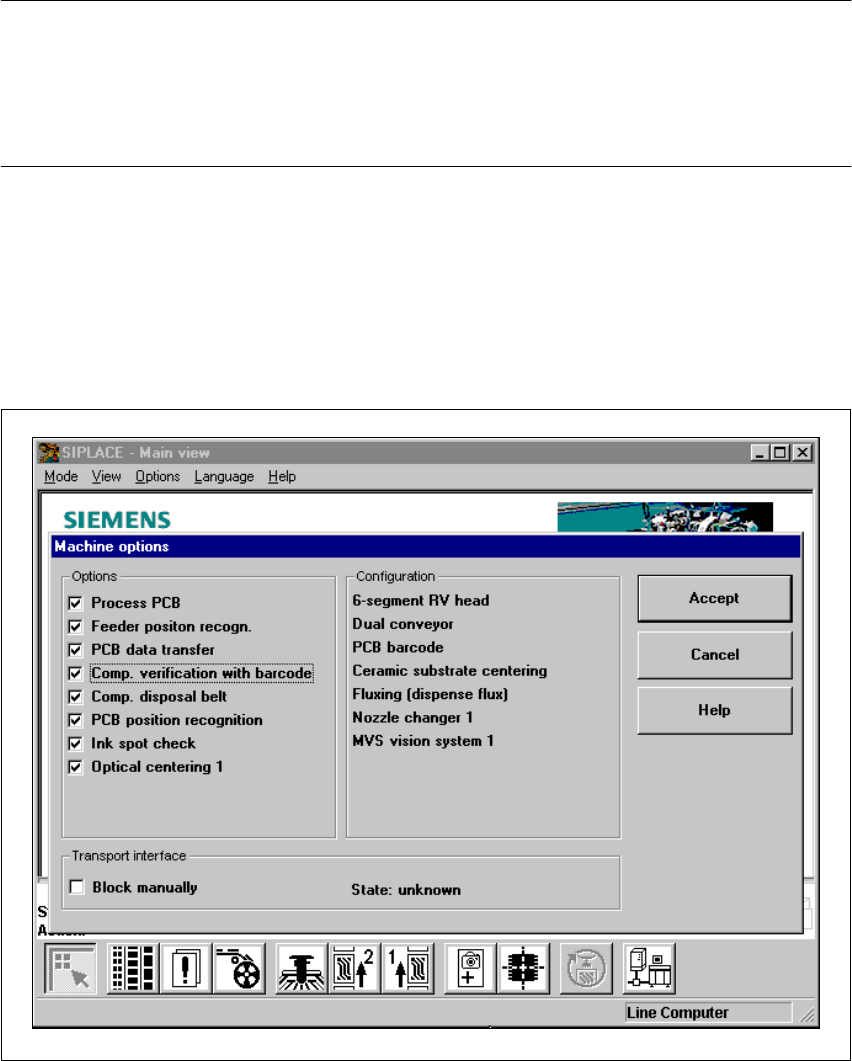
Å To do this, select the “Set-up check with barcode” function from the Machine options menu.
Fig. 11.2 - 2 Set-up check with barcode

SIPLACE 80S-20/F4 User Manual 11 Station extensions /Hardware
Software version SR.407.xx 01/2001 US Edition 11.2 Component barcode
473
PLEASE NOTE: 11
If one of the barcode digits is assigned a wild card (star *), this digit will not be evaluated. This filter
is used to suppress certain data in the barcode, such as the date or company name. 11
– Once you have activated the component barcode on the line computer, and selected “Set-up
check with barcode” from the machine options at the station, “Refill location” and “Refill track
with barcode” functions can no longer be used manually.
– A manual “Refill” can still be used on tracks with components without barcodes, even if the refill
check is switched on.
Procedure if the barcode cannot be read: 11
Å Switch off the refill check in the machine options.
Å Enter the barcode manually.
11
11
11.2.3 Operation
Å Select the “Empty tracks” view from the Set-up menu.
Å Use the barcode reader to read the desired track barcode.
If the track is present in the set-up, and the component has a barcode, the “Set-up check with
barcode” dialog will appear, specifying the track concerned.
PLEASE NOTE 11
You can open the dialog by clicking on the desired track or by clicking on the “Set-up check
with barcode” button. 11
Once the return barcode has been compared and read successfully, the track can be refilled. 11
11 Station extensions /Hardware SIPLACE 80S-20/F4 User Manual
11.2 Component barcode Software version SR.407.xx 01/2001 US Edition
474
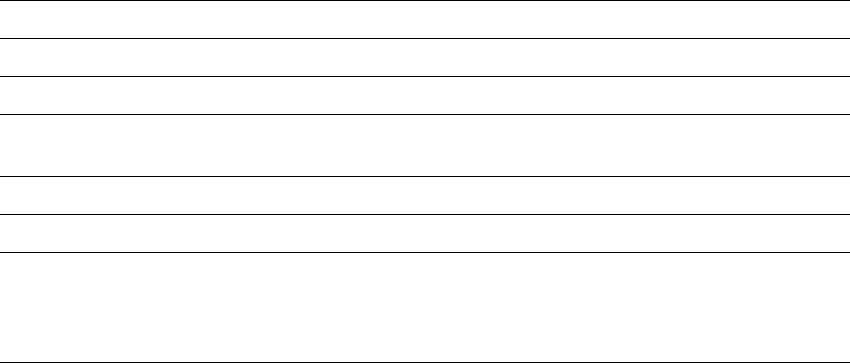
11.2.4 Technical data
Connection Station computer
Data entry Via barcode scanner or keyboard
Number of characters Up to 40
Not permissible
Barcode starts with number 1 or 2, and is less than
5 characters long
Number of barcodes Up to 6 per component
Filter for suppressing data Up to 1 per barcode
Preset code types
Code 39 (standard or ASCII)
Code 2 of 5, interleaved and normal
Code 128, UPC/EAN/JAN codes
(others available upon request)