80S-20用户手册.pdf - 第419页
SIPLACE 80S -20/F4 User Manual 9 Online help s ystem Software version SR.407.xx 01/2001 US Edition 9.1 General 419 9.1.1.5 Calli ng general st ation computer informat ion Å In the Help menu, cl ick the About ... ite m. T…

9 Online help system SIPLACE 80S-20/F4 User Manual
9.1 General Software version SR.407.xx 01/2001 US Edition
418
9.1.1.4 Calling help on use of the Windows help system
Å In the Help menu, click the Help About Help item.
The Windows help window is now displayed with the three tabs "Contents", "Index" and "Find".
– Contents tab The help topics are displayed sorted by category.
– Index tab A list of the index entries for the help topics is displayed.
– Find tab You can search for words or expressions which are present in the
help topics.
9
Å For example, click the Index tab.
The topics relating to the use of the help system are displayed.
Å Select the required topic from the list (e.g. "Bookmark Define") or enter the first few characters
of the required topic name in the edit field (e.g. "Bookm"). The topic is now selected in the list.
Å Click the Display button.
Help on the selected topic is displayed in a separate window.
9
NOTE
For a detailed description of the functions of the Windows help system and how to use them, please
refer to the corresponding Windows manual or Windows online help. 9
SIPLACE 80S-20/F4 User Manual 9 Online help system
Software version SR.407.xx 01/2001 US Edition 9.1 General
419
9.1.1.5 Calling general station computer information
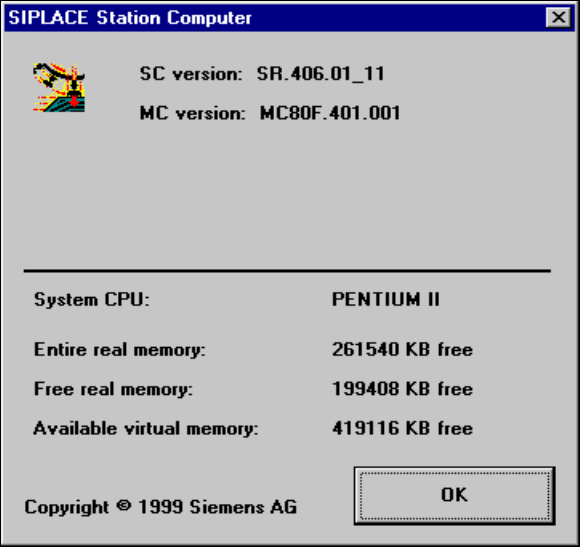
Å In the Help menu, click the About ... item.
The following window is opened.
This displays the version designations of the SC, MC and GEM software currently installed on
the station computer together with general station computer data
Fig. 9.1 - 5 Information on the station computer
9 Online help system SIPLACE 80S-20/F4 User Manual
9.1 General Software version SR.407.xx 01/2001 US Edition
420
9.1.1.6 Calling help on an object
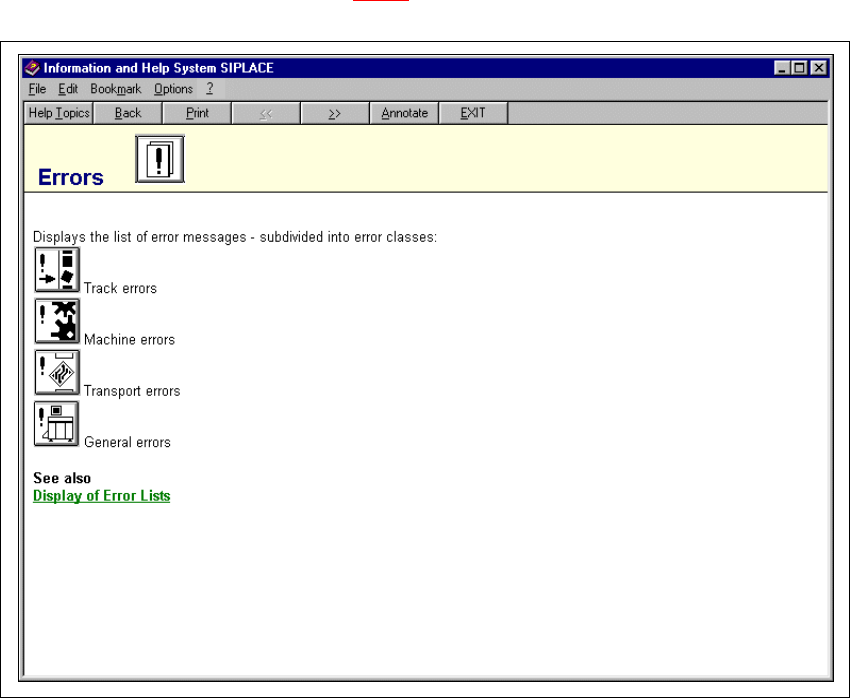
Å Press the key combination Shift + F1 in the currently active view of the SC user interface. A
question mark is displayed next to the mouse pointer
Å Move the mouse pointer and question mark to the required object (e.g. to the "Display errors"
icon) and then click.
The main help system window is opened. The display area contains help information on the
selected object (see example in Fig. 9.1 - 6
).
9
Fig. 9.1 - 6 Example: Help on the "Display errors" icon
9