80S-20用户手册.pdf - 第400页
8 Error information and diagnostics SIPLACE 80S-20 /F4 User Manual 8.4 Diagnostics Sof tware version SR.407.xx 01/2001 US Edition 400 8.4 Diagnostics 8.4.1 Gener al comme nt s If errors occur w hile the b oard is being p…

SIPLACE 80S-20/F4 User Manual 8 Error information and diagnostics
Software version SR.407.xx 01/2001 US Edition 8.3 Clearing errors
399
8.3 Clearing errors
Once an error has been eliminated, it must be cleared. This is not necessary in the case of errors
which cause a machine stoppage since they are automatically cleared when assembly is
resumed. 8
Once cleared, the error message is no longer displayed in the status bar. However, it is still
entered in the error table for the corresponding error type (see example in Fig. 8.2 - 2
). 8
8
Å After eliminating the current error, click the Clear error button in main view. The error message
is removed from the status bar and assembly can be continued.
8
8 Error information and diagnostics SIPLACE 80S-20/F4 User Manual
8.4 Diagnostics Software version SR.407.xx 01/2001 US Edition
400
8.4 Diagnostics
8.4.1 General comments
If errors occur while the board is being processed, a diagnostics program can be started for this
error. You can start this diagnostics facility either from the main view or from Display error. 8
This diagnostics facility will guide you as far as identifying a possible cause for the error and
suggesting a remedy. This is done by means of a series of questions. Information on the questions
asked can be accessed by pressing an information button. 8
8.4.2 Basic operation
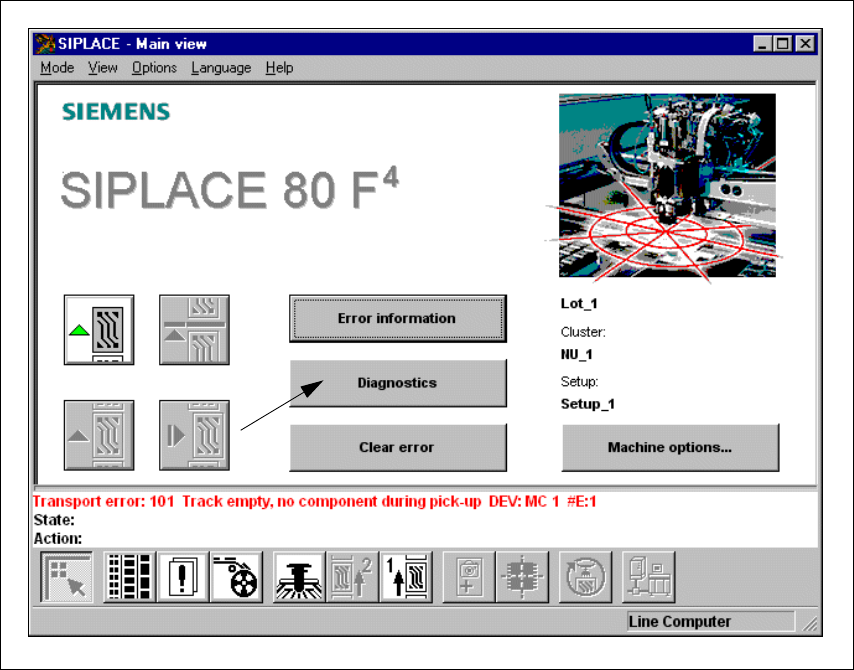
If an error should occur during processing of the board, this error will be displayed in the status
window. 8
Å Click on the Diagnostics button.
Fig. 8.4 - 1 Diagnostics for error message no. 101
SIPLACE 80S-20/F4 User Manual 8 Error information and diagnostics
Software version SR.407.xx 01/2001 US Edition 8.4 Diagnostics
401
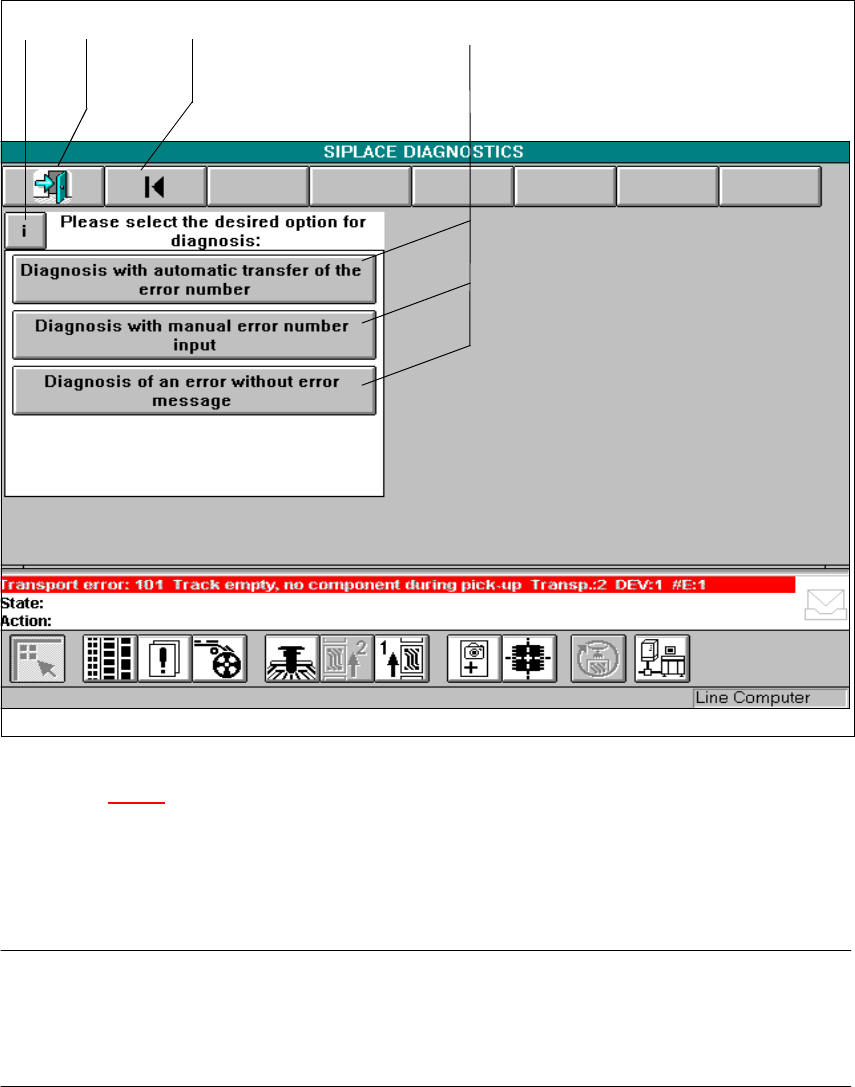
Å The diagnostics main screen is displayed on the station software screen.
Fig. 8.4 - 2 Diagnostics main screen
Key to Fig. 8.4 - 2
1 Information button 2 Finish diagnostics
3 Return to diagnostics main screen 4 Diagnostics buttons
8
NOTE
The symbol and status bars of the station software main menu remain displayed on the screen
and you can change to this view.
If you wish to return to diagnostics, press the Diagnostics button again. 8