Oxford-100-Manual.pdf - 第192页
Plasma lab and lonfab Oxford Instruments Plasma Technology System Manual (6) The 'About Norton Ghost' screen is displayed; click on the OK button. (7) The selection Menu is displayed. Move the mouse pointer ove…
System
Manual
Oxford
Instruments
Plasma
Technology
Plasma
lab
and
lonfab
3. Hard disk restore procedure
CAUTION
DO
NOT ATTEMPT
THE
FOLLOWING PROCEDURE
IN
ANY
CIRCUMSTANCES OTHER THAN TO
RESTORE
YOUR HARD DISK
DRIVE ON YOUR OIPT SYSTEM
PC.
ENSURE THAT
THE
OIPT
PC
SERIAL NUMBER ON
THE
PC
MATCHES
THE
PC
SERIAL NUMBER ON
YOUR 'RESTORE'
DVD
AND
THE
'RESTORE' FLOPPY DISK.
NOTE:
The
following
procedure
can
be
carried
out
without
the
system
PC
connected
to
the
OIPT system.
(1)
Obtain
a replacement hard drive.
(EIDE
with
a capacity equal
to
or
greater
than
that
of
the
original
hard drive.)
(2)
Physically install
the
hard
drive
into
the
PC.
(Follow
the
hard
drive
manufacturer's
instructions.)
(3) Place
the
'Restore'
floppy
disk
into
Drive A.
(4) Power
up
the
PC
and
immediately
open
the
DVD drive, place
the
'Restore' DVD
onto
the
DVD
drive's
tray
and
then
close
the
DVD drive. The hard
drive
should be
automatically
detected
and
the
PC
should
boot
from
the
floppy
disk.
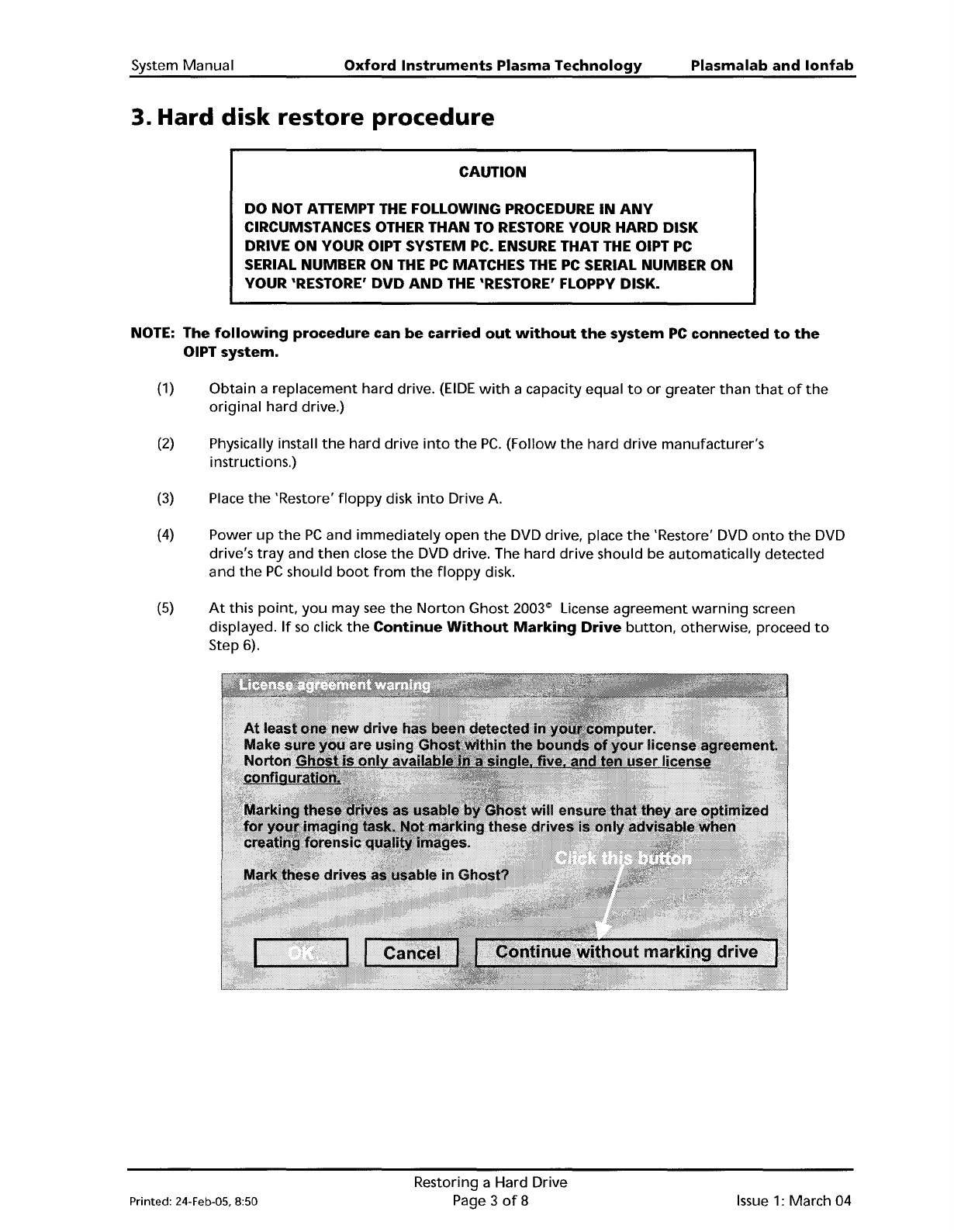
(5)
At
this
point,
you
may
see
the
Norton
Ghost 2003"' License
agreement
warning
screen
displayed.
If
so
click
the
Continue
Without
Marking
Drive
button,
otherwise, proceed
to
Step 6).
Printed: 24-Feb-05, 8:50
Restoring a Hard Drive
Page 3
of
8
Issue
1:
March 04
Plasma
lab
and
lonfab
Oxford
Instruments
Plasma
Technology
System Manual
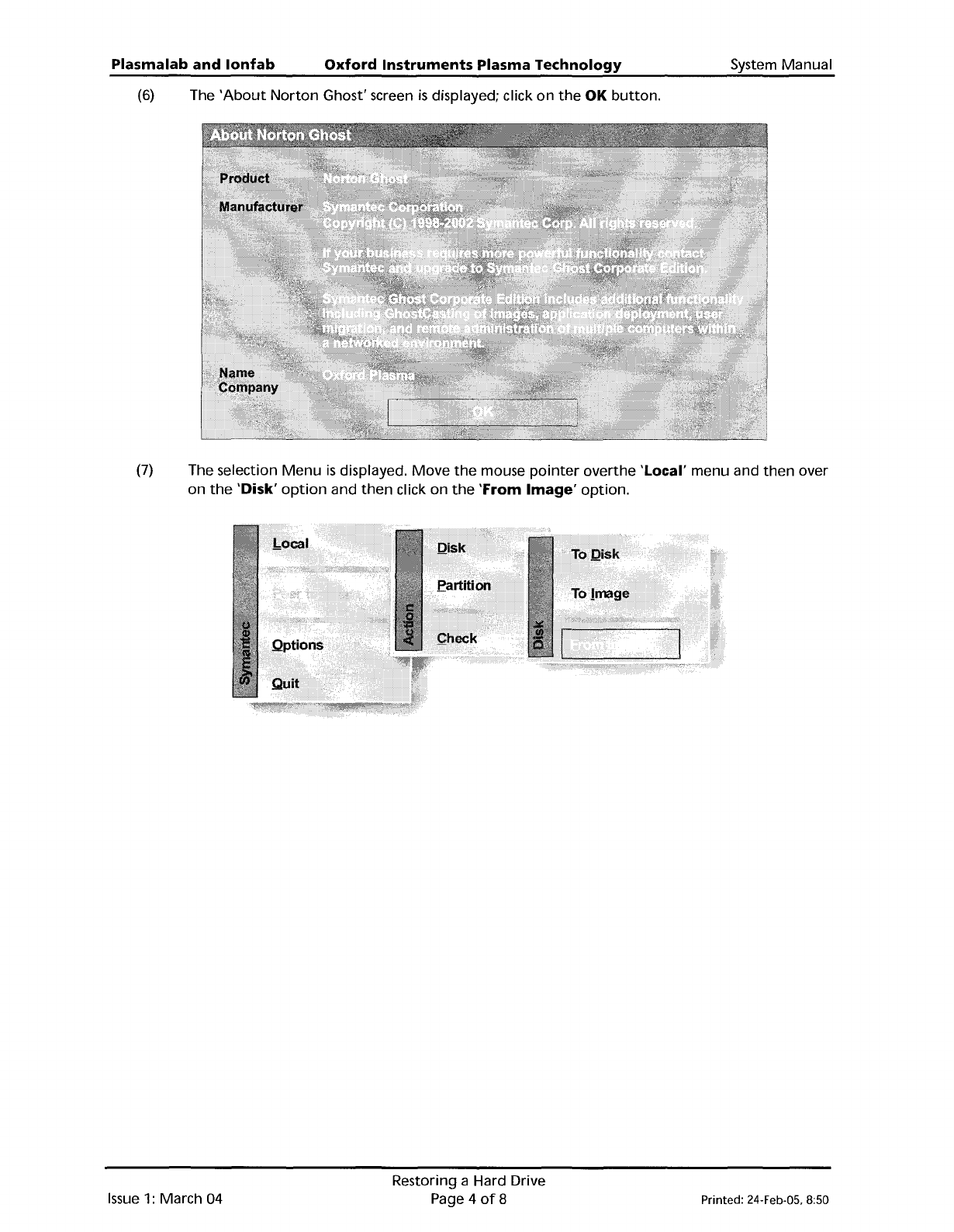
(6)
The
'About
Norton
Ghost' screen
is
displayed; click
on
the
OK
button.
(7)
The selection
Menu
is
displayed.
Move
the
mouse
pointer
overthe 'Local' menu and
then
over
on
the
'Disk'
option
and
then
click on
the
'From
Image'
option.
Issue
1:
March
04
Restoring a Hard Drive
Page 4
of
8
Printed: 24-Feb-05, 8:50
System Manual
Oxford
Instruments Plasma Technology
Plasma
lab
and
lonfab
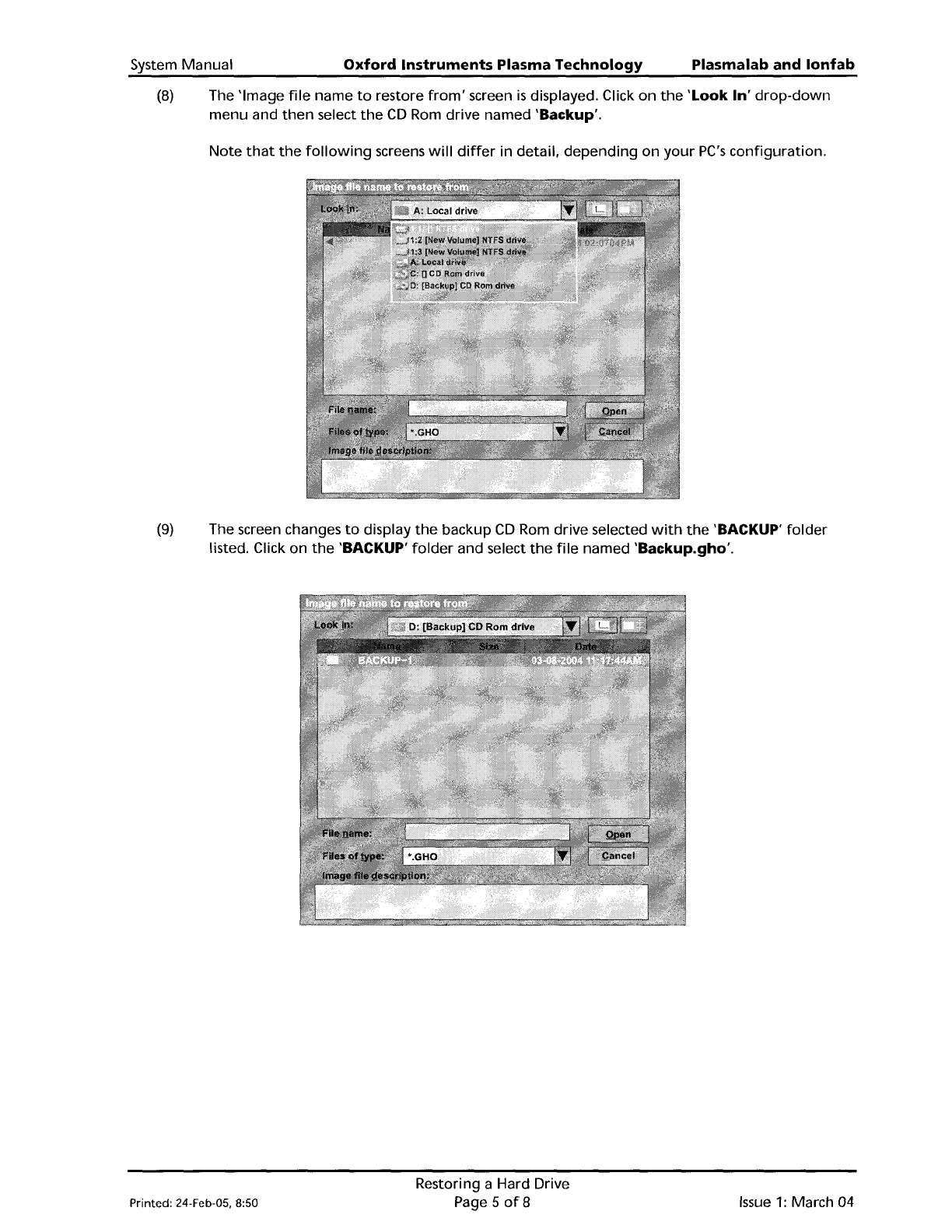
(8)
The 'Image
file
name
to
restore
from'
screen
is
displayed. Click
on
the
'Look In'
drop-down
menu and
then
select
the
CD
Rom
drive named 'Backup'.
Note
that
the
following
screens
will
differ
in detail,
depending
on
your
PC's
configuration.
(9)
The screen changes
to
display
the
backup
CD
Rom
drive selected
with
the
'BACKUP'
folder
listed. Click
on
the
'BACKUP'
folder
and select
the
file
named 'Backup.gho'.
Printed: 24-Feb-05, 8:50
Restoring a Hard Drive
Page 5
of8
Issue
1:
March
04