Oxford-100-Manual.pdf - 第78页
PlasmalabSystem 1 00 Oxford Instruments Plasma Technology Access Control System Manual Clurent User A ccess Level Enter Enter P,..sswonl 3) Select the Edit Users button. The Edit User List is displayed. John Smith TEST T…
System
Manual
Oxford
Instruments
Plasma Technology
PlasmalabSystem100
5.4.2
5)
On
the
taskbar, select
the
Start
button,
then
the
Settings
option,
then
select
Control
Panel. The
control
panel
is
displayed.
6)
Select
Power
Options. The Power
Options
Properties
dialogue
is
displayed.
7)
Ensure
that
all
power
scheme
options
are set
to
'Never'.
If
necessary, use
the
drop-
down
lists
to
select
the
'Never'
option.
8)
Click
on
the
OK
button.
9)
Close
the
control
panel.
Logging
on
To
log
on
to
the
PC
2000 software, roceed
as
follows:
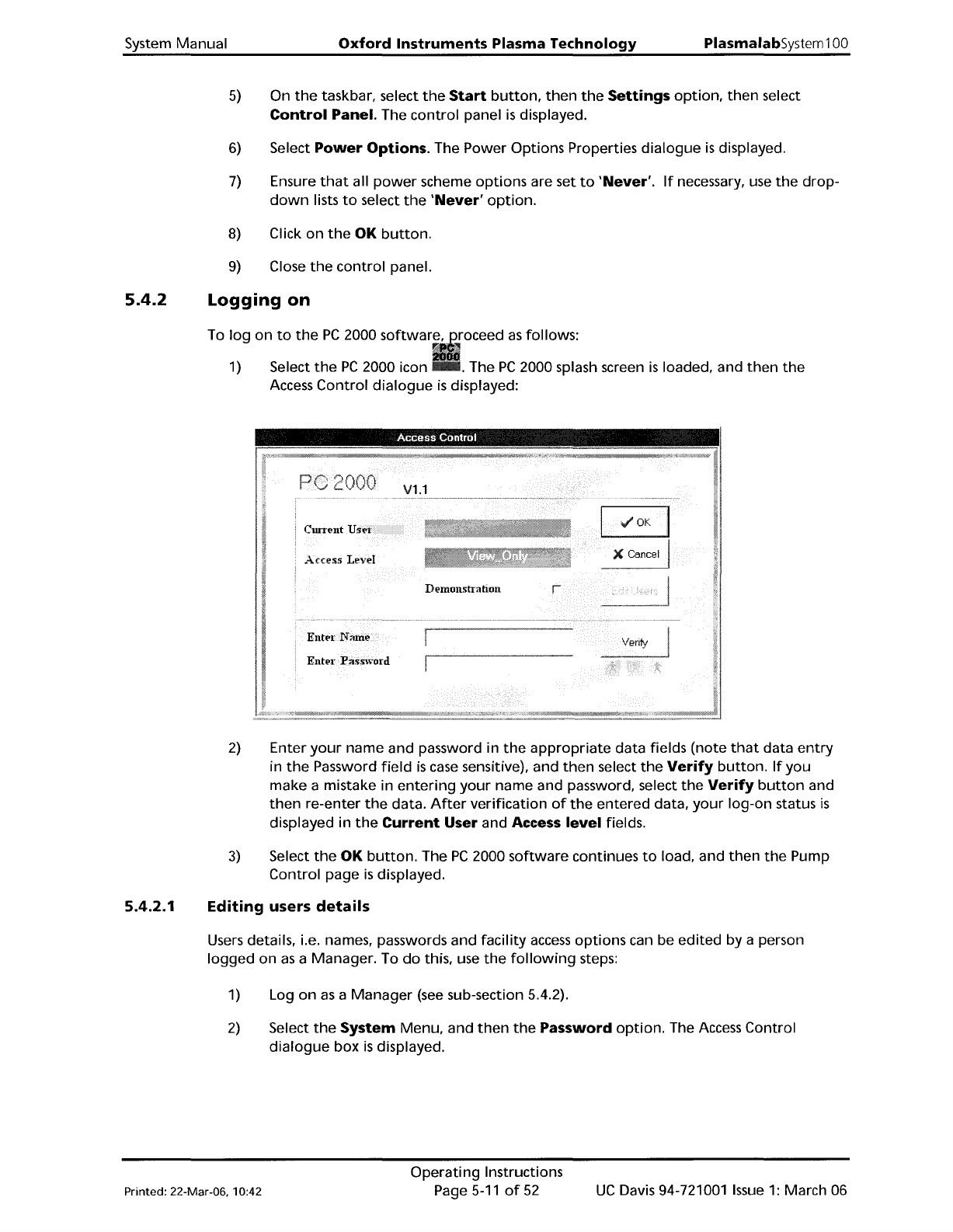
1)
Select
the
PC
2000 icon . The
PC
2000 splash screen
is
loaded, and
then
the
Access
Control
dialogue
is
displayed:
Access
Control
Demollstralioll
ClUTent
Access
Level
V1.1
5.4.2.1
2)
Enter
your
name and password in
the
appropriate
data fields
(note
that
data
entry
in
the
Password
field
is
case
sensitive), and
then
select
the
Verify
button.
If
you
make
a mistake in
entering
your
name and password, select
the
Verify
button
and
then
re-enter
the
data.
After
verification
of
the
entered data,
your
log-on
status
is
displayed in
the
Current
User and Access level fields.
3)
Select
the
OK
button.
The
PC
2000
software
continues
to
load, and
then
the
Pump
Control
page
is
displayed.
Editing
users
details
Users
details, i.e. names, passwords and
facility
access
options
can be
edited
by a person
logged
on
as
a Manager. To
do
this, use
the
following
steps:
1)
Log
on
as
a
Manager
(see
sub-section 5.4.2).
2)
Select
the
System Menu, and
then
the
Password
option.
The
Access
Control
dialogue
box
is
displayed.
Printed: 22-Mar-06. 10:42
Operating
Instructions
Page
5-11
of
52
UC
Davis 94-721001
Issue
1:
March 06
PlasmalabSystem100
Oxford
Instruments
Plasma Technology
Access
Control
System
Manual
Clurent
User
Access Level
Enter
Enter P,..sswonl
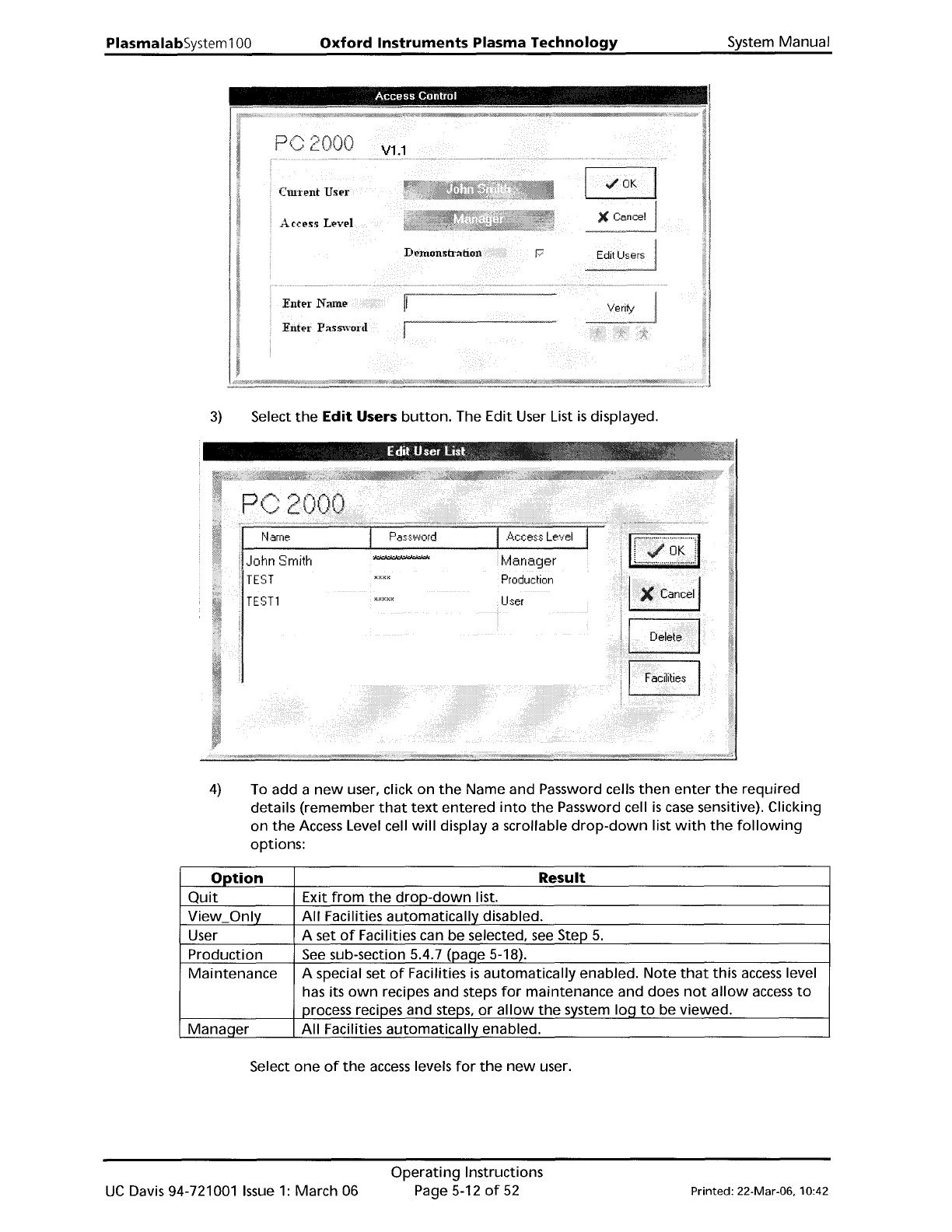
3)
Select
the
Edit
Users
button.
The Edit User List
is
displayed.
John Smith
TEST
TESTl
User
4)
To add a
new
user, click
on
the
Name and Password cells
then
enter
the
required
details (remember
that
text
entered
into
the
Password cell
is
case
sensitive). Clicking
on
the
Access
Level cell
will
display a scrollable
drop-down
list
with
the
following
options:
Option
Result
Quit
Exit
from
the
droP-down
list.
View
Only
All
Facilities
automatically
disabled.
User
A set
of
Facilities can be selected,
see
Step
5.
Production
See
sub-section 5.4.7 (paqe 5-18).
Maintenance
A special set
of
Facilities
is
automatically
enabled.
Note
that
this
access
level
has its
own
recipes and steps
for
maintenance and does
not
allow
access
to
process recipes and steps,
or
allow
the
system
loq
to
be viewed.
Manaqer
All
Facilities
automatically
enabled.
Select
one
of
the
access
levels
for
the
new
user.
UC
Davis 94-721001
Issue
1:
March 06
Operating
Instructions
Page
5-12
of
52
Printed: 22-Mar-06. 10:42
System
Manual
Oxford
Instruments
Plasma
Technology
PiasmaiabSystem100
Similarly, existing Names, Passwords and
Access
Levels can be edited. In
addition,
existing entries can be removed
from
the
list by selecting a name and
then
selecting
the
Delete
button.
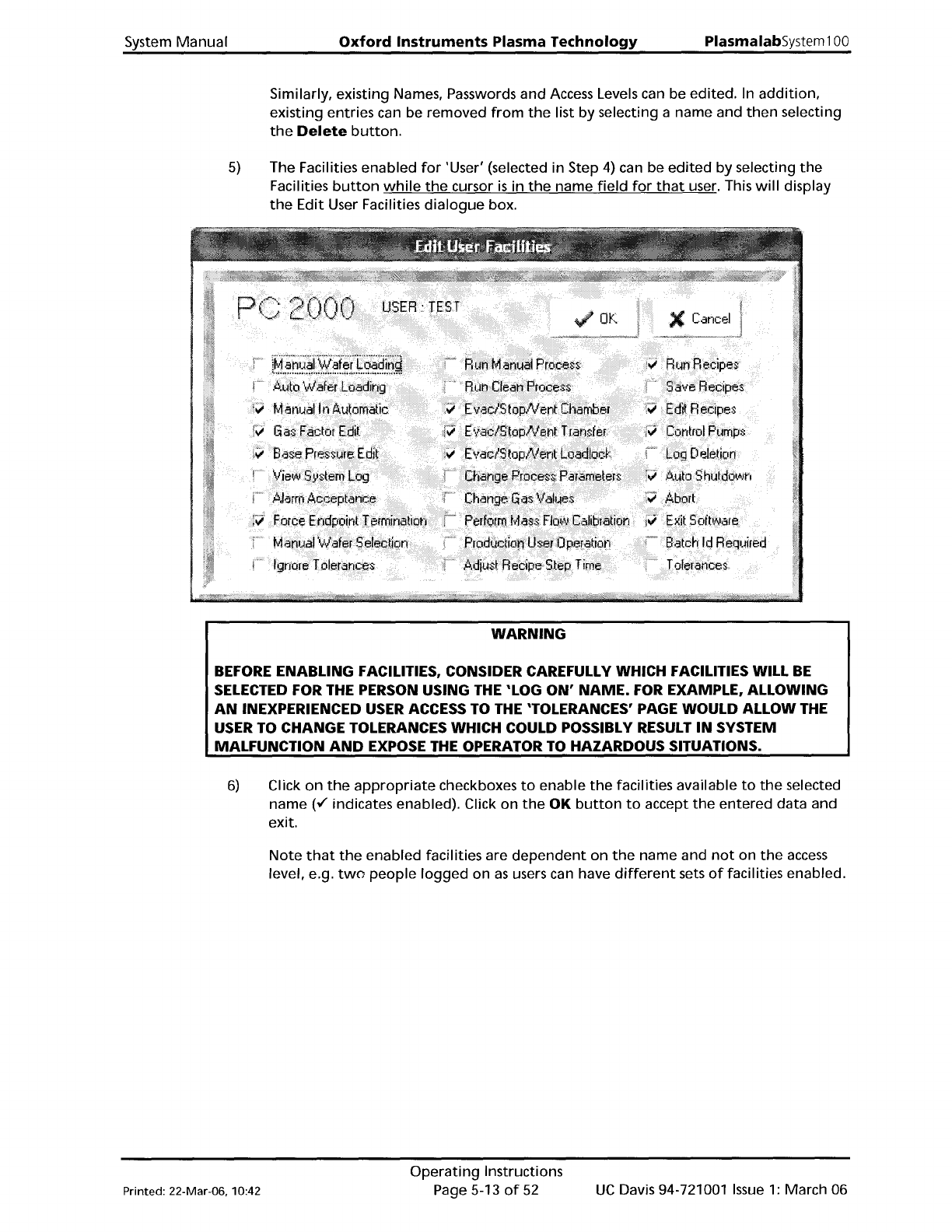
5)
The Facilities enabled
for
'User' (selected in Step
4)
can be
edited
by selecting
the
Facilities
button
while
the
cursor
is
in
the
name
field
for
that
user. This
will
display
the
Edit User Facilities
dialogue
box.
WARNING
BEFORE ENABLING FACILITIES, CONSIDER CAREFULLY
WHICH
FACILITIES WILL
BE
SELECTED FOR THE PERSON USING THE 'LOG
ON'
NAME.
FOR EXAMPLE, ALLOWING
AN
INEXPERIENCED USER ACCESS TO THE 'TOLERANCES' PAGE
WOULD
ALLOW THE
USER TO
CHANGE
TOLERANCES
WHICH
COULD POSSIBLY RESULT
IN
SYSTEM
MALFUNCTION
AND
EXPOSE THE OPERATOR TO
HAZARDOUS
SITUATIONS.
6)
Click
on
the
appropriate
checkboxes
to
enable
the
facilities available
to
the
selected
name
(tf
indicates enabled). Click
on
the
OK
button
to
accept
the
entered data and
exit.
Note
that
the
enabled facilities are
dependent
on
the
name and
not
on
the
access
level, e.g.
two
people
logged
on
as
users can have
different
sets
of
facilities enabled.
Printed: 22-Mar-06, 10:42
Operating
Instructions
Page 5-13
of
52
UC
Davis 94-721001
Issue
1:
March 06