Oxford-100-Manual.pdf - 第87页
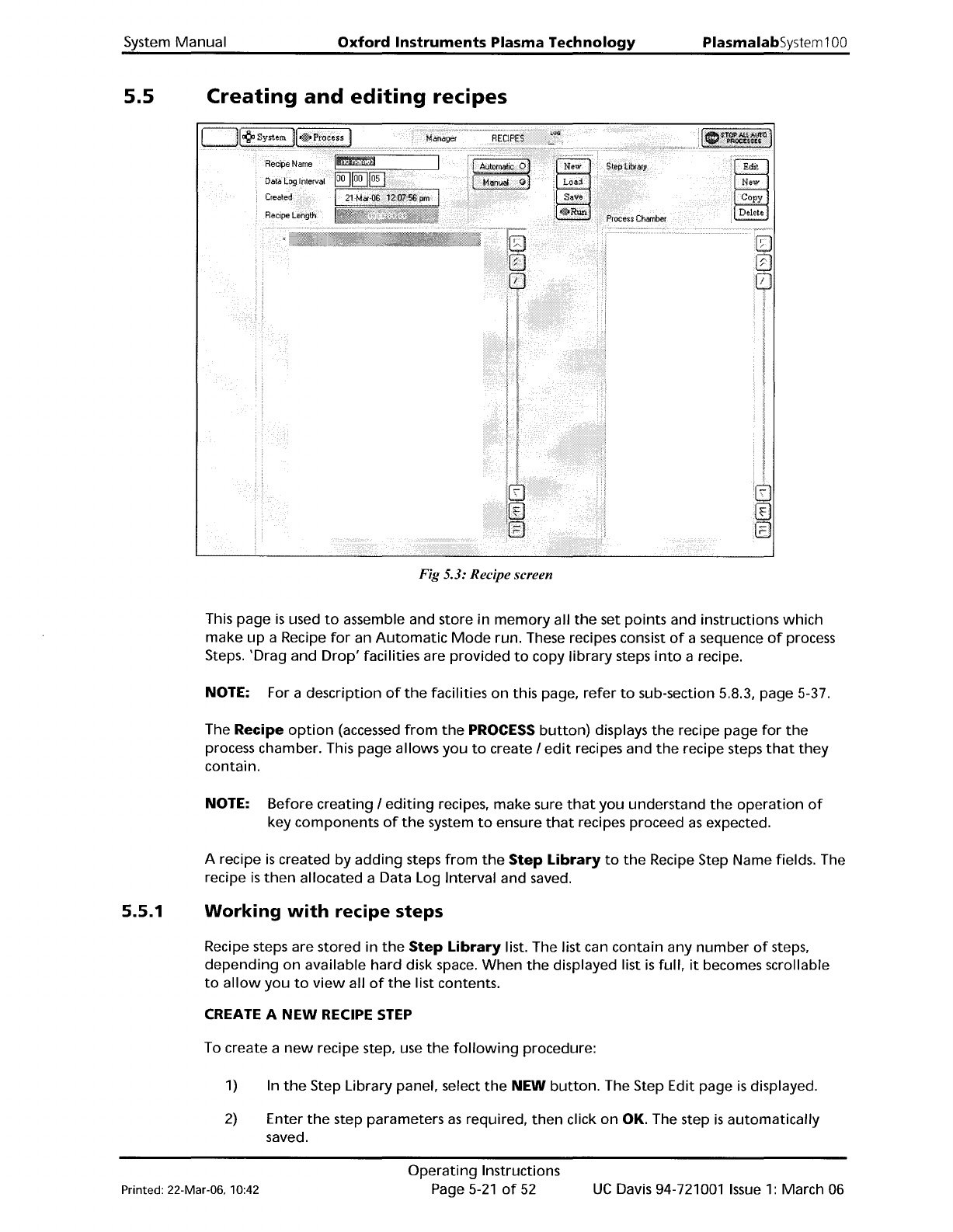
System Manual Oxford Instruments Plasma Technology PlasmalabSystem 1 00 5.5 Creating and editing recipes Fig 5.3: Recipe screen This page is used to assemble and store in memory all the set points and instructions which …
PiasmaiabSystem100
Oxford
Instruments
Plasma
Technology
System
Manual
5.4.9
11)
When
the
'Process
Complete'
message
is
displayed, select
the
Pump
Control
page
and
move
the
wafer
from
the
process chamber
to
the
Automatic
load lock using
the
same
method
as
the
transfer in.
12) Open
the
Automatic
load lock's lid and remove
the
wafer.
13)
If
required,
the
system can
now
be vented,
see
sub-section 5.4.9 page 5-20.
Venting
the
system
WARNING
CONTACT WITH TOXIC GASES CAN CAUSE DEATH OR SERIOUS INJURY.
BEFORE
VENTING THE PROCESS CHAMBER, ALWAYS ENSURE THAT THE SYSTEM IS
ADEQUATELY PURGED
AND
PUMPED.
Do
not
vent
a system
which
has used toxic gases unless
the
system has been
adequately
pumped
first.
For example:
Gases
having Threshold
Limit
Values
(TLVs)
of
1
ppm
or
below,
e.g.
Chlorine,
require
at
least 20
minutes
pumping
before
venting.
After
venting,
there
may
still be residual gases in
the
process chamber. Consider
wearing
suitable personal
protection,
e.g. a respirator.
To
vent
the
system, use
the
following
steps.
1)
From
the
System menu, select
the
Pumping
option.
2)
On
the
Pump Control page, select
the
STOP
button
then
the
VENT
button
for
each
chamber.
Note
that
the
vent
sequence
is
controlled
by
a
timer
to
allow
time
for
the
turbo
pumps
to
'spin'
down.
3)
When
all
of
the
'Vent
Time
Left'
timers have decremented
to
zero, all
of
the
pumps
have been switched
off
automatically, and
the
complete
system has been vented.
Do
not
attempt
to
open
the
process chamber lid
until
the
vacuum switch has changed status,
i.e.
to
its high-pressure status (In this
condition,
on
the
Pump Control page
the
vacuum status
field
will
display 'FAULT').
UC
Davis 94-721001
Issue
1:
March 06
Operating
Instructions
Page 5-20
of
52
Printed: 22-Mar-06. 10:42
System
Manual
Oxford
Instruments
Plasma
Technology
PlasmalabSystem1
00
5.5
Creating
and
editing
recipes
Fig 5.3: Recipe screen
This
page
is
used
to
assemble and store in
memory
all
the
set
points
and instructions
which
make
up
a Recipe
for
an
Automatic
Mode
run. These recipes consist
of
a sequence
of
process
Steps.
'Drag
and
Drop'
facilities are
provided
to
copy
library
steps
into
a recipe.
NOTE: For a description
of
the
facilities
on
this page,
refer
to
sub-section 5.8.3, page 5-37.
The Recipe
option
(accessed
from
the
PROCESS
button)
displays
the
recipe page
for
the
process chamber. This page allows
you
to
create I
edit
recipes and
the
recipe steps
that
they
contain.
NOTE:
Before
creating I
editing
recipes,
make
sure
that
you
understand
the
operation
of
key components
of
the
system
to
ensure
that
recipes proceed
as
expected.
A recipe
is
created
by
adding
steps
from
the
Step
Library
to
the
Recipe Step Name fields. The
recipe
is
then
allocated a Data Log Interval and saved.
5.5.1
Working
with
recipe steps
Recipe steps are stored in
the
Step
Library
list. The list can
contain
any
number
of
steps,
depending
on
available hard disk space.
When
the
displayed list
is
full,
it
becomes scrollable
to
allow
you
to
view
all
of
the
list contents.
CREATE A
NEW
RECIPE
STEP
To create a
new
recipe step, use
the
following
procedure:
1)
In
the
Step Library panel, select
the
NEW
button.
The Step Edit page
is
displayed.
2)
Enter
the
step parameters
as
required,
then
click
on
OK. The step
is
automatically
saved.
Printed: 22-Mar-06. 10:42
Operating
Instructions
Page
5-21
of
52
UC
Davis 94-721001
Issue
1:
March 06
PlasmalabSystem100
Oxford
Instruments
Plasma
Technology
System
Manual
5.5.2
To create a recipe step, based
on
an existing recipe step, use
the
following
procedure:
1)
Select a recipe step
from
the
Step
Library
list, i.e. click on
it
to
highlight
it.
2)
Select
the
COPY
button.
Enter a
new
step name.
3)
Edit
the
step parameters
as
required,
then
click
on
OK. The
new
recipe step
is
automatically
saved.
EDIT
AN
EXISTING
RECIPE
STEP
To
edit
an existing recipe, use
the
following
procedure:
1)
Select a recipe step
from
the
Step
Library
list, i.e. click on
it
to
highlight
it.
2)
In
the
Step Library panel. click on
the
Edit
button.
3)
Edit
the
step's process parameters
as
required.
then
click on OK. The step
is
automatically
saved.
NOTE: Changing an existing recipe step
will
not
alter
saved recipes,
which
use
the
old
version
of
that
step.
DELETE
A
RECIPE
STEP
To
delete
a recipe step. use
the
following
procedure:
1)
Select
the
recipe step
from
the
Step
Library
list. i.e. click
on
it
to
highlight
it.
2)
Select
the
DELETE
button;
the
selected recipe step
is
deleted.
Working
with
recipes
Recipes are
'built'
using existing recipe steps, and
edited
as
required.
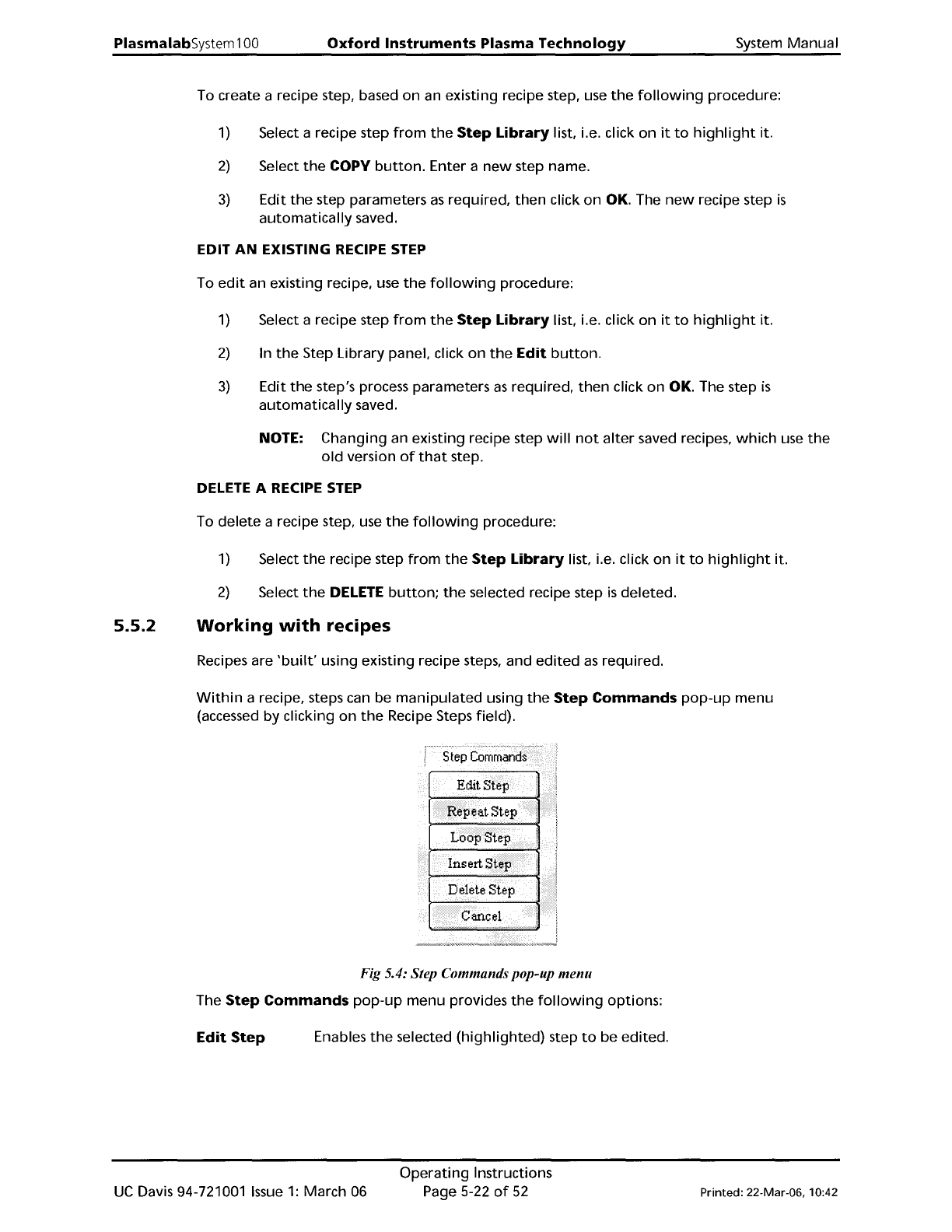
Within
a recipe. steps can be
manipulated
using
the
Step
Commands
pop-up
menu
(accessed
by
clicking
on
the
Recipe Steps field).
Fig 5.4: Step Commands pop-up
menu
The
Step
Commands
pop-up
menu provides
the
following
options:
Edit
Step
Enables
the
selected
(highlighted)
step
to
be edited.
UC
Davis 94-721001
Issue
1:
March 06
Operating
Instructions
Page 5-22
of
52
Printed: 22-Mar-06, 10:42