YG300_Ope_E.pdf - 第65页
2-12 2 Basic operation 2 . 3 U n i t s c r e e n T h i s s e c t i o n d e s c r i b e s t h e m a n u a l o p e r a t i o n b u t t o n s o n t h e U n i t s c r e e n . n M a n u a l c o n v e y o r o p e r a t i o n 3…
2-11
2
Basic operation
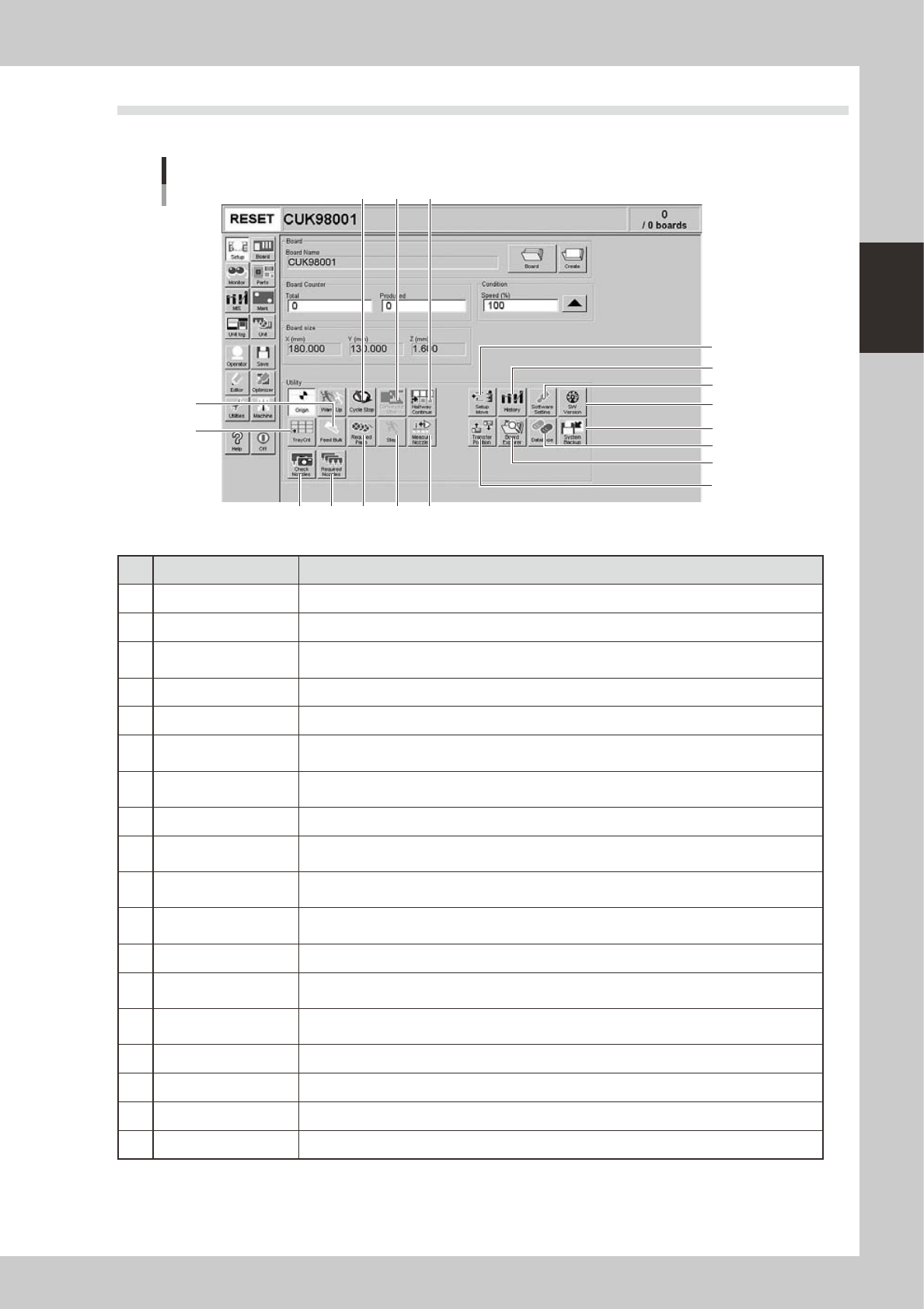
2.2 Setup screen
This section describes the operation buttons displayed on the Setup screen.
Setup screen
1
2
3
4
5
6
7
8
9
10 11
12
131415
16
17
18
24203-M3-00
Button name Function
1 Setup Move Moves the head to the front left position, and the stage to the component placement position.
2 Transfer position Aligns all stages in a line so that each conveyor is ready to transfer boards.
3 History
Saves production history data, and saves or clear any desired items of "MIS" and "Unit log"
records. Also use this button when removing a storage medium from the machine.
4
Software Setting
Sets machine screen display items, adds or deletes operators, and sets passwords.
5 Version Shows version information on application software and system.
6 System Backup
Makes a backup of machine coordinates, accuracy information, option device information and
standard coordinates necessary for machine operation or restores the data using the backup.
7 Database
Makes a backup of parts and mark database necessary for board production or restores the data
using the backup. Also sets the database locations.
8 Board Explorer Moves, backs up, restores or copies board data.
9 Cycle Stop
Stops machine operation just after mounting components on the current board, for example, to
check the mounted results or to prevent the board from flowing to the downstream machine.
10 Convey-out Stop
Stops machine operation after mounting components on all boards on the conveyor and
transferring them to the downstream machine.
11 Halfway Continue
After stopping the machine for some reason during component mounting and resetting the data,
pressing this button loads that data to resume component mounting from the next mount point.
12 Measure Nozzles Acquires the shape images of nozzle tips for chip components.
13 Step
Temporarily stops the machine at a specific position, for example, during initial component
mounting, test mounting, or trouble analysis.
14 Required Parts
Displays the component types and feeder positions that are set up for the production to be
started.
15 Required Nozzles Displays a list of nozzles to be used.
16 Check Nozzles Checks if nozzle tips for chip components are dirty or clogged by acquiring their images.
17 Tray Cnt Displays the number of tray components that have been used.
18 Feed Bulk Feeds bulk components to the pickup position of a bulk feeder.
2-12
2
Basic operation
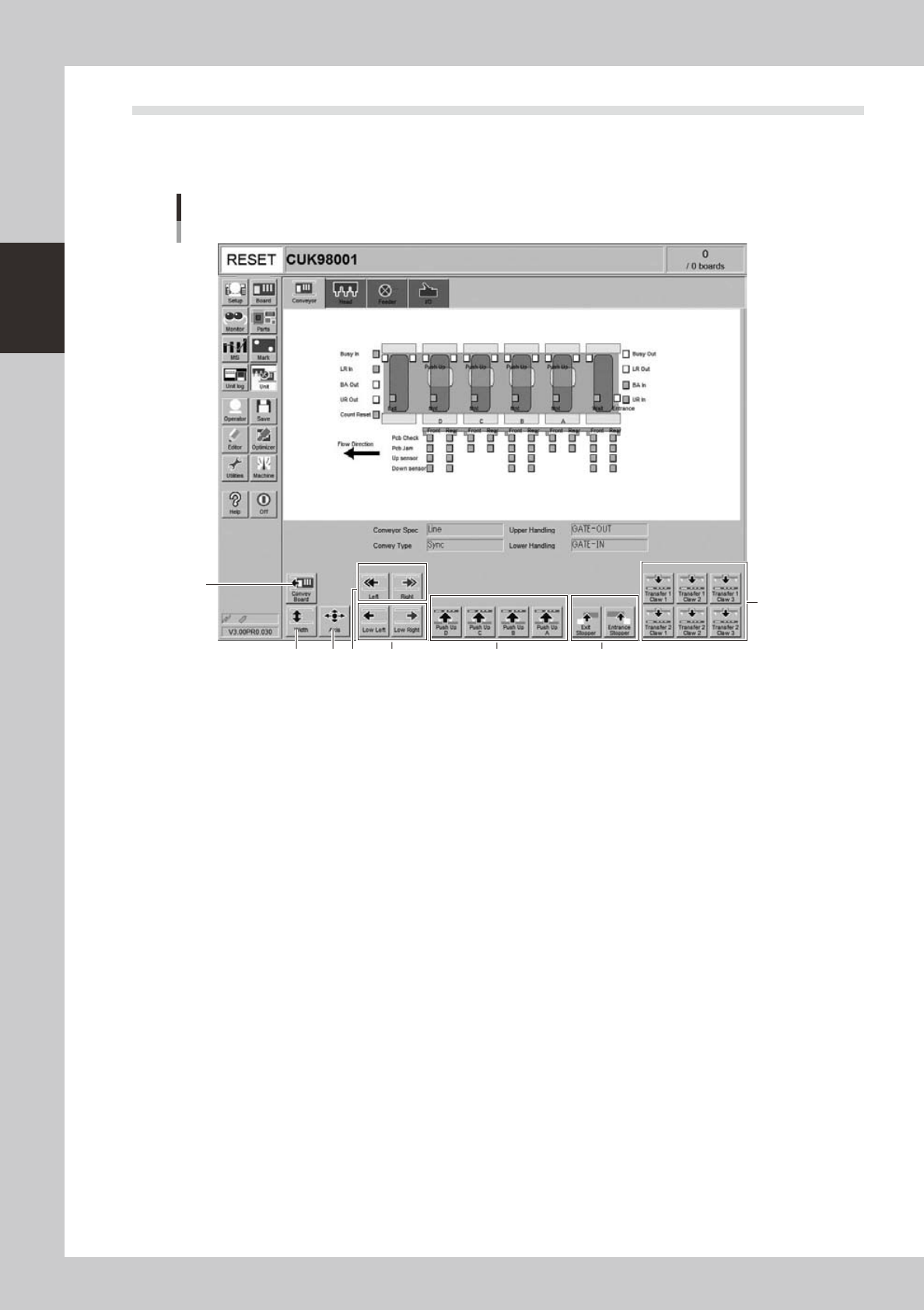
2.3 Unit screen
This section describes the manual operation buttons on the Unit screen.
n
Manual conveyor operation
3
1
2 4 6
8
7
Conveyor manual buttons
5
24204-M3-00
2-13
2
Basic operation
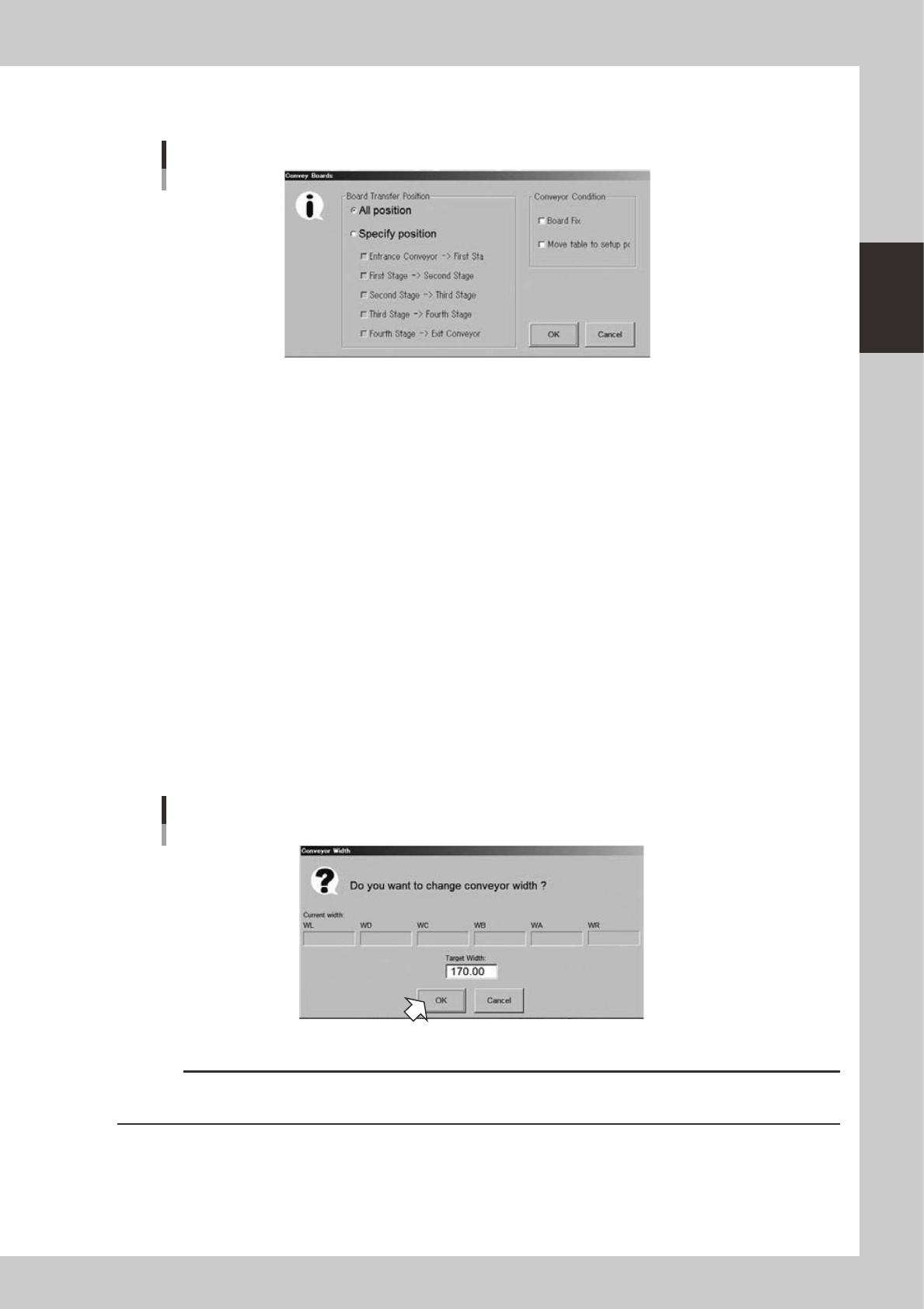
1. [Convey Board] button
Pressing this button displays the following dialog box.
"Convey Boards" dialog box
24205-M3-00
• All positions
Selecting this option button transfers boards in sequence from "Entrance conveyor
→
1st stage", "1st stage
→
2nd stage",
"2nd stage
→
3rd stage", "3rd stage
→
4th stage", and "4th stage
→
exit conveyor".
• Specify position
Selecting this option button transfers boards only in the sections specified with the check boxes under this button. When
all check boxes are selected, this is the same as selecting the "All positions" option button.
• Board Fix
After boards are conveyed, they are clamped on each stage.
• Move table to setup position
After boards are conveyed, each stage moves to the following position.
• Placement stages (A, B, C, D) move to the component placement position.
• Carry-in stage moves to the board carry-in position (where the conveyor line is aligned with the upstream machine)
• Carry-out stage moves to the board carry-out position (where the conveyor line is aligned with the downstream
machine)
2. [Width] button
Use this button to adjust the conveyor width to match the width of boards to be produced.
Pressing this button displays the "Conveyor Width" dialog box. Check the conveyor width and press the [OK] button. The
conveyor rail automatically changes to the specified width.
"Conveyor Width" dialog box
24206-M-00
c
CAUTION
When push-up pins are set on the push-up plate, make sure that they do not touch the conveyor rail while adjusting
the conveyor width.