YG300_Ope_E.pdf - 第96页
3-10 3 Starting and ending pr oduction Recovery process on [Monitor]-[Pr oduction] screen Recovery process using err or dialog Module error occurs Restart operation Recovery complete (Restart operation) Buzzer and signal…
3-9
3
Starting and ending production
n
Handling module errors
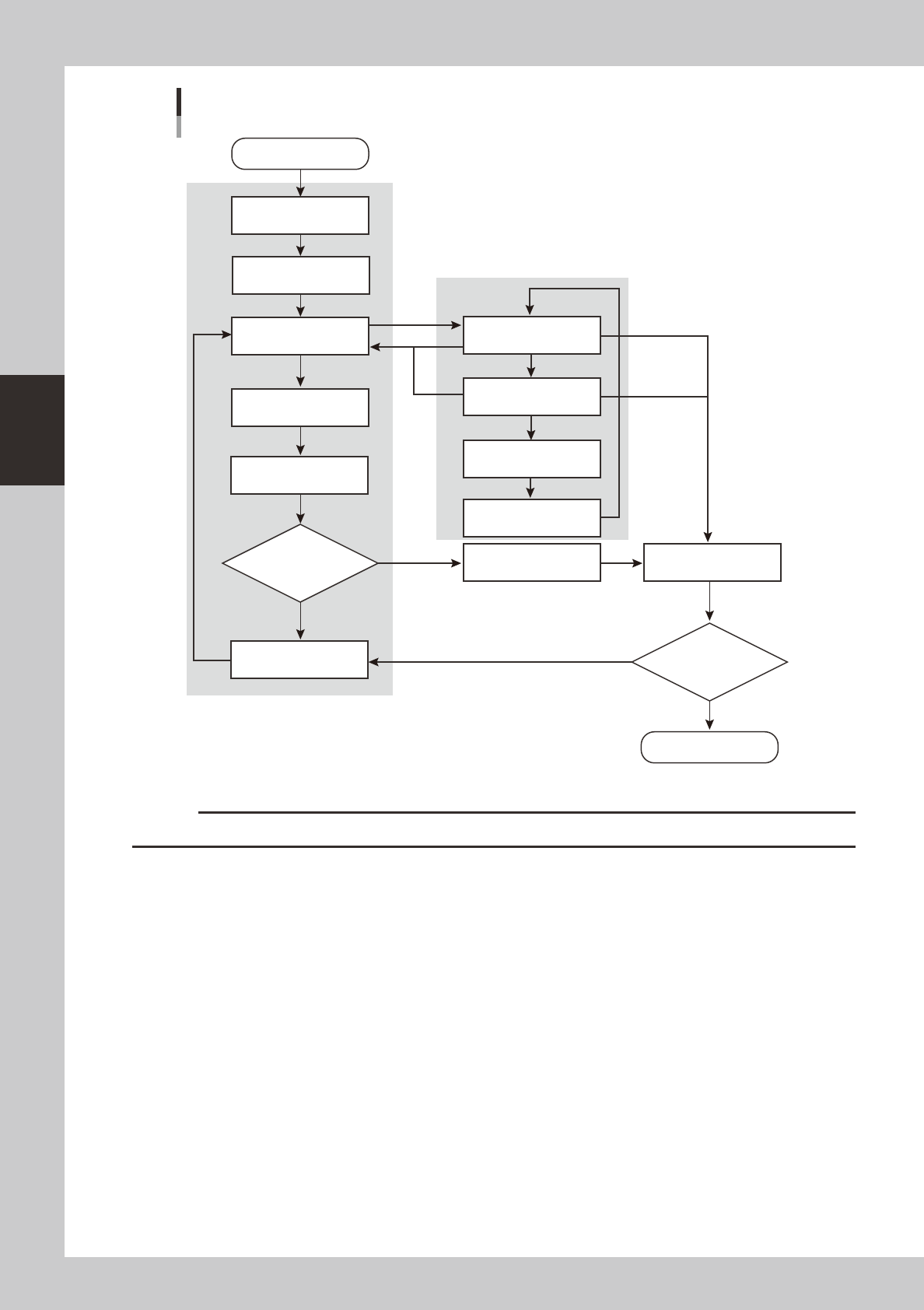
Handling a single error
If a single error occurs, restore operation after first checking the error dialog that appears on the screen. After
eliminating the error, press the [ERROR CLEAR] button to close the error dialog and restart operation.
Handling multiple errors
If multiple errors occur then the error display shows errors starting from the highest priority error. After eliminating the
error, press the [ERROR CLEAR] button and proceed to the next error.
To clear errors and restore operation in a different sequence than shown on the screen, switch to the [Monitor]-
[Production] screen, select the error, and restore operation by following the instructions shown in the Operating
Navigation area and error dialog. After correcting or eliminating the error, press the [Error Clear] button on the
[Monitor]-[Production] screen, or press the [Error Detail] button to open the error dialog and press the [ERROR CLEAR]
button to proceed to the next error.
After clearing all errors, restart operation.
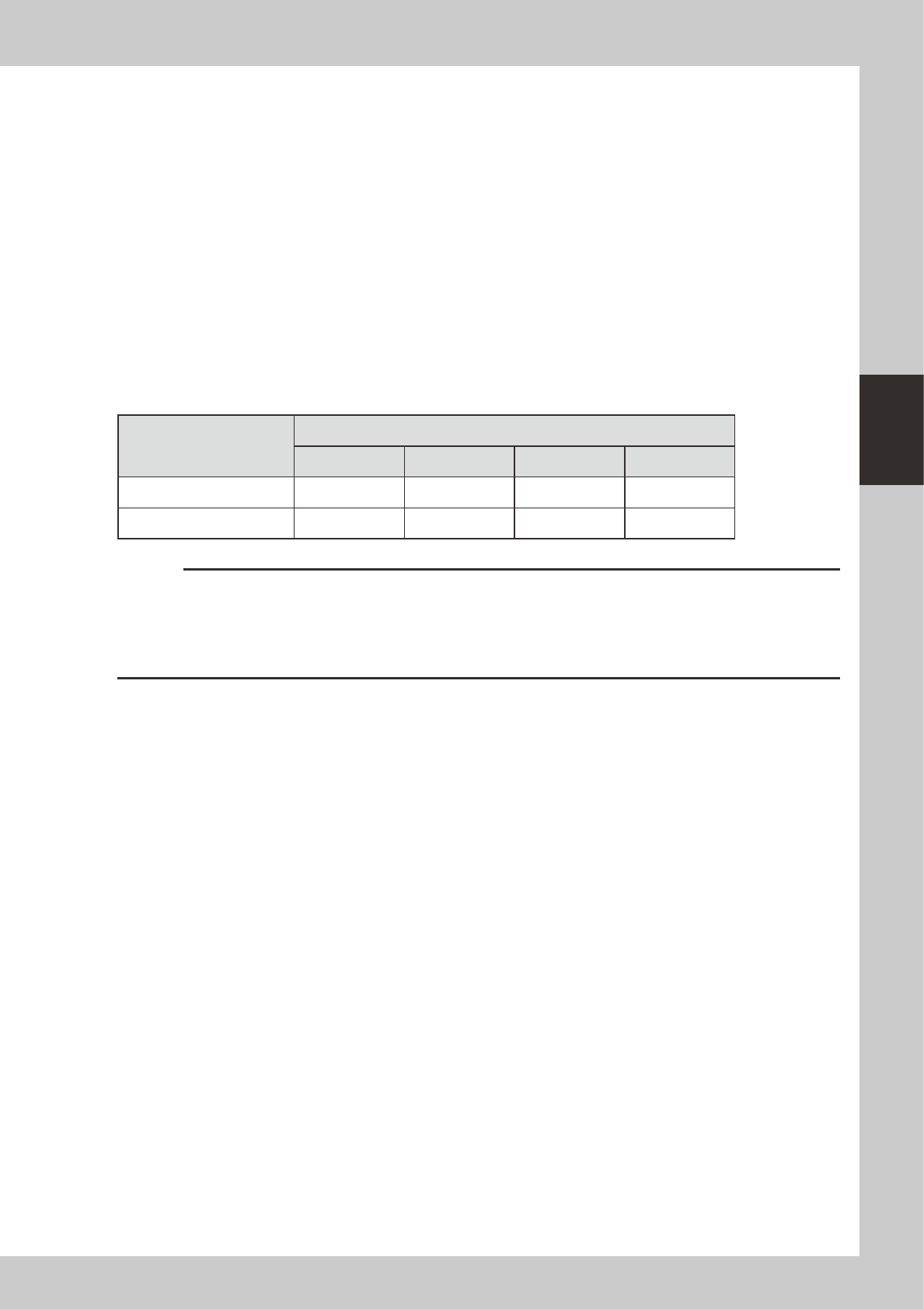
Restarting operation
To restart operation, press the [RECOVER] or [START] buttons. The operation restart button to be used depends on the
operator’s current position as shown in the following table.
Current operator position
Module error table / Operation restart button
A B C D
AC table side [RECOVER] [START] [RECOVER] [START]
BD table side [START] [RECOVER] [START] [RECOVER]
c
CAUTION
• Pressing the [START] button will not restart operation in cases where the [RECOVER] button (table on operator side)
must be used to restart operation
• If the errors have not been completely cleared then operation will not restart even if you press the [RECOVER] or
[START] buttons. On the [Monitor]-[Production] screen, check for any errors that are not yet cleared, and after
clearing all error, press the [RECOVER] or [START] buttons to restart operation.
3-10
3
Starting and ending production
Recovery process on [Monitor]-[Production] screen
Recovery process using error dialog
Module error occurs
Restart operation
Recovery complete
(Restart operation)
Buzzer and signal light turn ON
Error dialog appears
Buzzer OFF
Correct or eliminate error
Correct or eliminate error
Inform that error is corrected
Inform that error is corrected
All errors corrected?
All errors corrected?
Error dialog appears again
Error dialog appears
again if error still remains
Screen before error
occurred appears
Error dialog appears
Open [Monitor]-[Production]
screen
Process flow from module error to recovery
YES
NO
YES
NO
[Close]
[ERROR CLEAR]
[ERROR CLEAR]
[Error Detail]
[ERROR CLEAR]
[RECOVER]
[START]
23302-M3-00
c
CAUTION
Machine stops due to error in the following cases. Entire machine status is "Error" and yellow indicator lamp lights up.
• When recovery from module error is delayed.
• When an upstream placement table cannot carry out a component-mounted board because a downstream placement
table has stopped due to a module error.
• When an upstream placement table cannot carry in a component-mounted board because a downstream placement
table cannot carry out a component-mounted due to a module error on a placement table even further downstream.
• When an upstream placement table stops due to a module error, preventing the next board from carrying out to the
downstream placement table.
• When an upstream placement table cannot carry in the next board because of a module error on a placement table
even further upstream.
3-11
3
Starting and ending production
4. Displaying the production monitors
Press the [Monitor] button to confirm the operation status during production.
The mounting information can be confirmed by selecting the [Main], [Detail], [Vision], [Alignment] and [Retry]
tabs.
4.1 Production
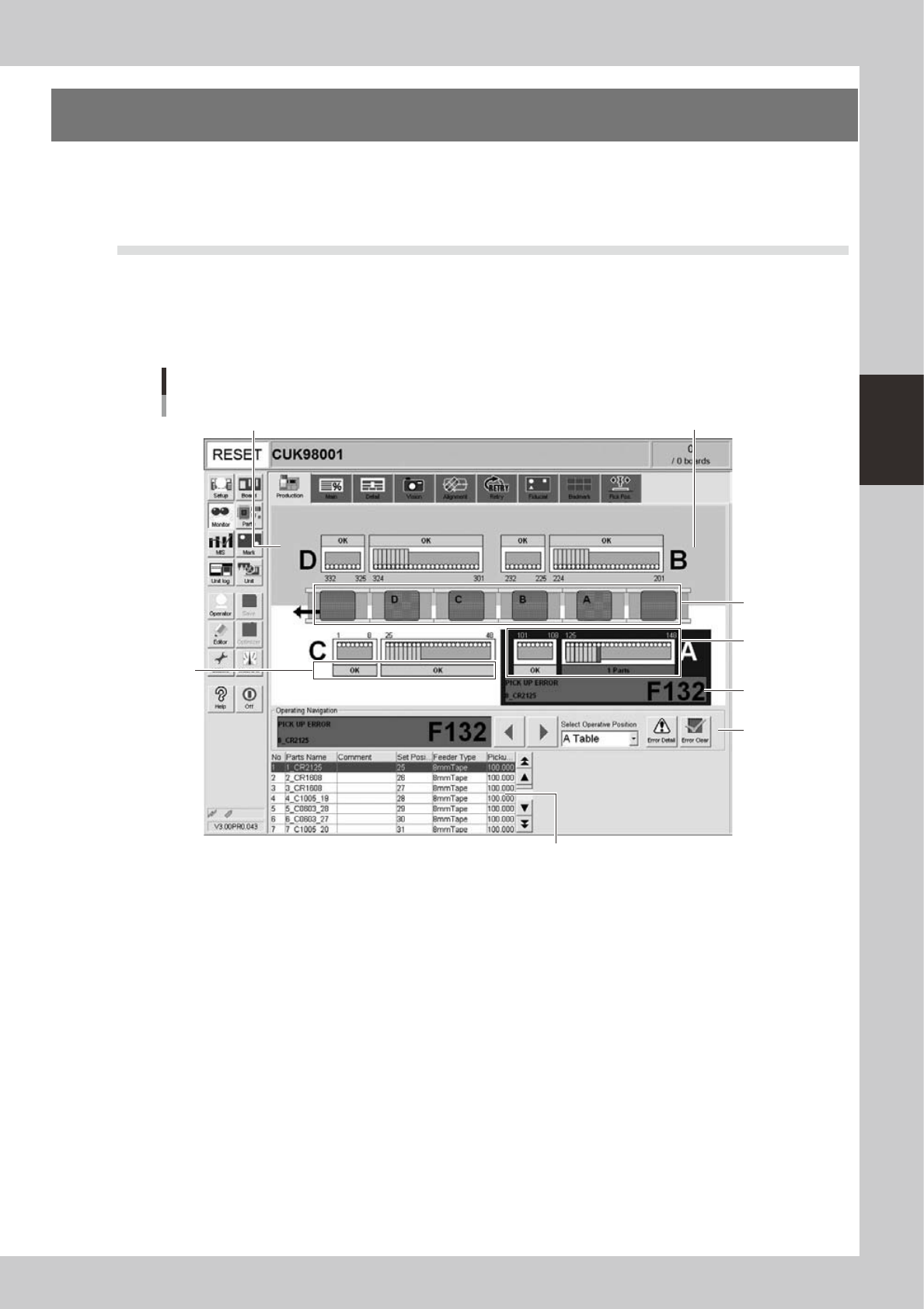
This screen shows the status of machines currently producing boards. Real-time information is displayed on the
machine layout view as shown below. When an error occurs on the machine, open this screen to check status
information such as what type of error occurred, operating instructions, and warnings, etc. Error locations are
grouped into placement tables, feeders and conveyor units. Locations with errors are shown on the machine
layout view in different colors to make the error location easy to find.
Monitor: Production
1
2
4
3
5
6
Shows component placement tables.Shows the machine rear as a colored background
24309/-M3-00
1. Transfer status area
Displays the status of a stage where an error, operating instruction, or warning involving board transfer was issued.
When a hazard sensor is activated, the board where the error has occurred appears in semi-transparent red on the screen.
When the sensor in the board clamp position or board standby position is activated, the board in the board clamp
position or board standby position appears in semi-transparent green on the screen.
2. Feeder status area
Displays the feeder at the feeder set position where parts are registered, by referencing "Parts" - "Feeder Set No." of the
board data currently used for board production. Nothing is displayed at feeder set positions where no parts are registered.
3. Feeder plate status area
Displays "OK" when there are no errors, operating instructions or warnings for the feeders currently in use.
Displays "n Parts" ("n" is the number of feeders) when errors, operating instructions or warnings were issued for the
feeders currently in use.
4. Placement table status area
This area displays the status on each placement table. If an error, operating instruction or warning has occurred on a
placement table, the status of that table is displayed in this area.
If multiple errors, operating instructions or warnings have occurred on the same placement table, then the highest
priority item is displayed.
Nothing appears unless operating instructions or warnings were issued.