Process Lens PL Service Manual_EN.pdf - 第140页
4 Machine - Calibrations 14 0 Se rv ic e Ma nu al P ro ce ss L en s PL - 0 3/ 20 25 Fig.198: Messages ► Message shows 2D Calibration in Pro- gress... (1) . ► Message appears after point 5 com- pleted (2) . Step 5 Fig.…
4 Machine - Calibrations
Service Manual Process Lens PL - 03/2025 139
Step 4
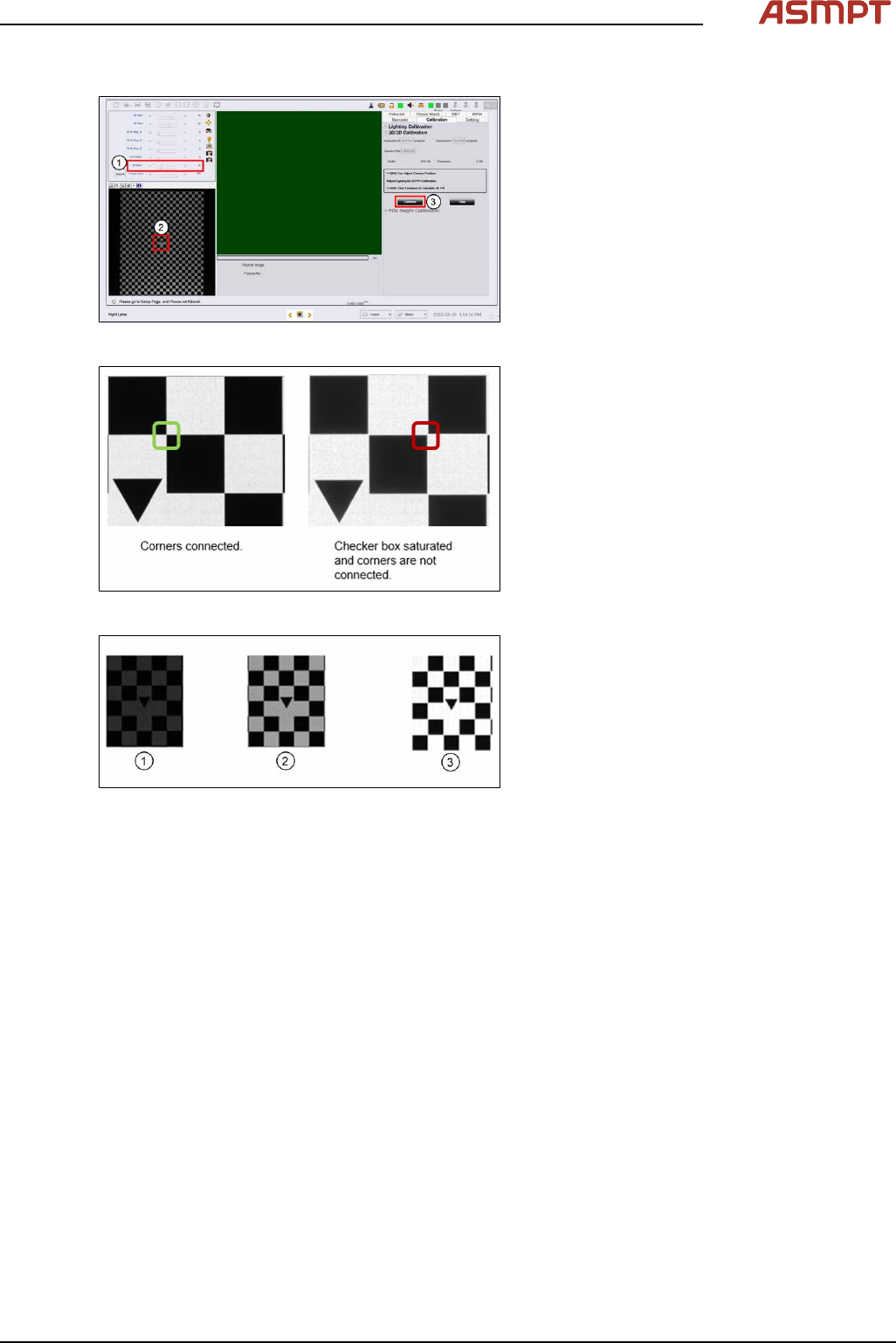
Fig.195: Lighting box
► Click on the tip of the inverted triange of
the 2D target (2) to centre the FOV.
► At the Lighting Box menu, adjust the
Back light (1) if necessary. 15 is default. A
value of 10 to 20 is good to use. There
should be good contrast between the
black patterns and the white background.
Set all other lighting values at0.
Fig.196: Corners
When perform 2D calibration, user can zoom in
the image to check if the lighting is too bright
and the image saturated.
As you can see from left image, the corners
should be connected and the “White regions”
are not totally white but have lower gray level
value.
Fig.197: Optimizing lighting
During 2D/3D calibration, You can choose to
perform auto-lighting or manually set the light-
ing for each calibration. Note that for auto light-
ing there may be occasion where the auto light-
ing returns non optimized value, i.e., too bright
(3), or too dark (1). In this case, you may adjust
to achieve optimal lighting value (2) manually
based on experience.
To improve the lighting calibration result and
provide additional guidance to you, the software
performs image lighting check and prompt error
prior to 2D and 3D calibration.
► Click Continue.
4 Machine - Calibrations
140 Service Manual Process Lens PL - 03/2025
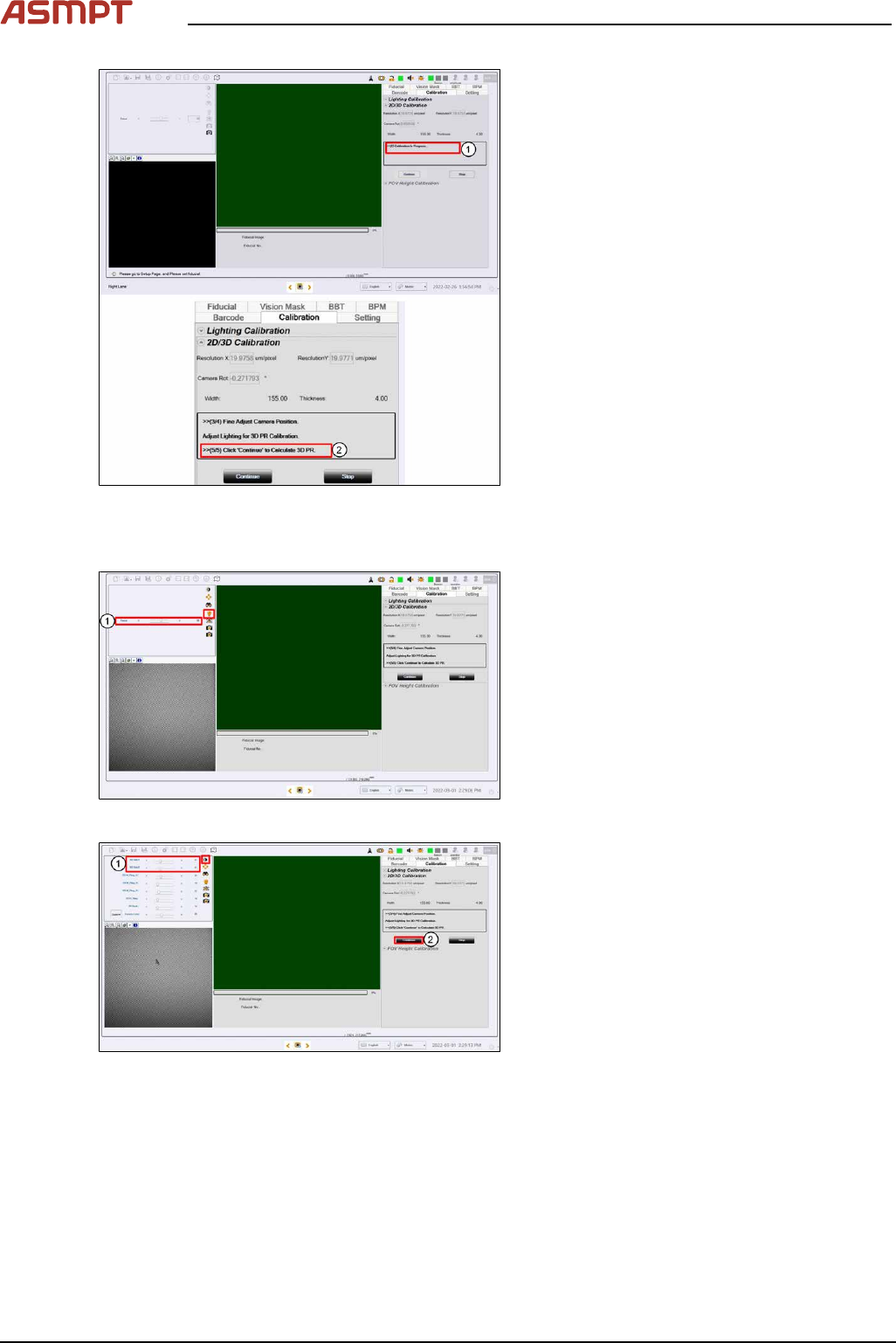
Fig.198: Messages
► Message shows 2D Calibration in Pro-
gress... (1).
► Message appears after point 5 com-
pleted(2).
Step 5
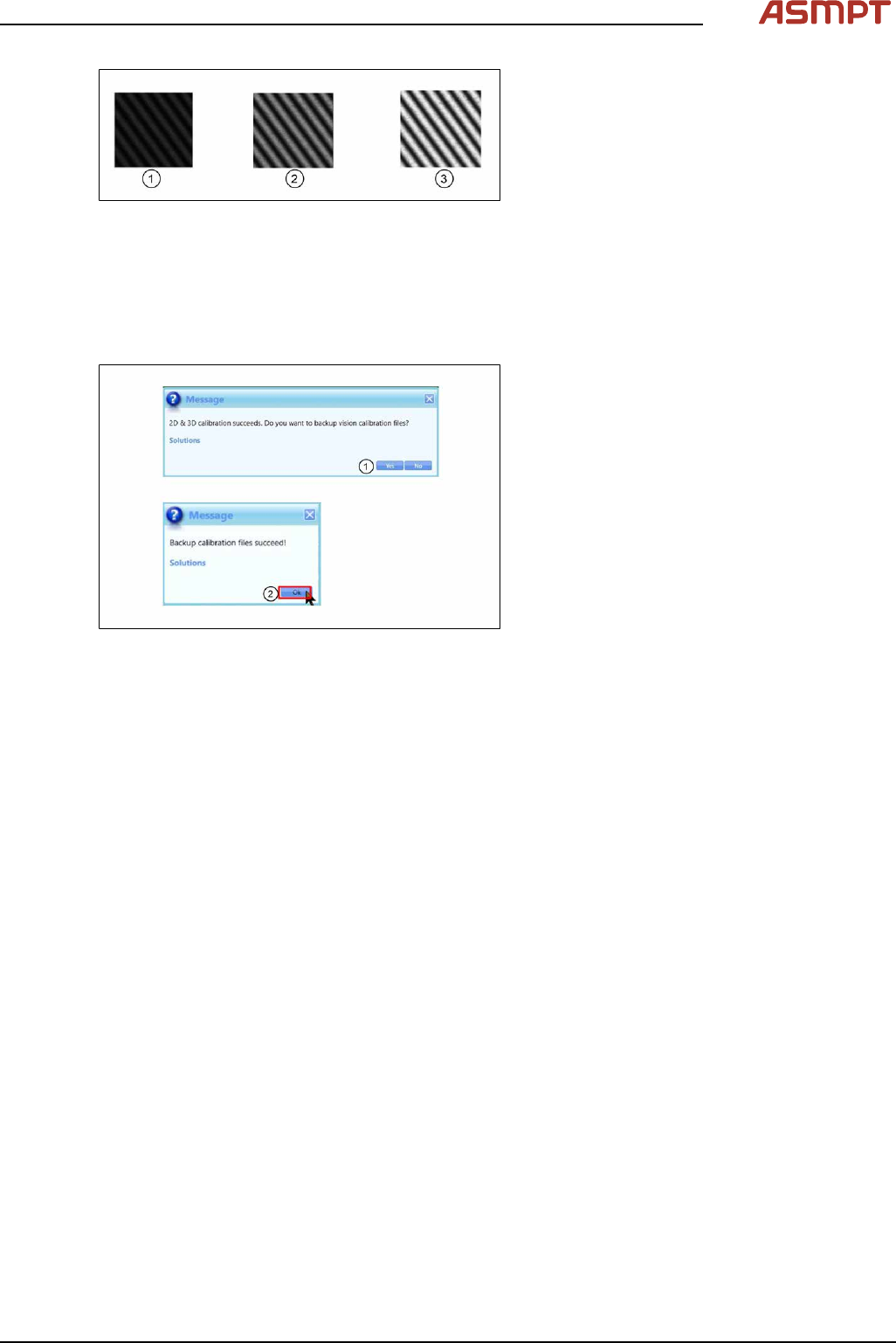
Fig.199: Focus
► Click on Focus icon(1).
► Adjust to value 50~60 (2).
Fig.200: Adjusting 3D Side
► Adjust 3D Side1 & 3D Side to value30(1).
► Click Continue (2) to start the 3D cali-
bration.
4 Machine - Calibrations
Service Manual Process Lens PL - 03/2025 141
Fig.201: Lighting
During 2D/3D calibration, you can choose to
perform auto-lighting or manually set the light-
ing for each calibration. Note that for auto light-
ing there may be occasion where the auto light-
ing returns non optimized value, i.e., too bright
(3), or too dark (1). In this case, you may adjust
to achieve optimal lighting value (2) manually
based on experience.
To improve the lighting calibration result and
provide additional guidance to you, the software
performs image lighting check and prompt error
prior to 2D and 3D calibration.
Step 6
Fig.202: Messages
► Click Yes(1) to backup calibration files.
► Click Ok(2) to end.
► Unplug lighting cable and remove 2D/3D
calibration target.
If the 2D and 3D calibration fails:
► Clean the 2D glass target surface with a clean hair brush.
► Dust off the 3D glass target surface with a clean hair brush.
Dust and fingerprints cause light diffusion and hence calibration failure.
► Check if the DLP is working properly.