Process Lens PL Service Manual_EN.pdf - 第160页
4 Machine - Calibrations 16 0 Se rv ic e Ma nu al P ro ce ss L en s PL - 0 3/ 20 25 Step 8 Fig.250: Text file ► Open the file with a text editor or MS Ex- cel. ð At the bottom rows, the calculated Cg and Cgk values are …
4 Machine - Calibrations
Service Manual Process Lens PL - 03/2025 159
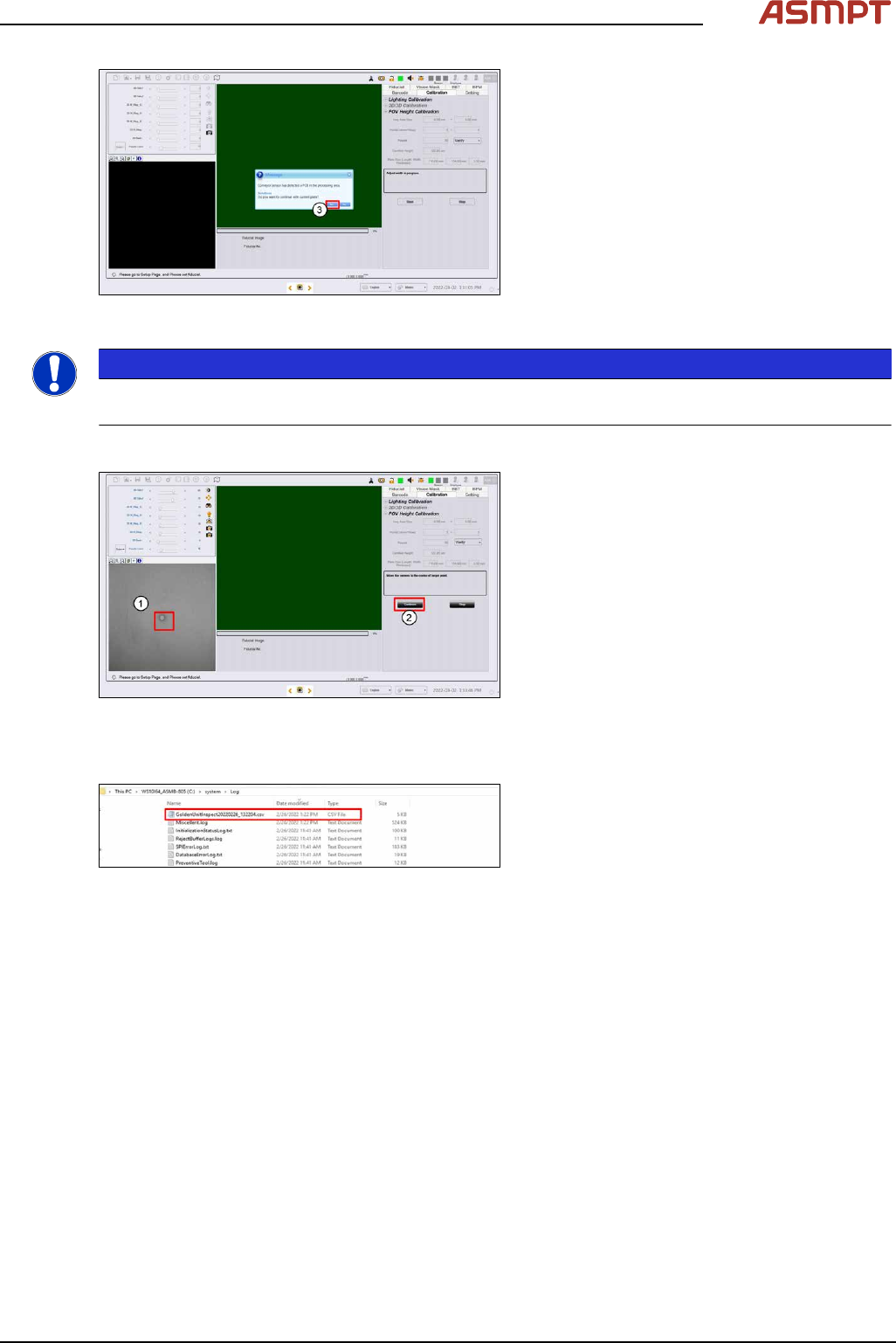
Fig.247: Message
► Click Yes (3) to the next message as the
target is still on the conveyor.
NOTICE
If the calibration fails, stop the process. Remove the target and inspect the target under a microscope
for foreign material. Remove any foreign material with a clean, dry, soft hair brush.
Step 6
Fig.248: Centre of the target
► Click on the center of the target (1). The
FOV center’s to the target.
► Click Continue. Process Lens PL adjusts
the lighting, and then starts the verification
process. (2)
► A "FOV Height Verification succeeds!"
message pops up. Click OK.
Step 7
Fig.249: Results
► The results of the FOV Height calibration
test can be found in an output file in the
path C:\system\
log\GoldenUnitInspect
***timestamp***.csv where timestamp is
the time the calibration was completed.
4 Machine - Calibrations
160 Service Manual Process Lens PL - 03/2025
Step 8
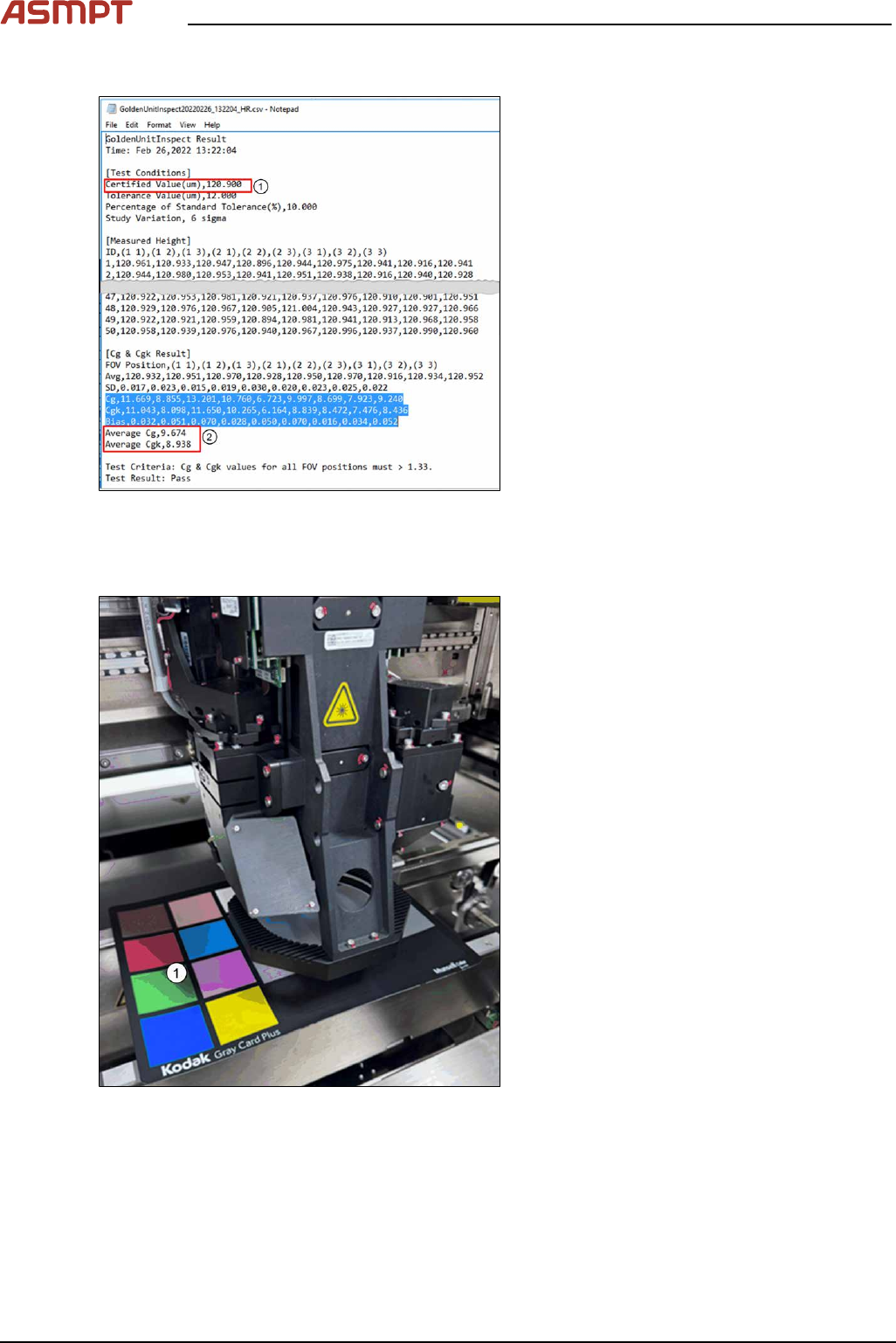
Fig.250: Text file
► Open the file with a text editor or MS Ex-
cel.
ð At the bottom rows, the calculated Cg
and Cgk values are listed (2).
Example of a GoldenUnitInspect
***timestamp***.csv output file using a
target of height 123µm.
4.6 Calibrations - Lighting Calibration (Pseudocolor)
Fig.251: Kodak card
► Open the machine cover.
► Place the Kodak Card(1)[03234864‑xx] /
[03254631‑xx] on the conveyor.
4 Machine - Calibrations
Service Manual Process Lens PL - 03/2025 161
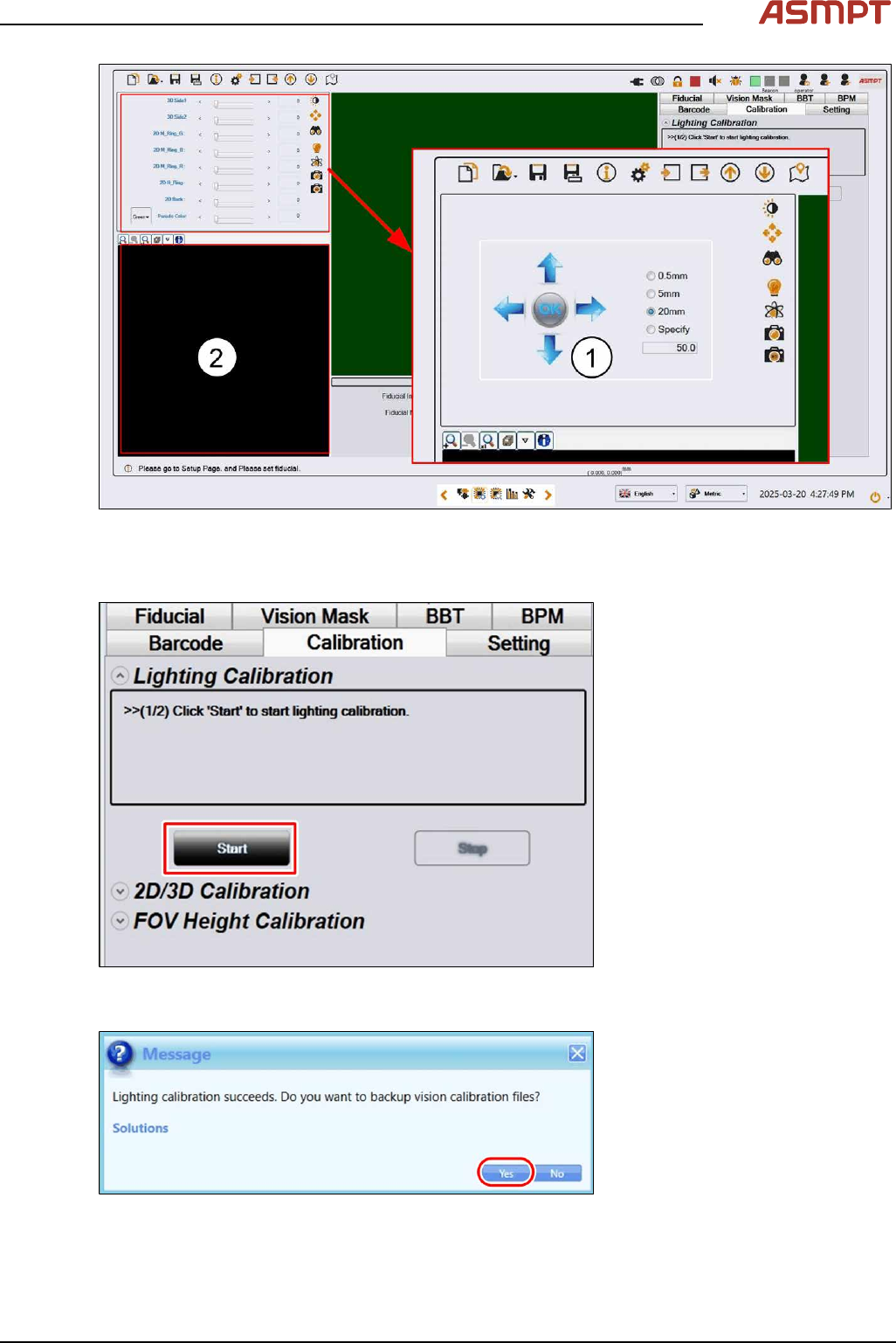
Fig.252: SC Adjust Light 01 0325
► Adjust the lighting(1) till some images show on the LIVE image window(2)
► Jog the camera till LIVE image window(2) shows grey color.
Fig.253: "Start" button
► Click Start to start the calibration.
Fig.254: "Yes" button
► Click Yes to proceed.