Process Lens PL Service Manual_EN.pdf - 第52页
3 Replacing spare parts 52 Se rv ic e Ma nu al P ro ce ss L en s PL - 0 3/ 20 25 3.3.3 Checking the alignment of the encoder reader of the Y gantry Whenever the encoder readers and/or scale bars have been removed, they n…
3 Replacing spare parts
Service Manual Process Lens PL - 03/2025 51
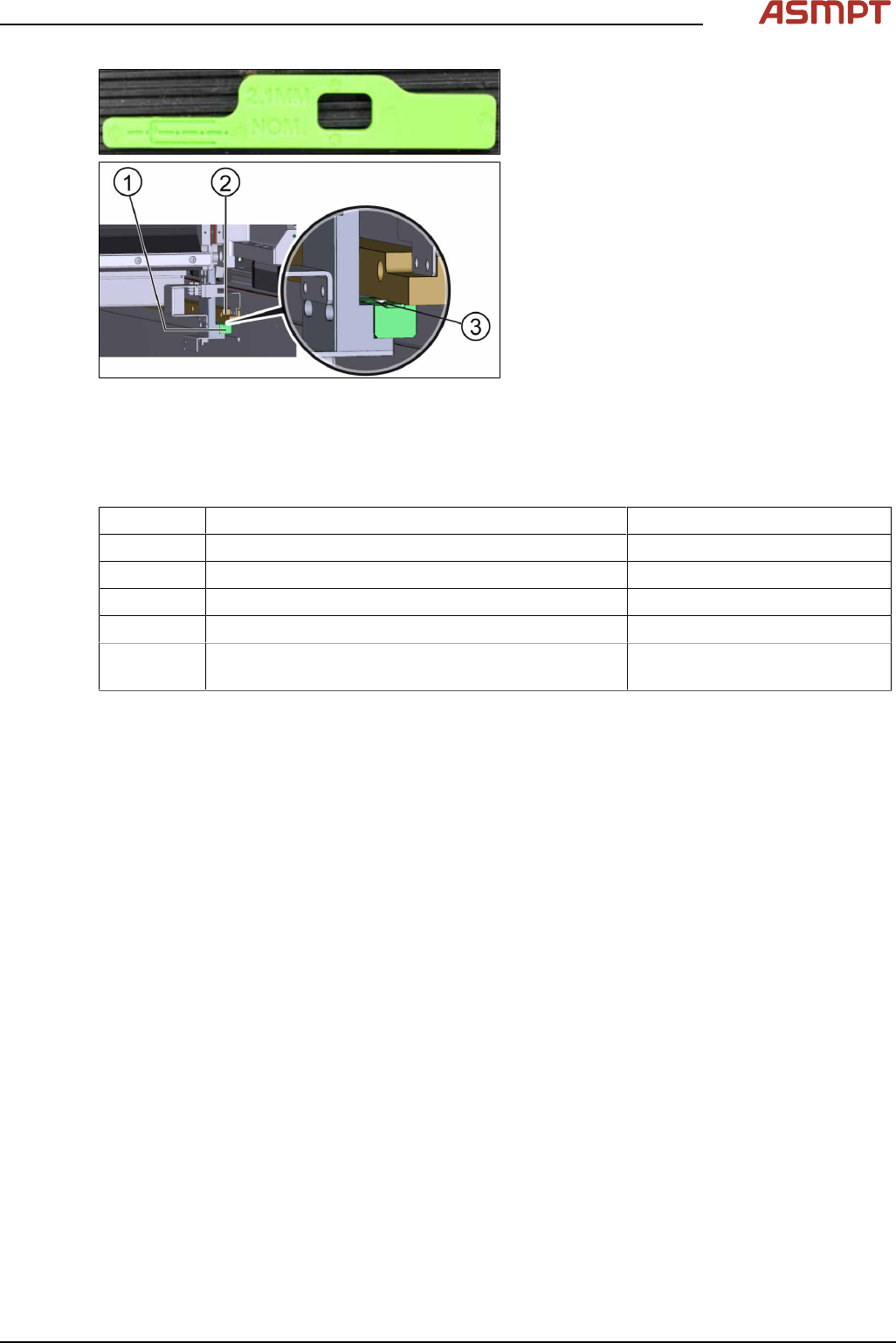
Fig.60: Calibration of the new reader
► Check the gap between the encoder
reader(1) and the scale bar(2) by using
the spacer(3) provided.
► The gap between the encoder reader and
the scale bar must be 2.1 mm.
► Calibrate the new reader. See the external
Power Point file “Y1Y2 ENC install & ad-
just procedure”.
► Move the gantry slowly the whole travel
range backwards. Whilst doing that check
the light at the indicator.
► If the lights are not within the color range
the holder needs adjustments. See 3.3.2
"Color code for the encoder readers"
[}51].
► Proceed the same way with all other en-
coder readers.
3.3.2 Color code for the encoder readers
Color Indication Adjustment requirement
Purple Optimum set-up No
Blue Good set-up No
Green Good set-up No
Orange Acceptable set-up but below recommendation level. Yes, angle and gap.
Red Poor set-up, signal maybe too low for reliable oper-
ation
Yes, angle and gap.
3 Replacing spare parts
52 Service Manual Process Lens PL - 03/2025
3.3.3 Checking the alignment of the encoder reader of the Y gantry
Whenever the encoder readers and/or scale bars have been removed, they need to be realigned.
Requirements
●
Machine is switched on.
●
Optical head is centered on the X position.
Checking the alignment
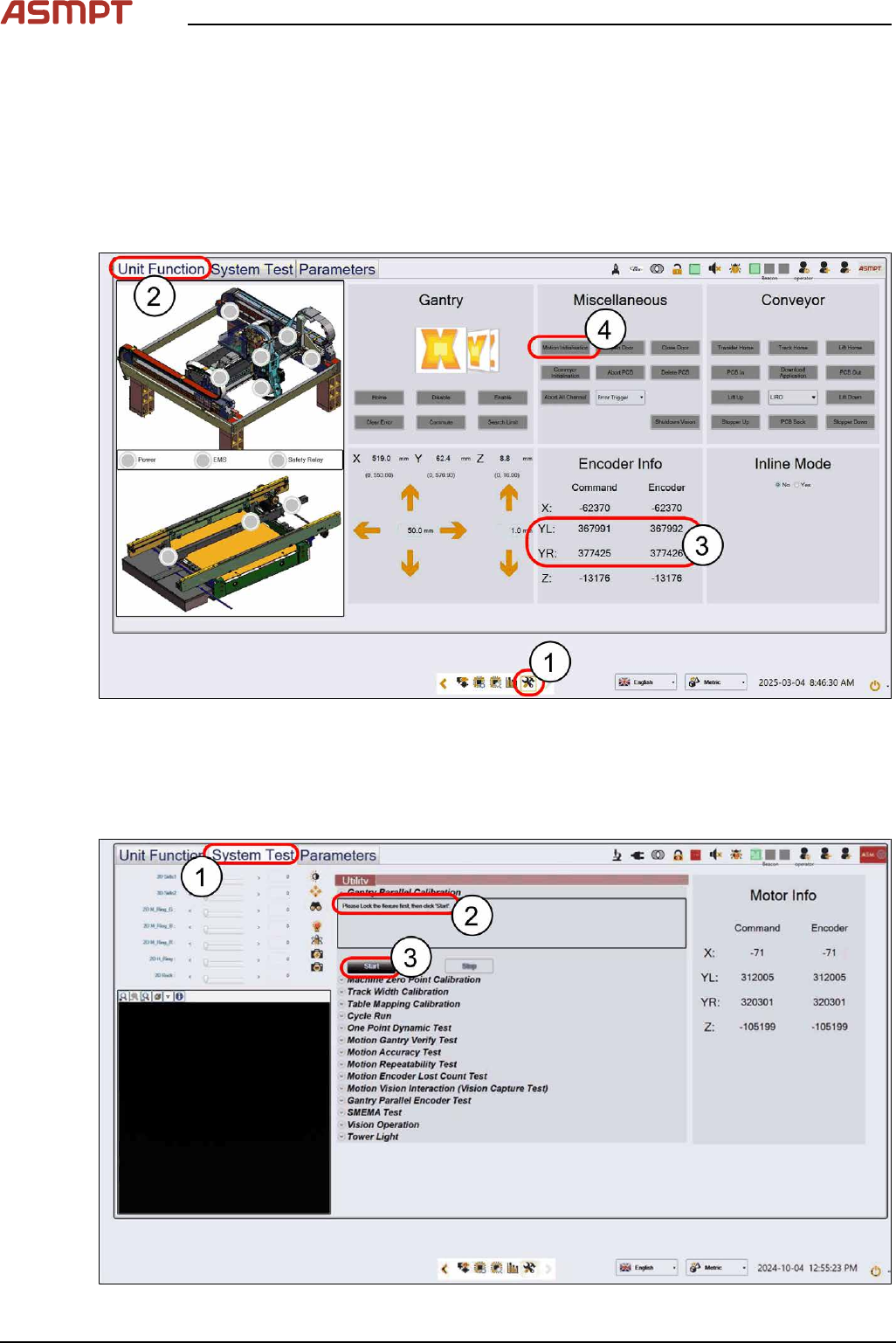
Fig.61: “Unit Function” tab
► Select the Unit Function tab(2) on the Diagnostic Page(1).
► Check the value differences between YL & YR under Encoder Info(3). Adjust them if necessary
(see 3.3 "Encoder" [}50])
► Click Motion Initialisation(4) to reset all NuMotion values.
Fig.62: “System Test” tab
3 Replacing spare parts
Service Manual Process Lens PL - 03/2025 53
► Select the System Test tab(1).
► Ignore the message “Please lock the flexure first” in the message window (2) under Gantry Par-
allel Calibration. This step is not necessary.
► Click Start(3) to continue, the calibration status will update on the message window.
► A pop-up message will show the encoder count. Adjust the encoder if the value does not fall
within 10,000-digit. See also 3.3 "Encoder" [}50].
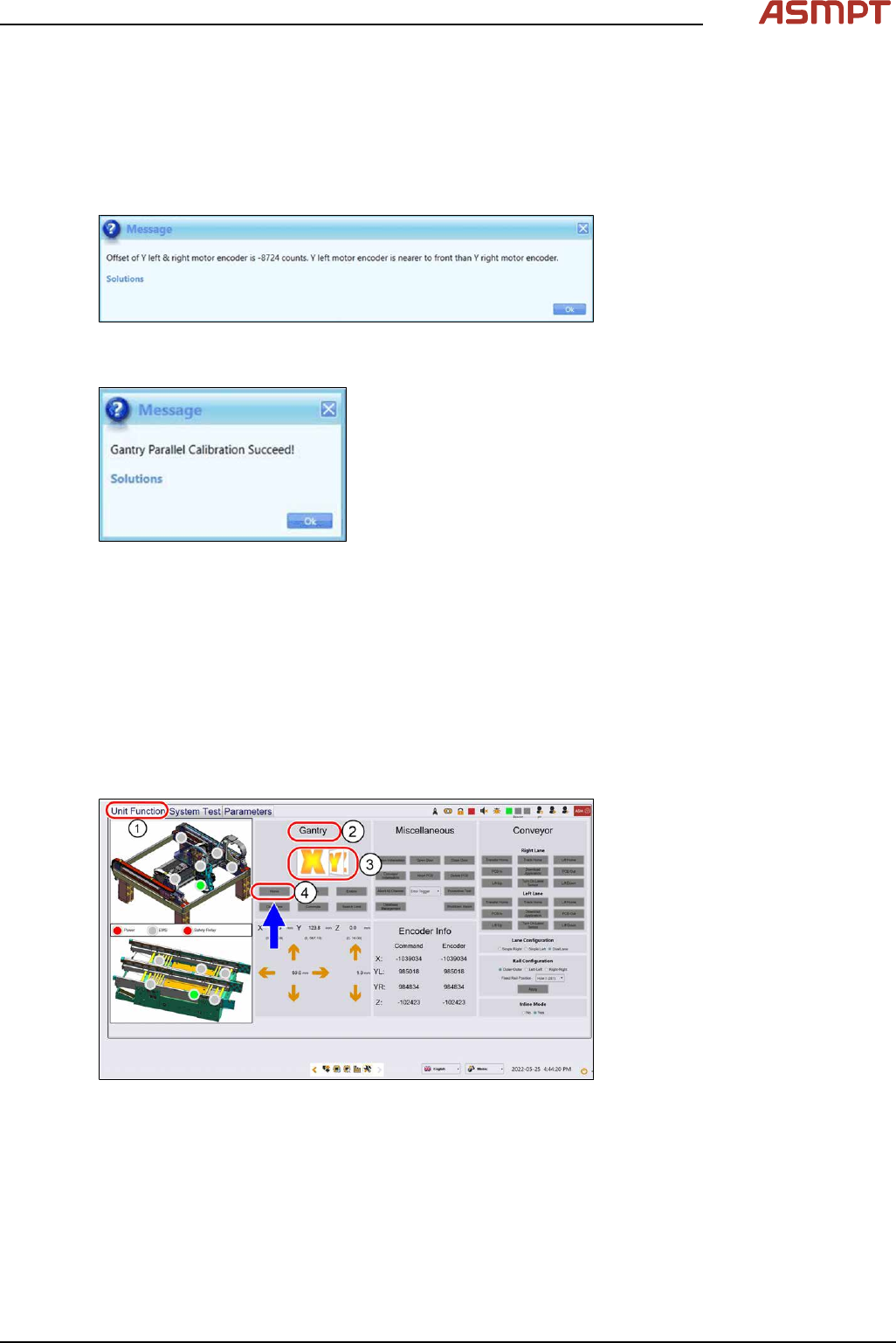
Fig.63: Message showing encoder counts
► Click Ok, a success message will appear at the end.
Fig.64: Success message
► Click Ok and the calibration is completed.
3.3.4 Checking the alignment of the x, y and z encoder reader
Furthermore the alignment of the x, y and z readers need to be checked whenever the readers or the
scale bar has been changed.
Requirements
●
Machine is switched on.
Checking the alignment
Fig.65: Checking the alignment
► Go to the Diagnostic page.
► Click on the Unit function(1) tab.
► Go to the Gantry section(2).
► Select the X button(3) and click on Home(4).
► Select the Y button(3) and click on Home(4).
► Select the Z button(3) and click on Home(4).