Process Lens PL Service Manual_EN.pdf - 第143页
4 Machine - Calibrations Se rv ic e Ma nu al P ro ce ss L en s PL - 0 3/ 20 25 14 3 Step 4 Fig.206: Messages ► Click Yes (1) to backup data. ► Click Ok (2) to complete calibration. 4.3 Calibrations - One Point Dynamic T…
4 Machine - Calibrations
142 Service Manual Process Lens PL - 03/2025
4.2 Calibrations - Machine Zero Calibration
Purpose: Reference the relative position of the camera to a fixed position in the machine.
Step 1
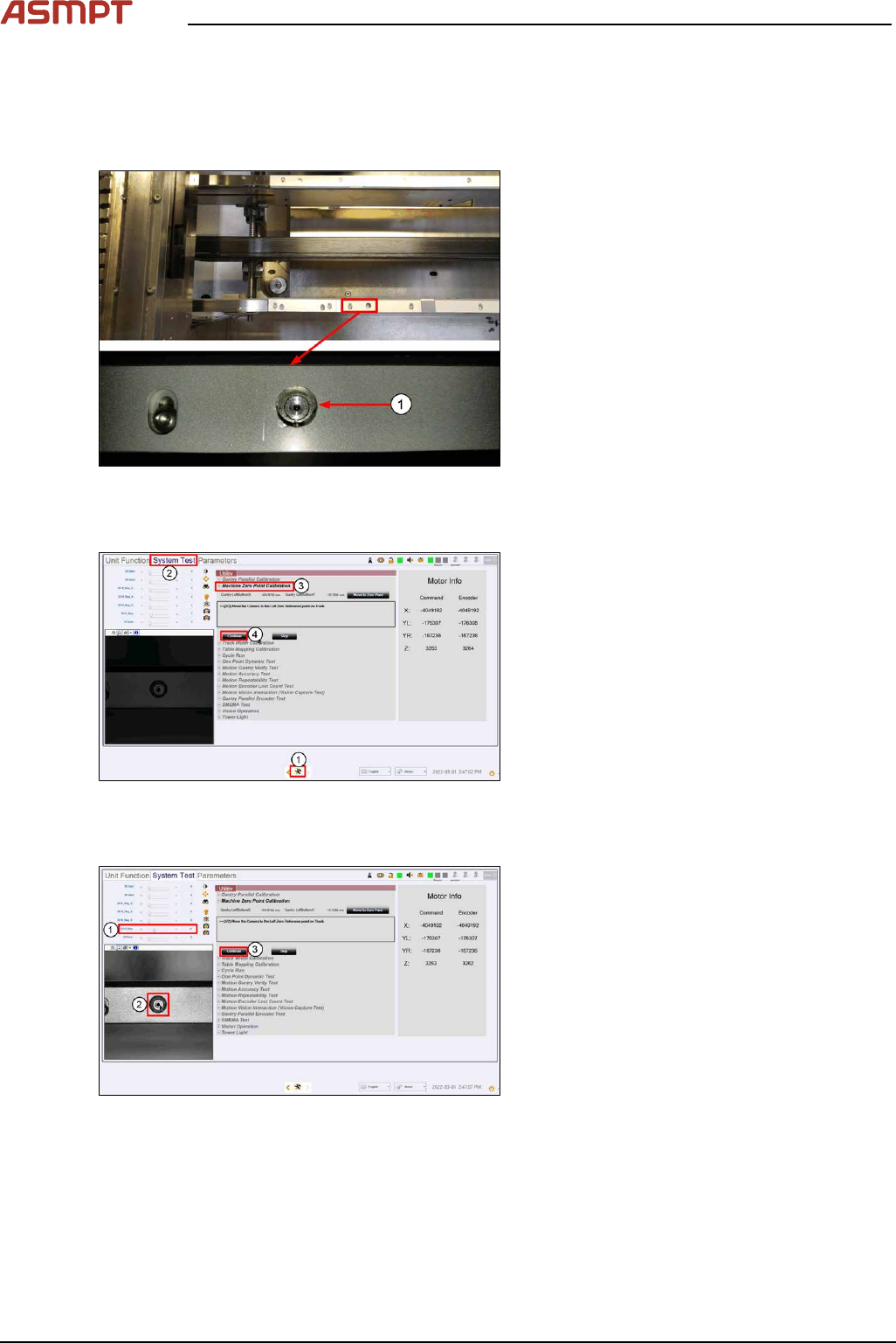
Fig.203: Reference
(1)Machine Zero Reference
► Locate the machine´s fixed fiducial on the
left side of the front conveyor. Check it is
clean and not obstructed from view.
► Close and lock the machine cover.
Step 2
Fig.204: “System test” tab
► Go to the DiagnosticPage. (1)
► Click System Test. (2)
► At Utility > Machine Zero Point Cali-
bration, click Start. (3)
ð The camera moves over to the
machine reference zero fiducial.
► Click Continue (4).
Step 3
Fig.205: Setting the brightness
► Set the 2D H_Ring (1) to brightness as
shown.
► Click on the centre of the fiducial (2).
► Click Continue (3) to proceed with cali-
bration. Live image window will turn dark
which is normal.
ð Message window will prompt user to
backup data.
4 Machine - Calibrations
Service Manual Process Lens PL - 03/2025 143
Step 4
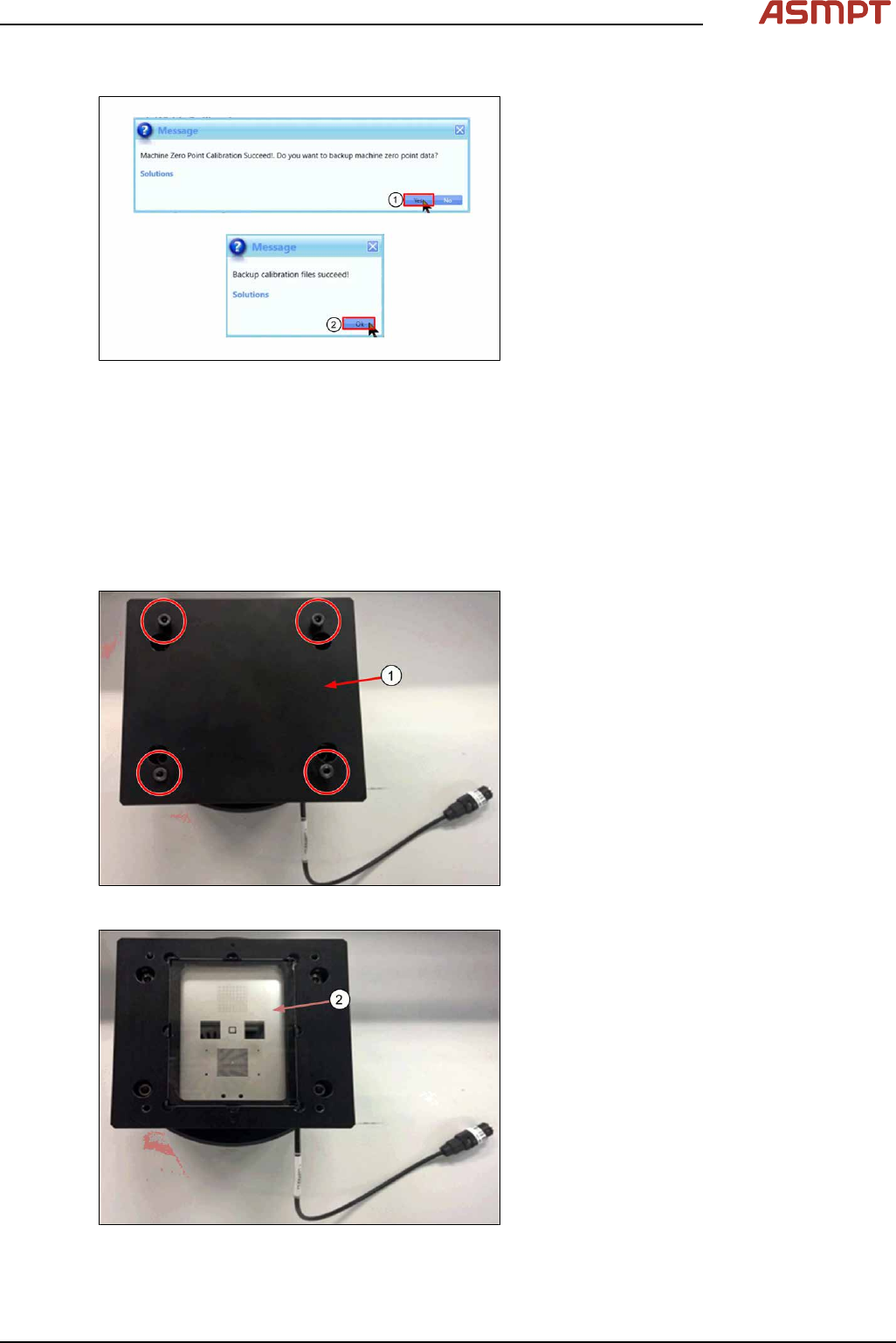
Fig.206: Messages
► Click Yes (1) to backup data.
► Click Ok (2) to complete calibration.
4.3 Calibrations - One Point Dynamic Test
The One Point Dynamic Test test the accuracy of the stopping position after a gantry move. A com-
mand is given to move the camera away from the target, then return to the target and the variation
between the theoretical and actual stop position as measured by the camera is analysed. The process
is repeated 50 times.
Step 1
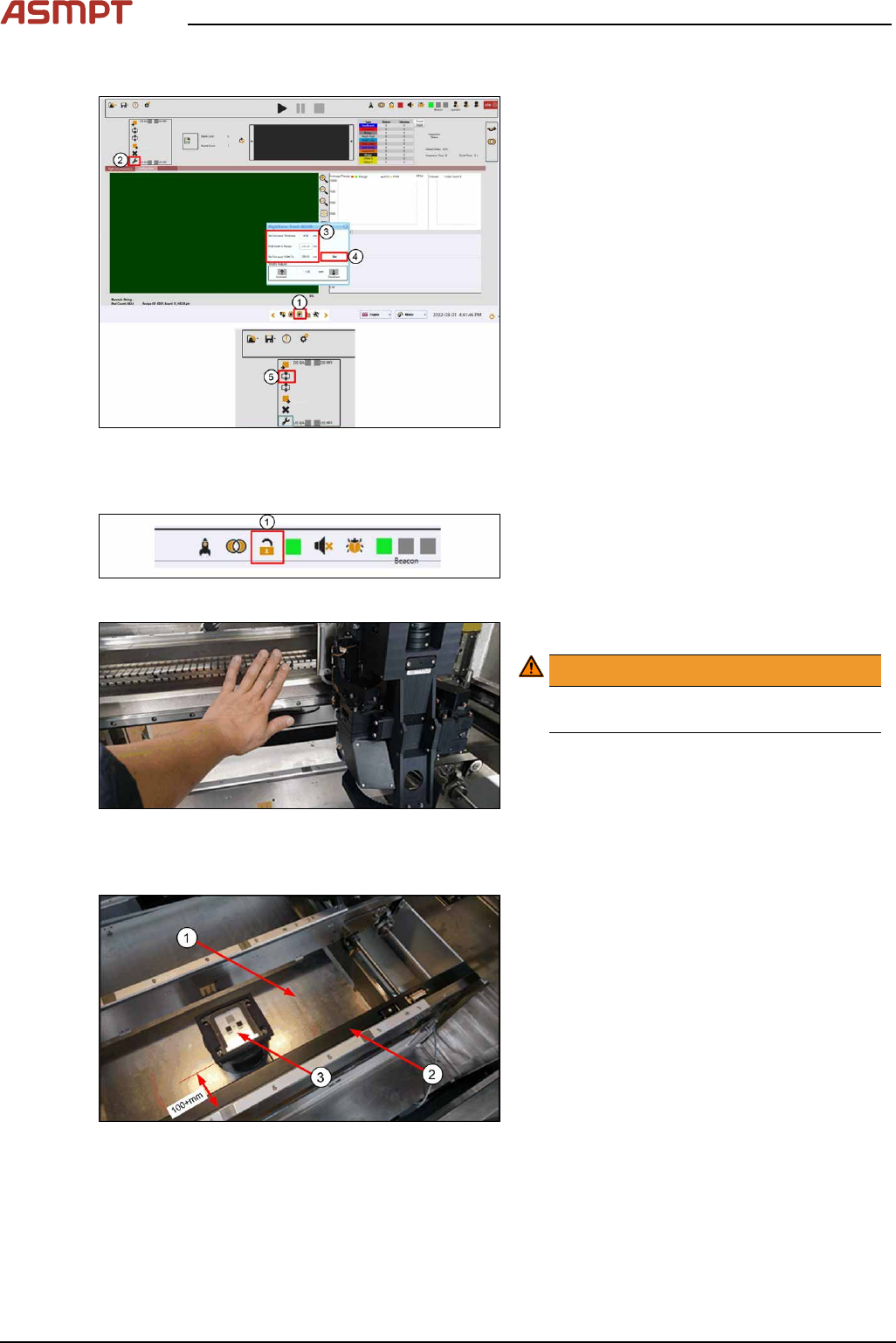
Fig.207: Removing the cover
► Remove the cover (1) by removing the
4screws.
Fig.208: Checking glass target
► Check the glass target (2) for scratches or
damage. Clean with lint free cloth & IPA if
necessary.
4 Machine - Calibrations
144 Service Manual Process Lens PL - 03/2025
Step 2
Fig.209: Inspection oage
► Go to Inspection Page (1).
► Click Adjust Conveyor (2).
► Set the following:
ð Thickness, 4mm (3)
ð Width, 250mm (3)
► Click Set (4).
► Click Lift Up (5) to lift up lifting table.
Step 3
Fig.210: Opening door
► Click Lock to open door (1).
Fig.211: Pushing the gantry
► Push the gantry to the back.
WARNING!
Do not push on the camera module.
Remove all supporting pins.
.
Step 4
Fig.212: Placing the target
► (1) Clean the lift table of any debris.
► (2) Pull the sensor bar towards the front
conveyor.
► (3) Place the target on the table in the
middle of the conveyor about 100+mm
away from the front conveyor´s edge.
Align the target parallel to the conveyor.