Process Lens PL Service Manual_EN.pdf - 第37页
3 Replacing spare parts Se rv ic e Ma nu al P ro ce ss L en s PL - 0 3/ 20 25 37 3.1.2.3 Checking the DLP module Requirements ● DLP module is dismantled. Checking the module Fig.34: Checking the module ► Put the DLP mod…
3 Replacing spare parts
Service Manual Process Lens PL - 03/2025 37
3.1.2.3 Checking the DLP module
Requirements
●
DLP module is dismantled.
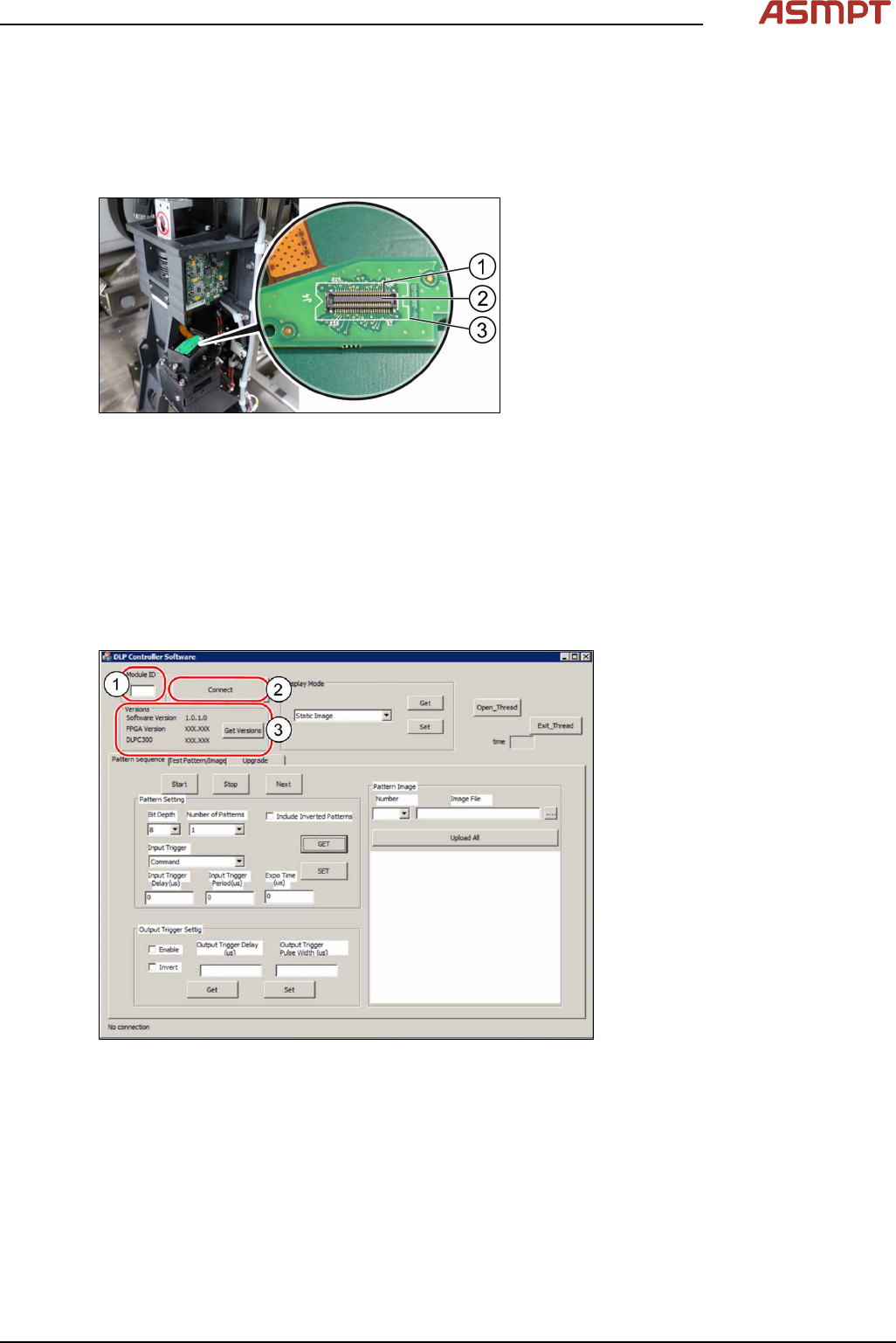
Checking the module
Fig.34: Checking the module
► Put the DLP module in its position.
► On the DLP interface board to the
DMD(3) make sure that the connector(2)
is in the right position and does not bend
the pin(1). Use an external light to check
that the holes of the connector and the
drilling holes for the screws are in line.
► If the connector and the pin are in line a
noticeable click sound can be heard when
the connector is pressed down.
3.1.2.4 Checking the software version of the DLP module
When the DLP module and the DMD module have been changed, a software check for the latest Ver-
sion is needed.
Requirements
●
Machine is switched on.
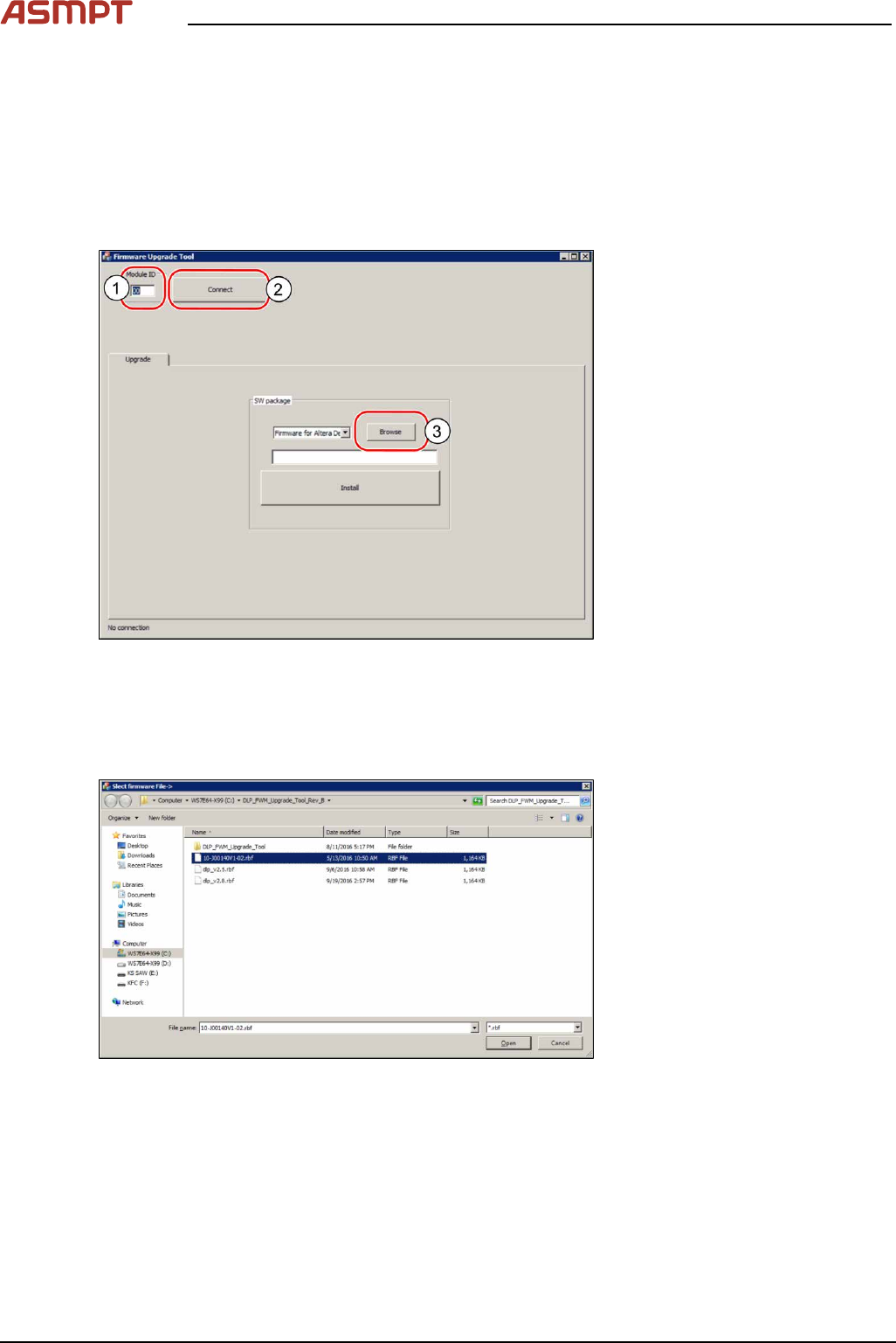
Checking the software version
Fig.35: Checking the software version
► Open the DLP controller software on the computer.
► Double click on the application to run the software.
► In the Module ID input field(1) enter the number "00" for the left DLP module or "01" for the right
DLP module to test the left or the right DLP module and click on Connect(2).
► Click on Get Version(3) to check if the software version is running the latest version.
► Go to the ASMPT internal website to check the software version.
3 Replacing spare parts
38 Service Manual Process Lens PL - 03/2025
3.1.2.5 Upgrading the firmware of the DLP module
When the firmware of the DLP module is not running the latest firmware, it needs to be updated.
Requirements
●
Machine is switched on.
●
The .rbf file is downloaded from the ASMPT internal website.
Upgrading the firmware
Fig.36: Browsing for the *.rbf file
► Open the DLP firmware upgrade software on the computer.
► In the Module ID input field(1) enter the number "00" for the left DLP module or "01" for the right
DLP module to test the left or the right DLP module and click on Connect(2).
► Click on the browse button(3) to browse to the needed *.rbf file.
Fig.37: Searching the needed file
► Double-click on the needed .rbf file.
► Click on the install button to install the latest version.