DECAN_S2_Admin(Eng_Ver4.5).pdf - 第153页
6-40 Advanced Chip Shooter DECAN S2 Admi nistra t or’s Guide 6.6.2. Barcode Position Figure6.9 Order of ‘Barcode Position’ Dialog Box Execution Figure6.10 Barco de Position’ D ialog Box <1.Use> ch eck box Check t…
6-39
Board Definition
6.6. 2D Barcode
6.6.1. Configuration
Allows a user to know the model information of the PCB loaded into the machine by
recognizing the barcode on the PCB and manage the production history by PCB being
interlocked with the Lot Tracking System (LTS).
When using the 2D barcode
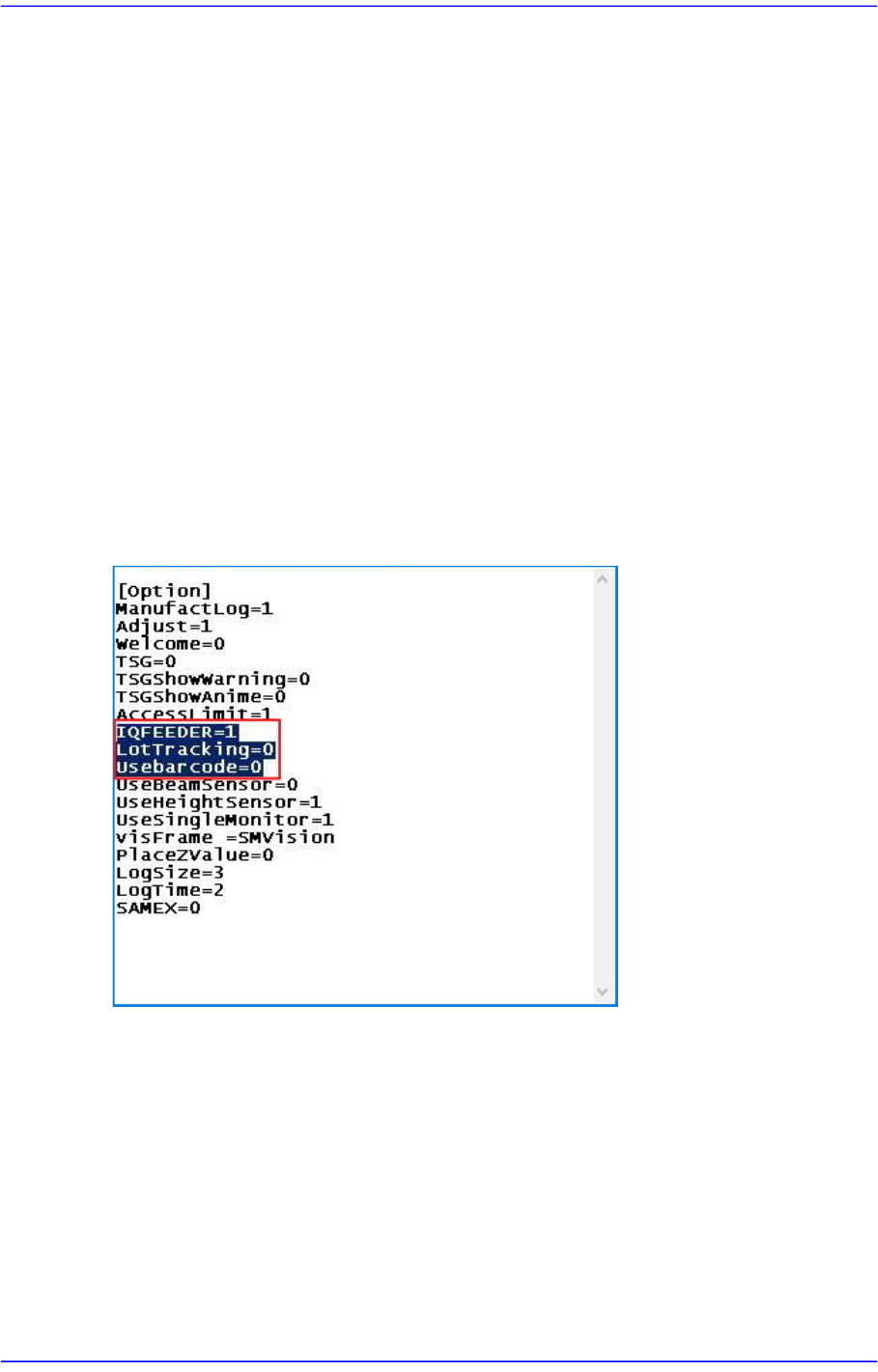
In the [Option] item of the “C:\SmartSM\bin\SmartSM.ini” file, set the IQFEEDER to
1 and the LotTracking to 2, Usebarcode to 1. Then press the ‘Barcode Position’ button
in the “Board Definition’ dialog box.
When using 1D barcode
In the [Option] item of the “C:\SmartSM\bin\SmartSM.ini” file, set the IQFEEDER to
1 and LotTracking to 1, Usebarcode to 0.
When using no barcode (When using IT Only)
In the [Option] item of the “C:\SmartSM\bin\SmartSM.ini” file, set the IQFEEDER to
1 and LotTracking to 0, Usebarcode to 0.
After finishing the modification of the configuration file, execute the “SmartSM.exe”.
6-40
Advanced Chip Shooter DECAN S2 Administrator’s Guide
6.6.2. Barcode Position
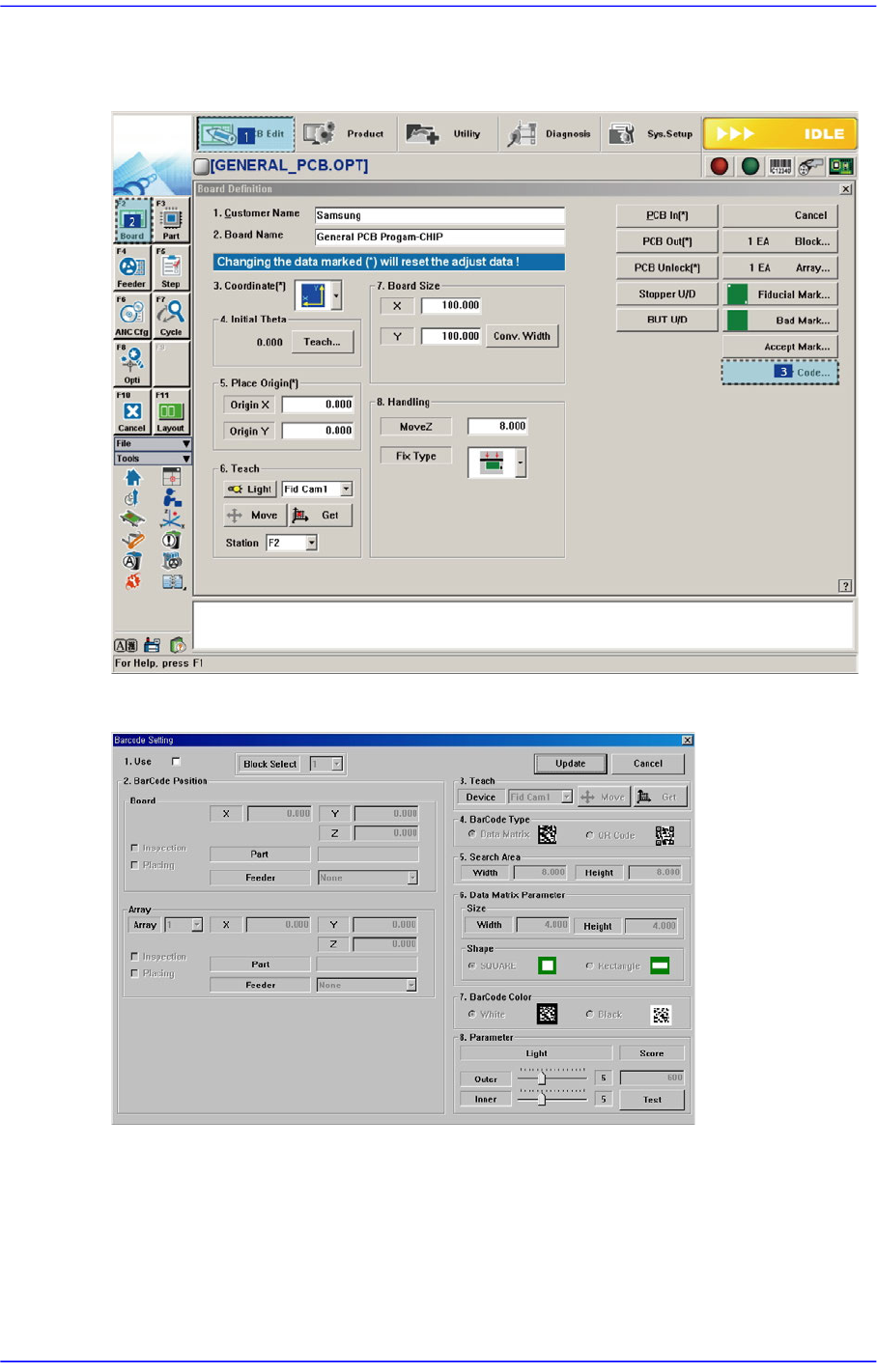
Figure6.9 Order of ‘Barcode Position’ Dialog Box Execution
Figure6.10 Barcode Position’ Dialog Box
<1.Use> check box
Check the 2D barcode function to use it.
<2. Bar Code Position> group
Indicates the position of the 2D barcode.
6-41
Board Definition
<Board> Area
Teaches the 2D barcode position attached to a board using the fiducial camera
selected from the <3. Teach> area or performs setup for 2D barcode attachment to
a board.
<X/Y> Edit Box
Sets the X/Y coordinate of a 2D barcode.
<Z> Edit Box
When attaching a 2D barcode to a board, sets the Z-axis coordinate in order to
press and attach a 2D barcode to a board with a head spindle.
<Inspection> Check Box
Selecting this check box will recognize the 2D barcode attached to a board.
<Placing> Check Box
Selecting this check box will attach a 2D barcode to a board using the
machine.
Part
Enabled when the <Placing> check box is selected. Displays the part supplied
by the feeder selected from the <Feeder> combo box.
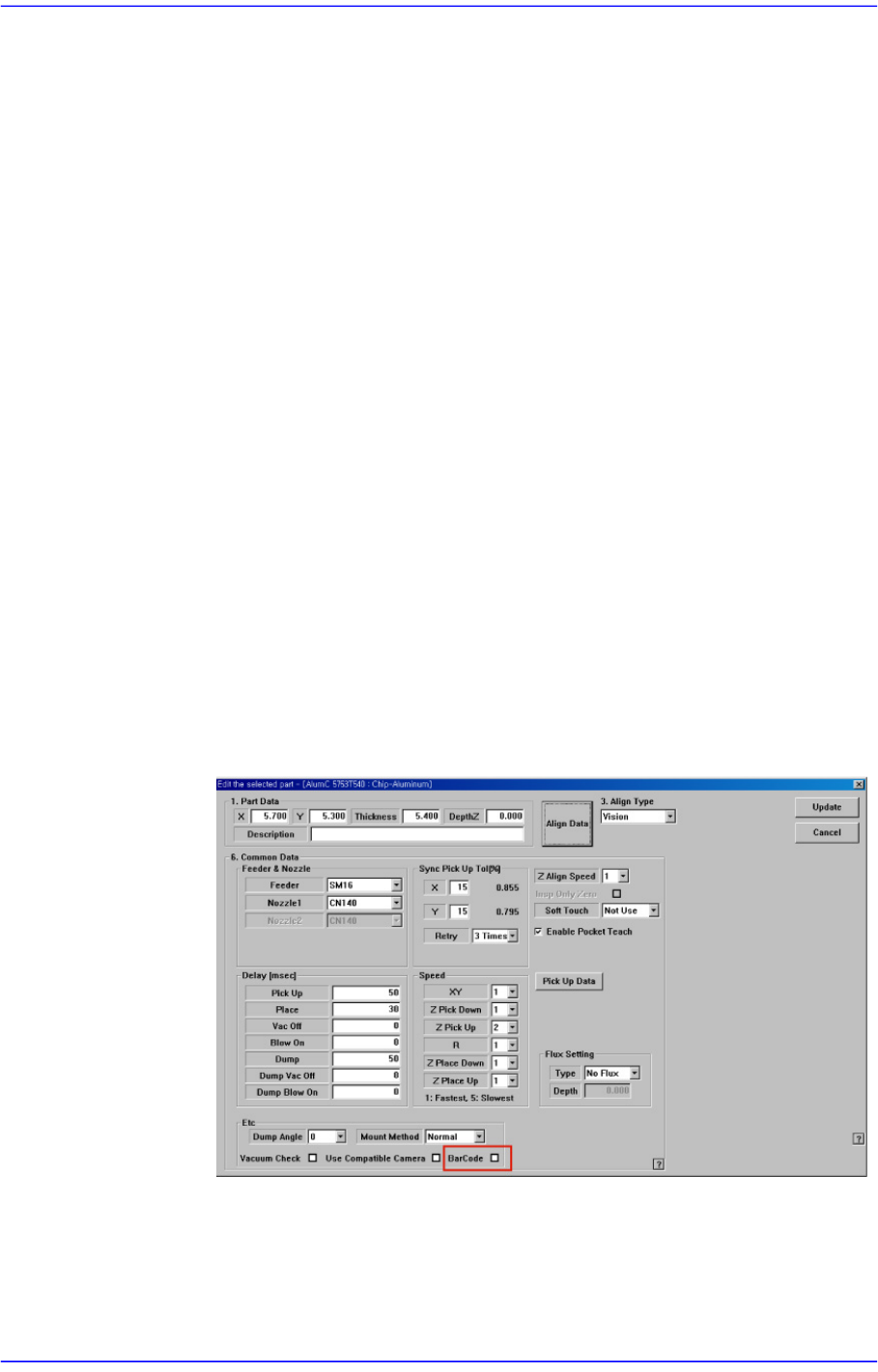
<Feeder> Combo Box
Enabled when <Placing> check box is selected. The feeder supplying the part
registered by selecting the <BarCode> check box from the Common Data
setup screen appears in the list as shown in the following figure:
<Array> Area
Teaches the 2D barcode position attached to an array of a board using the fiducial
camera selected from the <3. Teach> area or performs setup for 2D barcode
attachment to the array of the board.