DECAN_S2_Admin(Eng_Ver4.5).pdf - 第93页
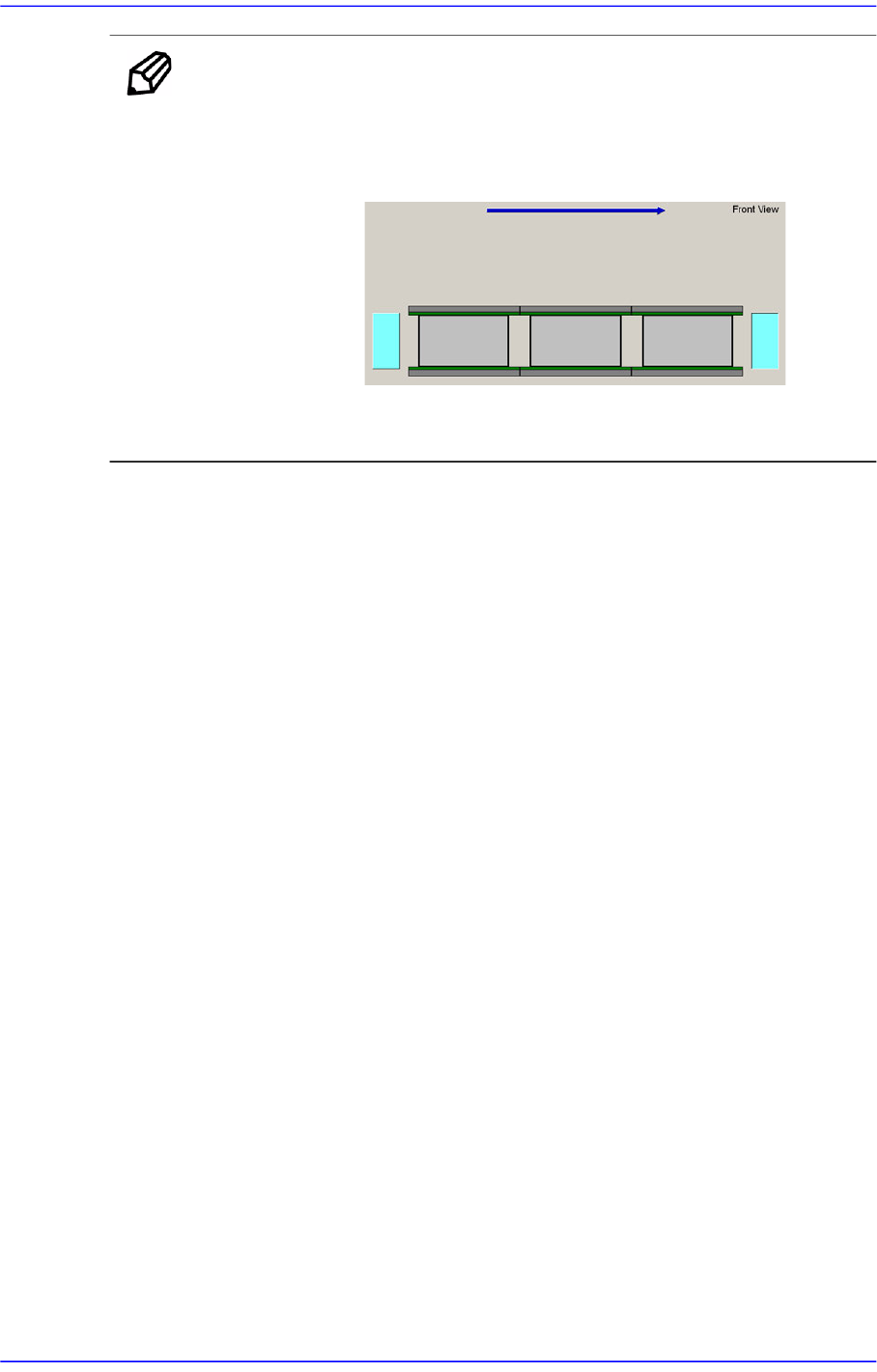
4-12 Advanced Chip Shooter DECAN S2 Admi nistra t or’s Guide MEMO The shape of the conveyor displayed on the screen may dif f er depending on the option. <Sin gle Lane> <Full Sing le T ype>
4-11
Tools Shortcut Menu
4.4. Operation Mode Change
The accessible MMI menu is different according to the user mode. According to the
purpose of using the MMI, users are classified into Operator, Programmer, Manager and
Service. Please refer to “Chapter 1. Operation Mode and Password Change” for more
information.
4.5. Conveyor
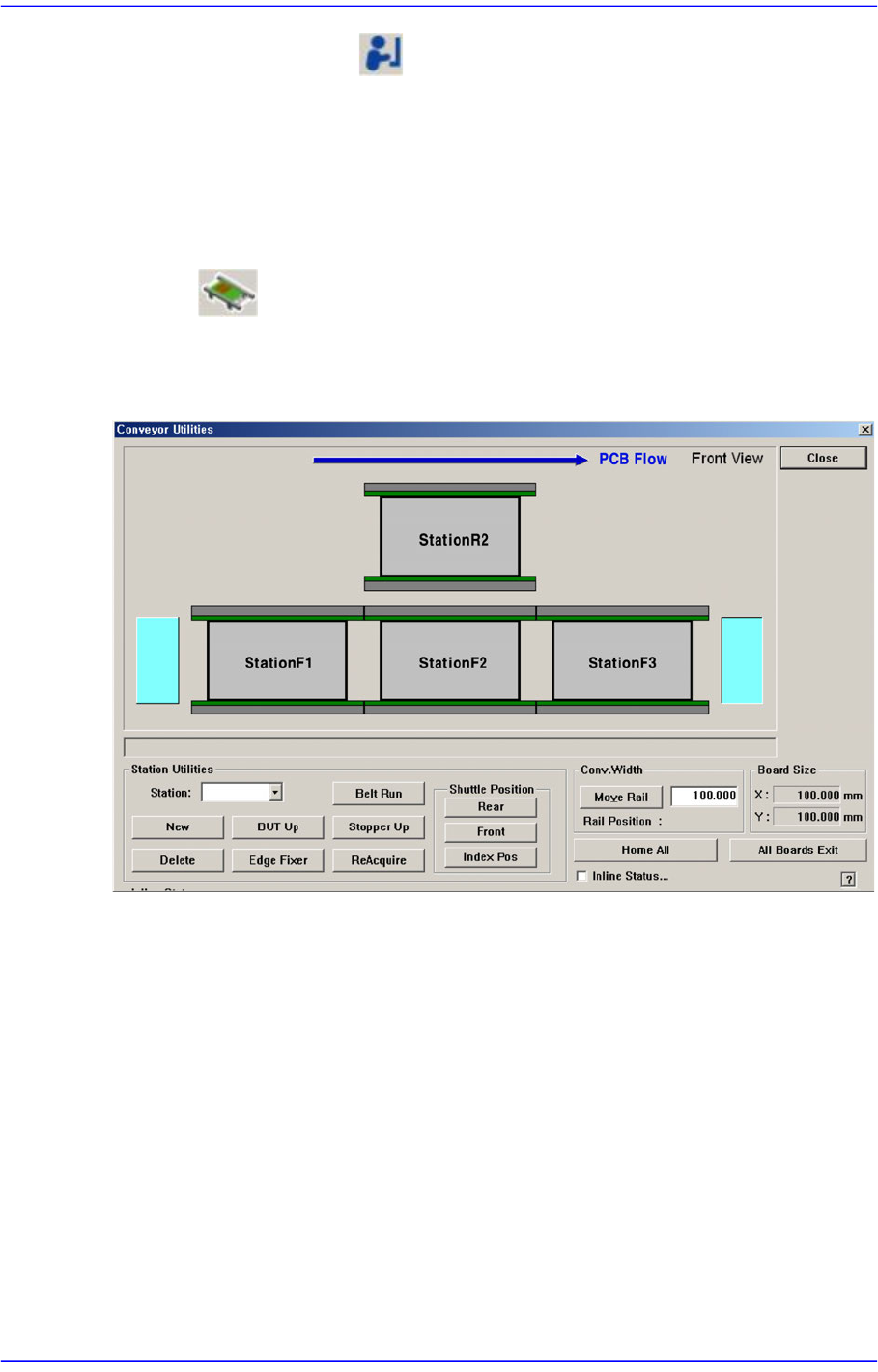
Used to correct the problem occurred during run operation.
Figure4.4 Conveyor System dialog box
4-12
Advanced Chip Shooter DECAN S2 Administrator’s Guide
MEMO The shape of the conveyor displayed on the screen may differ
depending on the option.
<Single Lane>
<Full Single Type>
4-13
Tools Shortcut Menu
4.5.1. PCB In/Out Function
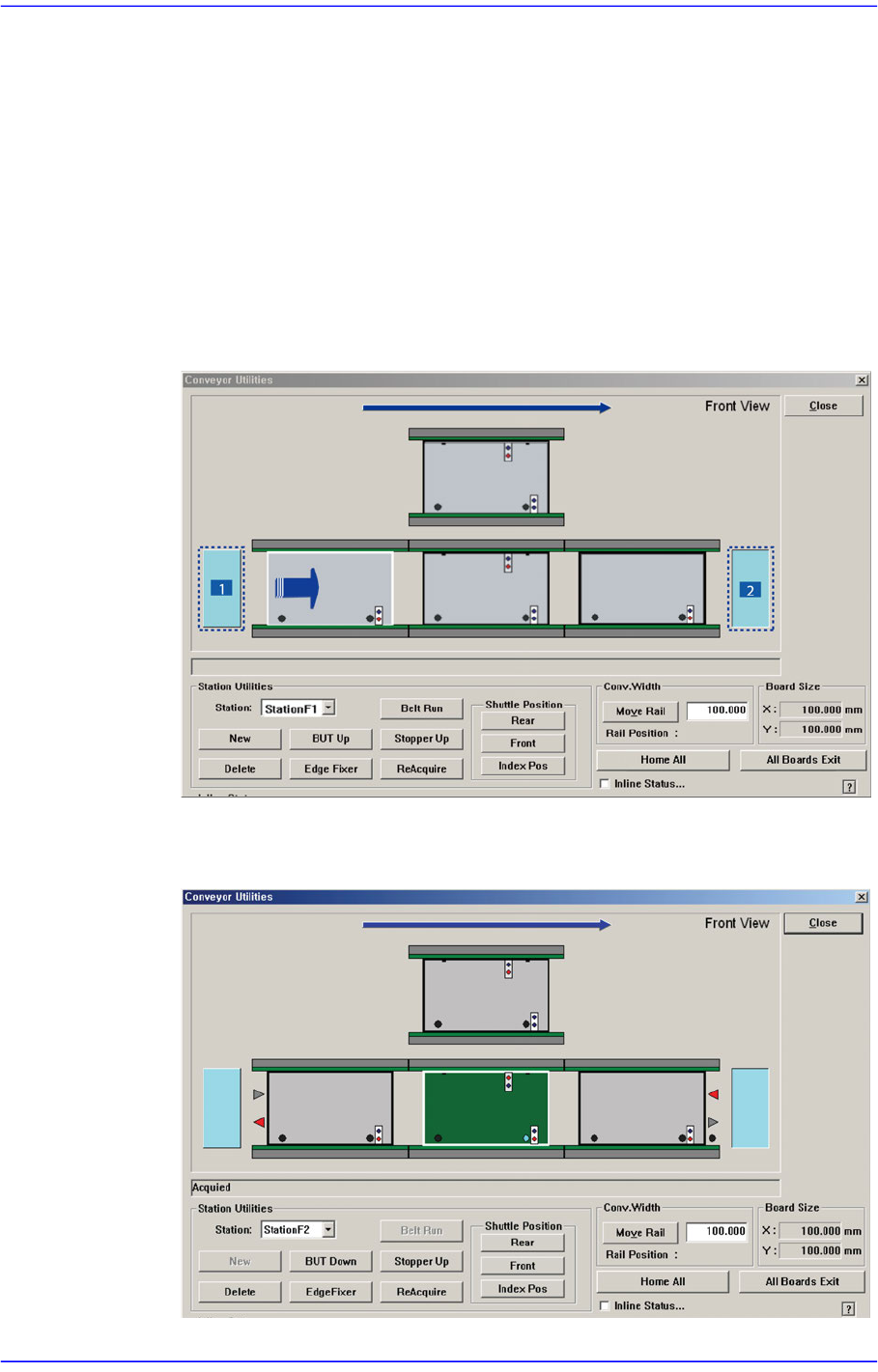
Able to place PCB in the working station in the conveyor or forward it to the next process
of the working station in the conveyor using ‘drag & drop’ with the mouse.
To put a PCB into the machine, select the light green PCB on the left with the mouse and
drag it to the working station to put and drop it (drag and drop). To release a PCB from the
machine, select the PCB in the working station to release and drag and drop it to the light
green PCB on the left (drag and drop).
Board Flow (left Explain for the instance of right side)
The PCB is moved to the working station by ‘drag and drop’ of a PCB in standby
at the left hand side.
1: PCB in standby
2: The released PCB