DECAN_S2_Admin(Eng_Ver4.5).pdf - 第502页
15-51 System Setup Figure15.17 “ Error Rep ort” dialog box <Use> check box Checking this check box will allow th e file backup function to be used. <Path> edit box Sets the path for MMI file backup. <…
15-50
Advanced Chip Shooter DECAN S2 Administrator’s Guide
Selected when synchronize the part DB of each machine in the inline composed of
several machines.
Selecting this check box will allow the part DB to be shared between machines by
transmitting the part DB of the current machine to the T-OLP of the T-Solution.
<Show Backup Pin> check box
When using the function for sequential changing in the T-Solution, select this check
box to enable the backup pin dialog box.
<Use 1D Barcode JobChange> check box
It is possible to automatically download the corresponding PCB program by scanning
the barcode of the reel list printed in the T-Solution.
<1D Barcode Scan wait time(sec)> check box
When recognizing the 1D barcode using the scanner, sets the time in seconds taken
until the 1D barcode is recognized.
<Use File Backup> button
Backs up the modified system file and restores the MMI file if a problem occurs
during machine operation.
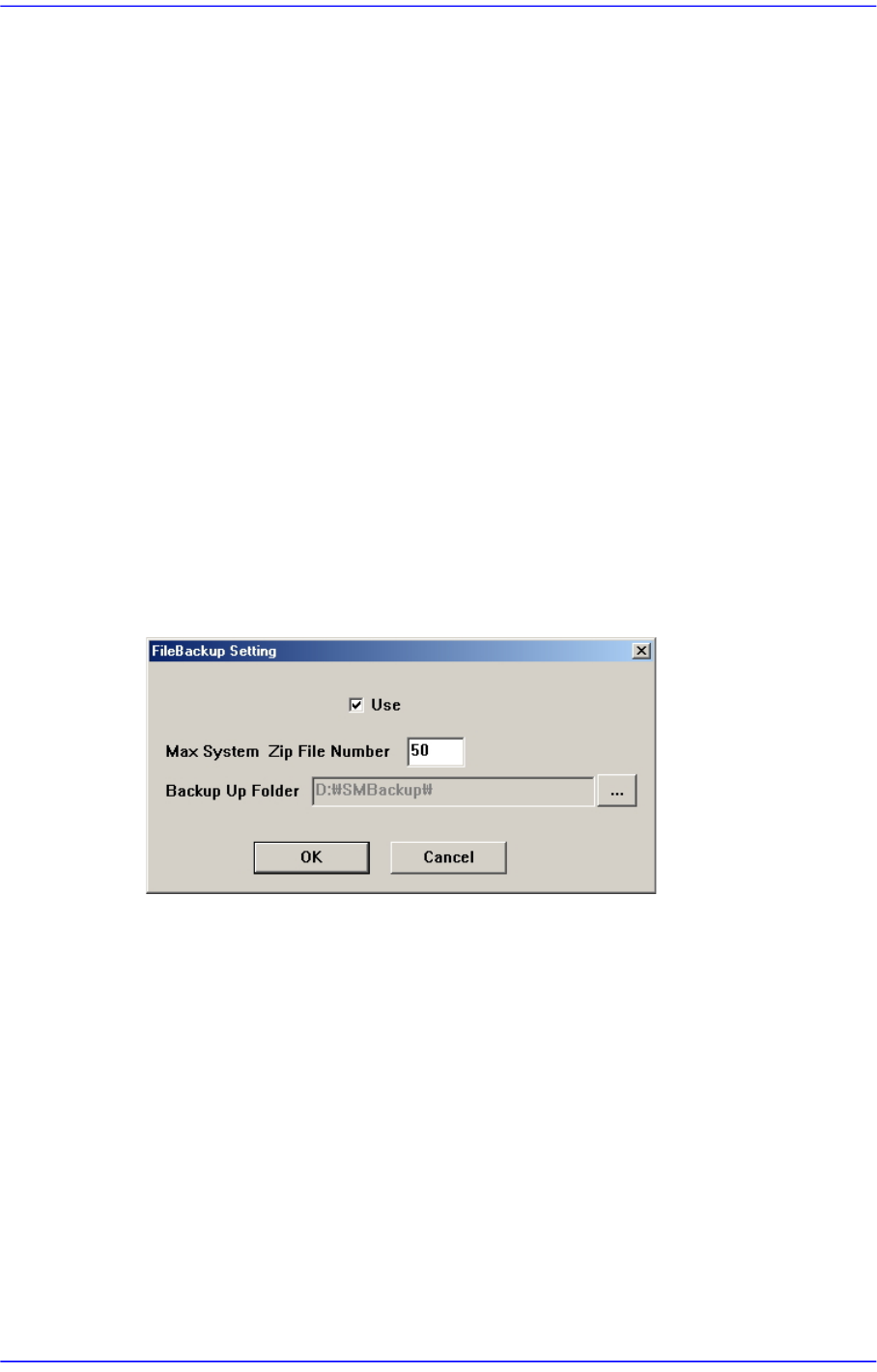
Figure15.16 “FileBackup Setting” dialog box
<Use> check box
Checking this check box will allow the file backup function to be used.
<Max System Zip File Number> edit box
Sets the maximum number of backup files.
<Backup Up Folder> edit box
'Sets the path for MMI file backup.
<Use Auto Error Report> button
Used to back up the MMI file manually when the user shuts the machine down. The
user can back up the MMI file manually only when the machine is in the idling state.
15-51
System Setup
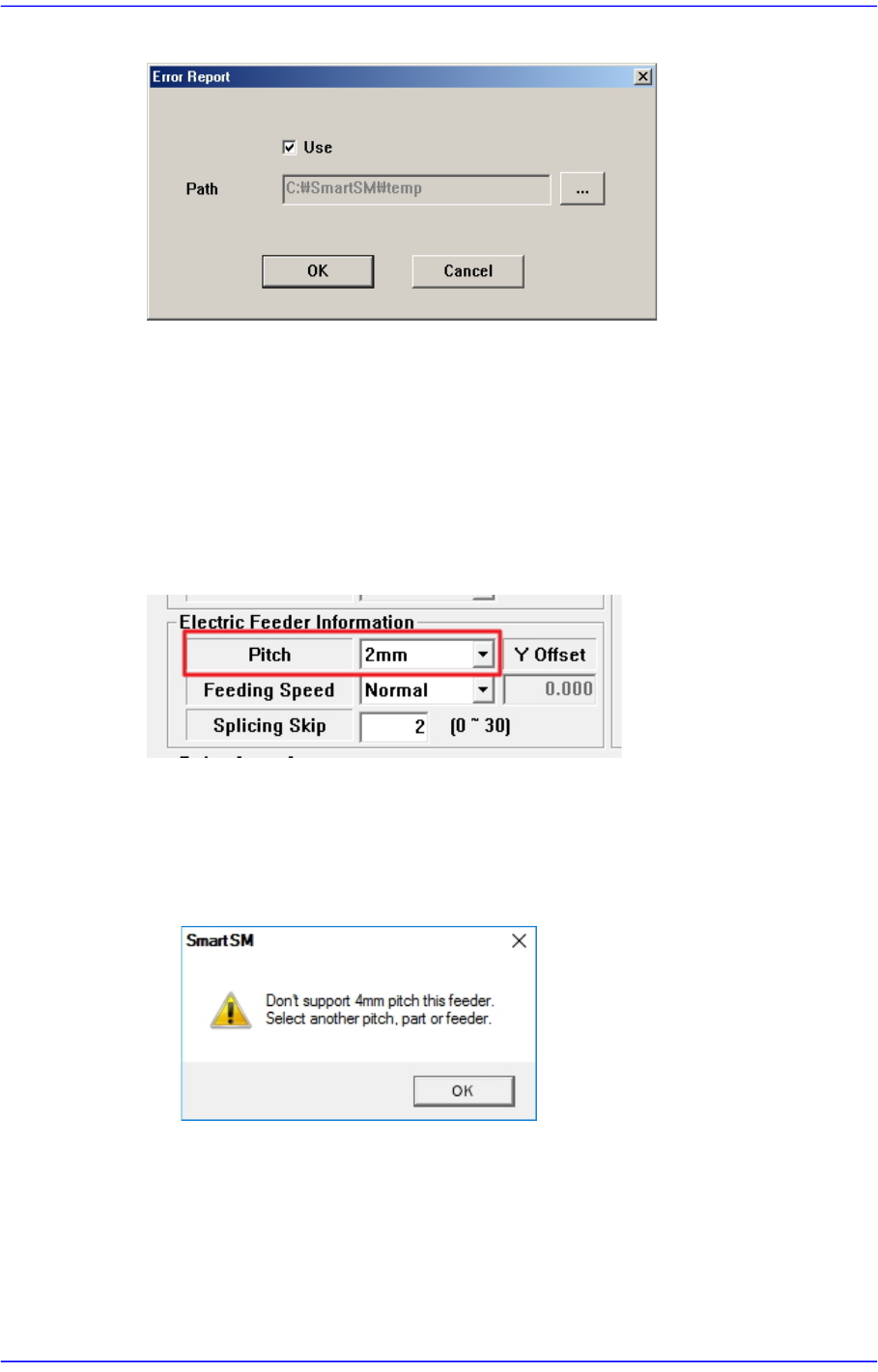
Figure15.17 “Error Report” dialog box
<Use> check box
Checking this check box will allow the file backup function to be used.
<Path> edit box
Sets the path for MMI file backup.
<Ignore Restriction Pitch> check box
Ticking this check box will override any constraints on the Feeder Pitch settings of a
part.
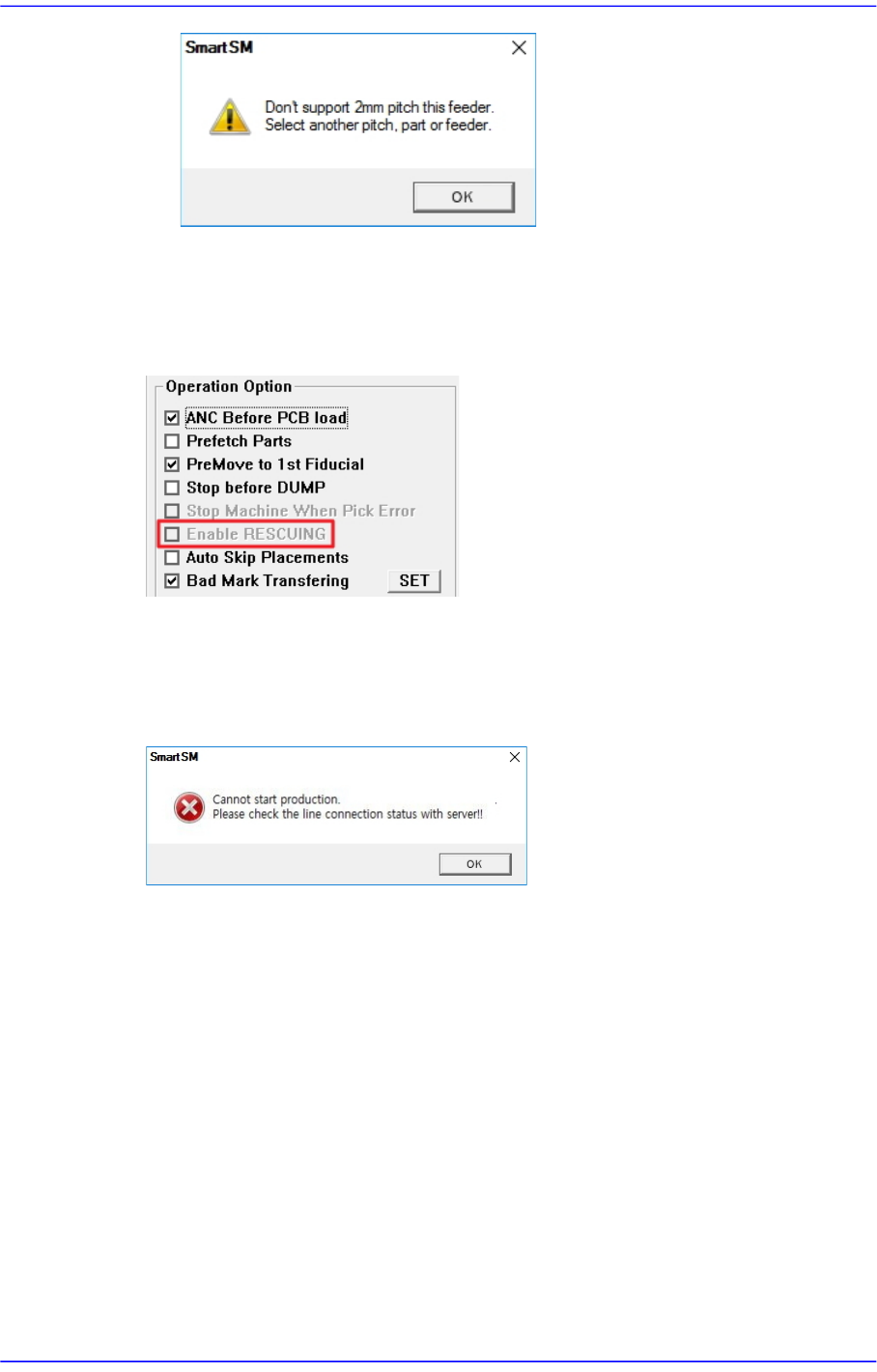
When setting the Feeder Pitch of a part, the following restrictions are set by default.
Parts of 1005 or less (the Y size of a part is less than 0.65mm)
Feeder Pitch: Only 2mm or less can be selected
When an unavailable Pitch is selected, the following warning window appears.
Parts of 1608 or more (the Y size of a part is more than 0.65mm)
Feeder Pitch: Only 4mm or less can be selected
When an unavailable Pitch is selected, the following warning window appears.
15-52
Advanced Chip Shooter DECAN S2 Administrator’s Guide
<Use RESCUING> check box
When this check box is ticked, the <Enable RESCUING> check box is activated in the
<Operation Option> area of the “Product” menu. For details on this function, refer to
“13.1.2. Option Setting”.
<PNP Connection Check> check box
Checks whether the machine and PNP are connected before starting production.
Starting production with the machine not connected to the PNP will display an error
message.
<Use Pickup Offset Sync> check box
This is selected when applying the feed angle (R) and mounting angle (Part R) of the
stick or tray feeder to the parts data registered in the feeder. When this check box is
ticked, each time the PCB file is opened, the feed angle and mounting angle of the part
are changed to the feeder data.
<Auto Apply Pick Up Height> combo box
When this check box is ticked, the pickup height of the part is automatically reflected
to the feeder Z value, but only for feeders whose reel type is Paper. (Pickup height of
the part: Thickness of the part - 0.1mm)
When changing the model, it takes a long time to set the pickup height of the part
when the number of tape feeders is large. At this time, you can shorten the model
change time by using this function.
[e.g.: Chip parts with a thickness of 0.450]