CP-842E-842ME System Reference-SYS-CP842-10E.pdf - 第114页
Machine System >> Administrative Functions 4-78 SYS-CP842-1.0E 4.3.2 Setting Up a New User The machine system can control what function s are used by operators by means of its built-tin security settings. An accoun…
Machine System >> Administrative Functions
SYS-CP842-1.0E 4-77
4.3 Administrative Functions
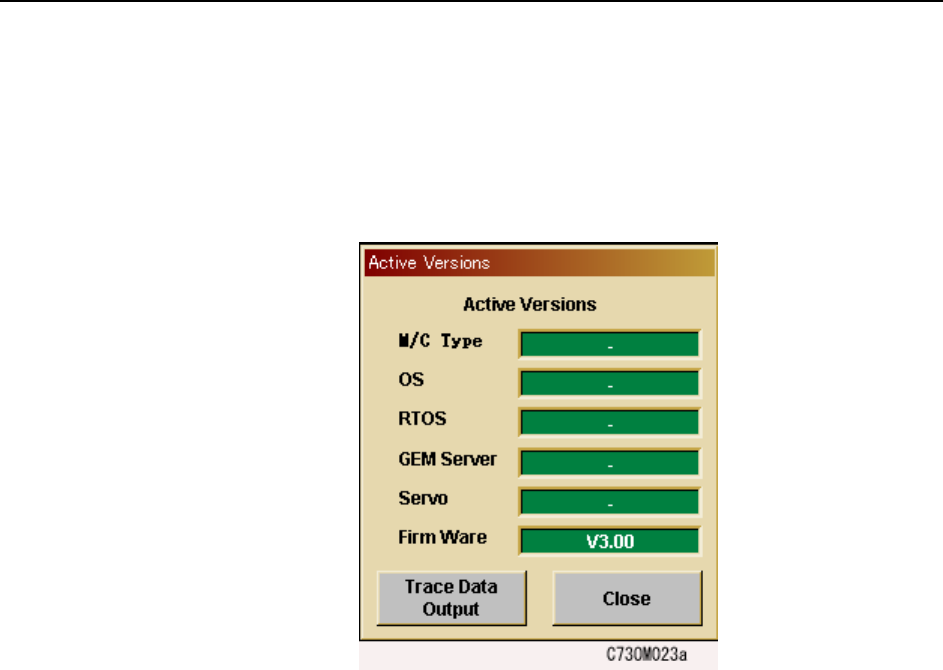
4.3.1 Displaying the Software Versions
Users can access the following dialog box by pressing the [FUJI] button in the top left
of the touch panel. Press [Close] to clear the version display.
Machine System >> Administrative Functions
4-78
SYS-CP842-1.0E
4.3.2 Setting Up a New User
The machine system can control what functions are used by operators by means of its
built-tin security settings. An account can be created for each person who uses the
machine.
Procedure
1 Press [Maintenance] - [Operator] from the [Main] screen. The [Operator Set-
tings] screen displays.
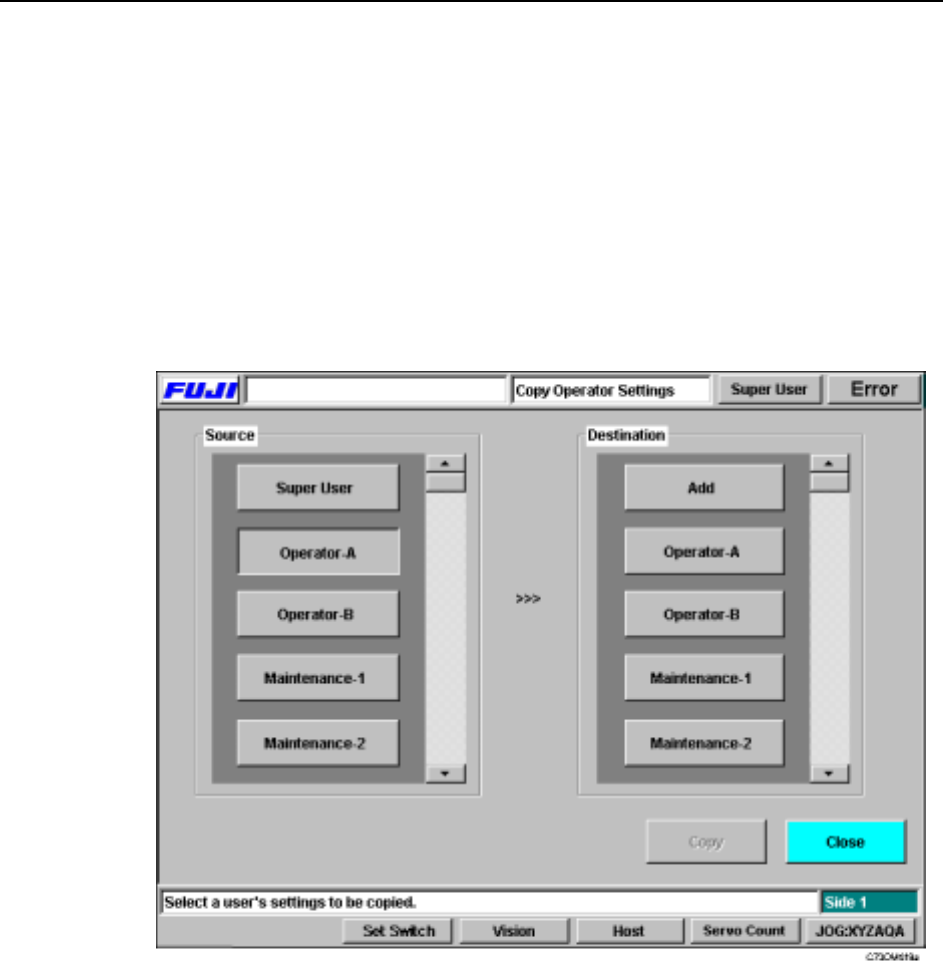
2 Press [Copy] to display the [Copy Operator Settings] screen. Select a user name
with settings similar to those that will be specified for the user to be added.
3 Next press [Add], then [Yes] at the confirmation message which displays.
4 Enter the user name, and password at the keyboard. The password must be
entered twice for confirmation.
5 The [Language Manager] screen displays when these entries are complete.
Press [Close] to complete the users settings.
The name added appears in the user list when the machine starts up. The new user
has the same access to commands as the user whose user settings were copied. Refer
to the following section for details of how to customize the settings for a user name.
Machine System >> Administrative Functions
SYS-CP842-1.0E 4-79
4.3.3 Changing User Settings
The access rights of each user name are customizable, and allow administrators to
identify which operator is using a machine, and when. These access rights settings
can only specified by those with a Super User status. Super User is a special adminis-
tration level user name which is installed by default on every machine.
Procedure
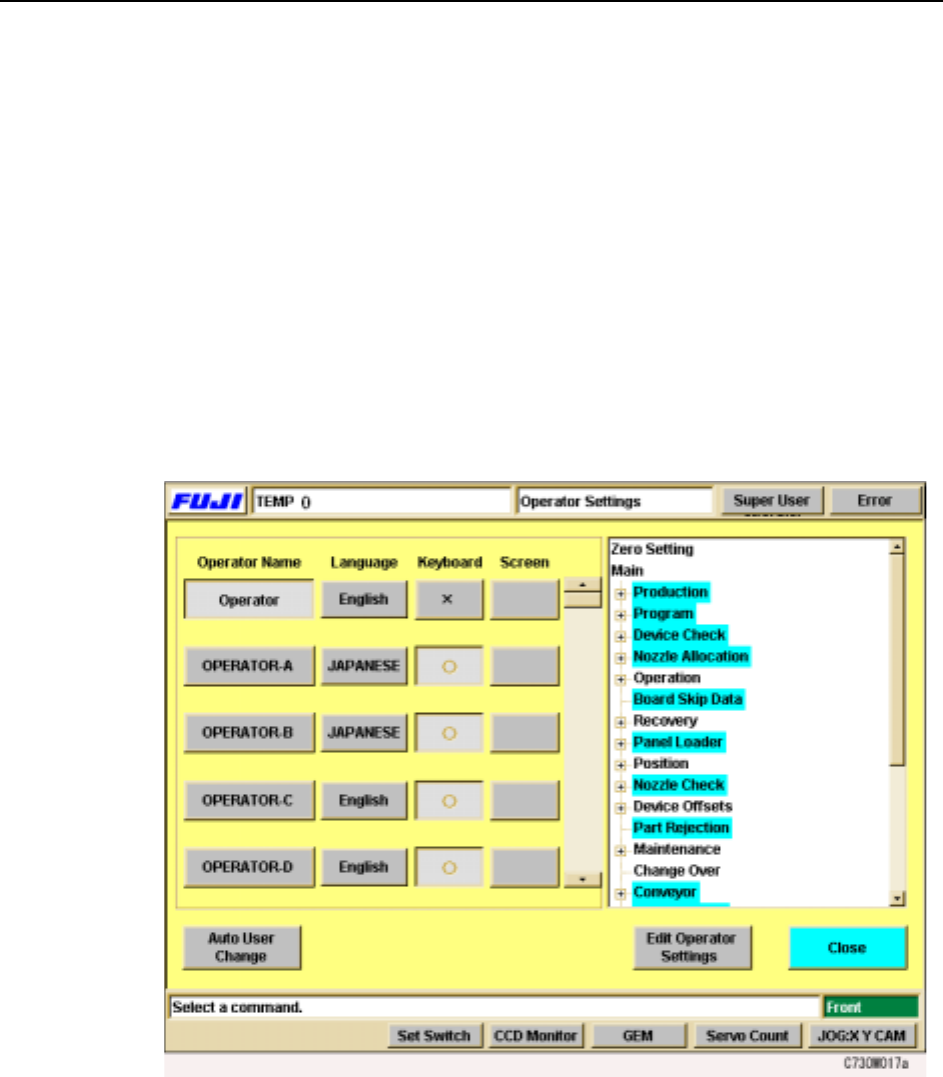
1 Press [Maintenance] - [Operator] from the [Main] screen.
The [Operator Settings] screen displays.
2 On the left of the screen is a list of user names. Select the Language button to
change the language for that user.
Note: The Language button only displays for Super User.
Next to the language button is the Settings button. User access can be toggled
on and off using this button.
3 On the right of the screen is the list of settings for which access rights can be
set. Select a setting and use the Settings button for that user to turn access
rights on or off.
4 Press [Close] to return to the [Maintenance] screen.