CP-842E-842ME System Reference-SYS-CP842-10E.pdf - 第57页
Machine System >> Basic Operation SYS-CP842-1.0E 4-21 4.1.6 Supply Unit Functions Parts are supplied to the pick- up position fr om the two device pallets moving back and forth on the D-axis at the rear of the CP -…
Machine System >> Basic Operation
4-20
SYS-CP842-1.0E
Procedure
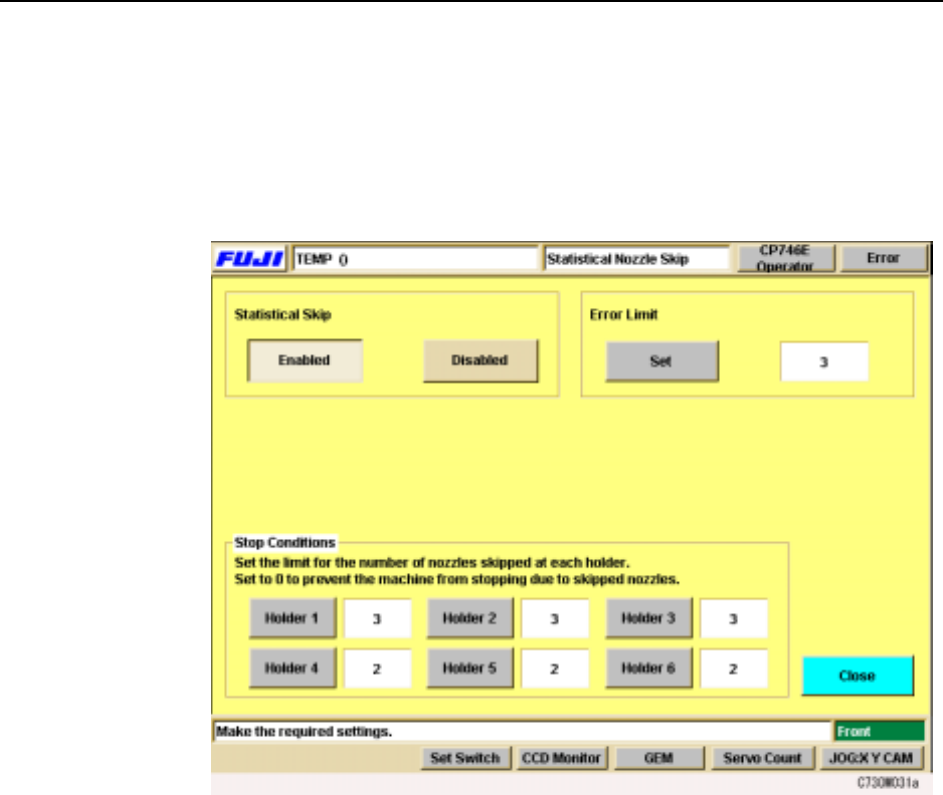
1 At the [Main] screen press [Maintenance], then press [Configuration] - [Statisti-
cal Nozzle Skip].
2 At the [Statistical Nozzle Skip] settings screen, press [On] to enable the statisti-
cal monitoring of nozzles.
3 To change the error rate, press [Error Limit]. Input the error limit at the
numeric keypad.
4 At Stop, set a limit to the number of nozzles which can be skipped at each holder
before the machine stops. The machine will not stop if the limit is set to 0.
5 Press [Close] enter the settings and return to the [Configuration] screen.
Machine System >> Basic Operation
SYS-CP842-1.0E 4-21
4.1.6 Supply Unit Functions
Parts are supplied to the pick-up position from the two device pallets moving back and
forth on the D-axis at the rear of the CP-842E/842ME. This section describes func-
tions related to the supply of parts to the machine.
Loading and Unloading Device Pallets (CP-842ME Option)
The CP-842ME employ a pallet system for loading and unloading batches of feeders.
Each device pallet (device table) is loaded into the machine using the Pallet Change
Unit (PCU). The device table is moved to the production area for the supply of parts
for assembly. Commands at the machine are used to change a used device pallet with
a fresh one.
Procedure
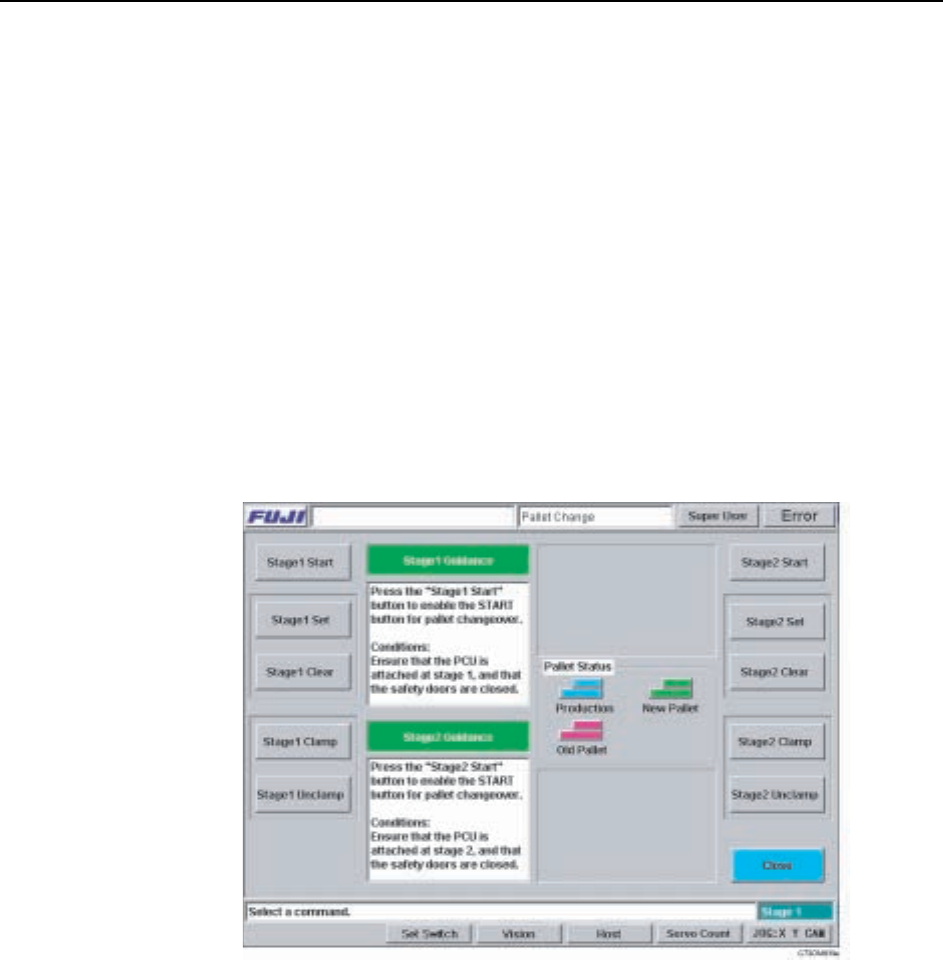
1 At the [Main] screen, press [Change Pallet] to display the [Pallet Change]
screen.
2 Select the side of the machine to be changed ([Stage 1 Start] or [Stage 2 Start]).
The START button is enabled if the PCU is docked to receive the current device
table, and the safety cover on that side is closed. If one or both of these condi-
tions are not satisfied, the machine displays a message telling the operator
what action is necessary.
3 Press the START button to execute the changeover. The guidance area for that
device pallet describes the current operation. When the pallet is unclamped,
open the safety door and exchange device pallets using the PCU.
Note: Do not press [Close] at this screen until the changeover is complete.
4 Close the safety cover when the new device pallet is in the machine. The
machine automatically clamps the new device pallet and requests the operator
to press [Stage 1 Set] ([Stage 2 set]) to complete the operation. When [Stage 1
Set] ([Stage 2 Set]) is pressed, the device pallet is ready to be used in production.
To clear the ‘Set’ status of the pallet, press [Stage 1 Clear] ([Stage 2 Clear]).
Machine System >> Basic Operation
4-22
SYS-CP842-1.0E
Setting the Device Table Mode
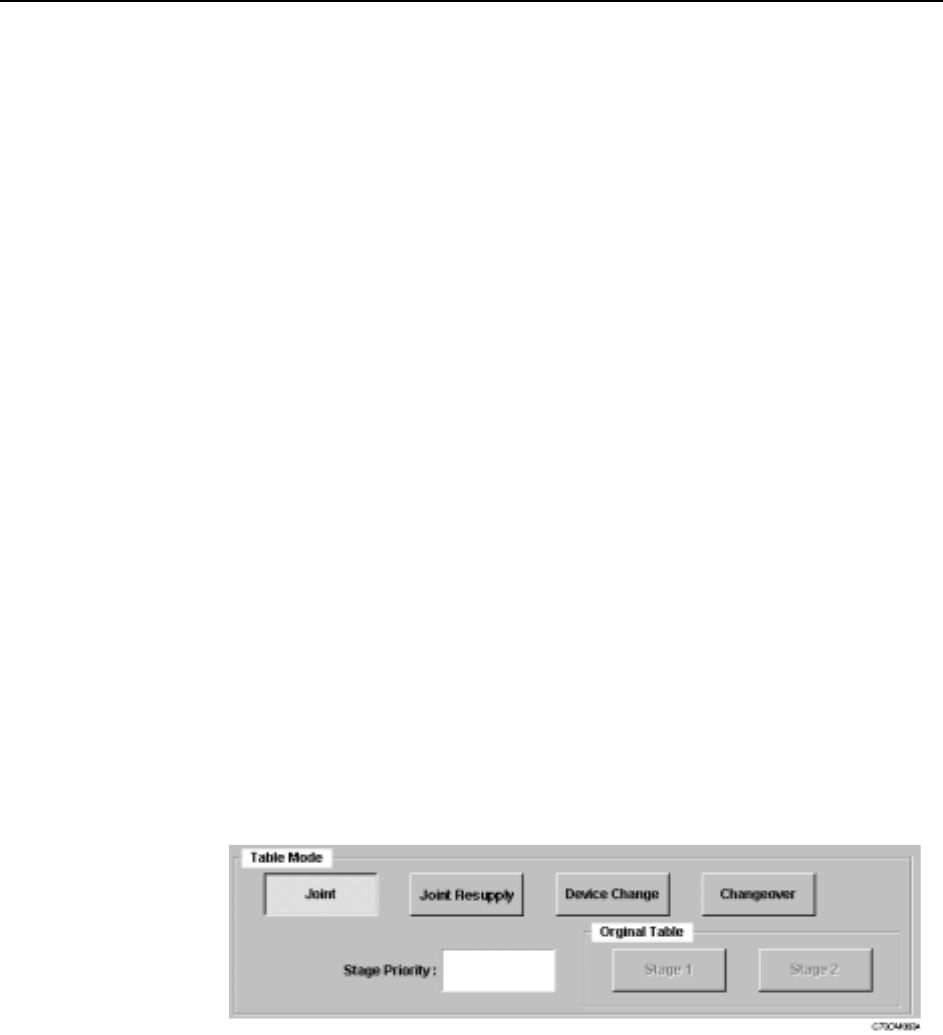
There are four modes of operation for the device tables (feeder pallets); Joint, Joint
Resupply, Device Change and Changeover.
Joint: Joint mode is suitable for supplying a wide range of parts during
assembly. Both feeder pallets are used during production, and as a
result, up to 140 part types can be loaded on the CP-842E, and up to
80 on the CP-842ME. In this mode, both tables enter the produc-
tion area and move to the pick-up position as required.
Joint Resupply: This mode is ideal for use when the device tables are changed fairly
infrequently. Joint Resupply mode is similar to Joint mode, except
only one device table is in the production area for the majority of
the time. The follow-up table (i.e., the table which is currently idle)
remains at its retract position and does not move into the produc-
tion area until just before it is needed.
Device Change: This mode is suitable for use during mass production with a fairly
small range of parts (up to CP-842E: 70/ CP-842ME: 40 part types
on each device table). Users can create two identical feeders sets
which automatically switch places when a recovery limit on the
table currently being used is reached. The device table for which
the recovery limit was reached moves to the resupply position.
Changeover: This mode is used to reduce changeover time during small lot pro-
duction. While the current table is supplying parts for the current
assembly, the spare table can be loaded with parts for the next job.
Procedure
1 At the [Main] screen, press [Operation] to display the [Operation] screen.
2 Under Table Mode, select from [Joint], [Joint Resupply], [Device Change] or
[Changeover].
3 Press [Close] to enter the settings and return to the [Main] screen.