CP-842E-842ME System Reference-SYS-CP842-10E.pdf - 第214页
System Installation and Upgrade >> Installing the ID Tool License 7-8 SYS-CP842-1.0E 7.3 Inst alling the ID T ool License Upgrade CD The procedure of upgrading V ision T ools is explained, which is necessary to per…

System Installation
and Upgrade >> System Upgrades
SYS-CP842-1.0E 7-7
7.2 System Upgrades
Machine control software version upgrades are performed using the application CD-
ROM. Be sure to follow the procedure described below.
Note: This procedure is the same as that carried out in 1.3 Installing the Machine Control Software,
except that it does not continue on from the operating system installation.
1 With the machine power on, insert the application CD-ROM into the CD-ROM
drive, then turn the power off.
2 Turn the machine power on again. After Windows NT starts up, a Yes/No confir-
mation message displays asking whether a version upgrade is to occur. Click
[Yes] to automatically begin the version upgrade processing.
3 When the control software upgrade is complete, a message displays requesting
the removal of the CD-ROM from the drive. Remove the CD-ROM and [OK].
4 Following rebooting (restart), the machine starts up with the upgraded system.
System Installation
and Upgrade >> Installing the ID Tool License
7-8
SYS-CP842-1.0E
7.3 Installing the ID Tool License Upgrade CD
The procedure of upgrading Vision Tools is explained, which is necessary to perform
the panel ID reading.
1 Insert the license key upgrade CD-ROM into the CD-ROM drive.
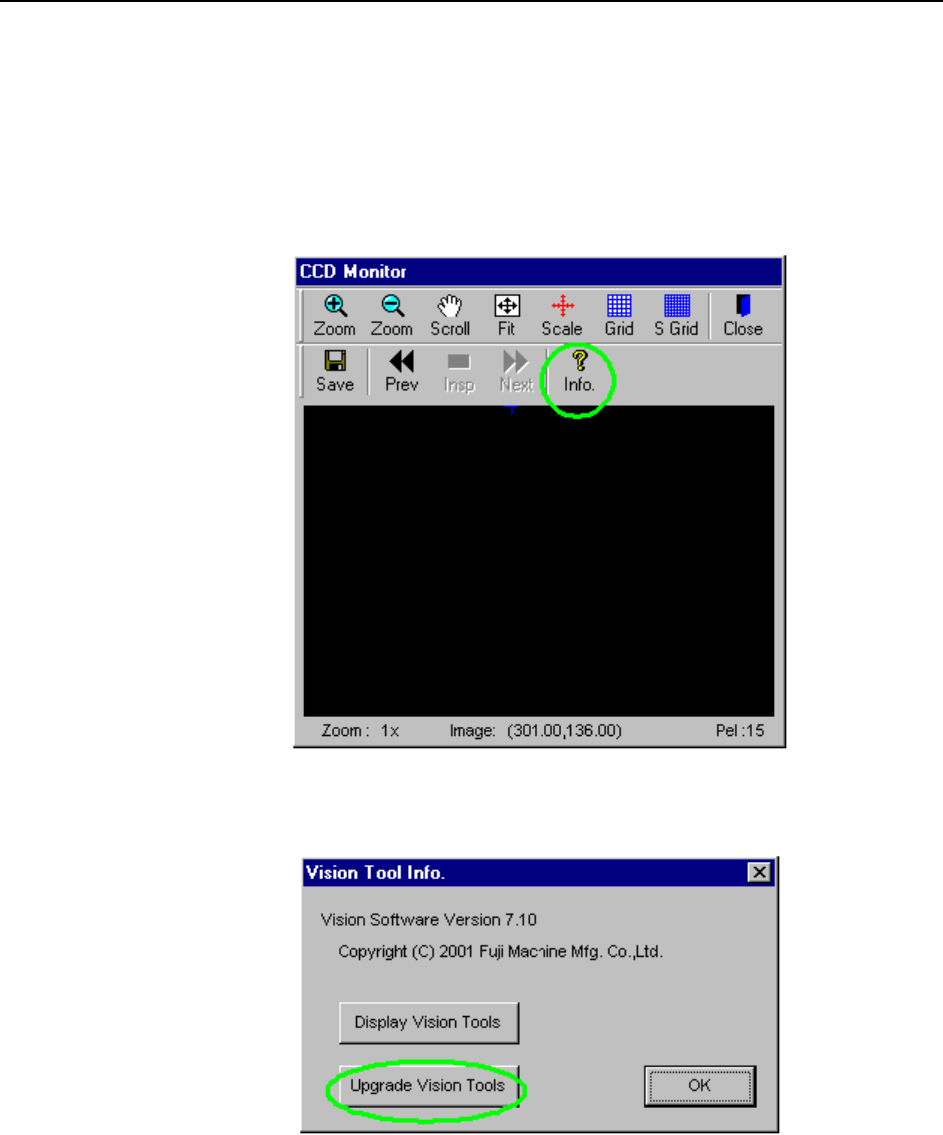
2 Press the [Info.] button at the CCD monitor.
3 Press the [Upgrade Vision Tools] button at the [Vision Tool Info.] dialog box.
System Installation
and Upgrade >> Installing the ID Tool License
SYS-CP842-1.0E 7-9
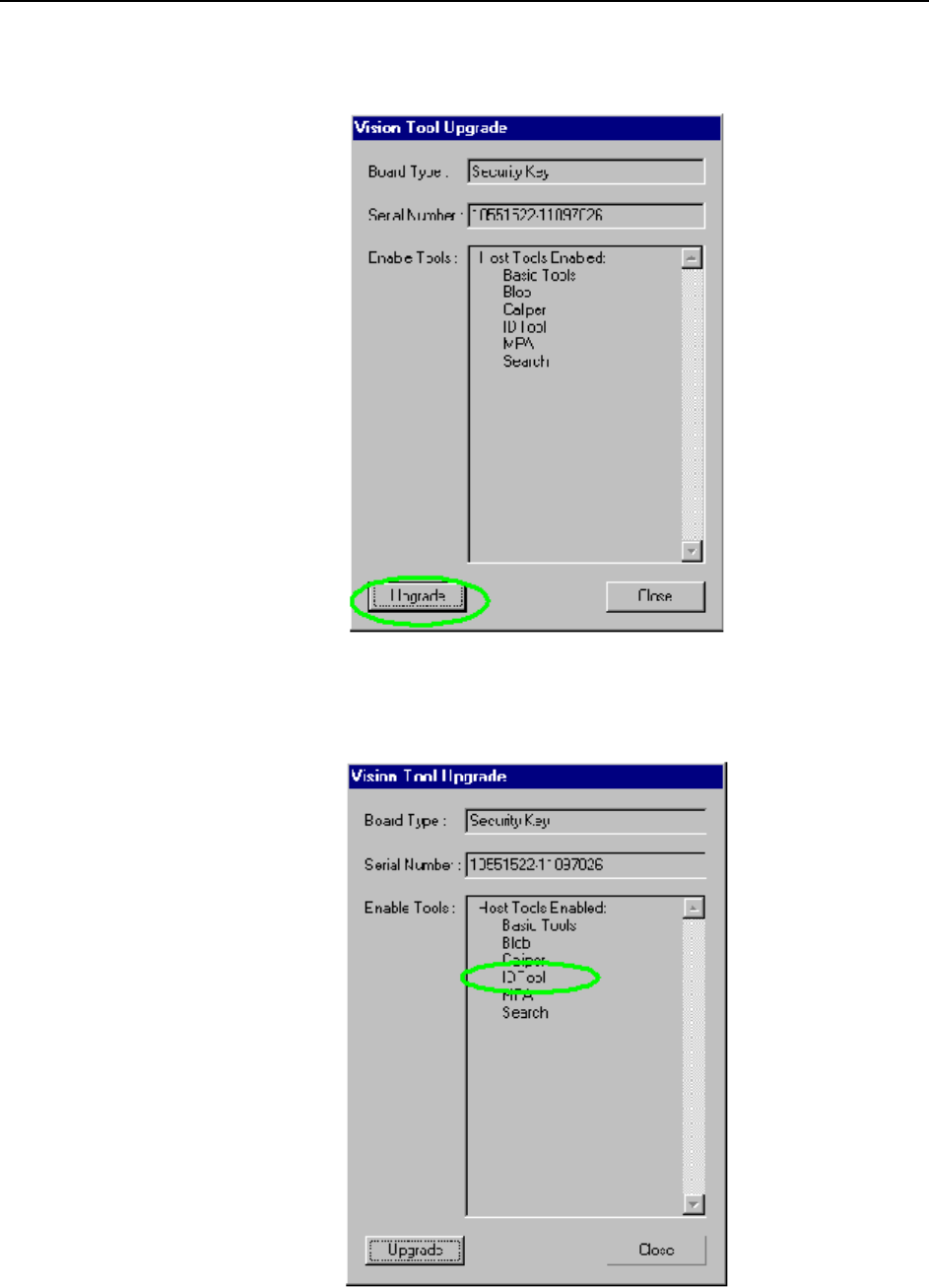
4 Press the [Upgrade] button at the [Vision Tool Upgrade] dialog box.
5 Verify that the IDTool item has been added to the [Enable Tools] list in the
[Vision Tool Upgrade] dialog box.