CP-842E-842ME System Reference-SYS-CP842-10E.pdf - 第71页
Machine System >> Basic Operation SYS-CP842-1.0E 4-35 T r oubleshooting The following table shows the corrective ac tions for errors whic h may occur during automatic conveyor width adjust ments. Next-S t age Follo…

Machine System >> Basic Operation
4-34
SYS-CP842-1.0E
2 When the [Style] button is pressed, the START button becomes enabled. If the
START button is then pressed, all panels are unloaded from the machine.
Note: When set so that panels are not being transferred to a next stage, the last unloaded
panel remains on the conveyor. In this case, be sure to remove the panel from the
conveyor by hand before using inching or conveyor width change commands.
3 Press the [Panel Width] or [Margin] button to display a numeric keypad, then
entire the desired setting values. The total of the “Panel Width” + “Margin” val-
ues displays as the “Target Width”.
4 The START button is enabled when either the [Specified Width] or [Maximum
Width] button is pressed.
5 Press the START button to perform the conveyor width change.
Machine System >> Basic Operation
SYS-CP842-1.0E 4-35
Troubleshooting
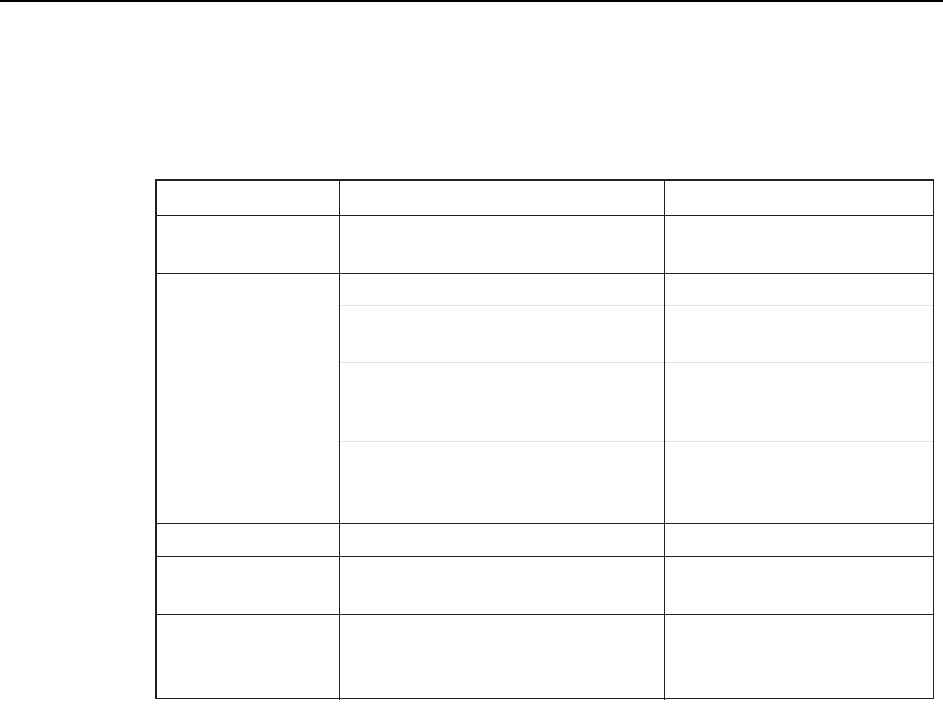
The following table shows the corrective actions for errors which may occur during
automatic conveyor width adjustments.
Next-Stage Follow-Up Control
CP-842E/842ME do not support follow-up control related to conveyor width changes.
For example, if a conveyor width change is performed at the previous stage machine in
the line, the operator must perform the same conveyor width change on the CP-842E/
842ME.
CP-842E/842ME do not support follow-up control related to conveyor width changes.
For example, if a conveyor width change is performed at the previous stage machine in
the line, the operator must perform the same conveyor width change on the CP-842E/
842ME.
On the other hand, if the next stage machine supports follow-up control related to con-
veyor width changes, this follow-up control can be enabled by adding a follow-up dog
to the CP-842E/842ME.
Error Cause Corrective Action
T011E
Internal error in the conveyor
width change shell
"Panel check" error
during automatic
conveyor width change
Operation error
Backup pin detection
Conveyor control board failure at start-up,
etc.
Conveyor motion interference. Remove the obstacle.
Backup pins were detected. Remove the backup pins.
Cover is open
The cover at the previous or next stage
machine is open.
Close the cover at the previous or
next stage machine.
Backup pin detection problem.
Press the EMERGENCY STOP
button, then remove the backup pins.
Software limit was reached during operation.
Perform inching to bring the
conveyor width back within its
prescribed motion range.
A [Maximum Width] or [Specified Width]
command was executed when the conveyor
width was outside the software limits.
Perform inching to bring the
conveyor width back within the
software limits.
The "panel check" sensor detected the
presence of a panel in the loader during
a conveyor width change.
Remove the panel from the loader,
or check the sensor.
Perform a "data trace" operation,
then contact your Fuji representative.
Machine System >> Basic Operation
4-36
SYS-CP842-1.0E
4.1.12Inching
Moving an Axis With the Inching Keys
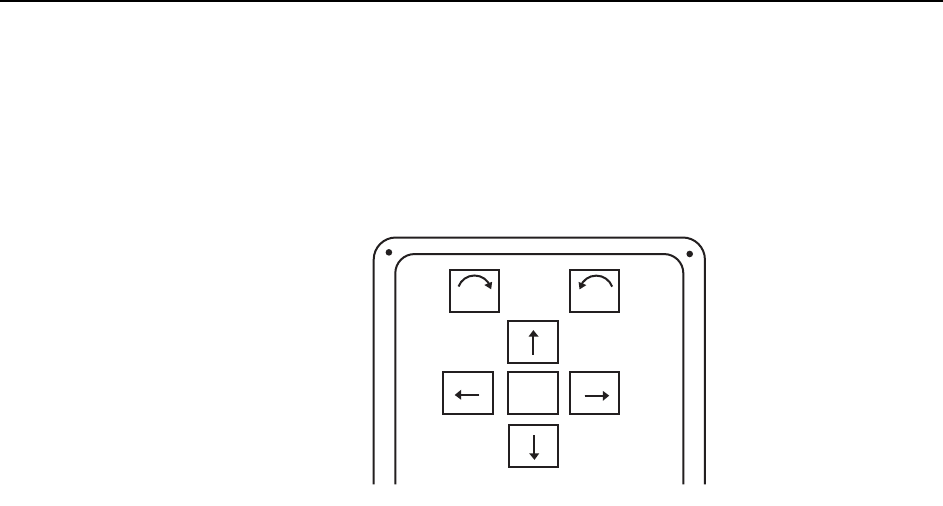
Inching is performed using the inching keys on the operation console. Inching can be
performed at any time except under the following conditions:
• When the machine is in START ready status
• During operation
• Before the cause of an emergency stop has been cleared
• When displaying the I/O command page
To inch an axis, press the inching key corresponding to the target axis and direction.
To move the target axis faster, hold down F (fast) as well as the chosen inching key for
rapid inching.
The axis combination displays at the [JOG] button in the command bar of the touch
screen.
F
θ
θ
C7SS2001