CP-842E-842ME System Reference-SYS-CP842-10E.pdf - 第61页
Machine System >> Basic Operation SYS-CP842-1.0E 4-25 2 Under Next Device T rigger , select the event which will cause the machine to switch to the next device. 3 Press [Close] to enter the settings and return to t…
Machine System >> Basic Operation
4-24
SYS-CP842-1.0E
Procedure
1 Press [Maintenance] at the [Main] screen, and then press [Configuration] -
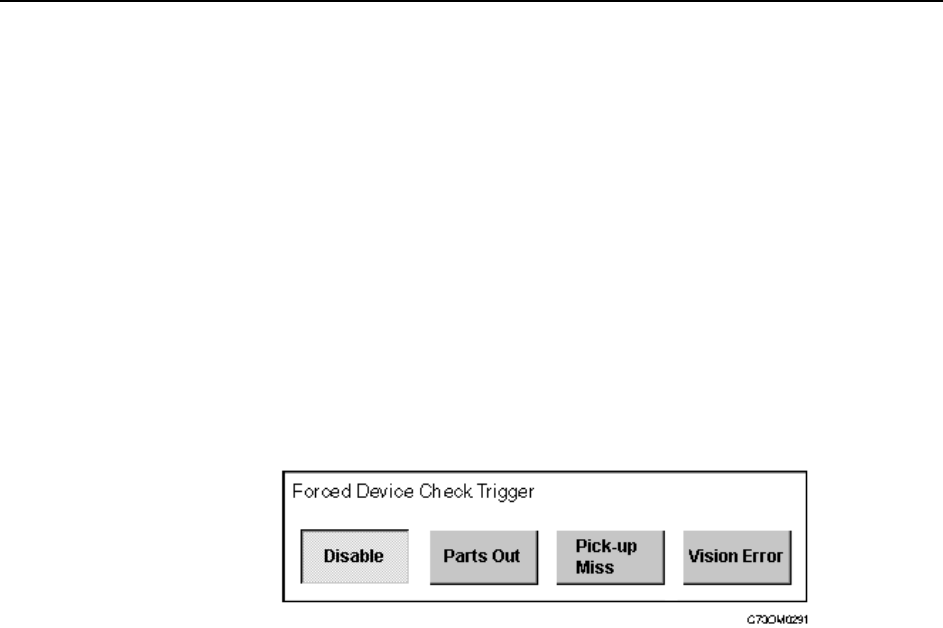
[Basic]. Four buttons are displayed in the Forced Device Check Trigger section.
The followings are explanations of each button.
None Automatic operation can be entered even when a device check has
not been performed.
Parts Out The [Device Check] screen displays automatically if a parts out
error is detected.
Pick-up Miss The [Device Check] screen displays automatically if a pick-up or
parts out error is detected.
Vision Error The [Device Check] screen displays automatically if a pick-up error,
inspection error, or parts out error is detected.
2 Under Forced Device Check Trigger, select the event which will invoke an auto-
matic device check.
3 Press [Close] to enter the settings and return to the [Basic Configuration]
screen.
Specifying the Next Device Trigger
Next devices provide a backup for parts supply, allowing the machine to switch to a
fresh feeder loaded with the same parts, when parts run out. The settings for a next
device loop (starting and ending at one feeder), are made in the production program.
Refer to your host system documentation for details of how to specify a next device
loop. The type of event during assembly which causes the machine to switch from one
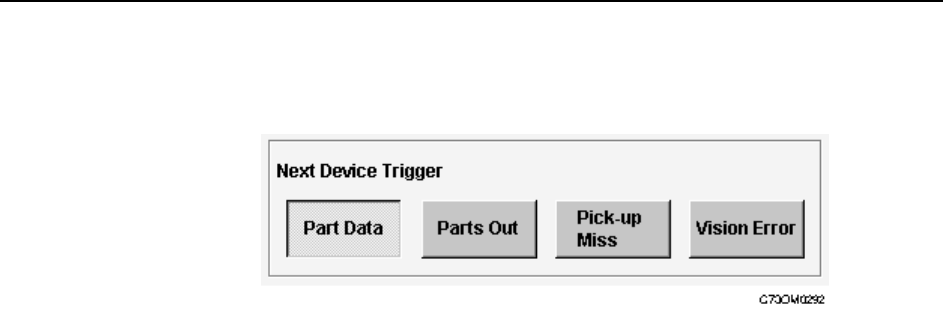
feeder to the next can be set at the machine. The following settings are available.
Part Data The trigger setting in part data is used.
Refer to your host system documentation for details of how to make
this setting.
Parts Out The machine switches to the next device when parts out is detected.
Pick-up Miss The machine switches to the next device if a pick-up or parts out
error is detected.
Vision Error The machine switches to the next device if a pick-up error, inspec-
tion error, or parts out error is detected.
The above setting is also applied to the device change mode when switching from the
original table to the spare table.
Procedure
1 Press [Maintenance] at the [Main] screen, and then press [Configuration] -
[Basic Configuration].
Machine System >> Basic Operation
SYS-CP842-1.0E 4-25
2 Under Next Device Trigger, select the event which will cause the machine to
switch to the next device.
3 Press [Close] to enter the settings and return to the [Basic Configuration]
screen.
Machine System >> Basic Operation
4-26
SYS-CP842-1.0E
Specifying Pick-up Offsets at the Machine
When a part cannot be successfully picked up using standard pick-up position offsets,
the operator can manually specify the offset at the machine.
Procedure
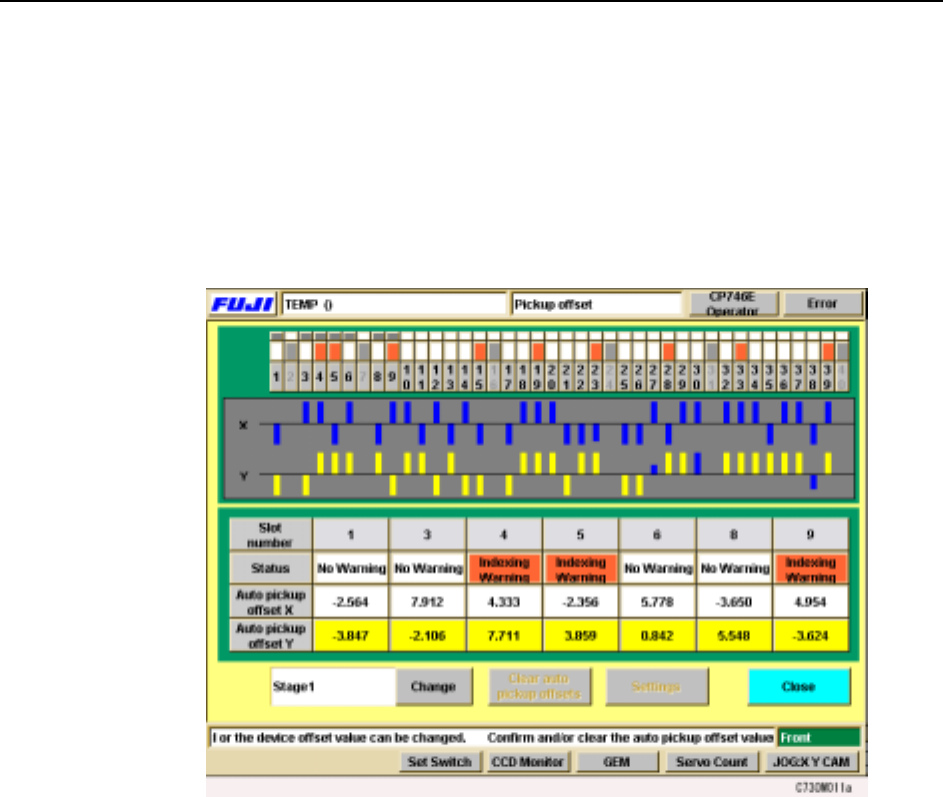
1 Press [Device Offsets] at the [Main] screen. The [Device Offsets] screen dis-
plays.
2 The XY orientation of the pick up position can be changed on the CP-842E/
842ME.
Under each slot number, the slot warning status and X and Y auto pick up offset
values display. Select a slot number on the device table displayed at the top of
the screen to display information for that slot (for CP-842ME, 1 to 40, for CP-
842E, 1 to 70). Press [Change] to toggle the display between Stage 1 and Stage
2.
NoteY pick up offsets cannot be edited manually.
1. To clear auto pick up offsets, select [Auto pick up offset X] or [Auto pick up offset Y] for
the corresponding slot and push [Clear auto pick up offsets].