CP-842E-842ME System Reference-SYS-CP842-10E.pdf - 第212页
System Installation and Upgrade >> System Installation 7-6 SYS-CP842-1.0E 7.1.3 Inst alling the Machine Control Sof tware 1 W ith the reboot dialog box displayed (f rom the previous section), replace the System Sof…

System Installation
and Upgrade >> System Installation
SYS-CP842-1.0E 7-5
7.1.2 Installing the Operating System
The System Software Recovery Media CD-ROM is used to install the system software.
1 At the exit dialog box for the BIOS settings, insert the System Software Recov-
ery Media CD-ROM into the CD drive, then select [Yes] at the dialog box. When
the BIOS setting operation is ended in this manner (with CD-ROM inserted),
the system software installer is automatically started, and installation begins.
2 When the installer begins, the license information of the Easy-Restore used for
the system recovery displays together with the message, Strike a key when
ready at the bottom of the screen. Press the SPACE key to proceed. Press the
SPACE key three times to reach the end of the license information and the
installer.
When the operating system installation is complete, a dialog box displays ask-
ing you to reboot ([Reboot] button displays).
3 Do not select reboot yet because you must replace the System Software Recov-
ery Media with the machine control software CD-ROM first. (Proceed to next
section Installing the Machine Control Software.)
Note: Do not restart with the System Software Recovery Media CD-ROM inserted, as this
will reinstall Windows NT.
System Installation
and Upgrade >> System Installation
7-6
SYS-CP842-1.0E
7.1.3 Installing the Machine Control Software
1 With the reboot dialog box displayed (from the previous section), replace the
System Software Recovery Media CD-ROM with the machine control software
CD-ROM. Now you can reboot the system (press [ENTER] on the keyboard).
After rebooting, Windows NT is started, and the system installation starts auto-
matically.
Note: If rebooting occurs without the CD-ROM inserted, Windows NT starts, and the follow-
ing message displays: Cant find shortcut link which starts Setup.EXE. If this occurs,
click [OK] and insert the application CD-ROM. The installation starts automatically.
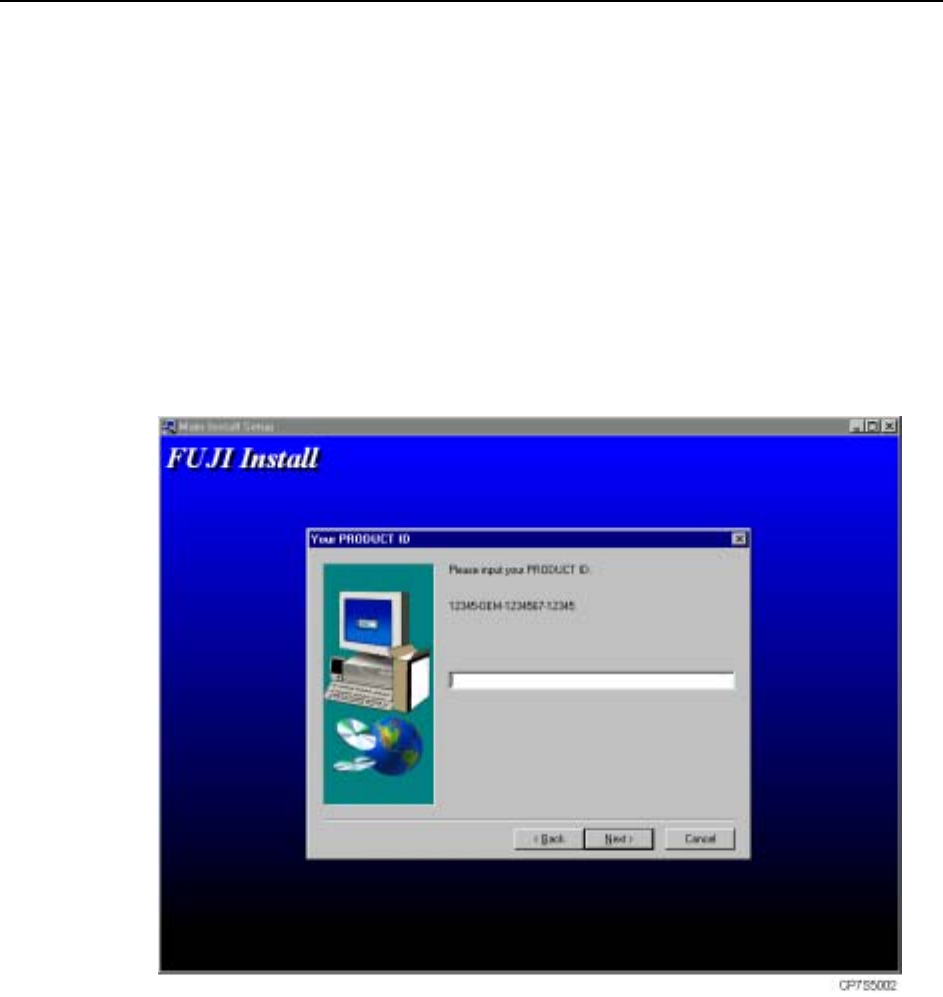
2 When installation starts, the [Setup] screen displays together with a Yes/No
confirmation message asking whether to proceed with the installation. Select
[Yes] to proceed to the product ID input screen.
3 Enter the product ID and click [Next].
At the confirmation dialog box which then displays, verify that the ID is correct.
If the ID is incorrect, click [No] to return to the product ID input screen. If the
ID is correct, click [Yes] to continue with the installation. The remainder of the
application installation is performed automatically.
4 A message displays when installation is completed. Remove the CD-ROM and
click [OK].
5 After restarting, Windows NT will start up first, and then the application soft-
ware will start up (if correctly installed). If the installation has failed, repeat
the installation from the beginning.

System Installation
and Upgrade >> System Upgrades
SYS-CP842-1.0E 7-7
7.2 System Upgrades
Machine control software version upgrades are performed using the application CD-
ROM. Be sure to follow the procedure described below.
Note: This procedure is the same as that carried out in 1.3 Installing the Machine Control Software,
except that it does not continue on from the operating system installation.
1 With the machine power on, insert the application CD-ROM into the CD-ROM
drive, then turn the power off.
2 Turn the machine power on again. After Windows NT starts up, a Yes/No confir-
mation message displays asking whether a version upgrade is to occur. Click
[Yes] to automatically begin the version upgrade processing.
3 When the control software upgrade is complete, a message displays requesting
the removal of the CD-ROM from the drive. Remove the CD-ROM and [OK].
4 Following rebooting (restart), the machine starts up with the upgraded system.