CP-842E-842ME System Reference-SYS-CP842-10E.pdf - 第123页
Machine System >> Panel ID Read Function ( Option) SYS-CP842-1.0E 4-87 4.5.4 Settings for Panel ID (1D Code) Reading by Dedicated Barcode Reader Setting the Connection Port No. For Barcode Reader Com- munication No…
Machine System >> Panel ID Read Function (Option)
4-86
SYS-CP842-1.0E
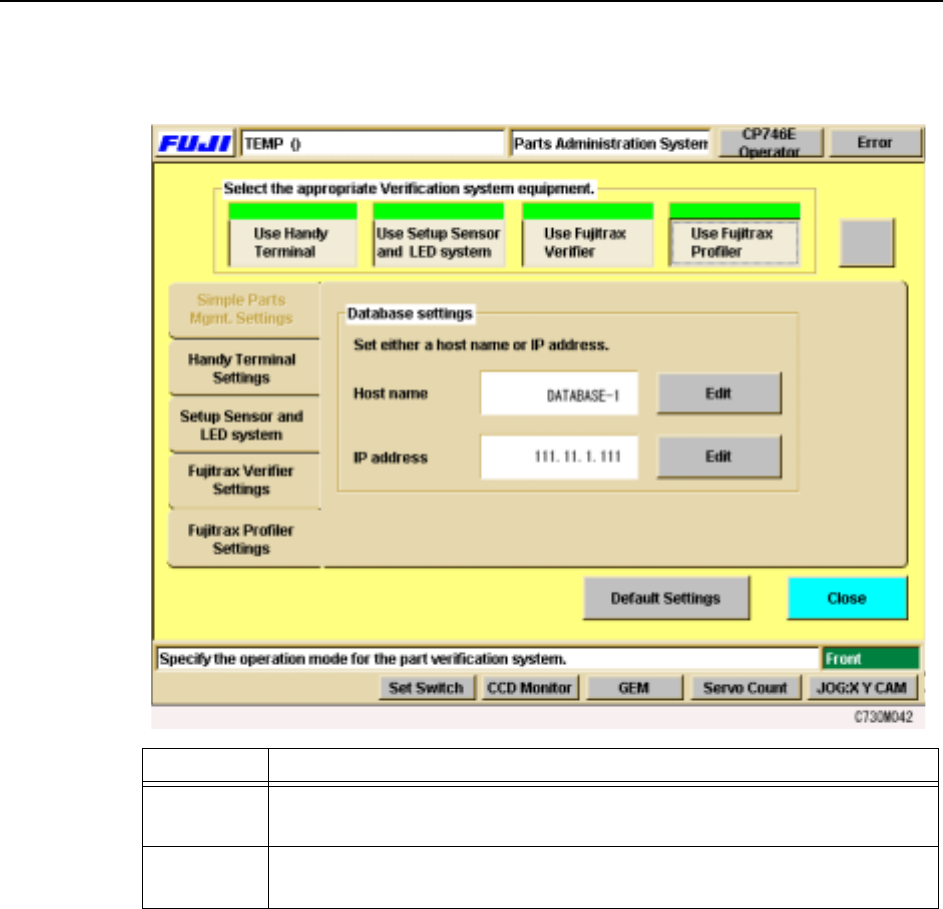
Click on the [Fujitrax-Profiler Settings] tab of the [Parts Administration System] set-
ting screen, then enter the host name and the IP address.
Items Explanation
Host name This button is used to set the Fujitrax-Profiler host name. Specify either a
host name or an IP address.
IP Address This button is used to set the IP address for the Fujitrax-Profiler host.
Specify either a host name or an IP address.
Machine System >> Panel ID Read Function (Option)
SYS-CP842-1.0E 4-87
4.5.4 Settings for Panel ID (1D Code) Reading by
Dedicated Barcode Reader
Setting the Connection Port No. For Barcode Reader Com-
munication
Note: On machines equipped with barcode readers, this setting is specified at the factory, and does
not require setting by the user.
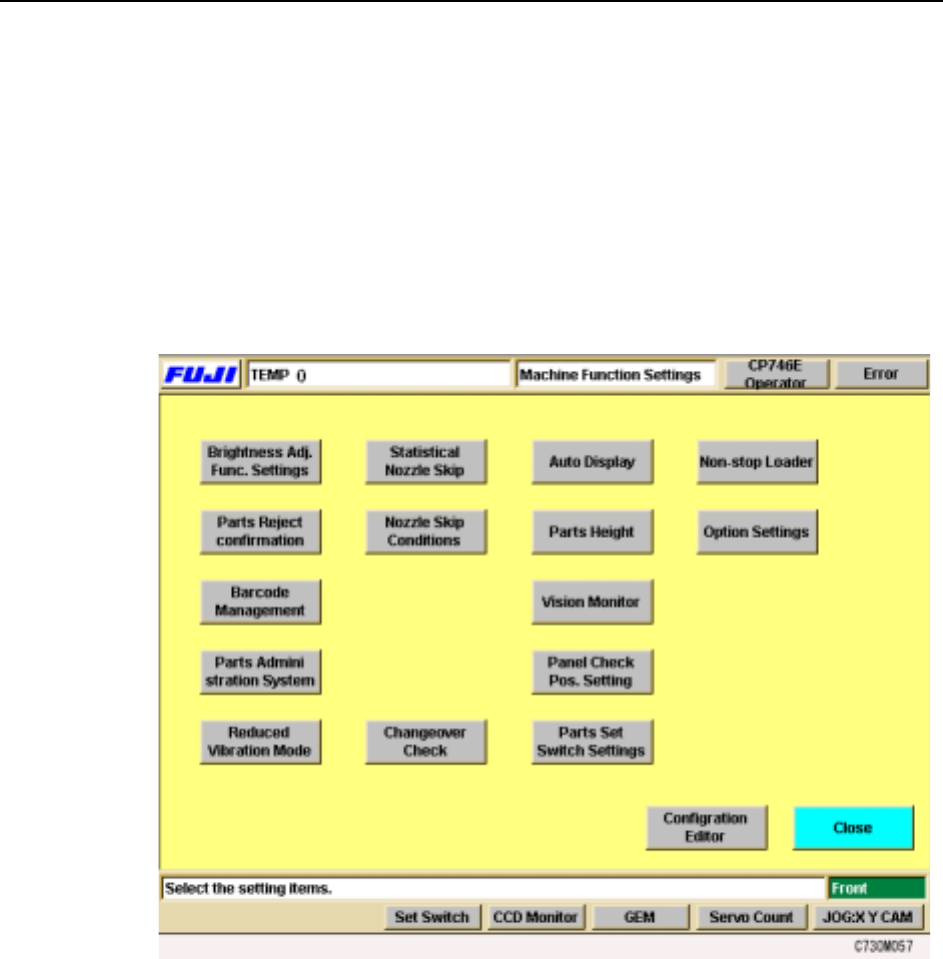
Select the [Maintenance] - [Configuration] commands to display the [Barcode Manage-
ment] setting screen.
Machine System >> Panel ID Read Function (Option)
4-88
SYS-CP842-1.0E
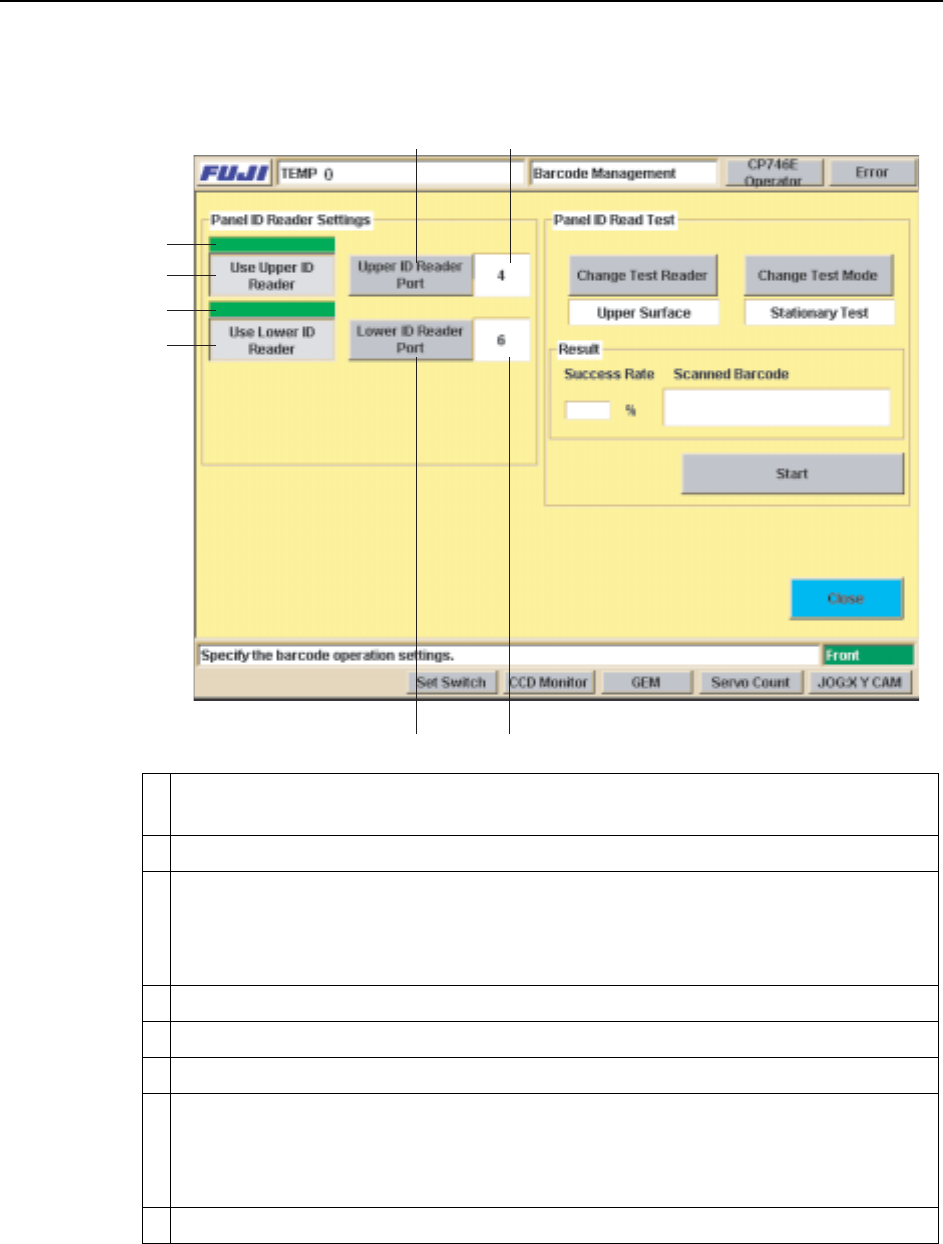
The communication port to be used for the panel ID reader connection can be specified
at the [Barcode Management] screen. ID reading tests can also be performed here.
1 A green indicator appears over the [Use Upper ID Reader] button when on (upper ID
reader “Used”).
2 Depressed when “Used” setting is specified.
3 Sets the Upper ID Reader’s connection port No. Press to display a ten-key pad, then
enter the port No. to which the Upper ID Reader is to be connected. Use care to avoid
entering a vacant port No. or a port No. in use by another device. This port No. setting
is a factory setting, and does not normally require changing.
4 “Port No.” display area.
5 On/off indicator for the [Use Lower ID Reader] button.
6 Depressed when “Used” setting is specified.
7 Sets the Lower ID Reader’s connection port No. Press to display a ten-key pad, then
enter the port No. to which the Lower ID Reader is to be connected. Use care to avoid
entering a vacant port No. or a port No. in use by another device. This port No. setting
a factory setting, and does not normally require changing.
8 “Port No.” display area.
43
1
2
5
6
78
C73OM0045