2500_Users_Manual.pdf - 第105页
Task s and Ki ts 3-30 ProMa ster 25 00 U ser Ma nual Programmer Por t... and ProMaster Po rt... These screens allow you to chan ge the configuratio n on the two R S-232C ports on the PC, which are configured for the Prog…
Tasks and Kits
ProMaster 2500 User Manual 3-29
Options Pull-down
Menu
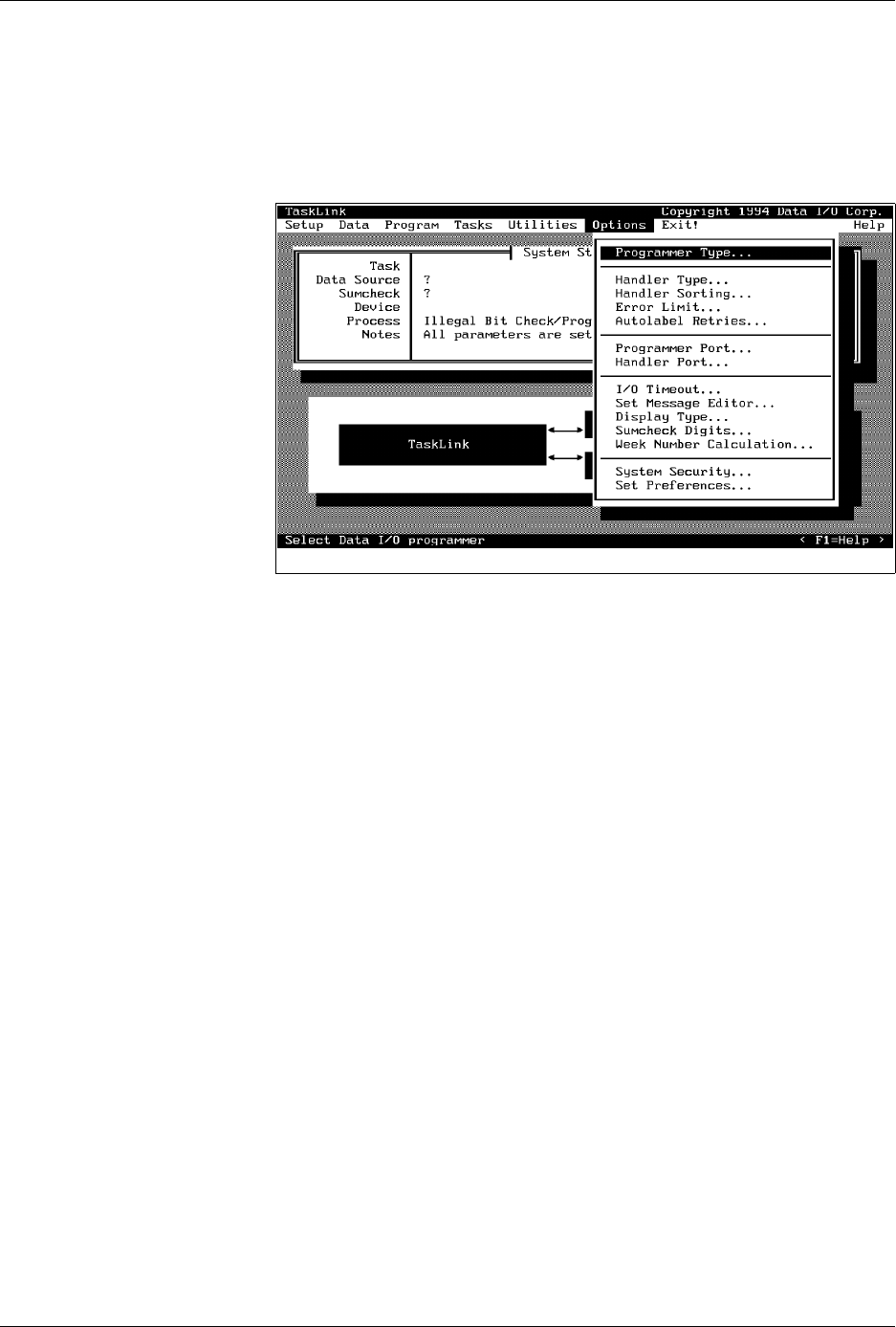
Many of the commands and options displayed on this menu are intended
to be used with other products supported by TaskLink. To get
information on these commands in TaskLink’s online Help, press
F1
.
Only the commands used with the 2500 are described below.
Programmer Type and
Handler Type
Selecting 2500 Text or Graphics automatically selects Handler type. Select
2500 Text when your 2500 has an impact (dot matrix) printer installed.
Select 2500 Graphics when a thermal printer is installed.
Handler Sorting
This screen allows you to direct devices to output categories based on the
result of the programming operation. The 2500 has two output tubes. The
default configuration directs all Category 1 devices (those that have
Passed
programming) into output tube 1 (the right output tube as you are
facing the machine). All devices that fail the program or verify operations
(category 2) are placed in output tube 2.
You may change the routing of devices by changing either its category
from this dialog box or by changing the binning assignments on the
2500’s front panel display. Refer to the System Setup/Handler Setup
Menus to reassign the devices to different output tubes.
Error Limit
When you enter a value other than 0 (zero) in this field, TaskLink will
stop when you get the prescribed number of consecutive programming
errors. For example, if you set the value to 3, any programming error that
occurs on three consecutive devices stops TaskLink, and a failure
message is written on the screen. TaskLink will not stop if the 2500
detects two programming errors and one continuity failure, since they are
not the same. Setting the value to 0 (the default) turns off this feature, and
TaskLink will not stop even if all devices fail with the same error.
ProMaster Retries...
If you experience an error during programming, this parameter instructs
the 2500 to lift the device out of the programming block, insert it again,
and attempt a second device programming operation.
Figure 3-18
Commands Available from the
Options Pull-down Menu
Tasks and Kits
3-30 ProMaster 2500 User Manual
Programmer Port... and
ProMaster Port...
These screens allow you to change the configuration on the two RS-232C
ports on the PC, which are configured for the Programmer Port on COM
1 and the Handler port on COM 2 using no parity, 8 data bits, and 1 stop
bit. These settings should not need to be changed under normal
operation. If you do change the configuration, you must exit TaskLink to
save the new settings.
Set Message Editor...
This parameter must be set so TaskLink can find the ASCII text editor you
will be using to create your Kit messages. When you select this
command, TaskLink allows you to enter the DOS path and executable file
name to start your ASCII text editor. You must save these messages in an
unformatted text file called
tl.msg
. (Refer to page 3-36 for more
information on creating message screens for Kits.)
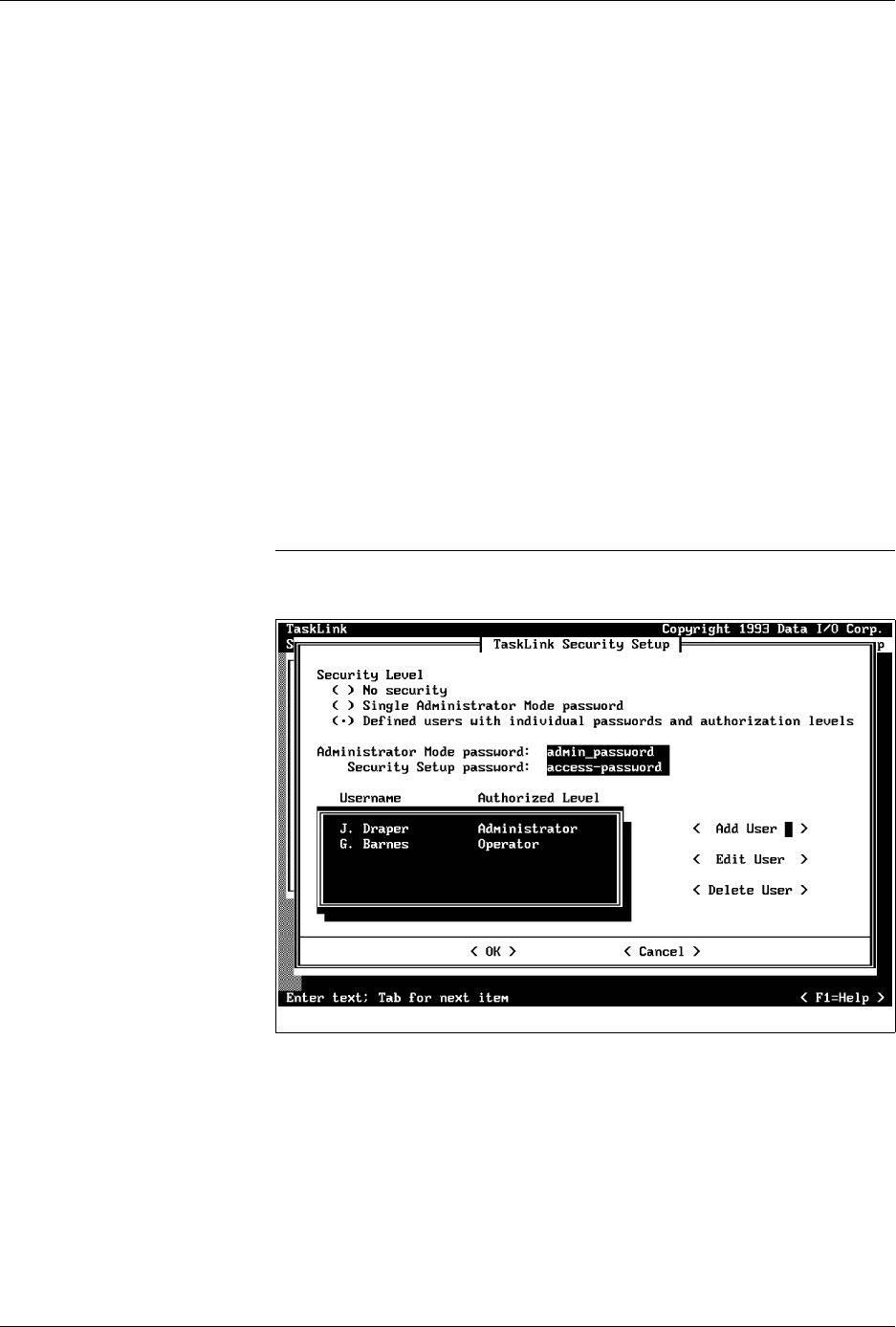
System Security
Using the security options, the system administrator can configure the
system so all users (administrators and operators) are required to enter a
password before they can access TaskLink menus and run the system. To
use the
Security Setup
menu, select
Options
from the Main menu. Then
select
System Security...
from the
Options
pull-down menu.
Press
↵
to access the
TaskLink Security Setup
dialog box.
Note: The security system used by TaskLink is DOS based, and is thus restricted
by the limitations imposed by that operating system.
Three levels of security are available:
1.
No security
—Equivalent to earlier versions of TaskLink, this level
allows any user to access either operator or administrator mode. This
is the default security level.
2.
Single Administrator Mode Password
—TaskLink requires a
password to enter the administrator mode. One common password is
used by any user to access this mode. No password is required to
operate TaskLink in operator mode.
Figure 3-19
Selecting Security Options
Tasks and Kits
ProMaster 2500 User Manual 3-31
3.
Multiple User/Password Mode
—In this mode, each user has a
password and must enter it before TaskLink will display the main
screen. Users are assigned an authorization level as either an
administrator or operator (see Figure 3-20).
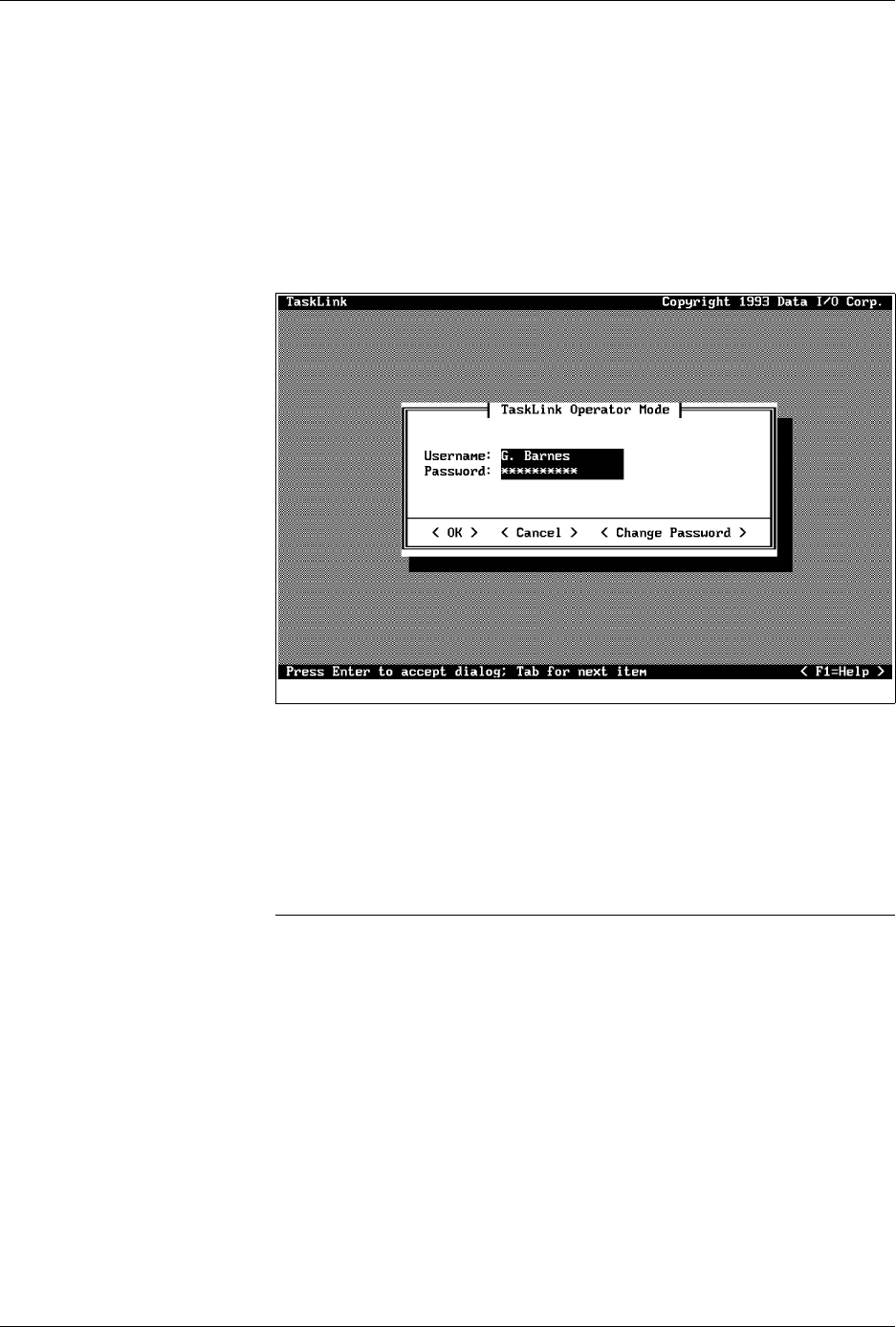
Depending on the security level selected, you can configure TaskLink to
require operators and administrators to enter their user name and
password before the main screen is displayed (see Figure 3-20). Users
who have been authorized as operators are restricted to the operator
mode and blocked from all administrator mode commands.
The default operator mode password is
password
. Each operator may
create a unique password to replace this default, and can change it by
selecting the
Change Password
pushbutton from the login dialog box
(see Figure 3-20). Screen prompts guide user through the process.
If an operator forgets a password, the system administrator must remove
that operator’s name from the list of users and reenter it. This allows the
operator to start over using the default password.
Note: If no one knows the correct password to use to enter a mode, call Customer
Support for assistance.
Administrators who successfully enter their user names and passwords
can access both operator and administrator modes. Press
F10
to switch
between these modes of operation (when a security level is selected,
F10
does not switch between modes). Each time you try to reenter
administrator mode from the operator screen, TaskLink prompts you to
enter the administrator password.
When security level 2 or 3 is selected, a password is required to gain
access to the
Security Setup
dialog box. Figure 3-19 shows
access-
password
as an example of a password that must be entered before an
administrator can access this dialog box.
Figure 3-20
Password Screen for System
Operators