2500_Users_Manual.pdf - 第84页
Task s and Ki ts ProM aster 25 00 User Manua l 3-9 • Label — Select this parameter to label the devices. Devices do not have to be programmed (or verified) and labe led in the same process. They can be programmed and pla…
Tasks and Kits
3-8 ProMaster 2500 User Manual
For logic devices, the primary choices are two JEDEC formats (full and
kernel) and Altera POF.
Selecting a Process
The
Process(es)
check box area of the Edit Task dialog box lists the
operations that can be performed on a device. The three columns of check
boxes allow you to configure three different combinations of operations,
or process(es), within the Task.
When at least one operation is selected in more than one column, the
operator running this Task will be presented with a selection box and
asked to choose one of the Processes on the screen.
Highlight the desired operation(s) in each column. Press
S
PACE
to enable
(check) or disable (uncheck) the operations.
The parameter choices are listed below:
•
Blank Check
—This test runs before the device is programmed to see
if the device has any programmed bits (fuses). If programmed bits are
found, the device is rejected and placed in the fail tube. When this test
is not selected as part of the Task process, the 2500 programs and
verifies the device without checking for programmed bits.
•
Illegal Bit
— This test is performed before the device is programmed
to determine whether the device has any illegal bits. An illegal bit is a
bit (fuse) in the device that is programmed when the RAM data for
the same bit specifies that it should be unprogrammed (see Figure
3-5). For all devices except electrically erasable parts, this is an illegal
operation and the device will be routed to the
Fail
output tube. This
test is not performed on an electrically erasable device, because those
devices are completely erased before they are programmed so no
illegal bits can occur.
•
Program
—Select this parameter to program the device as part of the
Task operation. When this is selected, the
Verify
parameter is also
selected. TaskLink does not allow
Program
to be selected without
including the Verify operation.
•
Verify
—Select this parameter to have the 2500 compare the data
programmed in a device to data in RAM. Verify is automatically
selected by TaskLink when Program is selected. Verify may be
selected without selecting Program when you need to check devices
that were programmed earlier.
Figure 3-5
Illegal Bit Condition
1954-1
1111 1101
1011 1111
Device data (erased bit = 1)
RAM data to be programmed into the device
Illegal bit
Not an illegal bit
Tasks and Kits
ProMaster 2500 User Manual 3-9
•
Label
—Select this parameter to label the devices. Devices do not
have to be programmed (or verified) and labeled in the same process.
They can be programmed and placed in tubes to be labeled by the
2500 later. The 2500 default configuration will not label devices that
have failed the programming operation. (The 2500 can be configured
to label both passed and failed devices. Refer to the
Binning
command in local mode in Appendix F.) Devices that have failed can
be labeled only by passing them through the 2500 a second time.
Selecting Handling/
Labeling Parameters
Numerous parameters are available by selecting the
< More >
pushbutton. Press
↵
and the
More Task Parameters
selection box
appears (see Figure 3-1, screen 4). Most of these should remain at their
default settings.
The parameters that must be defined for all Tasks are the
Handling/
Labeling Parameters...
selections. Move the screen cursor over
Handling/Labeling Parameters...
and press
↵
to select this parameter
set. The following handler and labeler parameters are defined in this
dialog box.
Selecting the Package Type
The
Package
field defines the device package type you will be
processing. Move the screen cursor to this field and press
F2
. TaskLink
displays a list of package and pin counts from 8-pin DIP to 84-pin PLCC
devices. The package type “
DIP 24-.3
” represents a 24-pin DIP device in a
300 mil. package width.
To select a new package type, move the screen cursor to the new type and
press
↵
.
Device Orientation: Pin 1
Press
T
AB
to move to the
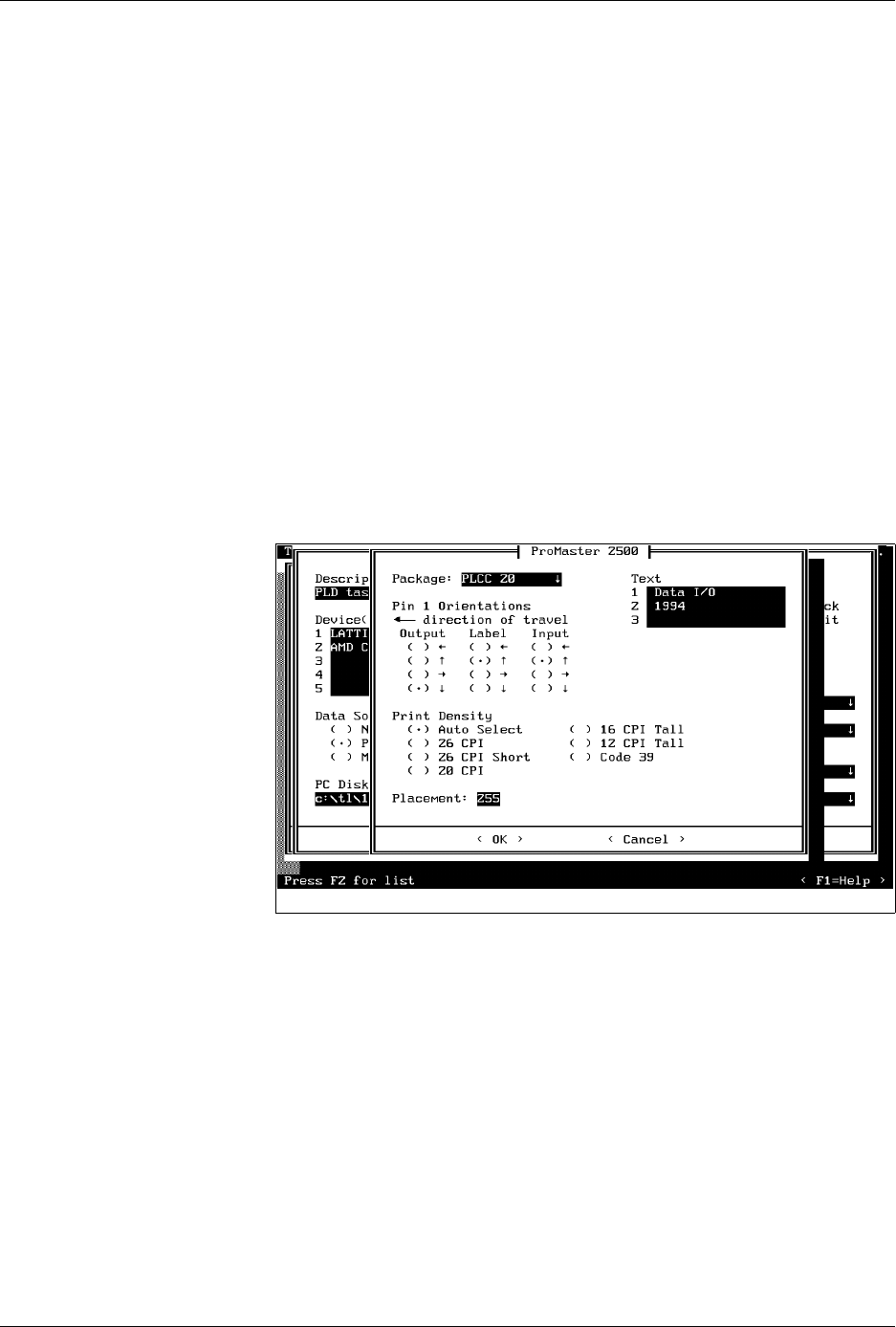
Pin 1 Orientation
field. This parameter is
critical because it tells the 2500 where pin 1 on the device will be
positioned in the input track. The beam inserts the device into the
programming module with pin 1 always to the right, pointing toward the
input tube. The Task must accurately identify the position of pin 1 as the
devices are loaded in the input track so that the beam rotates and inserts
it in the programming module correctly.
Figure 3-6
ProMaster Dialog Box
Tasks and Kits
3-10 ProMaster 2500 User Manual
Note: Your company should establish a standard orientation for each device
package type (DIP, square PLCC, 32-pin PLCC, SOIC) so that all
operators insert devices correctly. All devices are inserted and handled
upside-down (also known as “dead bug”) on the 2500.
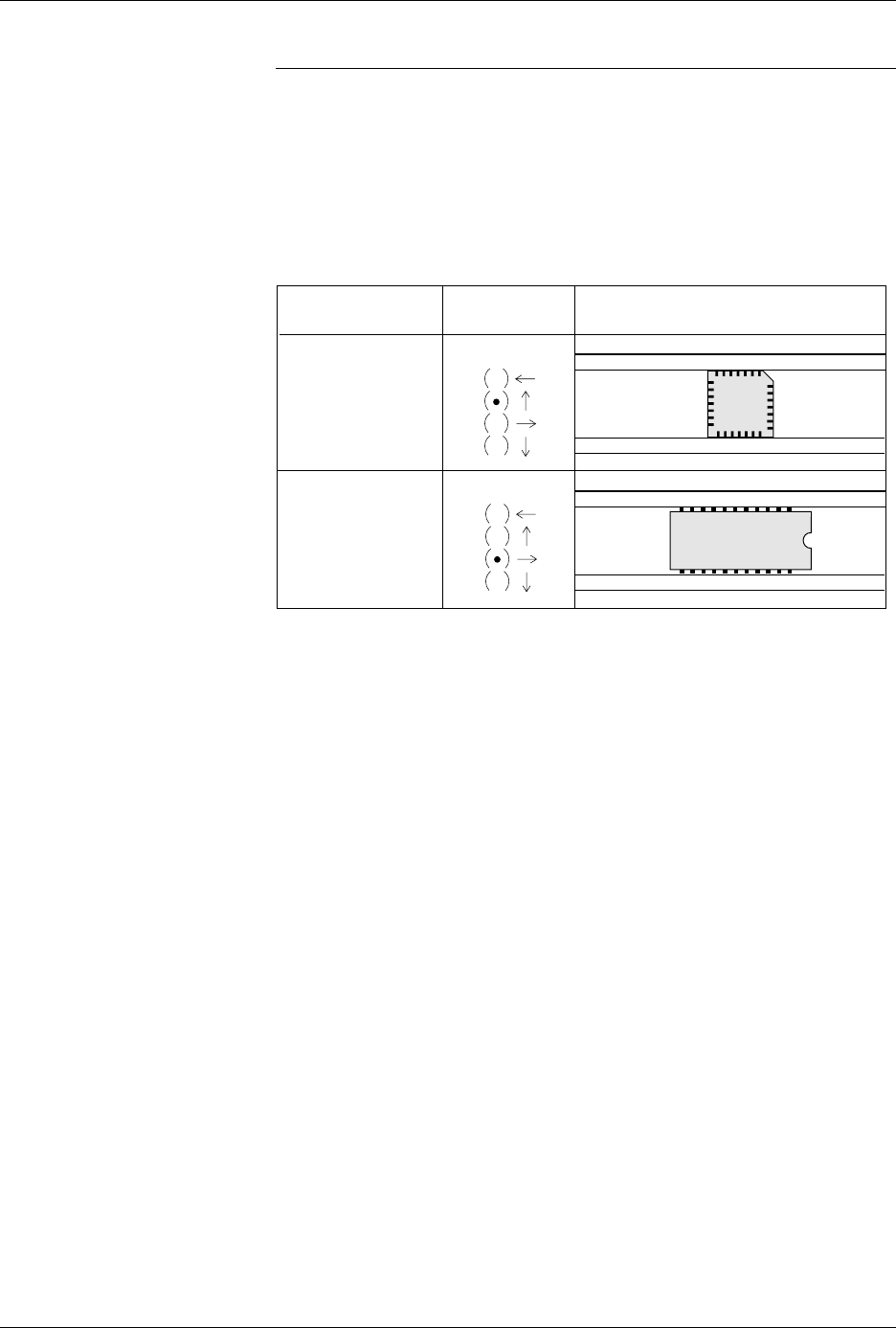
The arrows on the TaskLink screen point to the four sides of the device
(see Figure 3-7). Move the cursor using the
↑
and
↓
keys. Press
T
AB
when
you have the correct orientation highlighted for the Output
track.
TaskLink then prompts you for the Label and Input orientation fields.
Install all devices upside-down in the 2500 so that their leads are pointing
toward the ceiling (dead bug). We recommend the following default
positions for pin 1 (see Figure 3-8):
• DIP devices: Pin 1 is to the right side, closest to the input tube.
• 32-pin PLCC devices: Pin 1 is to the right side, closest to the input
tube.
• Square PLCC devices: Pin 1 is pointing to the back of the 2500.
Figure 3-7
Selecting Orientation of Device
Pin 1 in the Input Tube Using
TaskLink
SQUARE PLCC
INPUT TUBE
INPUT
INPUT
TASKLINKPACKAGE
DIP, SOIC, and
32-PIN PLCC
TO 2500
TO 2500
1889-2