2500_Users_Manual.pdf - 第180页
Preven tive Maint enance 5-26 ProMa ster 25 00 U ser Ma nual Adjusting Press Bearings Make sure the do t matrix prin ter’ s app licat ion p late is al igne d cor rectly by holding a device in your fingers a nd sliding it…

Preventive Maintenance
ProMaster 2500 User Manual 5-25
Adjusting Position
of Print on Label
(Dot Matrix Printer)
The left-to-right position of characters on the label is determined by label
calibration.
You can change the label calibration setting during a Task run by
pressing
STOP
and then
LOWER CASE
+
C
. The 2500 displays:
The
X
represents the current setting. The default setting places the first
column of print within 0.040 inches of the leading edge of the label.
Increasing the value one unit moves the print location approximately
0.005 inches to the right; decreasing the value moves it 0.005 inches to the
left. Enter a number from 0 to 255, and press
ENTER
.
If you change label calibration, press
CAL
to calibrate the label (see page
4-19).
Adjusting Position
of Label on Device
(Dot Matrix Printer)
The position of the label on the device is determined by the label
placement value. This is set in the system defaults to “Auto center,”
which instructs the 2500 to place the label on the true center of the device.
You can change label placement using a local mode command described
in Appendix F.
You can use the
Label Adjust
parameter to fine-tune label placement and
thereby adjust its centering while a Task is running. Press
STOP
and then
LOWER CASE
+
A
. The 2500 displays:
Enter a number from 0 to 255; each unit moves the label 0.01 inch closer to
the trailing edge. Press
ENTER
to accept the selection.
Note: This works only when “Auto center” is selected in the 2500 Setup/Labeler
menu.
Figure 5-6
Adjusting Label Calibration
ENTER LABEL CALIBRATION VALUE (X):
ENTER LABEL ADJUST VALUE (X):
1944-1
NORMAL
HIGHER VALUE
Preventive Maintenance
5-26 ProMaster 2500 User Manual
Adjusting Press
Bearings
Make sure the dot matrix printer’s application plate is aligned correctly
by holding a device in your fingers and sliding it across the application
plate, over the press bearings, and onto the bearing plate (see Figure 2-8).
The device should move smoothly across the press bearings.
If device travel is not smooth, use a 7/64-inch hex wrench to loosen (to
raise) or tighten (to lower) the screw on the left side of the plate (near the
bearings) until a smooth transition occurs (see Figure 2-8).
Adjusting Print
Position on the Label
(Thermal Printer)
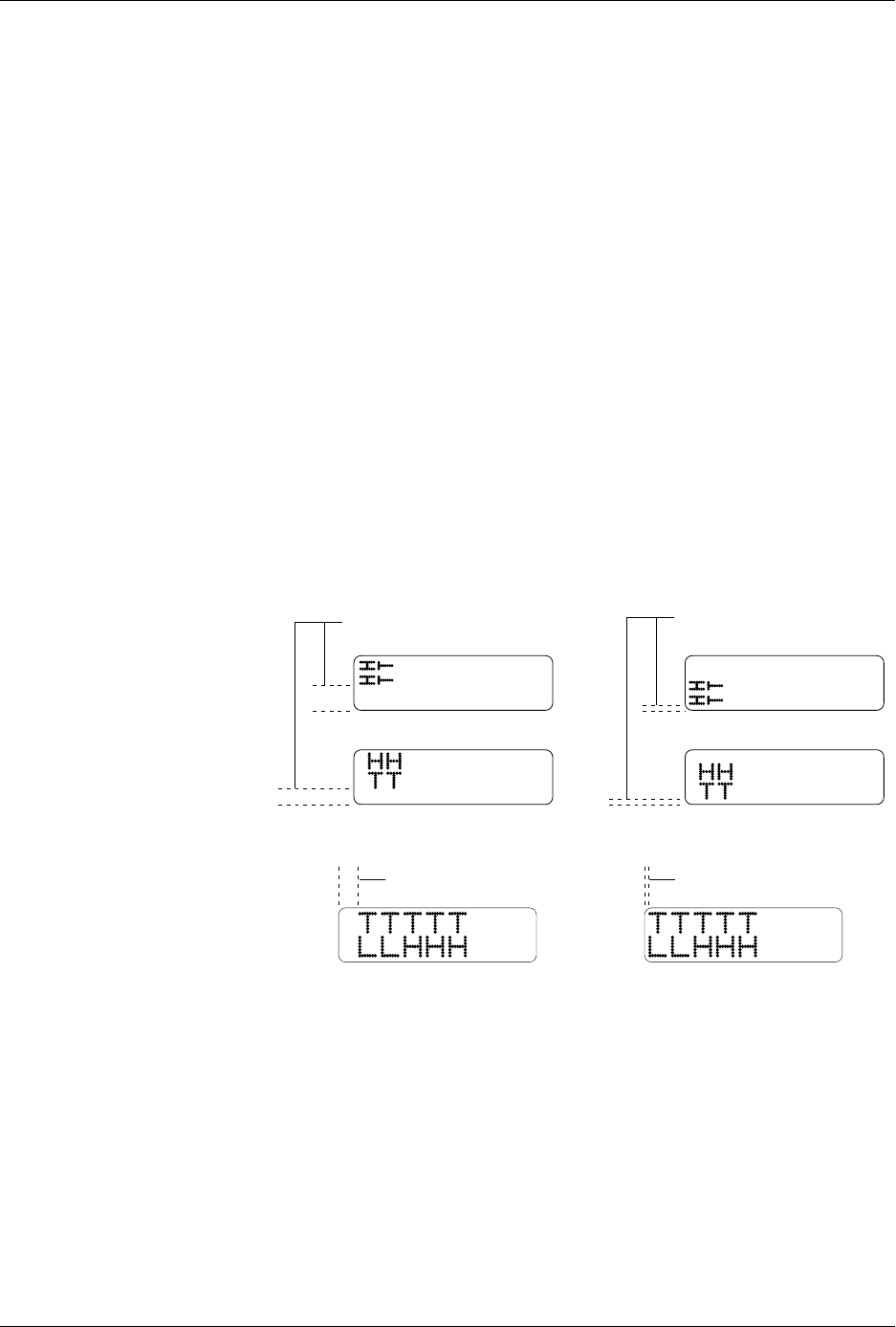
Two parameters control the position of text and graphics on the label. By
changing the value of each parameter, the location of the text or graphics
printed on the label can be adjusted.
•The
print shift
value affects the vertical position of the printed image,
moving the position of characters or graphics from the top to bottom
of the label (Y axis). See Figure 5-7.
•The
label calibration
value affects the horizontal position of the
printed image on the label, moving the position of the text or
graphics from left to right (X axis). See Figure 5-8.
Print Shift
Change this value using the STOP command described in the following
procedure.
1. Press
STOP
to pause the 2500 while a Task is running.
2. Press
LOWER CASE
+
P
. The display on the 2500 prompts you to
enter a new value.
3. Press
↑
or
↓
to enter a new print shift value between 0 and 16.
Entering a larger numeric value moves the printed character higher
on the label.
4. Press
START
to continue running the Task.
Figure 5-7
Print Shift
(affects vertical position)
Figure 5-8
Label Calibration
(affects horizontal position)
1656-2
INCREASE DECREASE
2177-1
NORMAL
HIGHER VALUE

Preventive Maintenance
ProMaster 2500 User Manual 5-27
Label Calibration
Change the label calibration value using the STOP command described in
the following procedure.
1. Press
STOP
to pause the 2500 while a Task is running.
2. Press
LOWER CASE
+
C
. The 2500 displays:
where
XXX
represents a numeric value for the current setting.
3. Press
↑
or
↓
to change the label calibration value (the range is from 0
to 255). Entering a larger numeric value moves the printed characters
closer to the leading edge of the label.
4. Press
START
to continue running the Task.
Label Advance
The label advance value defines how far a label is extended above the
application plate just before it is applied to a device (see Figure 5-14).
The value can be changed by pressing
STOP
and
LOWER CASE
+
W
.
Increasing the numeric value advances the label farther above the
application plate.
Adjusting the
Thermal Printer
When the thermal printer is operating correctly, the label and ribbon
material advance smoothly and without any binding or excess slack. If
any of the clutches that are attached to the rollers begin to bind, they can
cause the feeding and advancing of both label and ribbon material to go
out of adjustment.
To adjust the thermal printer, follow these steps (see Figure 5-9):
1. Starting with the ribbon (supply) roll hub, check that it has only slight
friction. Remove the ribbon hub and spring washer.
2. Hold the spring washer in your hand and, using small needlenose
pliers, bend the three fingers so they produce less (or more, if
required) friction on the hub.
3. Reinstall the spring washer and hub on the printer. Check that there
is now only slight friction.
4. Print a label and observe the amount of slack in the ribbon when the
printer head pivots up to print. The ribbon should droop down about
3/4” when the print head pivots up. If it does not, loosen the lock nut
on the damper at the top of the air cylinder using small needlenose
pliers, and adjust it counterclockwise with a small flat- blade
screwdriver until the head pivots up fast enough to create the droop.
Then tighten the lock nut with the small needlenose pliers.
PROGRAM/TEST LABEL
SLAVE MODE PART TYPE: DIP 24-.3
PART TOTAL: 251 PART LENGTH: 1.250
LABEL CAL: (XXX)