2500_Users_Manual.pdf - 第36页
Introduc tion 1-14 3/97 ProMast er 25 00 Use r Man ual How to Use TaskLink Screens Figure 1- 9 shows th e TaskLink main screen for the system adm inistrator. The Options pull-down menu has been selected. When you f irst …

Introduction
ProMaster 2500 User Manual 3/97 1-13
TaskLink Software
TaskLink software runs on a PC and coordinates device programming,
testing, handling, labeling, and binning operations on the ProMaster
2500. TaskLink is available in a DOS version and a Windows™ version.
The software procedures and instructions in this manual assume the use
of TaskLink for DOS. If you are using the Windows version, refer to the
TaskLink for Windows Getting Started Guide
and the associated online Help
for detailed information.
PC System
Requirements
TaskLink (DOS) has the following minimum system requirements:
AT
,
PS/2
,
386
,
486
, or
Pentium™ PC
with the following:
• DOS 3.3 or later (DOS 5.0 or higher recommended)
• 640K RAM (2 MB of extended RAM recommended)
• Extended memory manager such as
himem.sys
or QEMM
(recommended)
• Disk-caching software, such as
smartdrv.sys
(recommended)
• Two RS-232C serial ports assigned as COM1 and COM2
•Microsoft
®
-compatible bus mouse (optional)
• A hard disk with at least 2 MB of free disk space
• Color monitor (recommended)
• 3.5-inch disk drive
• Two RS-232 serial cables
Modes of Operation
TaskLink displays different screens depending on whether it is to be run
by the system administrator or the system operator. These two modes are
started using different commands and serve different purposes.
•The
system administrator
defines the specific configurations for each
Task (job) that the operator will run. The menus in
administrator
mode
display all the options available through TaskLink. Specific
steps involved in creating a Task are described in Chapter 3.
•The
system operator
is interested in achieving quick, error-free
processing of devices. The first screen displayed in
operator mode
presents a list of Tasks that have been created by the system
administrator. The operator selects a Task to run and begins
processing devices after a minimal number of screen selections. The
typical procedure for selecting and running a Task is described in
Chapter 4.
Introduction
1-14 3/97 ProMaster 2500 User Manual
How to Use
TaskLink Screens
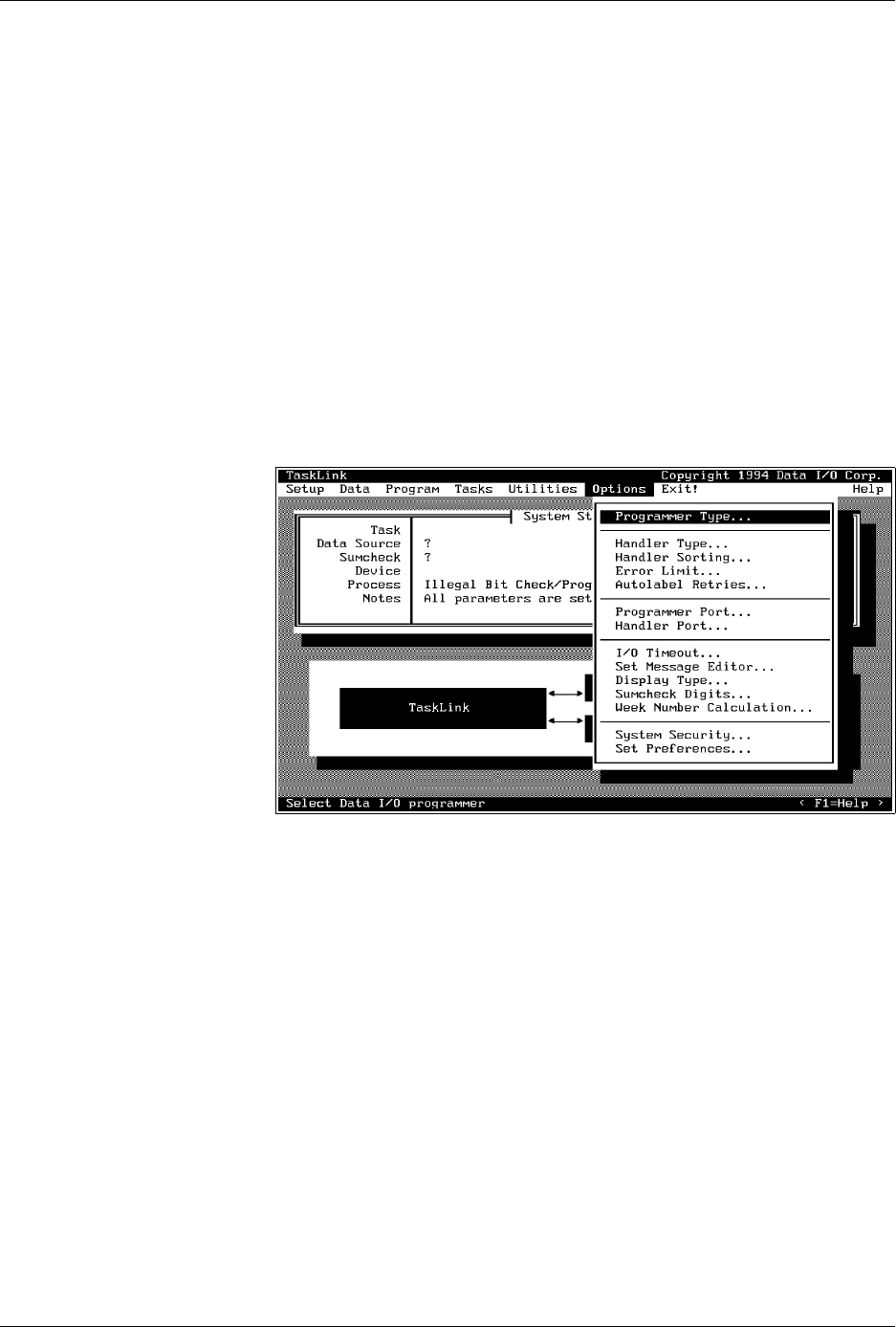
Figure 1-9 shows the TaskLink main screen for the system administrator.
The
Options
pull-down menu has been selected.
When you first enter TaskLink, the message line prompts you to press the
A
LT
key on your PC keyboard. This highlights the
Setup
selection and a
single letter on the other menu bar options. Press
↵
to select
Setup
or
press the highlighted letter key for any displayed option you wish to
select. For example, to select the
Options
pull-down menu as shown in
Figure 1-9, press
A
LT
+
O
.
Select the
Handler Type...
option by doing one of the following:
•Press
H
on the keyboard.
•Use the
↓
to move the cursor bar to that selection and then press
↵
.
• Move the mouse cursor to that selection and press the mouse’s select
button.
When you move the cursor to a new entry field on the TaskLink screen,
the message line in the lower left corner changes to explain the options
and prompts you for the required action.
The three trailing dots (ellipsis) that you see on most lines indicate that
you will need to make another choice on the next screen before TaskLink
will have enough information to execute the operation. In the example
above, select the handler system and then press
↵
.
Types of Screen Selections
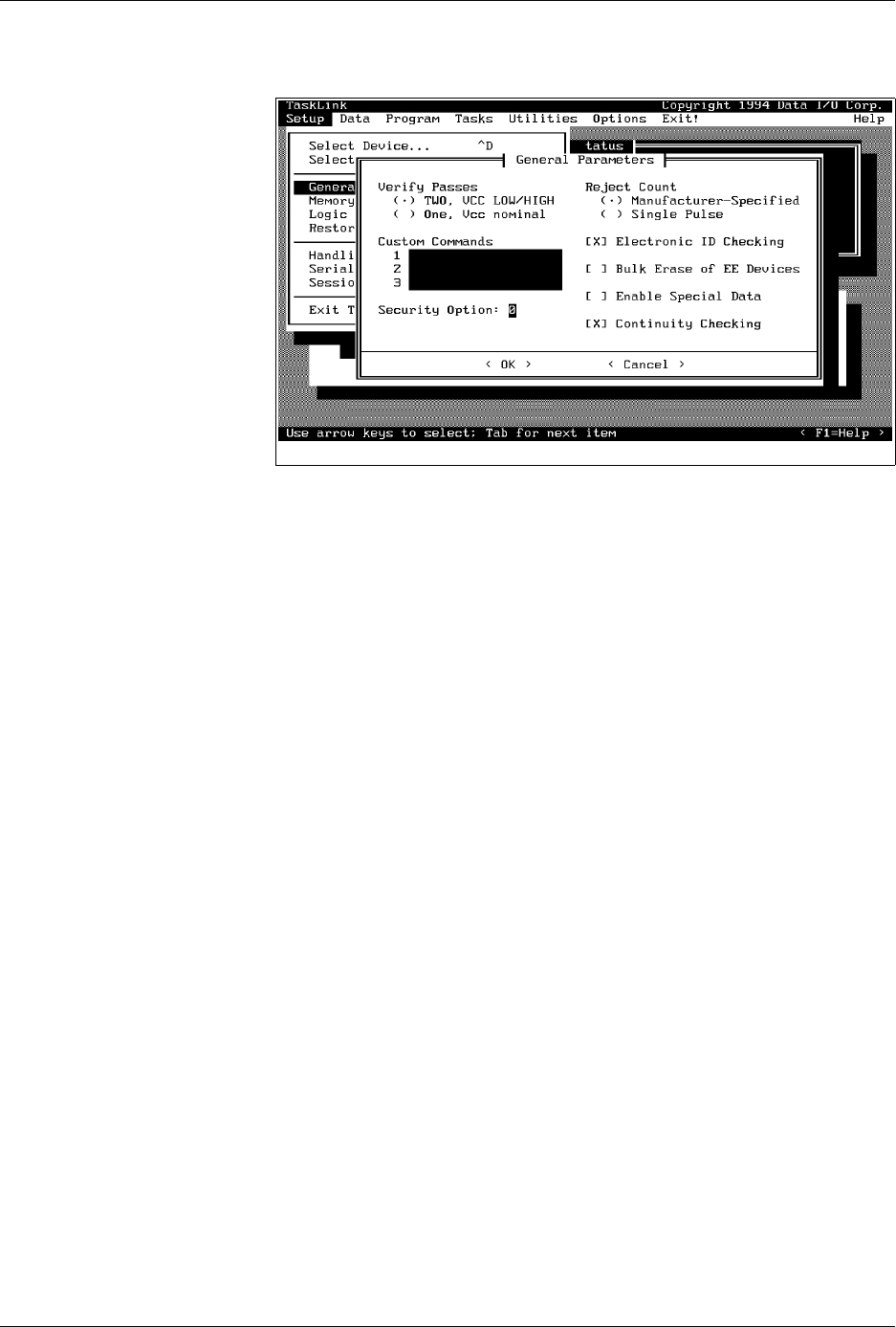
There are several types of screen selections you will make in TaskLink. If
you select
Setup
from the main screen and then press
G
to access the
General Parameters
dialog box, the following selection options would be
displayed (see Figure ).
Dialog Boxes
—A dialog box allows you to select or set different
parameters. They can contain push buttons, check boxes, radio buttons,
and entry fields. This
General Parameters
screen is an example of a
dialog box. Use
T
AB
to move between the selection groups.
Figure 1-9
TaskLink Main Screen: Options
Pull-Down Menu Selected
Introduction
ProMaster 2500 User Manual 3/97 1-15
Push Buttons
—Dialog boxes contain one or more push buttons. To select
a push button, highlight it and press
↵
, or select it using a mouse.
<OK>
and
<Cancel>
are examples of push buttons.
Check Boxes [ X ]
—Check boxes toggle an option on and off. Use the
S
PACE
bar, or click on the check box with your mouse to toggle a selection
on and off.
Electronic ID
is an example of a check box.
Radio Buttons
(
•
)—Radio buttons are used to select an option from a
list of mutually exclusive options. Use the arrow keys or click on the
option to select a radio button option. The two options listed under
Verify Passes
are examples of radio buttons; selecting one deselects the
other.
Parameter Entry Fields
—These fields allow you to input information
that TaskLink needs. When highlighted, text entered at the keyboard goes
into the entry field.
Custom commands
is an example of a parameter
entry field.
Online Help
For more detailed information on any aspect of TaskLink, context-
sensitive online help documentation is available by:
• Clicking the mouse button on the
< F1 = Help >
push button at the
bottom right of the screen.
• Moving the cursor to a selection and pressing
F1
.
All topics covered in online documentation are also accessible from the
General Help Index
in the
Help
menu.
TaskLink Screen
Movement Summary
Both the mouse and the PC keyboard can be used to select items from the
TaskLink menus. All screen movement and selection instructions in this
manual are given using the PC keyboard commands. If you are using a
mouse, simply point the mouse to an item on TaskLink’s action bar,
boxes, or buttons, and select the item by clicking the mouse button.
Figure 1-10
TaskLink General Parameters
Dialog Box