2500_Users_Manual.pdf - 第149页
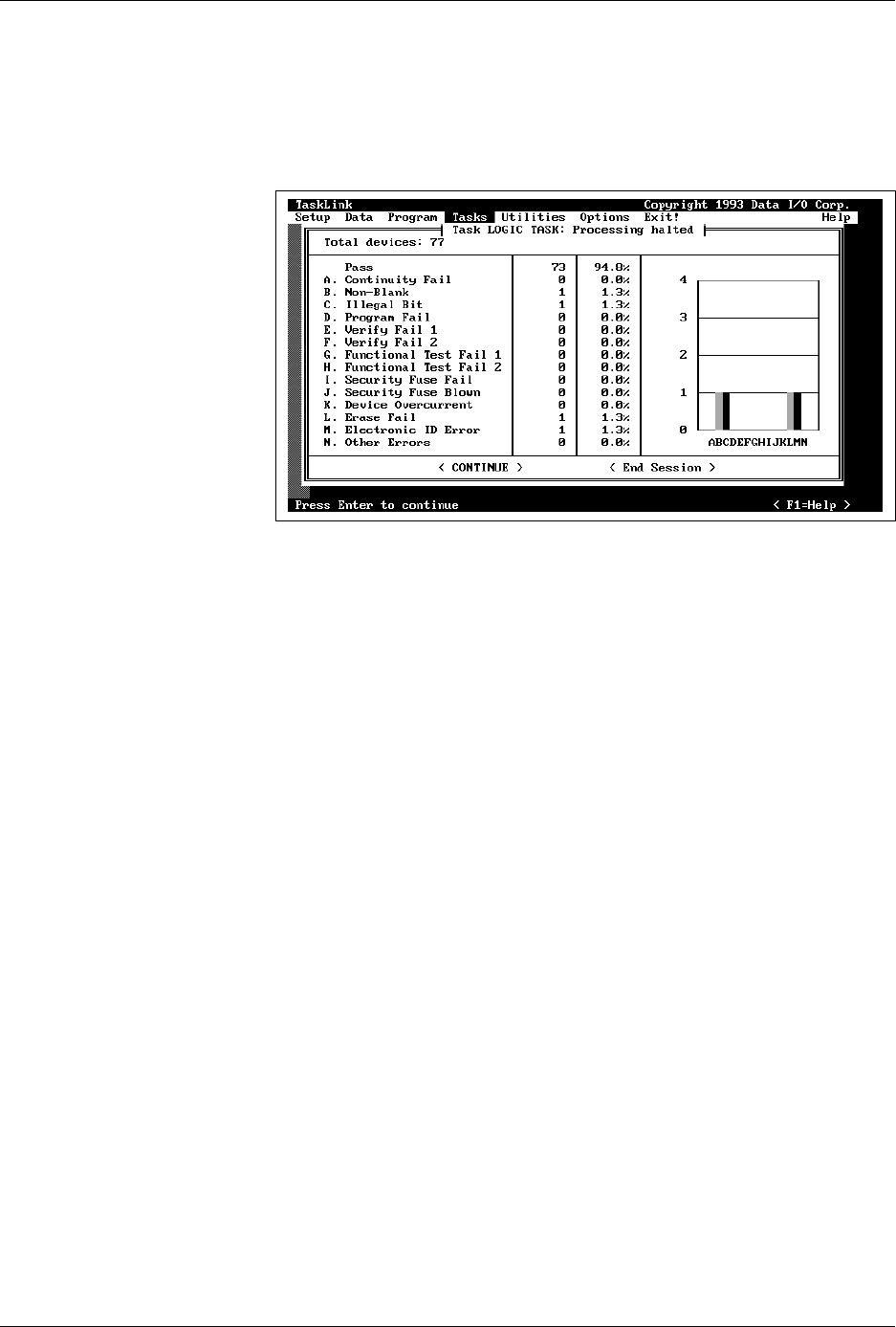
Operation ProM aster 25 00 User Manua l 4-35 Task Summary Screen The Task summary screen shows th e programming yield in terms of the number of devices that passed an d the number that failed for each specific error. Pre…
Operation
4-34 ProMaster 2500 User Manual
3. If the device was
too close to the front
of the programming module,
press
↑
on the 2500’s keyboard once or twice.
If the device was
too close to the back
of the programming module,
press
↓
once or twice.
4. Press
START
. The beam moves the device over the programming
module and stops.
5. Press and hold
D
on the 2500 keyboard to make certain that the
device is equidistant between the front and back contact sets.
Repeat steps 1 through 5 until the device moves into the center of the
programming module and is not closer to one side of the contacts
than the other.
6. When the alignment is correct, press
START
to continue running the
Task.
System Status Box
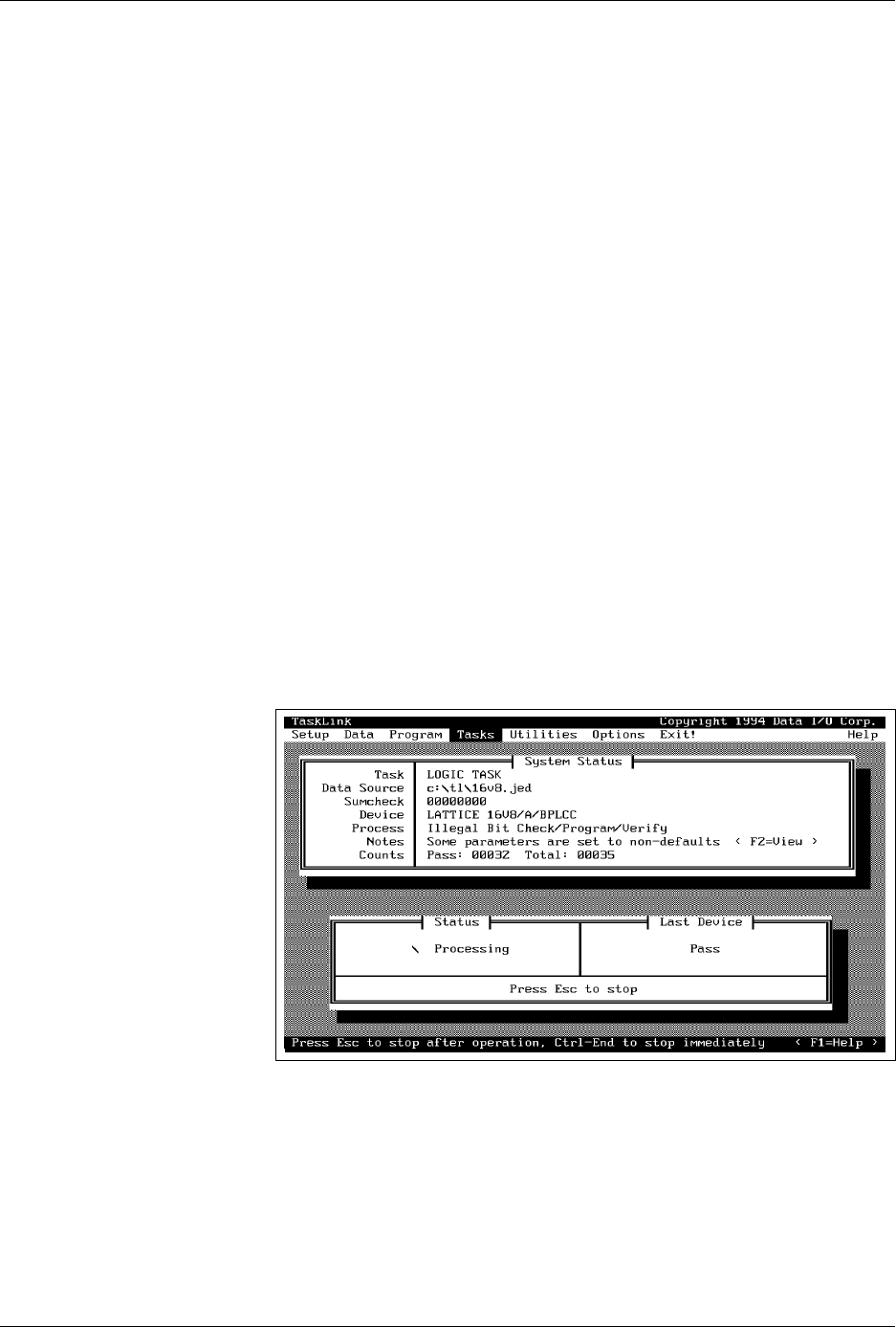
The System Status box is displayed on the PC screen when the 2500 is
processing devices. It continually updates the
Counts
status line with two
number fields:
Pass
and
Total
. Specific error messages are momentarily
displayed in a red box in the
Last Device
status area. All the
programming results are being recorded by TaskLink and will be
displayed in the summary screen when the Task is completed.
TaskLink displays an action symbol (rotating bar) and the words
In
Progress
in the
Status box
. When the operation is complete, the
Last
Device
status box displays Pass and the
Status
box displays the message,
Waiting For Devices
.
When the number set for pass limit has been reached (or when you
interrupt processing by pressing
Esc
), TaskLink displays a summary
screen that shows the programming result.
Figure 4-28
TaskLink Status Screen During
Device Processing
Operation
ProMaster 2500 User Manual 4-35
Task Summary Screen
The Task summary screen shows the programming yield in terms of the
number of devices that passed and the number that failed for each
specific error. Press
↵
to continue running the Task, or press
T
AB
to select
<End Session>
and
↵
to stop the Task and return to the main TaskLink
screen.
Exiting TaskLink
From the main TaskLink screen, press
T
AB
to select
<EXIT>
and then
press
↵
. A second box appears to confirm that you want to exit TaskLink.
Press
T
AB
to select the
<EXIT>
and then press
↵
again to completely exit
the program and return to the DOS prompt.
Figure 4-29
Task Session Summary Screen

Operation
4-36 ProMaster 2500 User Manual
Introduction to Kits
Kits are like super-Tasks. They are simply individual Tasks that have
been joined together to make one large Task. Kits are used most often to
organize the individual Tasks used to program all the devices on one
board. In Figure 4-30, there are four devices that must be programmed
and labeled for the sample board. Each Task controls the process for one
device on the board.