2500_Users_Manual.pdf - 第82页
Task s and Ki ts ProM aster 25 00 User Manua l 3-7 Selecting the Data Source Select the Data Sour ce field to choose where the 2500 will retrieve the data to be programmed in the device. When you select PC Disk File , tw…
Tasks and Kits
3-6 ProMaster 2500 User Manual
You may also wish to enter such handler setup parameters as blank check
number, programming module and configuration, label size, and
sumcheck (for example,
AMD 22V10/4 20R-2 0906K S/C 0000)
.
Selecting a Device
From the
Edit Task
dialog box, create a list of devices that operators
choose from when they run the Task. A maximum of five devices can be
selected for each Task.
You can use either of the following two device selection methods to
create a Task-specific device list.
•
Wild card device selection
—Allows you to use standard PC
wildcard options to have TaskLink display a list of parts with similar
core numbers. For more information on using wild card selection,
refer to the Task Device Type(s) topic in the
General Help Index
in
the
Help
menu or press
F1
for the online help text.
•
Device list selection
—Choose device names as they appear on the
device list (including Keep Current and Extended Algorithms). A list
box displays manufacturers names. After a manufacturer is chosen,
the box displays a list of device part numbers.
The most common method is specifying device names using the name
shown on the 2500’s Device List. TaskLink will display those devices on
the screen for you to select.
Press
T
AB
to move the screen cursor to the
Device(s)
field. Press
F2
. The
Select Device
dialog box appears with the cursor in the
Device Type
field. Press
T
AB
to move to the
Manufacturers
parameter entry field, and
use the arrow key to move the screen cursor to highlight the desired
device manufacturer.
Press
T
AB
to move to the
Devices for ...
parameter entry field, which
displays a list of supported devices by part number. Highlight the
desired device. Press
↵
to select the device. TaskLink returns to the
Device(s) entry field in the Edit Task dialog box and displays the part just
selected.
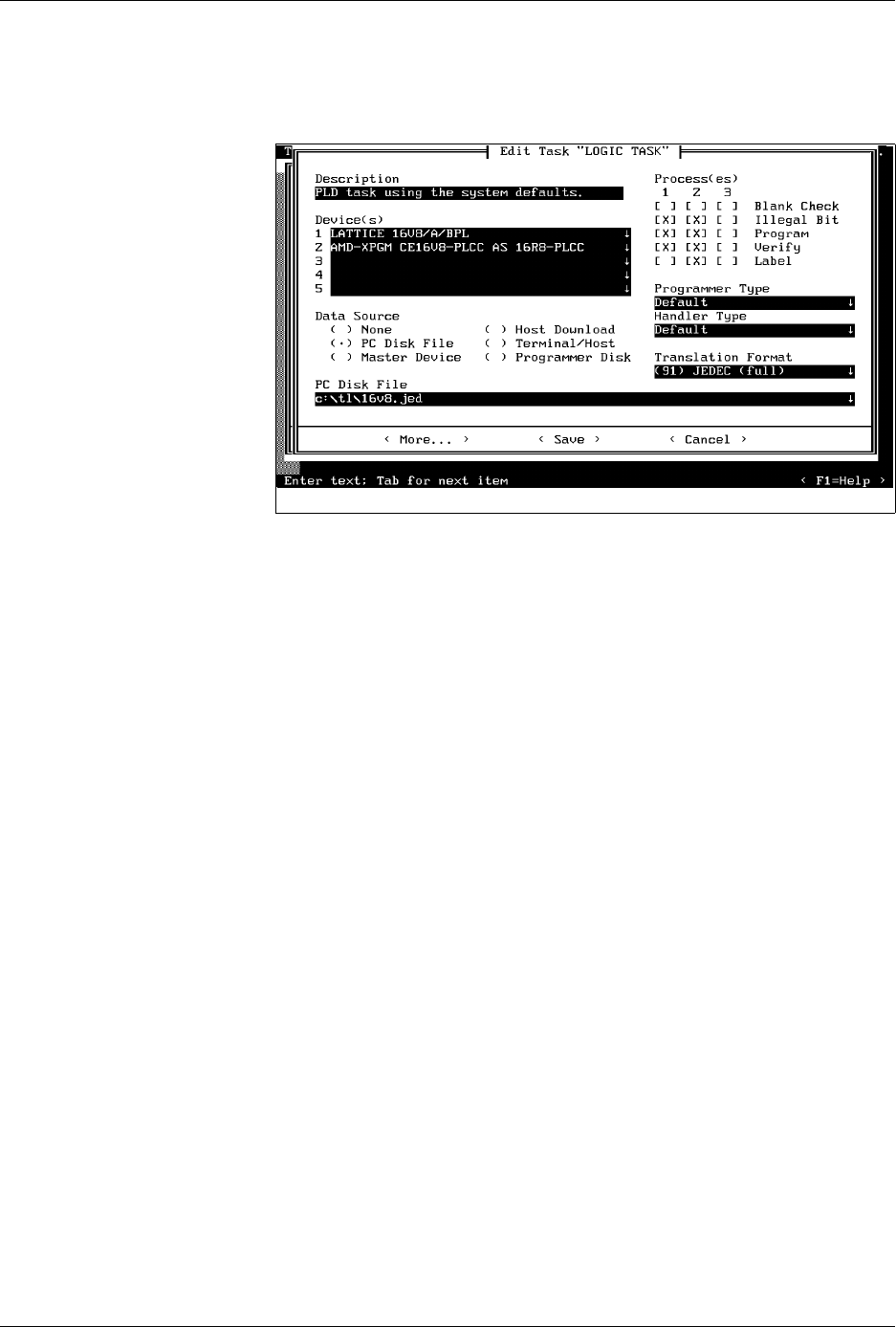
Figure 3-4
Edit Task Dialog Box

Tasks and Kits
ProMaster 2500 User Manual 3-7
Selecting the Data
Source
Select the
Data Source
field to choose where the 2500 will retrieve the
data to be programmed in the device.
When you select
PC Disk File
, two additional fields allow you to select a
data translation format and a data file name. These additional entry fields
are:
• Data File
• Translation Format
If you select
Master Device
as the data source, TaskLink will prompt the
operator to insert a master device into the input track section. The beam
places this device in the programming module and its data is read into
RAM. The master device is then placed into the device recess next to the
labeler.
If you select
Programmer Disk File
, TaskLink looks for the data file on
either the 2500’s floppy disk drive (A:) or one of the Mass Storage Module
drives (C: or D:). Files from these programmer disks are unformatted data
files. If you do not specify a drive before the file name, TaskLink looks for
the file on drive A.
Programmer disk file commands are not displayed on the TaskLink
menus by default. To see these commands on the TaskLink menus, you
must select the
Enable Programmer Disk Options
from the
Set
Preferences
dialog box (see Figure 3-21).
Data File Entry Field
The most common method of retrieving programming data is to
download it from a PC file to the 2500’s RAM. Press
T
AB
to move the
cursor to the
Data File
field and enter the name of the data file. Include
the PC drive letter and path if the file is not located in the same directory
as TaskLink. The entry line “
drive:\path\file_name
” might look
something like “
c:\pld_data\U49.jed.
”
TaskLink displays a list of data files on the screen. To see the list, move
the cursor to the
Data File field and press
F2
. Use
T
AB
and the arrow keys
to move the cursor to a file on the list. Press
↵
and the file is selected for
this Task. TaskLink returns to the
Edit Task
dialog box and displays the
path and filename. (The Host Command and the Terminal/Host options
are not currently used on the 2500.)
Translation Format Entry
Field
After data is created, it is stored in a particular data translation format.
When downloading from a host or PC disk file, you must set up TaskLink
to use the same translation format.
Select a new translation format by moving the cursor to the
Translation
Format
entry field. Press
F2
to access the Translation Format list box, and
use the arrow keys or the mouse and scroll bar to scroll through the list
and highlight the translation format you want. Press
↵
to select that
format. TaskLink returns to the
Edit Task
dialog box and displays the
new translation format.
Note: When you choose a format, consider its compatibility with high speed
download.
Tasks and Kits
3-8 ProMaster 2500 User Manual
For logic devices, the primary choices are two JEDEC formats (full and
kernel) and Altera POF.
Selecting a Process
The
Process(es)
check box area of the Edit Task dialog box lists the
operations that can be performed on a device. The three columns of check
boxes allow you to configure three different combinations of operations,
or process(es), within the Task.
When at least one operation is selected in more than one column, the
operator running this Task will be presented with a selection box and
asked to choose one of the Processes on the screen.
Highlight the desired operation(s) in each column. Press
S
PACE
to enable
(check) or disable (uncheck) the operations.
The parameter choices are listed below:
•
Blank Check
—This test runs before the device is programmed to see
if the device has any programmed bits (fuses). If programmed bits are
found, the device is rejected and placed in the fail tube. When this test
is not selected as part of the Task process, the 2500 programs and
verifies the device without checking for programmed bits.
•
Illegal Bit
— This test is performed before the device is programmed
to determine whether the device has any illegal bits. An illegal bit is a
bit (fuse) in the device that is programmed when the RAM data for
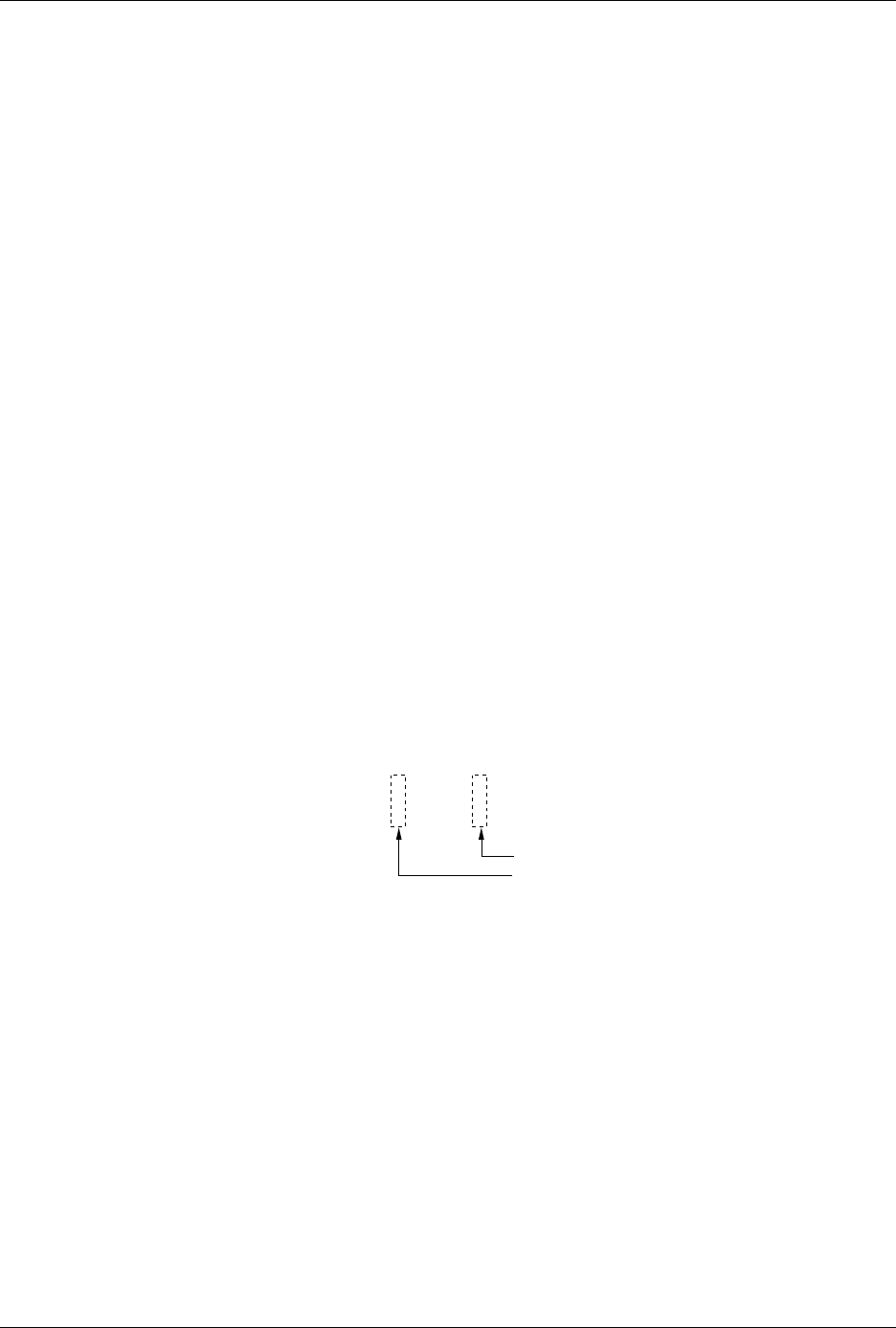
the same bit specifies that it should be unprogrammed (see Figure
3-5). For all devices except electrically erasable parts, this is an illegal
operation and the device will be routed to the
Fail
output tube. This
test is not performed on an electrically erasable device, because those
devices are completely erased before they are programmed so no
illegal bits can occur.
•
Program
—Select this parameter to program the device as part of the
Task operation. When this is selected, the
Verify
parameter is also
selected. TaskLink does not allow
Program
to be selected without
including the Verify operation.
•
Verify
—Select this parameter to have the 2500 compare the data
programmed in a device to data in RAM. Verify is automatically
selected by TaskLink when Program is selected. Verify may be
selected without selecting Program when you need to check devices
that were programmed earlier.
Figure 3-5
Illegal Bit Condition
1954-1
1111 1101
1011 1111
Device data (erased bit = 1)
RAM data to be programmed into the device
Illegal bit
Not an illegal bit