2500_Users_Manual.pdf - 第136页
Operation 4-22 ProMa ster 25 00 U ser Ma nual Cali bra tin g Lab els in th e Thermal P rinter The label optic mus t be calibrated to detect and synchronize w ith the labels after you have finished either one of the follo…
Operation
ProMaster 2500 User Manual 4-21
10. Make certain that the label liner is flat against the underside of the
platen.
11. Feed the liner back over the top of the platen and through the gap
between the platen and the track.
12. Thread it between the label drive roller and the label pinch roller (see
Figure 4-16).
13. Thread the liner between it and the drive roller. Guide the spring-
loaded pinch roller back into its operating position against the drive
roller. Make certain that there is no slack in the liner.
14. Lower the label application plate.
15. Lift the labeler cover back into its operating position.
This completes the installation procedure. Be sure to calibrate the labels
as described in the next section before attempting to label devices.
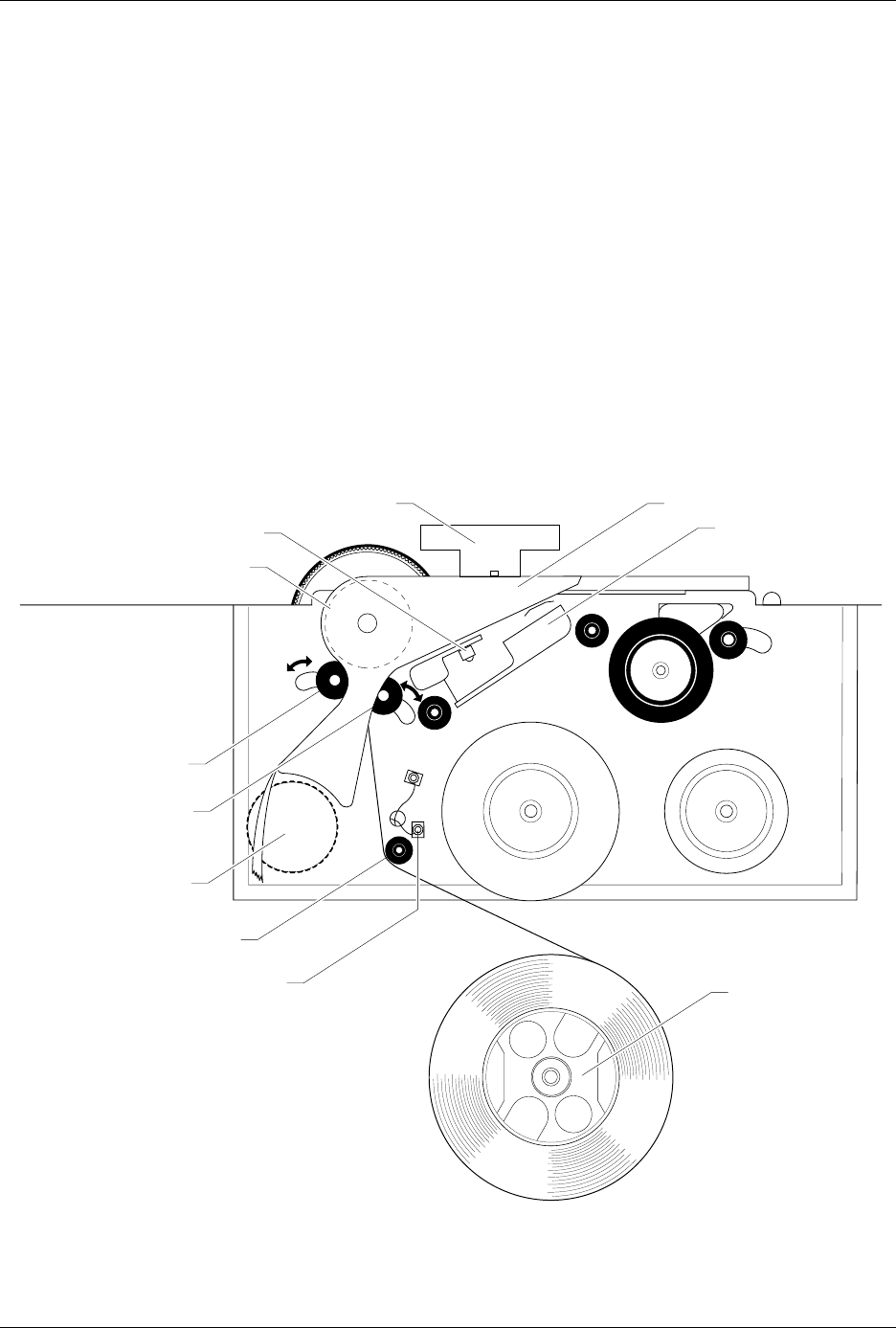
Figure 4-16
Threading Labels in the Thermal Printer
2303-1
LABEL DRIVE ROLLER (hidden)
LABEL PINCH ROLLER
LABEL ADVANCE KNOB
LABEL ALIGNMENT ROLLER
LABEL DETECTION OPTIC
LABEL ROLL
(cover removed)
APPLICATION PLATE (raised)
PLATEN
PRINT HEAD
(retracted position)
LABEL ADC OPTIC
PLATEN PINCH ROLLER

Operation
4-22 ProMaster 2500 User Manual
Calibrating Labels in the
Thermal Printer
The label optic must be calibrated to detect and synchronize with the
labels after you have finished either one of the following operations:
• Installing a new roll of labels
• Changing the ribbon
• Adjusting the ADC reference value
• Manually moving the labels
Perform the following steps to calibrate the labels.
1. Put your finger near the label application point (the right edge of the
application plate).
2. Press
CAL
on the front panel of the 2500.
3. Use your finger to catch the three or four labels ejected while the
labels are being calibrated.
Installing Devices in
the Input Track
The orientation of devices in the input track is critical.
The 2500 uses the
location of pin 1 (as specified in the Task you are running) to determine
how to rotate the beam so that it correctly inserts the device in the
programming module’s block. Because the way you insert devices in the
input track is already defined as part of the Task, you must know your
company’s standards and be careful to insert each tube of devices to
match that standard.
In most cases, the default orientation defined by TaskLink is used. At the
start of a Task, TaskLink displays a drawing with the position that the
Task has defined for pin 1 (see Figure 4-21). Install devices upside-down
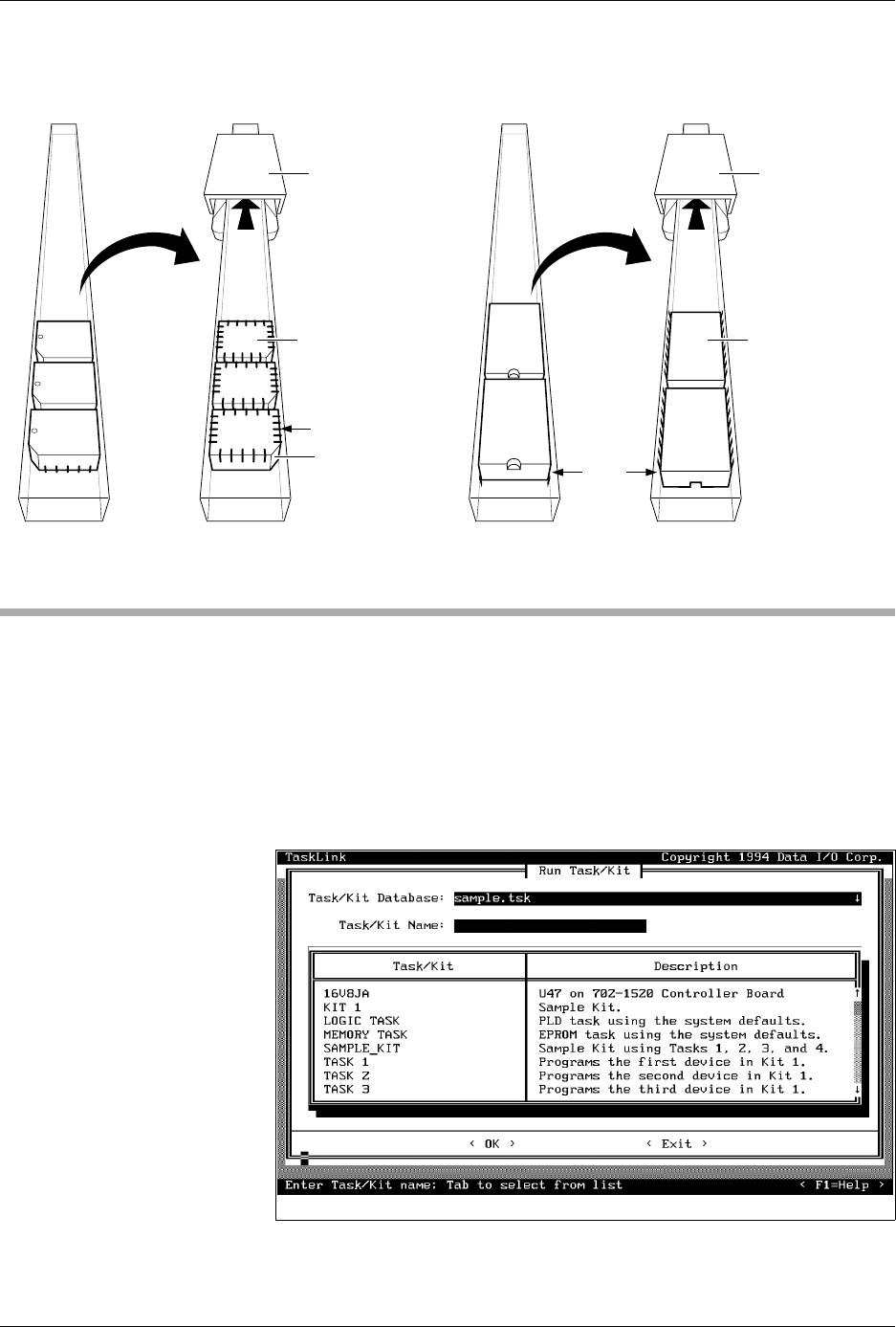
so that their leads point toward the ceiling (see Figure 4-17).
The default positions for pin 1 are:
• DIP and SOIC devices: Pin 1 is to the right, closest to the input tube.
• 32-pin PLCC devices: Pin 1 is to the right, closest to the input tube.
• Square PLCC devices: Pin 1 is pointing to the back of the 2500.
CAUTION: Insert all input tubes with the device leads pointing up
toward the ceiling. Insert square PLCC devices with pin 1
oriented toward the back of the 2500, away from you. Insert
rectangular PLCC (32-pin), DIP and SOIC devices so that
pin 1 is oriented to the right. Failure to insert devices so they
match the Task configuration may damage both the device
and the programming module.
To insert a tube according to these defaults, hold the tube so you can see
the top of the devices and the pin 1 indicator (see Figure 4-17). Turn the
tube upside-down (rotate it 180 degrees) and insert the tube in the input
tube holder.
Operation
ProMaster 2500 User Manual 4-23
Running a Task
Start TaskLink at the DOS prompt in the directory where TaskLink is
installed. Type:
tl
After a few seconds, the Run Task/Kit list box appears (similar to the one
shown in Figure 4-2). A Kit is a special collection of Tasks, which will be
explained later in this chapter. For now, ignore all references to Kits.
The Tasks and Kits available in the current Task/Kit database file (shown
in the
Task/Kit Database
entry field) are listed in the
Task/Kit
list box.
Figure 4-17
Installing Devices in the Tube Holder
Figure 4-18
Main Operator Screen in TaskLink
1854-3
NOTCHED
CORNER
INPUT TUBE
HOLDER
INPUT TUBE
HOLDER
TUBE INSERTED
WITH DEVICE
CONTACTS
FACING UP
TUBE INSERTED
WITH DEVICE
CONTACTS
FACING UP
SQUARE
PLCC
DEVICES
DIP/SOIC
DEVICES
PIN 1
PIN 1