2500_Users_Manual.pdf - 第200页
Preven tive Maint enance 5-46 ProMa ster 25 00 U ser Ma nual Up to three lines of text with 25 characters per line are available, but the number of lines and characters that will fit on a device is limited by the size of…
Preventive Maintenance
ProMaster 2500 User Manual 5-45
Text Rotation
The 2500 displays:
Select a text rotation value and press
ENTER
.
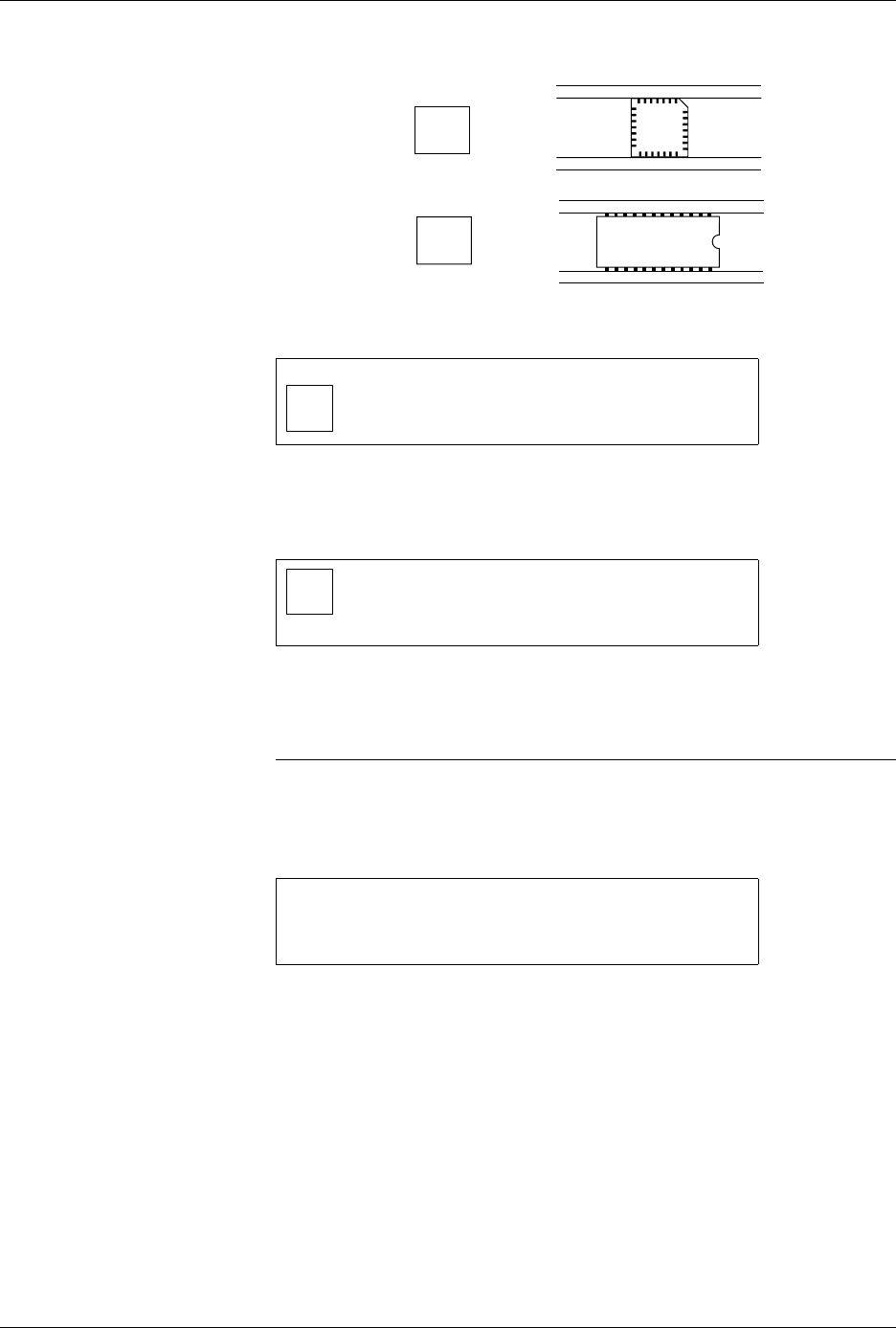
Device Orientation in
Receiving Tube
The 2500 displays:
Use the arrow keys to move the pin 1 icon to match the position of pin 1
as the device enters the receiving tube. Press
ENTER
when you have
made your selection.
Tip: So that you can place devices back in the 2500 without repositioning them,
choose a setting that places devices in the receiving tube opposite their
orientation in the input tube.
Creating Label Text
The Temporary text file is ready to edit when the 2500 displays:
Any text on the left side of the display is from the last file edited and
COLUMN
X
and ROW
X
refer to the position of the cursor.
Figure 5-18
Recommended Orientation of Pin 1
for DIP and PLCC Devices
1 TEMPORARY FILE
SELECT POSITION OF PIN 1
TXT IN RELATION TO THE TEXT.
USE ARROW KEYS THEN PRESS ENTER.
<------- TEMPORARY FILE
SELECT POSITION OF PIN 1
AS IT WILL GO INTO THE TUBE.
1 USE ARROW KEYS THEN PRESS ENTER.
_ | TEMPORARY FILE
| COLUMN X ROW X
| PRESS STOP WHEN
| EDITING IS COMPLETE.
1
SQUARE
PLCC
1
DIP, SOIC
32-PIN PLCC
FRONT PANEL DISPLAY
IN INPUT TUBE
1256-2

Preventive Maintenance
5-46 ProMaster 2500 User Manual
Up to three lines of text with 25 characters per line are available, but the
number of lines and characters that will fit on a device is limited by the
size of the device, and type (font). See the charts on pages 5-15 and 5-17.
Three lines is the maximum number currently available. Enter the text
you want on the label. Existing text is overwritten.
To delete a character, move the cursor one space to the right of the
character you want to delete, and press
DEL
. To insert a space between
two characters, move the cursor to the right of the place you want to add
a space, and press
SHIFT
and
SPACE
at the same time.
When you are finished editing, press
STOP
.
Print Test
(Dot Matrix Printer)
This test activates the 24 print head wires (pins) to verify that they are all
operating. Check the labeler wires by performing the following steps:
1. Press
CAL
to calibrate the labels.
2. With the 2500 in local mode, go to the Diagnostics menu.
3. From the Diagnostics menu, press
5
to select
PRINT TEST
.
4. Press and release
START
quickly. The labeler continuously fires all
print head wires (pins) while
START
is pressed. Holding
START
too
long will result in a blurred image on the label and you will not be
able to see the printed points.
5. Press
RESET
to exit the Print Test and return to the Diagnostics
menu.
6. Press
CAL
to calibrate the labels. You should see two clear, parallel
lines printed on the label. Use an eye loupe to check that there are 24
printed dots.
If you suspect that one of the wires is not firing, you may check the
control circuit on the handler controller board that drives each wire. Each
circuit includes an LED that turns on when the labeler wire is enabled by
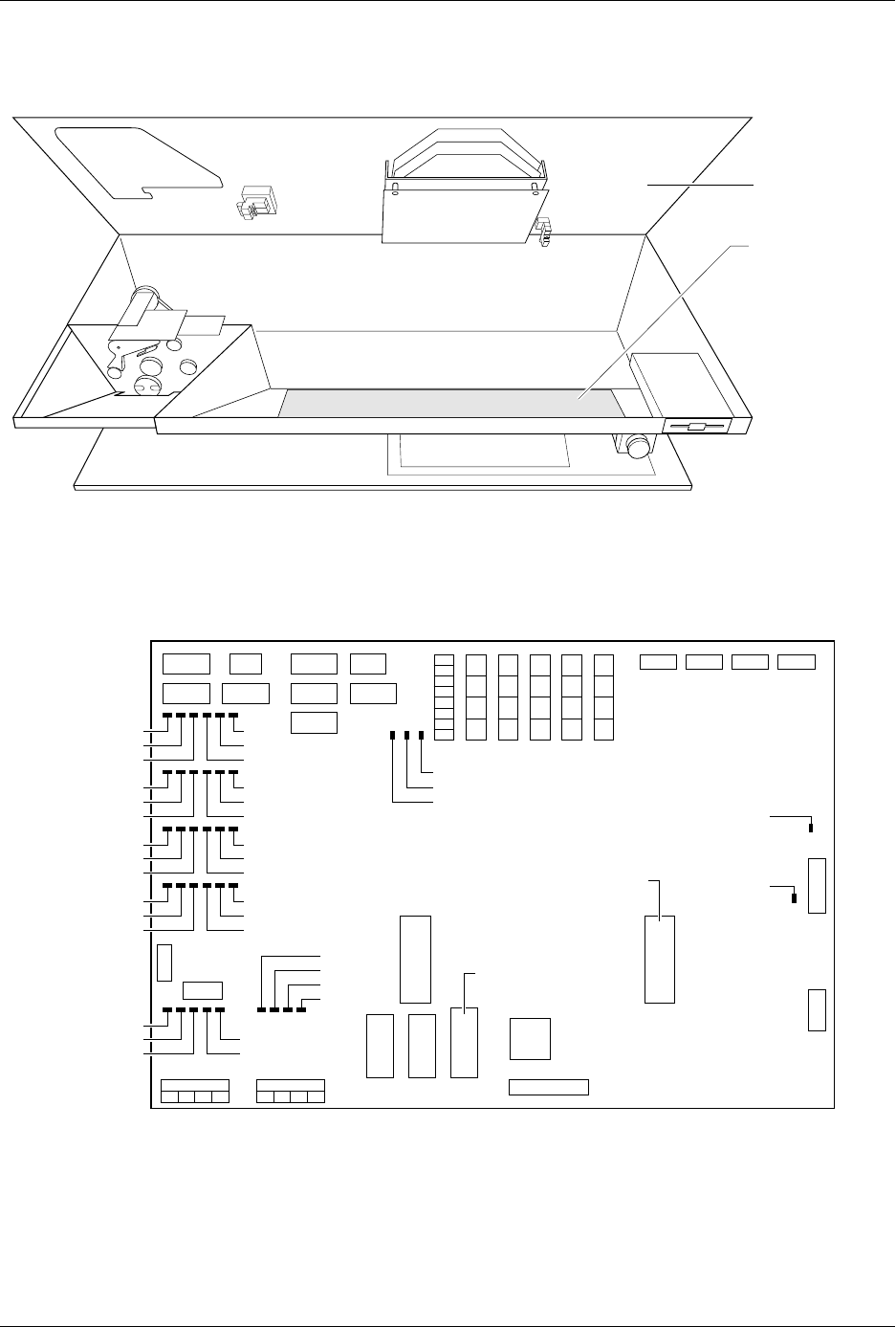
its control circuit. Refer to Figure 5-20 for the location of these LEDs. Each
LED number has a
CR
prefix.
Check the LEDs while you are running the print test to confirm that all
the LEDs are turned on. Disconnect the two print head cables to
determine whether that problem is on the handler controller board, the
cable, or the print head.
Preventive Maintenance
ProMaster 2500 User Manual 5-47
Figure 5-19
Interior View of the 2500’s Base
Figure 5-20
Print Head LEDs on Handler Controller Board
1931-2
MAIN PLATE
CONTROLLER
BOARD
1955-2
+5V
-12V
+12V
+36V
+90V
CR111
CR75
CR99
CR51
CR87
CR63
CR112
CR76
CR100
CR52
CR88
CR64
CR113
CR77
CR101
CR53
CR89
CR65
CR114
CR78
CR102
CR54
CR90
CR66
+24V
S8
S7
S5
S6
S2
S3
S1
S4
U15
EPROM
U43
EPROM