2500_Users_Manual.pdf - 第63页
Insta llatio n and Se tup 2-20 ProMa ster 25 00 U ser Ma nual Switching Between Local and Remote Modes As discu ssed in Chapte r 1, the 2500 uses two met hods to communi cate with the operator. N inety-five per cent of t…

Installation and Setup
ProMaster 2500 User Manual 2-19
Note: The 2500’s power-up self-test takes approximately two minutes to
complete.
3. Confirm that the high air pressure gauge on the 2500 is reading 75 PSI
(see page 2-7). When the adjustment is correct, push the adjustment
knob in toward the back of the handler to lock its position.
4. Confirm that the low air pressure gauge is reading 25 PSI. When the
adjustment is correct, push the adjustment knob in toward the back
of the handler to lock it in position.
Checking System
Communication
To confirm that communication between TaskLink and the 2500’s
programming electronics has been established, press
C
TRL
+
F1
on the PC
keyboard.
Note: The 2500’s power-up self-test takes approximately two minutes to
complete. During this time, TaskLink will not be able to establish
communication with the 2500.
If they are communicating correctly, a green box appears with the
following message:
Contact with programmer established
If there is a problem, a red box appears with the following message:
Attempting to contact programmer...
and the screen will suggest several troubleshooting steps to correct the
problem.
To confirm that communication between TaskLink and the Remote port
on the 2500 has been established, press
C
TRL
+
F2
on the PC keyboard.
If correct communication is occurring, a green box appears with the
following message:
Contact with handler established.
If there is a problem, a red box appears with this message:
Attempting to contact handler ...
and the screen will suggest several troubleshooting actions to take.
If TaskLink cannot contact the programmer, check the following:
• Ensure that the two RS-232C cables are connected properly (COM1 to
Programmer port, COM2 to Remote port).
• Ensure that your PC does not assign two RS-232C ports to the same
IRQ. Your system will not communicate with the Programmer Port if
two COM Ports are assigned to the same IRQ.
• Ensure that someone has not changed TaskLink’s port settings from
their default values. If they have, restore them to their default
settings and check the port communication.
• You should be using the RS-232C cables supplied with the system.
Installation and Setup
2-20 ProMaster 2500 User Manual
Switching Between
Local and Remote
Modes
As discussed in Chapter 1, the 2500 uses two methods to communicate
with the operator. Ninety-five per cent of the interaction will be through
the TaskLink screens and PC keyboard. The remaining five per cent of
the interaction is through the 2500’s keyboard and display. When the
system is initially shipped from the factory, it is configured to
communicate with TaskLink.
There are two key points to remember about these modes:
1. When you are using TaskLink, the 2500 is operating in
Remote mode
.
The 2500 displays the message
PROMASTER REMOTE MODE.
2. When you are entering commands on the 2500’s keyboard, the
system is either:
•in
Local mode
, or
• running a Task and you have pressed
STOP
on the keyboard to
make an adjustment. A complete list of STOP commands is
located in Appendix B.
If the 2500 powers up in local mode, you can switch to remote mode by
pressing
LOWER CASE
+
R
(for
remote
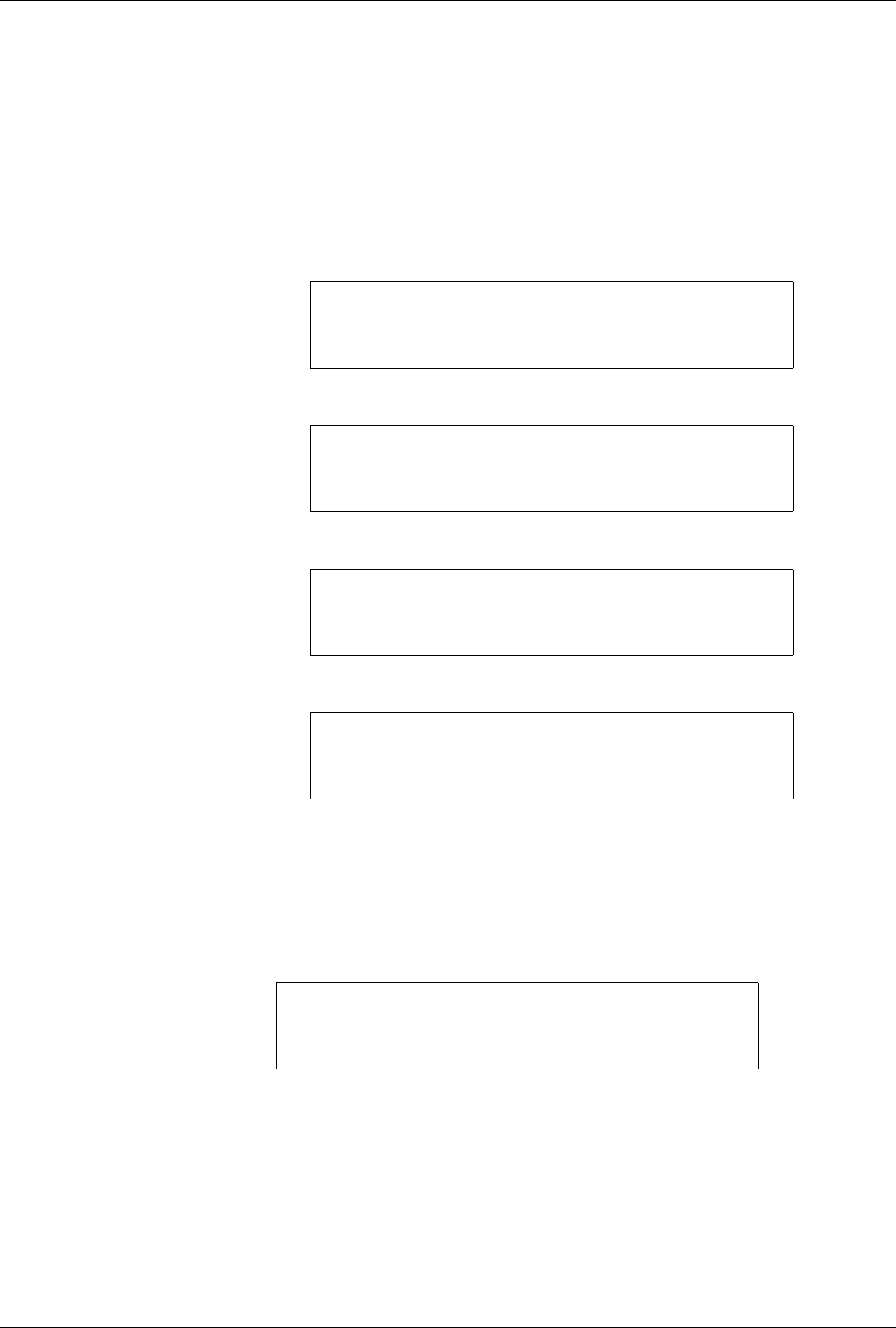
) on the 2500’s keyboard. The 2500
displays
The 2500 remains in remote mode until you change it by pressing
LOWER CASE
+
L
(for
local
) on the 2500’s keyboard. The 2500 powers
up in the mode it was in when last turned off. This will be remote mode
when operating with TaskLink.
Default 2500 System
Configuration
Listed below are the default settings for the ProMaster 2500 system. The
procedures for changing these parameters are described in relevant
sections of the manual. Under most circumstances, you will use these
defaults, connect the air line and communication cables, power up the
system, and start creating Tasks.
PROMASTER REMOTE MODE
Parameter Type Parameter Default
General Remote Port Baud Rate
Programmer Port Baud Rate
Audible Alarm
9600
9600
On
Labeler Label Calibration
Label Placement
Label Adjust
Print 1/16” from
leading edge
Autocenter
Centered on device
TaskLink Ports Programmer Port
Remote Port
COM1 on PC
COM2 on PC
Installation and Setup
ProMaster 2500 User Manual 2-21
General 2500 Setup
The following procedures describe changing the system’s serial port baud
rates and enabling or disabling the audible alarm. You must put the 2500
in local mode before performing these steps. Other 2500 front panel
commands are described in Chapter 6 and Appendix F.
Remote and Programmer
Port Baud Rates
The default baud rate of the remote and programmer ports is 9600. To
change either baud rate follow the procedure below.
1. From the 2500 Main Menu, press
3
to select SYSTEM SETUP.
The 2500 displays:
2. Press
1
to select the GENERAL SETUP MENU.
3. Press
2
to select REMOTE BAUD RATE.
4. Press the number corresponding to the baud rate you want to use. To
return to the Main Menu, press
RESET
.
Audible Alarm
If the AUDIBLE ALARM is enabled, a tone is emitted for every keystroke
and error message. To enable or disable the Audible Alarm, press 1 from
the General Setup Menu. If the alarm is currently enabled, the 2500
displays:
If it is disabled, ON appears instead of OFF. Press
Y
if you want to toggle
to the other state.
* * PROMASTER 2500 MAIN MENU * *
ENTER THE NUMBER OF THE DESIRED FUNCTION
1 - OPERATIONS 3 - SYSTEM SETUP
2 - FILE UTILITIES 4 - DIAGNOSTIC
* * * SYSTEM SETUP MENU * * *
1 - GENERAL 4 - MAIN MENU
2 - LABELER
3 - HANDLER
* * * GENERAL SETUP MENU * * *
1 - AUDIBLE ALARM 4 - SETUP MENU
2 - REMOTE BAUD RATE
3 - PROGRAMMER BAUD RATE
ENTER NUMBER OF REMOTE BAUD RATE
DESIRED (X):
1 - 1200 2 - 2400 3 - 4800 4 - 9600
5 - 19200 6 - 38400
DO YOU WANT AUDIBLE ALARM OFF?
(Y OR N):