2500_Users_Manual.pdf - 第59页
Insta llatio n and Se tup 2-16 ProMa ster 25 00 U ser Ma nual 5. Gu ide the pinch roll er back into its opera ting positio n against the drive roller. 6. Use the tape supplied on the end of the leade r (or a DIP label) t…
Installation and Setup
ProMaster 2500 User Manual 2-15
Installing a New Ribbon
Each new ribbon roll has a long leader to thread through the labeler.
Follow the procedure below to install the new ribbon (refer to Figure
2-12).
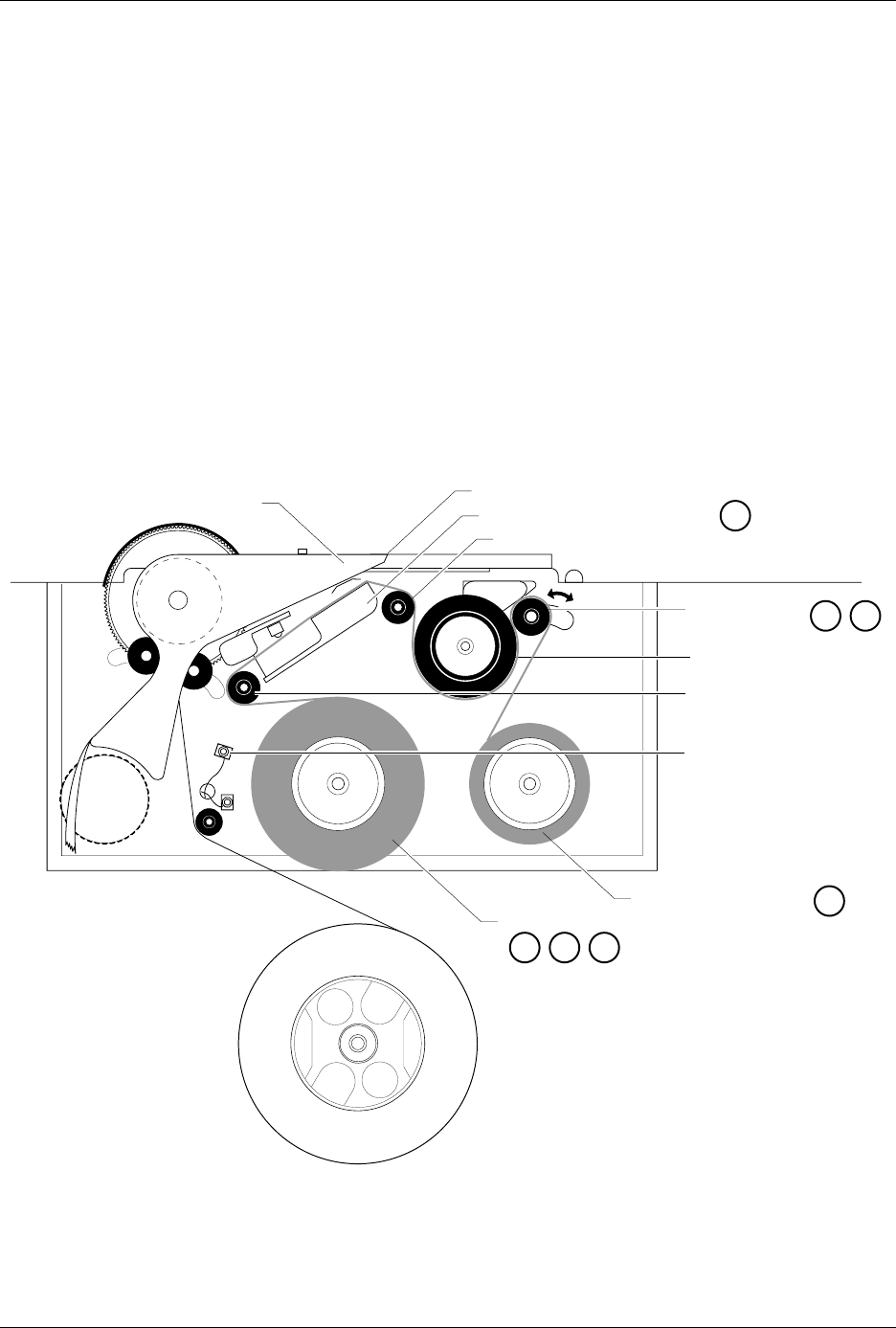
1. Prepare the ribbon threading path by pushing the ribbon pinch roller
to the right.
2. Install the ribbon take-up core (one empty core is supplied with the
printer) on the ribbon take-up hub. After threading the ribbon, you
will tape the ribbon’s leader to this cardboard core.
3. Thread the ribbon leader over ribbon alignment roller 1, over the
print head, and over ribbon alignment roller 2.
4. Thread the ribbon leader under the ribbon drive roller, over the
ribbon pinch roller, and down to the ribbon take-up roll (see Figure
2-12).
Figure 2-12
Threading a Ribbon in the Thermal Printer
2304-2
PRINT HEAD (Retracted position)
RIBBON ALIGNMENT ROLLER 2
RIBBON ALIGNMENT
ROLLER 1
RIBBON DETECT OPTIC
RIBBON ROLL
RIBBON PINCH
ROLLER
RIBBON DRIVE ROLLER
PLATEN
RIBBON TAKE-UP ROLL
APPLICATION AREA
123
4
56
8

Installation and Setup
2-16 ProMaster 2500 User Manual
5. Guide the pinch roller back into its operating position against the
drive roller.
6. Use the tape supplied on the end of the leader (or a DIP label) to
attach the leader to the take-up cardboard core.
7. When you install a new ribbon, remove the old ribbon’s cardboard
core and install it on the take-up hub as the new ribbon take-up core.
8. Turn the ribbon take-up roll counterclockwise to advance the ribbon
until it (not the leader) is between the print head and the platen.
Repairing a Torn Ribbon
Under normal circumstances you should not have a problem with the
ribbon tearing. If it does tear, follow the procedure below to repair it.
1. Cut the end of the ribbon to remove the tear and create a straight end.
2. Cut about 16 inches (40 cm) of old label liner (hanging from the label
drive roller) to use as ribbon leader.
3. Line up the end of the ribbon with the end of the liner and tape the
two ends together (a DIP label can also be used as a tape splice).
4. Turn the splice over and tape the other side.
5. Wrap the liner around the ribbon roll once, and then follow the
instructions for installing a new ribbon. If the ribbon begins to slide
off the roll while you are threading, place a large label across the edge
of the ribbon roll to stop the unraveling. Remove this label when you
have finished threading and before you start processing devices.
Connecting the PC and Installing TaskLink
Before you start creating Tasks using TaskLink, you will need to:
1. Connect the RS-232C cables between the PC and the 2500.
2. Install TaskLink on the PC.
3. Start the program.
Connecting the PC
Connect the 2500 to the two PC COM ports using the cables provided
with the system. The cables are the same type and can be used on either
port on the 2500.
1. Connect one of the serial cables to the COM1 serial port on the back
of your PC. TaskLink uses COM1 as the default programmer port.
Note: If your PC has a 9-pin connector, use the 9-pin adapter included with the
system to connect the data cable to your PC.
2. Connect the other end of the COM1 cable to the connector labeled
Programmer Port
on the back of the 2500.

Installation and Setup
ProMaster 2500 User Manual 2-17
3. Connect one end of the second serial cable to the COM2 serial port on
the back of your PC. TaskLink uses COM2 as the default Remote
port. It does not use any other COM ports other than 1 and 2. If you
plan to use a mouse with TaskLink, it must be a bus mouse; or you
can set a COM port to 3 or 4 and use an interrupt other than IRQ 3
or 4.
4. Connect the other end of this COM2 cable to the connector labeled
Remote RS-232
on the back of the 2500.
5. When you run TaskLink, the software configures the COM1 and
COM2 ports on your PC to match the defaults used by TaskLink. The
system defaults for TaskLink ports are:
• 9600 baud
• 8 data bits
•No parity
•1 stop bit
Installing TaskLink
on the PC
Install TaskLink on your PC by performing the following steps:
Note: The following instructions are for TaskLink for DOS. If you are using
TaskLink for Windows, refer to the TLFW Getting Started Guide and the
online Help for installation and operation instructions.
1. Insert the TaskLink disk into the floppy disk drive on your PC.
2. From your hard disk prompt, enter
drive
:install
where
drive
is the disk drive holding the TaskLink disk. Your
command line might look something like this:
C:\b:install
3. Press
↵
. The installation program will prompt you for the
information needed to complete the installation.