2500_Users_Manual.pdf - 第109页
Task s and Ki ts 3-34 ProMa ster 25 00 U ser Ma nual Figure 3-23 Kits are a Se ries of Tasks in a Single Jo b 1958-2 Run Kit Perform all Tasks in Kit Number of Kits to Build Session I.D. Device Process • • • • • Specify …
Tasks and Kits
ProMaster 2500 User Manual 3-33
Introduction to Kits
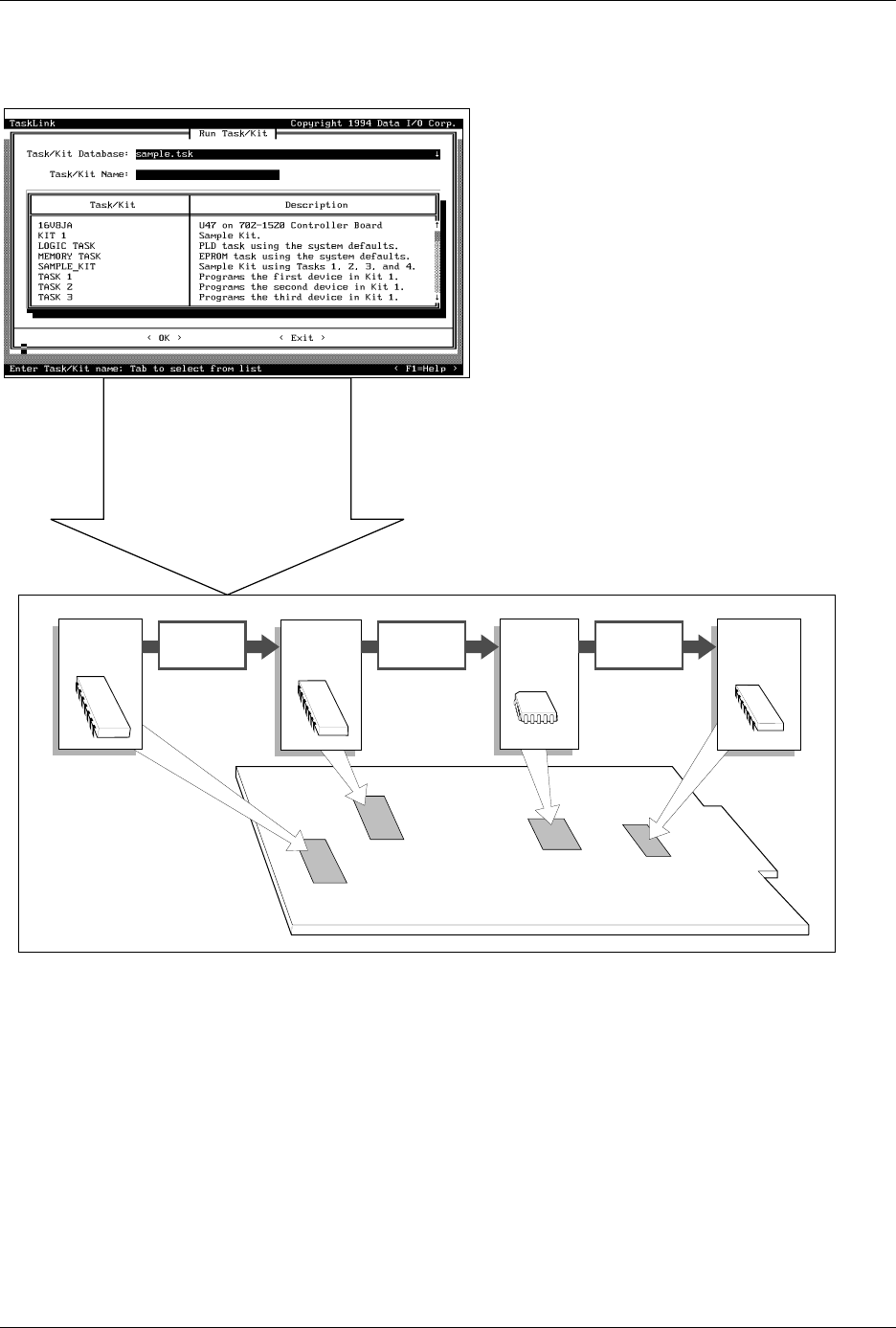
Kits are Tasks that have been daisy-chained together so several can be
run as one large job. The most common use for Kits is to string together
the separate Tasks used to program all the devices for a single board. In
Figure 3-23 there are four devices that must be programmed and labeled
for the sample board. Each device has one Task that controls the process
for producing that device. The Kit acts like a super-Task.
To illustrate this point, assume that 60 boards need to be built. When the
Kit for this board is run, the Task 1 pass limit is set to 60 devices. When
that count is reached, TaskLink displays a message prompting the system
operator to change over for the second Task. When ready for Task 2, the
operator presses
↵
. TaskLink starts Task 2, and 60 devices for that Task
are programmed. This process continues for Task 3 and Task 4.
The messages screens are typically used when the Tasks define devices
using different package types (Task 1 uses DIPs and Task 2 uses PLCCs).
In this case, a message screen might remind the operator about the steps
required to change over from one package type to another.
A Kit can include a maximum of 20 Tasks. All the Tasks for a Kit must be
in the same database file (called the
Source Database
in the Kit dialog
box), but the Kit can be stored in the Source Database or a different
database file. When the Kit is run, the system operator specifies the
number of Kits (equal to the number of complete boards) to be built.
Selecting Kit
Parameters
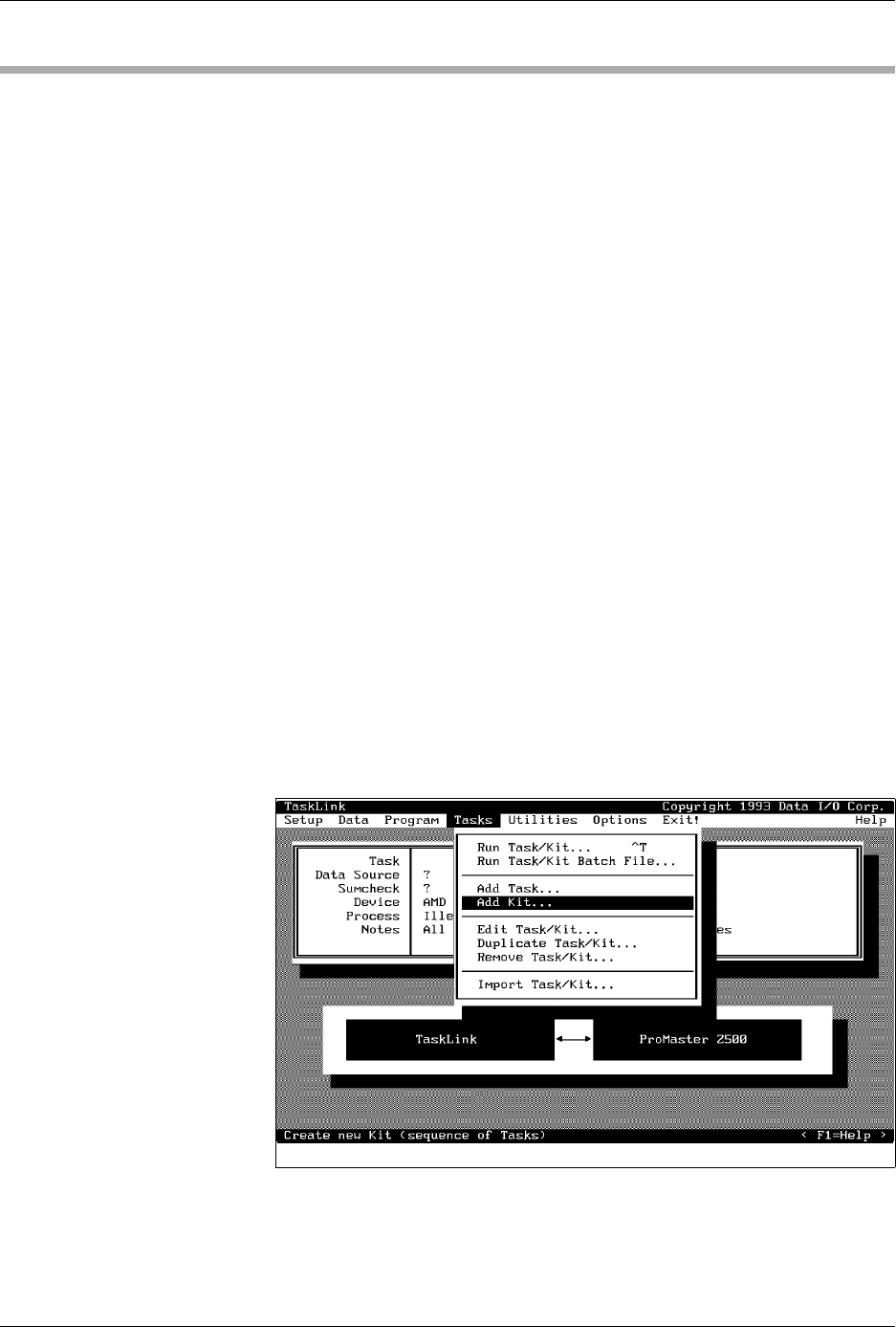
The process for creating a Kit is similar to creating a Task. From
TaskLink’s main screen, select
Add Kit...
and press
↵
(see Figure
3-22).
Figure 3-22
Selecting “Add Kit” from the
Main Screen
Tasks and Kits
3-34 ProMaster 2500 User Manual
Figure 3-23
Kits are a Series of Tasks in a Single Job
1958-2
Run Kit
Perform all Tasks in Kit
Number of Kits to Build
Session I.D.
Device
Process
•
•
•
•
•
Specify
Task 1
Task 2
Task 3
Task 4
Message
~0001
Message
~0002
Message
~0003
Tasks and Kits
ProMaster 2500 User Manual 3-35
Describing a Kit
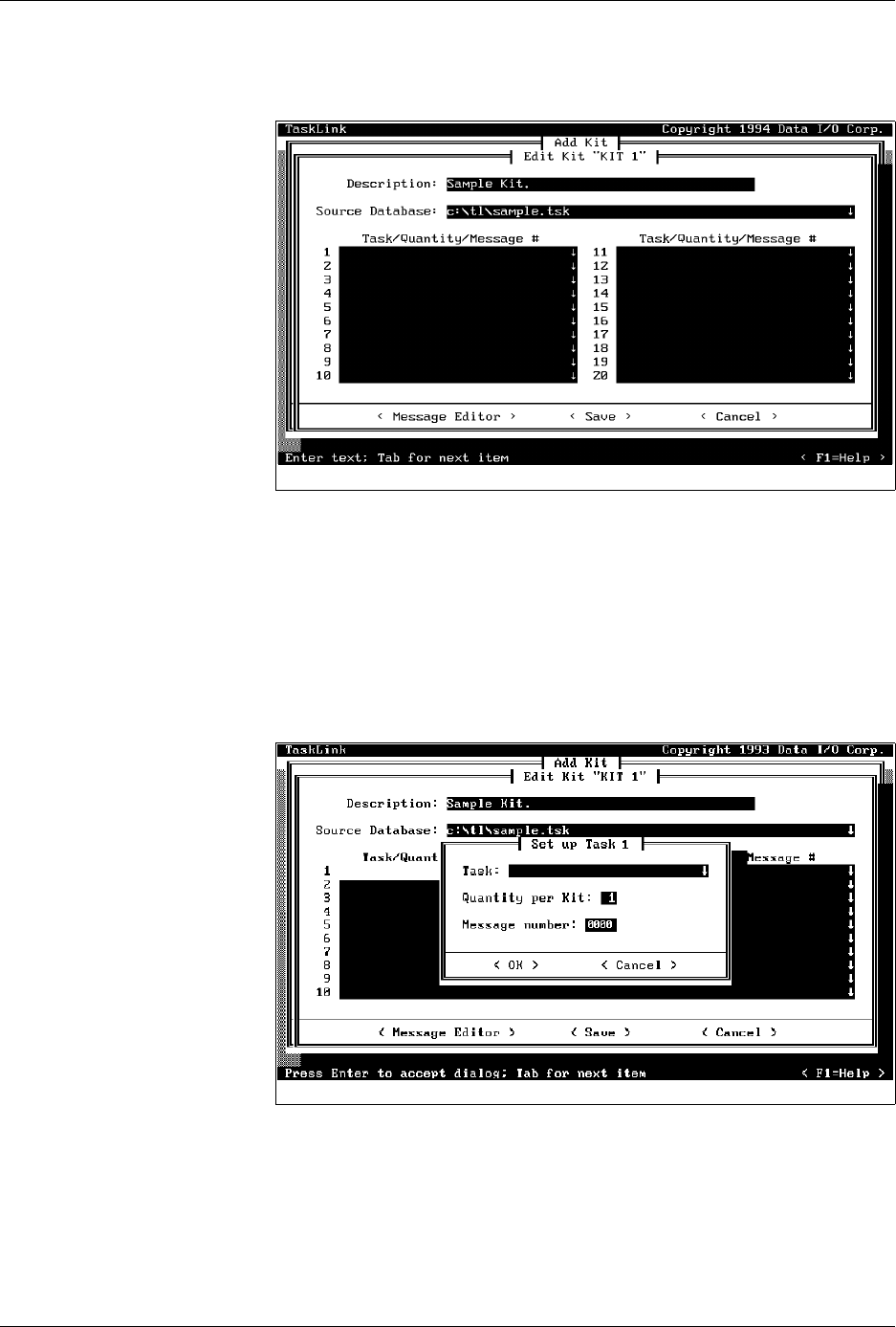
When TaskLink enters this dialog box the cursor is in the Description
entry field. Enter a description of up to 40 printable characters.
Specify Source Database
The Source Database is the
xxxx.tsk
file containing all the Tasks you
include in the Kit you are creating. A Kit can only access one
Source Database. To change to a different Source Database, enter the path
and filename in the Source Database entry field, or press
F2
and TaskLink
displays a list of files. Move the screen cursor to highlight the filename.
Press
↵
to accept the new database file.
Selecting Tasks for the Kit
Move the screen cursor to the first line in the Task/Quantity/Message #
entry box and press
↵
to access the Set up Task dialog box (see Figure 3-
25).
Enter the name of the Task you want your Kit to run first, or press
F2
to
choose from a list of files displayed by TaskLink.
Move the screen cursor to highlight a Task and press
↵
to select it for your
Kit. When you select a Task, TaskLink displays the selected Task in the
Task entry field.
Figure 3-24
Edit Kit Screen
Figure 3-25
Naming the First Task in the Kit