M20_Ope_E.pdf - 第110页
Chapter 2 Creating and Editing a Program 2-66 2-7-5-6 Pickup Priority Function Menu: Select Program>View>ShowPickupPriority Editor, or click Pickup Priority icon If the program has two or mor e of the same componen…
Chapter 2 Creating and Editing a Program
2-65
2-7-5-5 Skip Assignment for Repeat Programs
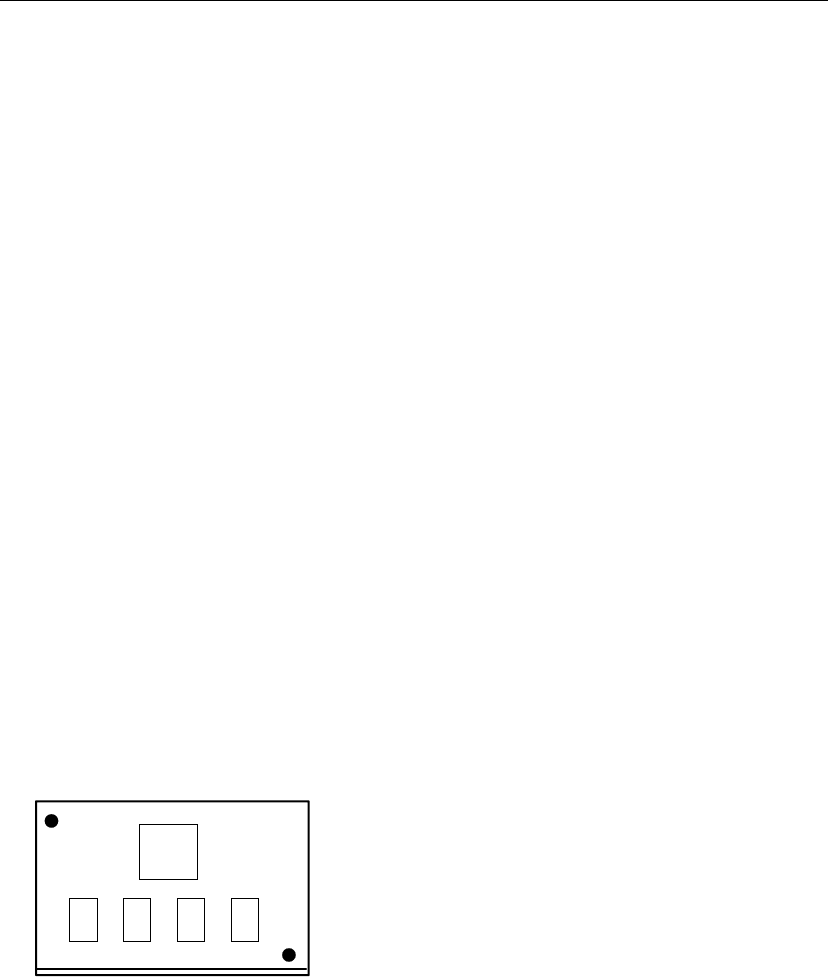
Skip assignment for a repeat program can be performed based on the below set of rules:
The “Start Block Placement” step represents the first board. Skip assignment to this step skips
execution of the first board.
Skip assignment to a “Repeat Offset” step skips execution of the board the step represents.
You can specify a particular placement step to skip within the program block.
Example:
No. Task:
0001 Fiducial
0002 Fiducial
0003 Start Block Placement
0004 Multiple Pickup
0005 Multiple Pickup
0006 Multiple Pickup
0007 End Multiple Pickup
0008 Single Pickup
0009 End Block Placement
0010 Repeat Offset
0011 Repeat Offset
In the above program:
To skip the first board, assign step number 0003 “Skip”.
To execute only the last board, assign step number 0003 and 0010 “Skip”.
To execute only step number 0005 and 0006 in each board, assign step number 0004, 0007, and
0008 “Skip”.
To skip the first board and execute only step number 0005 and 0006 in the remaining boards,
assign step number 0003, 0004, 0007, and 0008 “Skip”.
④
①
②
⑤⑥
⑧
⑦
0002
0001
0004
0005 0006 0007
0008
Chapter 2 Creating and Editing a Program
2-66
2-7-5-6 Pickup Priority Function
Menu: Select Program>View>ShowPickupPriorityEditor, or click Pickup Priority icon
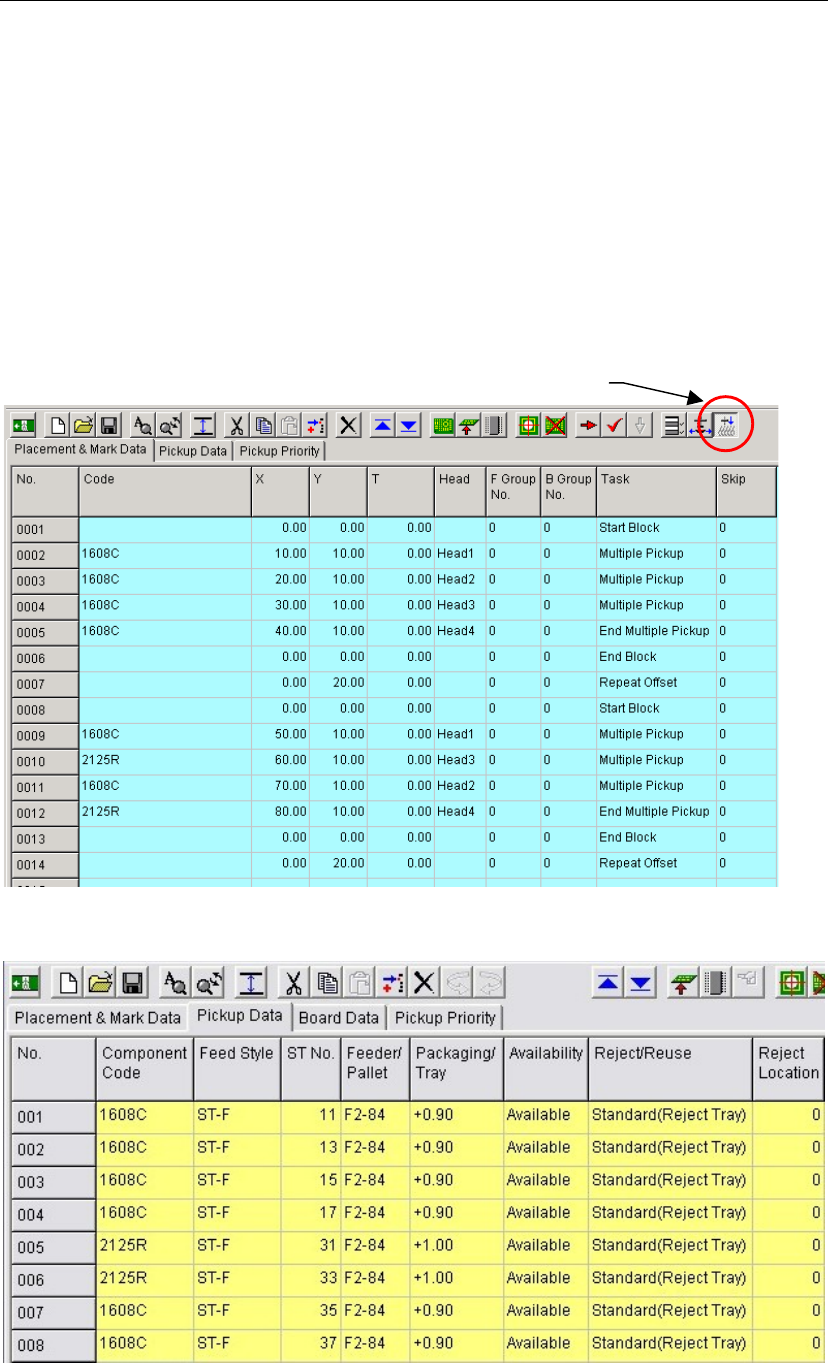
If the program has two or more of the same components in the pickup data, priority is given to
simultaneous pickup first, then the components are selected in ascending order of ST Nos.
(pickup-point Nos.). As a result, if there are two or more simultaneous pickup lanes, lanes with
low head shift may not be selected. The pickup priority function is provided to define priority
order of ST Nos. to generate high-efficient pickup cycles.
Example: In the following program, 1608C components are picked up simultaneously from ST-F11,
-13, -15 and -17 for placement steps 0002 to 0005. However, for steps 0009 to 0012, 1608C
components are picked up from ST-F11 and -13, and 2125R components from ST-F31 and –33,
respectively. This means that the head moves through approx. 16 lanes.
Now, if the program is modified to pick up 1608C components from ST-F35 and -37 for steps 0009
and 0011, the head moves through approx. eight lanes only, resulting in shorter tact time.
Pickup Priority ico
n
Chapter 2 Creating and Editing a Program
2-67
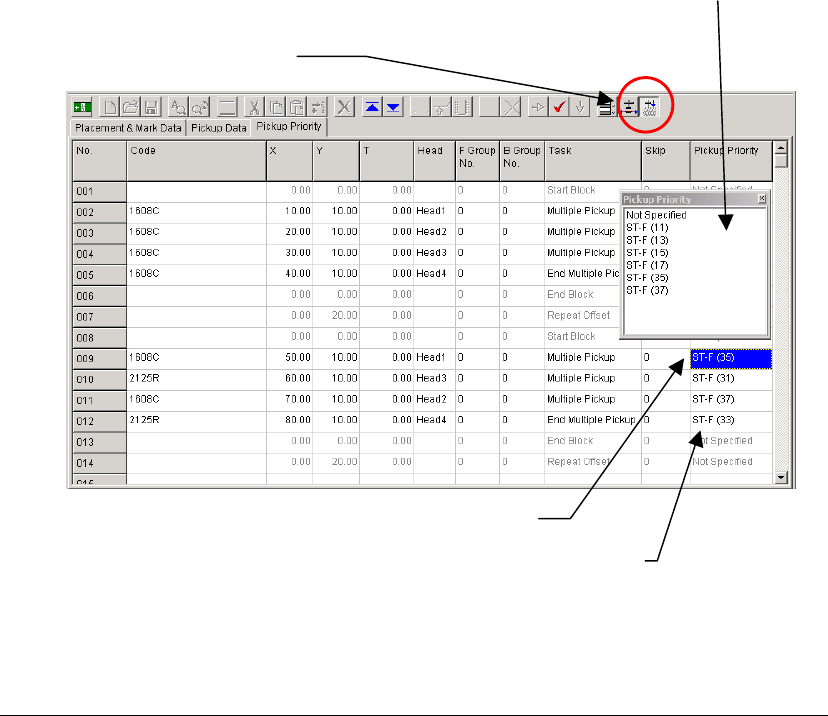
Pickup Priority Setting Procedure
① Click the pickup priority button to open the Pickup Priority edit window.
② Right-click in [Pickup Priority] cell of the placement step for which you want to set a priority
pickup-point.
③ The Pickup Priority window appears and displays all the ST Nos. for the same component
code registered in the pickup data, so select the ST No. to which priority is to be given.
④ Set priority pickup-point (ST No.) for the other components handled in the same pickup
cycle.
Note: Set the pickup priority point for every component handled in the same pickup cycle. If the pickup
priority point is not set to any of the components handled in the same pickup cycle, the pickup
priority point setting for that pickup cycle will be invalidated. In the case of component type of
which only one component is to be set in the feeder bank, the ST No. for that component must be
set.
Note: This pickup priority setting is effective only for the components that are to be picked up from ST-F
or ST-R.
①
Click the pickup priority button.
②
Right-click in [Pickup Priority] cell.
③
Select the ST No. to which priority is to be given.
④
Set pickup priority for every component handled in the same pickup cycle.
2-7-5-7 PCB clamp
When this function is executed, the PCB can be clamped or unclamped.
When no PCB is clamped, the button becomes the <Clamp> button. Conversely, when any PCB is
clamped, the button becomes the <Unclamp> button.