M20_Ope_E.pdf - 第289页
Chapter 9 Running a Job 9-17 Pickup Data Setting Menu: Program>PickupData To manage component remain count by each feeder station, enter the num ber of components in ‘Initial Supply Count’ and “Shortage Alarm” in ea…
Chapter 9 Running a Job
9-16
9-3-2 Component Remain Count Management
Manages the number of remaining components of each feeder set on feeder station so that to
give advance notice of component shortage and component exhaustion.
The setting procedure is described hereafter. This function is not available for tray feeders.
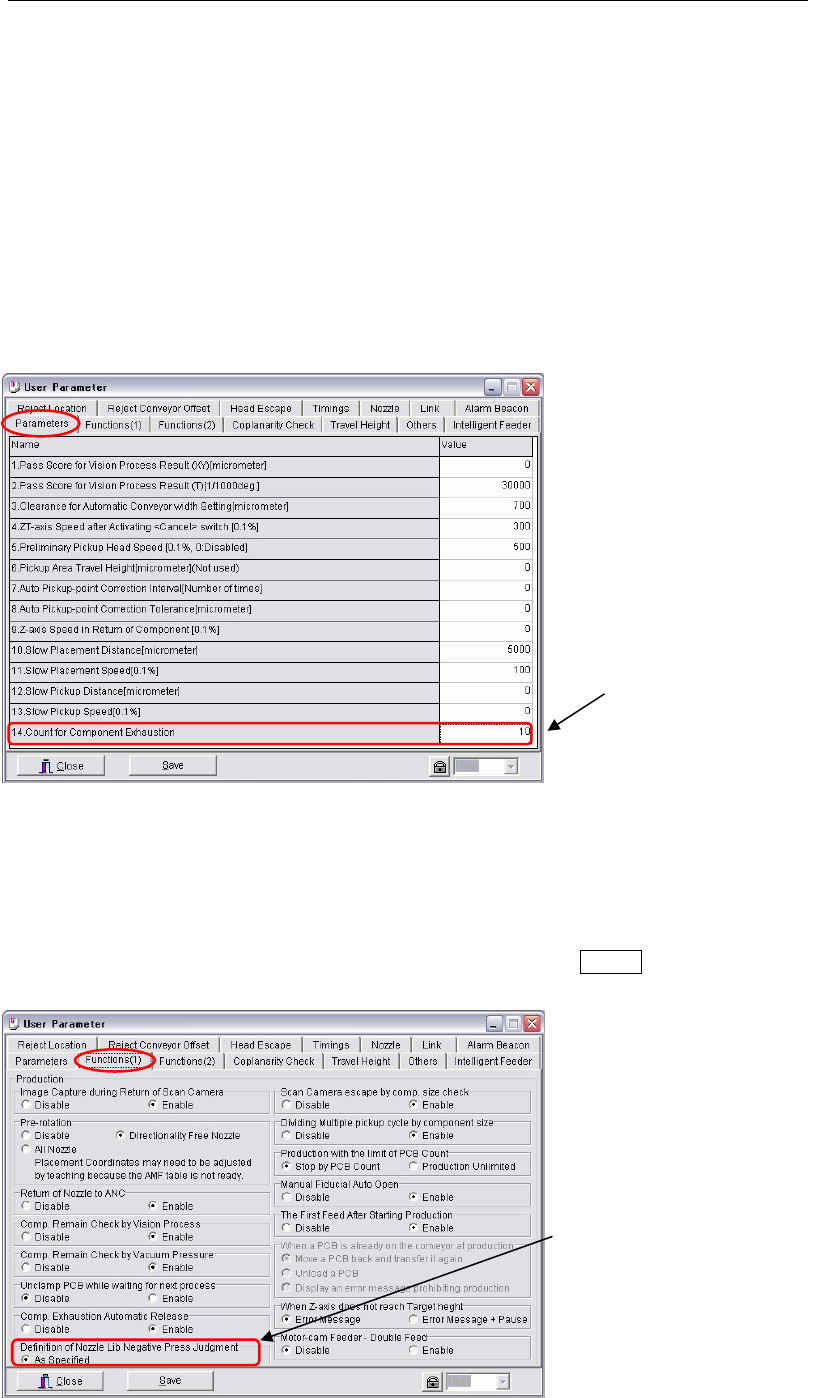
User Parameter Setting
Menu: System>UserParameter>Parameters
Enter the number of components to judge component shortage in [14.Count for Component
Exhaustion].
When ‘Remain Count’ in Run mode reaches the entered value and Pickup error or Image
processing error for pickup happens, a message will give notice of component shortage.
Note: Additionally, when you enter “-1” in [14. Count for Component Exhaustion], the component
shortage message is given when ‘Remain Count’ becomes "0".
Menu: System>UserParameter>Functions(1)
Check “Enable” box of [Comp. Exhaustion Automatic Release] so that when the number of
remaining components reaches entered “Count for Component Exhaustion”, “Remain Count”
in [Run] window will be reset to the initial value automatically. Save this change.
(Normal pickup errors/image processing errors will initialize “Remain Count”.)
To restart the production, replenish new components and press the START switch.
Enter a count to judge for
component exhaustion.
Check ‘As S
p
ecified’ box.
Chapter 9 Running a Job
9-17
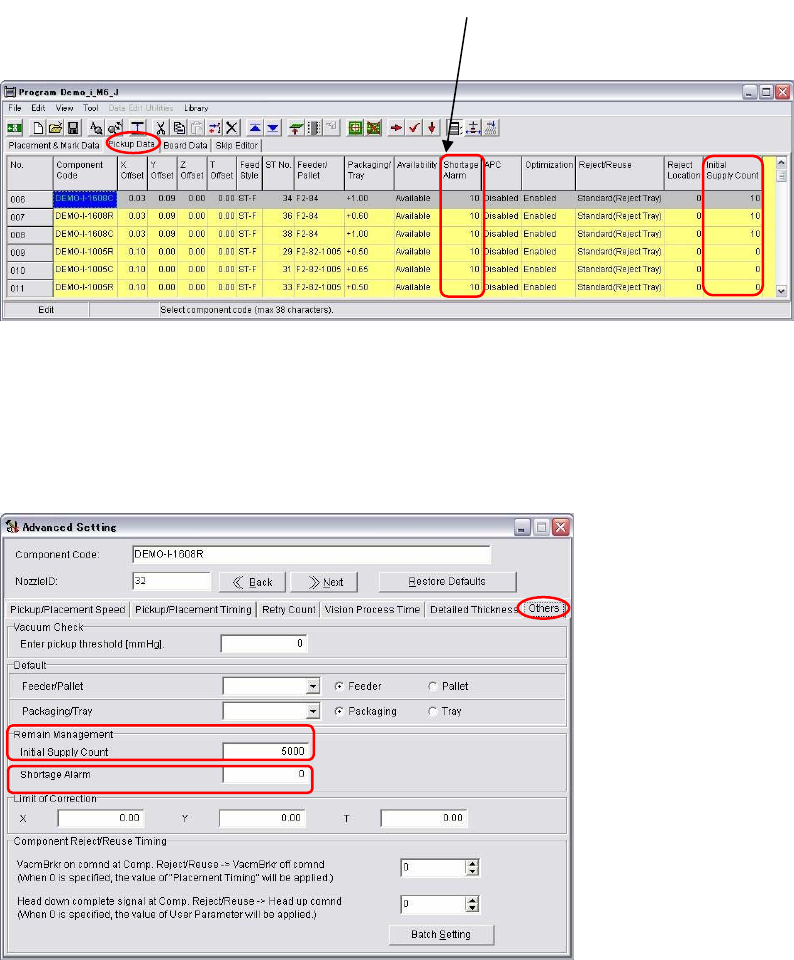
Pickup Data Setting
Menu: Program>PickupData
To manage component remain count by each feeder station, enter the number of components in
‘Initial Supply Count’ and “Shortage Alarm” in each pickup data.
Advanced Setting for Component Library
Menu: Library>ComponentLibrary>Tool>AdvancedSetting>Others
To manage remain components by each component library, enter in “Initial Supply Count” and
“Shortage Alarm” for [Remain Management].
Note:
There are three data to enter component-remain-count management. When you enter than
one data, only one data is used in the following priorities.
① Intelligent Server Data
② Pickup Data
③ Component Library
‘Shortage Alarm’ and ‘Initial
Supply count’ can be managed
by each pickup point.
Chapter 9 Running a Job
9-18
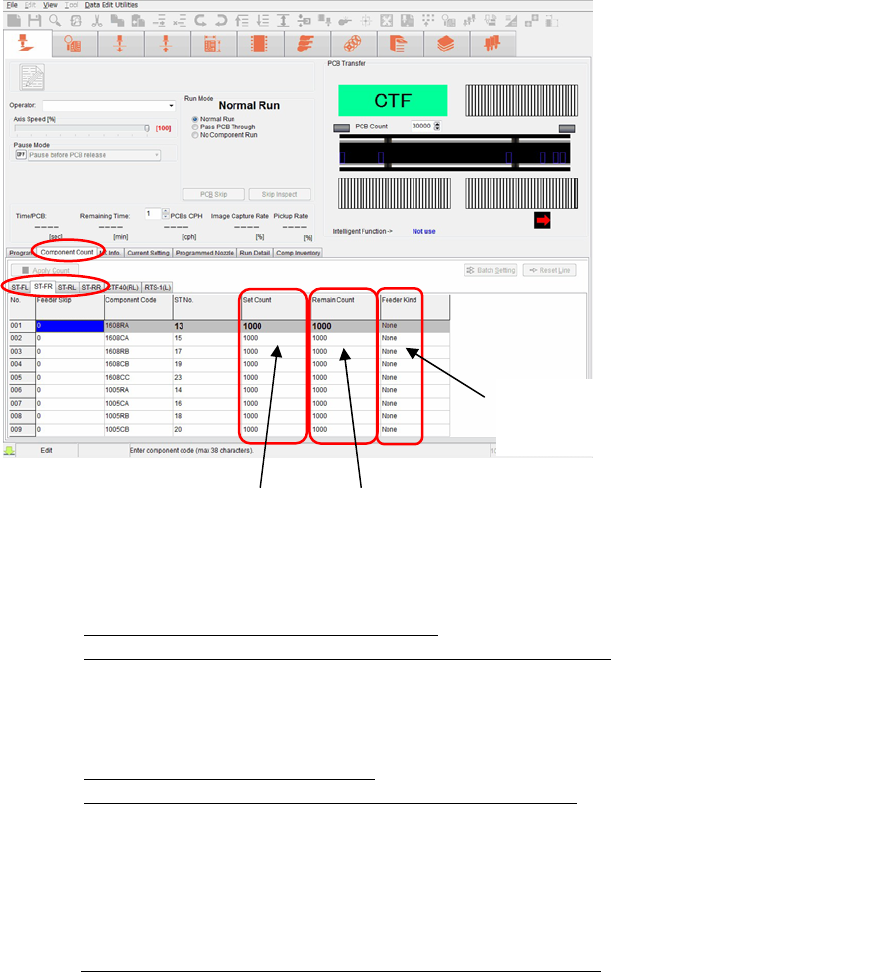
Run Mode Setting
Menu: Run>Run>ComponentCount>ST-F/ST-R tab
You cannot enter or change “Set Count” data. Because “Set Count” only shows the “Initial
Supply Count” data.
You can change “Remain Count”. When you changed it, press <Apply Count> to enter the
change. Be sure the priorities of component-remain-count management. (The order of priority
is; intelligent server, pickup data, and component library.) You can refer used feeders in
“Feeder Kind”.
■ How to use [Component Count]
Case1 : Component count management : Not use
Notice of component shortage and Component lack : Not use
Enter 0 in both [Initial Supply Count] and [Shortage Alarm] in Pickup Data and
component Advanced Setting window. Then 1,000,000 are entered in [Set Count] and
[Remain Count] in Run window automatically. Start the production.
Case 2: Managing component count : Use
Notice of Component shortage and component lack : Use
Enter the remaining number of components in [Initial Supply Count] and [Shortage
Alarm] in the component Advanced Setting window.
Enter 0 in [Initial Supply Count] and [Shortage Alarm] in Pickup Data to disable to
count with these columns. Then only the components in the component Advanced
Setting windows are counted.
Case 3: Same conditions as Case 2, but Packaging has been changed
Ex: This is the case that only packaging type is changed with the same components,
from reel to stick or to a large reel (15 inch reel).
In this case, leave the inputs unchanged in [Initial Supply Count] and [Shortage
Alarm] in the component Advanced Setting window as Case 2. Enter remaining
number of components of the replaced packaging in [Initial Supply Count] and
[Shortage Alarm] in Pickup Data. When remaining number of components are entered
both in Pickup Data and component Advanced Setting window, only the components
entered in Pickup Data are counted.
Data cannot be changed.
Data cannot be entered.
Data can be changed.
Data can be entered.
Intelligent Intelligent feeder
Normal
Feeder other than intelligent feeder
None No feeder