M20_Ope_E.pdf - 第329页
Chapter 10 Replenishing Com ponents and Using Maintenance Menus 10-25 Move Pallet tab Window: Pallet:: Shows pallet on/off status of the stocker. Where the pallet is present, the box next to each pallet number is check…
Chapter 10 Replenishing Components and Using Maintenance Menus
10-24
10-4-12 CTF
Menu: Manual>CTF
Allows you to check the pallet location in CTF and to manually move the pallets. Also allows
you to perform initial setting of CTF, especially in case of an error occurrence.
Note: To open this menu, the operator log-in level should be authorized to edit System Parameter.
Moving any Pallets or setting Transfer Speed can be also done in Pallet Library screen.
For details, see Chapter 5, Libraries > Pallet Library.

Chapter 10 Replenishing Components and Using Maintenance Menus
10-25
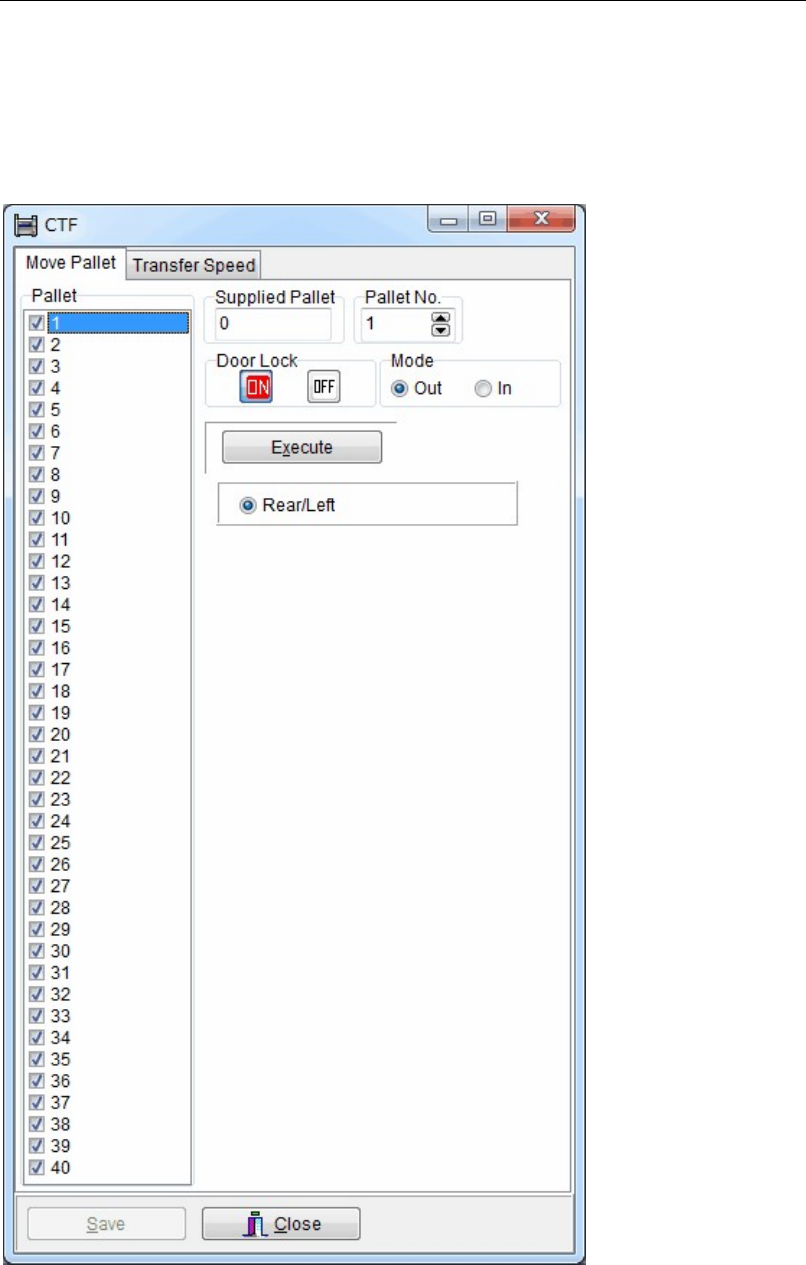
Move Pallet tab
Window:
Pallet:: Shows pallet on/off status of the stocker. Where the pallet is present,
the box next to each pallet number is checked.
Shuttle Pallet: When no pallet exists on the shuttle, “0” is shown. When a pallet
exists on the shuttle, its pallet number is shown.
Note: There are other functions in the [Move Pallet] tab, such as the ON/OFF operation for [Door
Lock].
Use these functions, for example, to operate the actuators for manually taking out the pallets in
cases where an error occurs in the CTF. They should not be used for normal operation.
z Adjusting CTF Initial Setting
Always be reminded to match the actual pallet setting with the display of [Pallet] and [Shuttle].
The system cannot keep track of the pallet location in the event of an error or other situation.
Under [Pallet], a checked box indicates the pallet presence at the corresponding location, an
unchecked box, pallet absence. Check or uncheck a box by clicking as necessary.
z Drawing Out a Pallet from the Stocker
Action:
① Under [Pallet No.], select the pallet number with the scroll arrows.
② Under [Mode], click <Out> button.
③ Click <Execute> button.
④ “Execute?” appears. Click <Yes> button to execute.
z Returning a Pallet to the Stocker
Action:
① Under [Mode], click <In> button.
② Click <Execute> button.
③ “Execute?” appears. Click <Yes> button to execute. The pallet will return to the stocker.
Note: Normally, all pallets are to be back in the stocker when a job is completed. Compare the display
in the window with the actual pallet setting to see if they match. If not, return all pallets into the
stocker.
Note: Pressing the SETUP
switch on the upper part of the CTF also returns the pallet on the elevator
to the stocker.
Chapter 10 Replenishing Components and Using Maintenance Menus
10-26
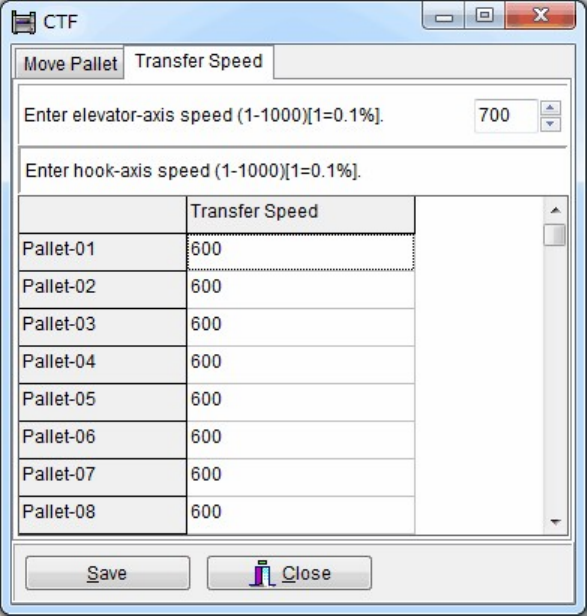
Transfer Speed tab
Allows you to set each pallet transfer speed and the elevator speed for job run (1-1000,
Increment: 0.1%).
Action:
① Click the entry field to modify the current setting.
② Enter value between 1 to 1000.