M20_Ope_E.pdf - 第417页
Chapter 14 Intelligent Feeder 14-17 14-3-3 ID Database The ID database shows the link information between feeder ID barcodes and component barcodes. This section explains the functions of the ID database. ■ Creating a Fe…

Chapter 14 Intelligent Feeder
14-16
14-3 Running the Server Software
14-3-1 What is the Server Software?
The server software (CompSvr.exe) controls the ID database (relationship between feeder IDs
and component barcodes) and component table (relationship between component barcodes
and component codes). It also contains a barcode creation software program as a part of its
function to enable creation of command, feeder and component barcodes.
Here explains how to run the server software.
Server Software Window
14-3-2 Starting/Exiting the Server Software
■Starting
Double-click the server software icon on the Windows taskbar.
■Exiting
To exit the server software, select File > Exit from the taskbar.
When the server software is exited, connection between the barcode input software and client
software will be shut off. To use the intelligent feeder function again after the software is exited,
restart the mounter if it has been run on the mounter. In the case of PC, from the Windows
taskbar, select Start > Program > Intelligent Tool > CompSrvr.
Chapter 14 Intelligent Feeder
14-17
14-3-3 ID Database
The ID database shows the link information between feeder ID barcodes and component
barcodes.
This section explains the functions of the ID database.
■Creating a Feeder Barcode Print File
Action:
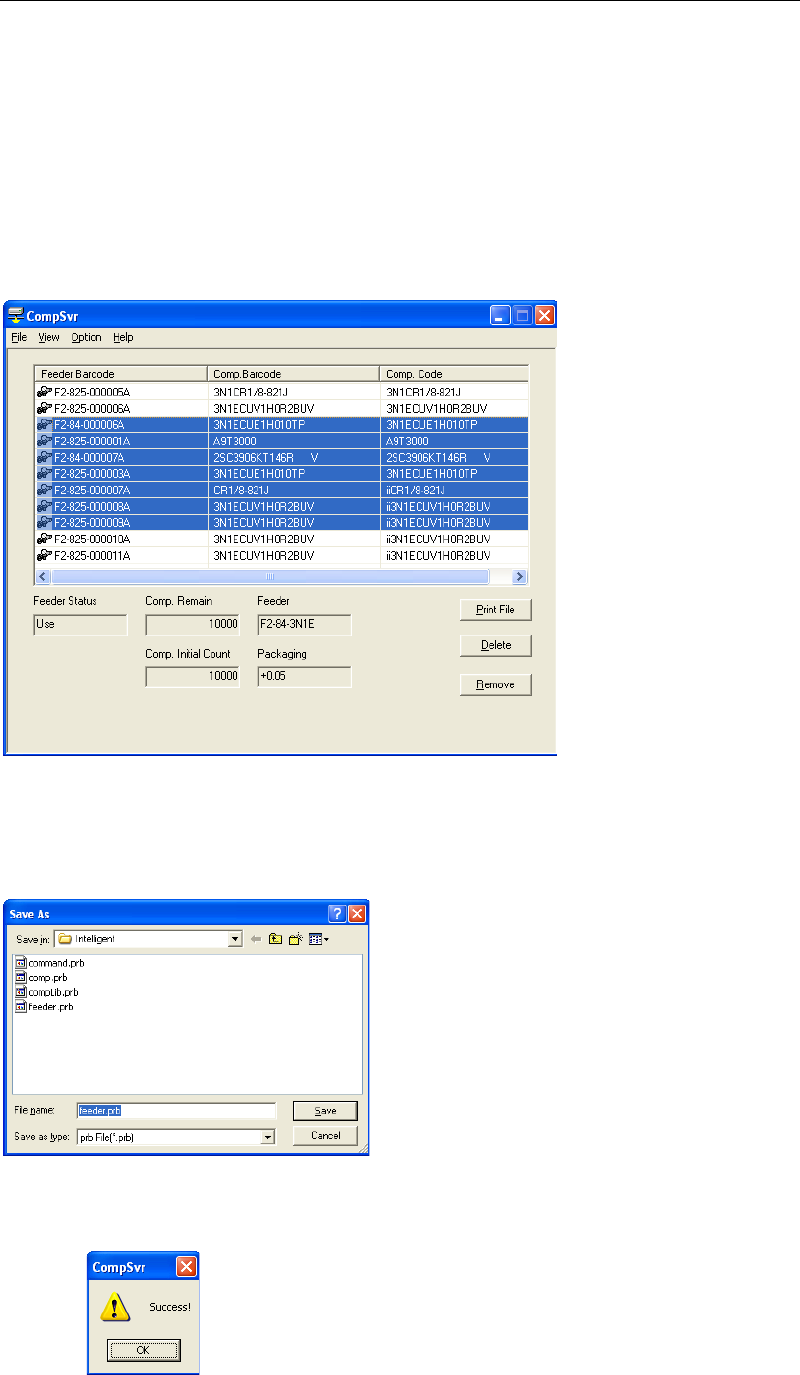
① Select the feeder(s) whose barcode is to be printed. To select two or more feeders
collectively, drag the mouse while holding down the left button of the mouse.
② After a feeder record(s) is selected, click <Print File> button. The following dialog box will
appear, so enter the name of the file to be saved and the directory in which the file is to be
saved, and then click <Save>.
→The default file name is “feeder.prb”.
③ When the file is saved successfully, a message informing you will appear, so click <OK>
button.
REFERENCE: For feeder barcode printing, refer to “Printing Barcodes”.
Chapter 14 Intelligent Feeder
14-18
■Backing up the ID Database
Action:
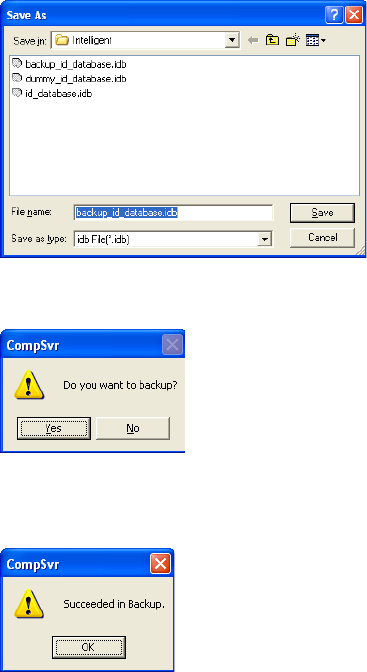
① From the taskbar, select File > Backup ID Database.
② The following dialog box will appear, so enter the name of the file to be saved and the
directory in which the file is to be saved, and then click <Save>.
→The default backup file name is “backup_id_database.idb”.
③ A message “Do you want to backup?” appears, so click <Yes>.
④ When the file is backed up successfully, a message informing you will appear, so click
<OK> button.
Note: It is recommended that the ID database be backed up frequently.
When backing up the ID database, the component table must also be backed up at the same
time to ensure consistency.
■Restoring the ID Database
Action:
① From the taskbar, select File > Restore ID Database.
② A dialog box appears, so select the file that was backed up (see “Backing up the ID
Database”), and click <Open>.
③ A message “Do you want to restore?” will appear, so click <Yes>.
④ When the file is restored successfully, a message informing you will appear, so click
<OK> button.
Note: When restoring the ID database, the component table must also be restored at the same time to
ensure consistency.