M20_Ope_E.pdf - 第389页
Chapter 12 Management Data 12-13 12-4 Plan Menu: Management>Plan Specify a program to be selected for production . The specified program is automatically loaded when [Run] window opens. Note: You can execute a job run…
Chapter 12 Management Data
12-12
12-3 Operator Management
Menu: Management>Operator Management
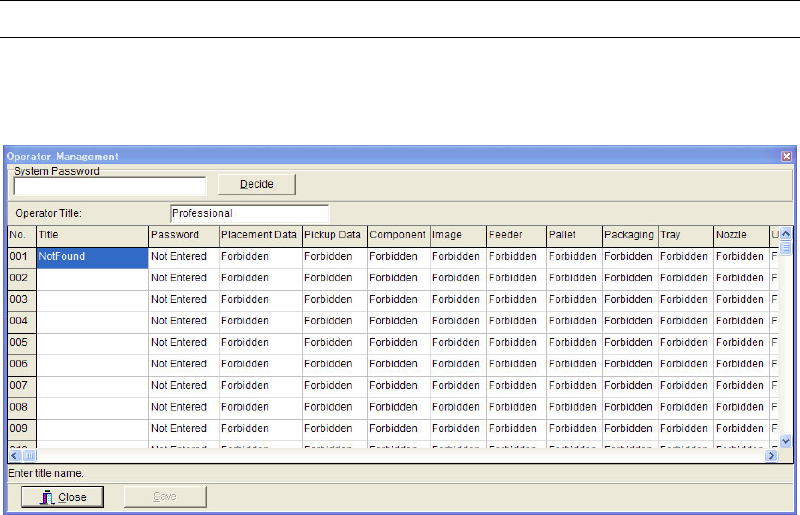
This menu allows you to register access level and password of various operator levels.
Window:
Title: Up to 30 titles can be defined.
Password: Under [System Password], enter the system password. The
registered password for each title appears. You can change them as
necessary.
Placement Data: Specify whether or not to allow for modifying the placement data.
Pickup Data: Specify whether or not to allow for modifying the pickup data.
Component/Image/Feeder/Pallet/Packaging/Tray/Nozzle (Library):
Specify whether or not to allow for modifying each library data.
User Parameter: Specify whether or not to allow for modifying the user parameter.
System Parameter: Specify whether or not to allow for modifying the system
parameter.
Action:
① Under [System Password], enter the system password.
② Click [Decide] button. Registered passwords appear in [Password] fields.
③ Enter or change titles and/or passwords.
④ Right-click to show the combo-box for [Placement Data], [Pickup Data], [Library], [User
Parameter] and [System Parameter]. Select “Allowed” or “Forbidden” for each item.
⑤ Click <Save> button to save the data.
Note: The system password is provided to only the authorized administrators.
Chapter 12 Management Data
12-13
12-4 Plan
Menu: Management>Plan
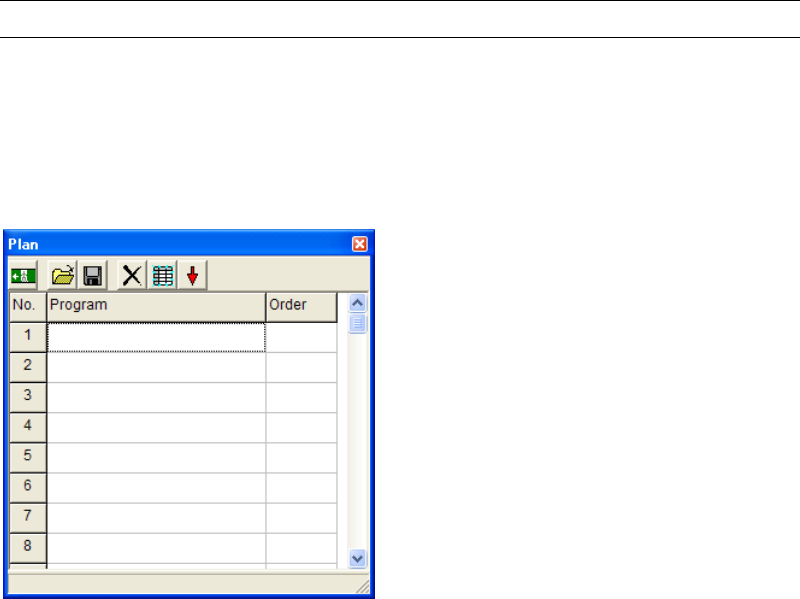
Specify a program to be selected for production. The specified program is automatically loaded
when [Run] window opens.
Note: You can execute a job run without registering programs here. In this case, when opening the
Run dialog box, the Select Program dialog box appears prompting you to select a program.
Action:
① Click [Program] field of the first line.
② Right-click the mouse or click <Open> button (the second button from the left).
③ The Select Program dialog box appears. Select a program and click <Select> button.
④ The selected program appears in the first line.
⑤ Click a [Order] column to turn it into “1”.
Note: You can list up several programs on the Plan window, but it is only one program which can has
“1” in the [Order] column. This function is used if you produce the same program every time.
Chapter 12 Management Data
12-14
12-5 Operator Record
12-5-1 Registering the Operator
Menu: Management>Register Operator
This menu allows you to register or delete an operator.
Registering a New Operator
Action:
① Click <New> button to open the Operator Entry/Deletion dialog box.
② Under [Operator Entry], type in the operator name (up to 20 characters).
③ Click <Register> button.
④ Click <X> button to return to the previous screen.
Deleting an Operator
Action:
① Click <New> button to open the Operator Entry/Deletion dialog box.
② Under [Operator Deletion], select an operator name to delete.
③ Click <Delete> button.
④ Click <X> button to return to the previous screen.
12-5-2 Operator Record
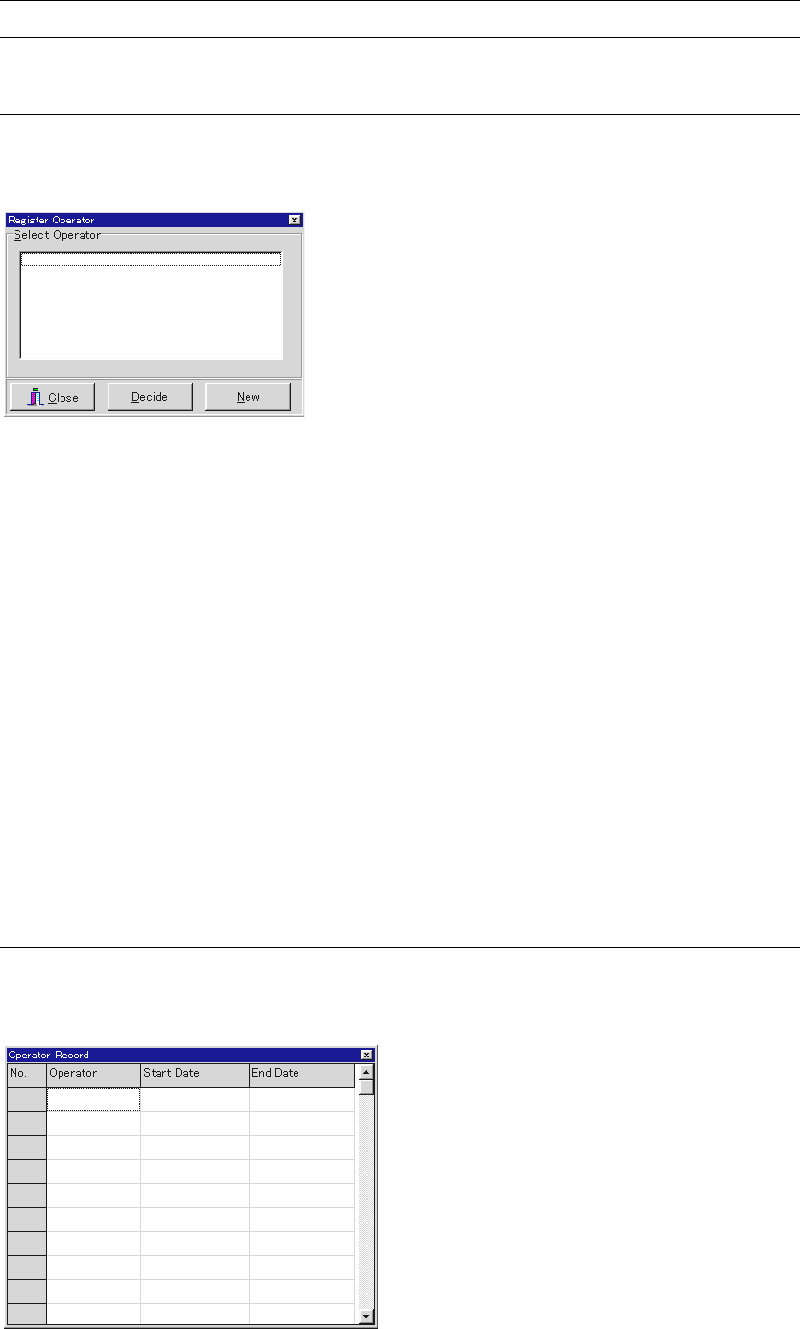
This menu allows you to refer to the operator in charge for a certain manufacturing session.
Menu: Management>OperatorRecord
Window:
Operator: Name of the operator
Start Date: Date and time to start the manufacturing session
End Date: Date and time to end the manufacturing session