M20_Ope_E.pdf - 第196页
Chapter 5 Libraries 5-46 5-1-5 Image Library (Image Data) Menu: Program>ComponentData>ImageCode MainMenu>ImageEdit Component image data are registered to the image library. 5-1-5-1 Selecting a Component Select t…
Chapter 5 Libraries
5-45
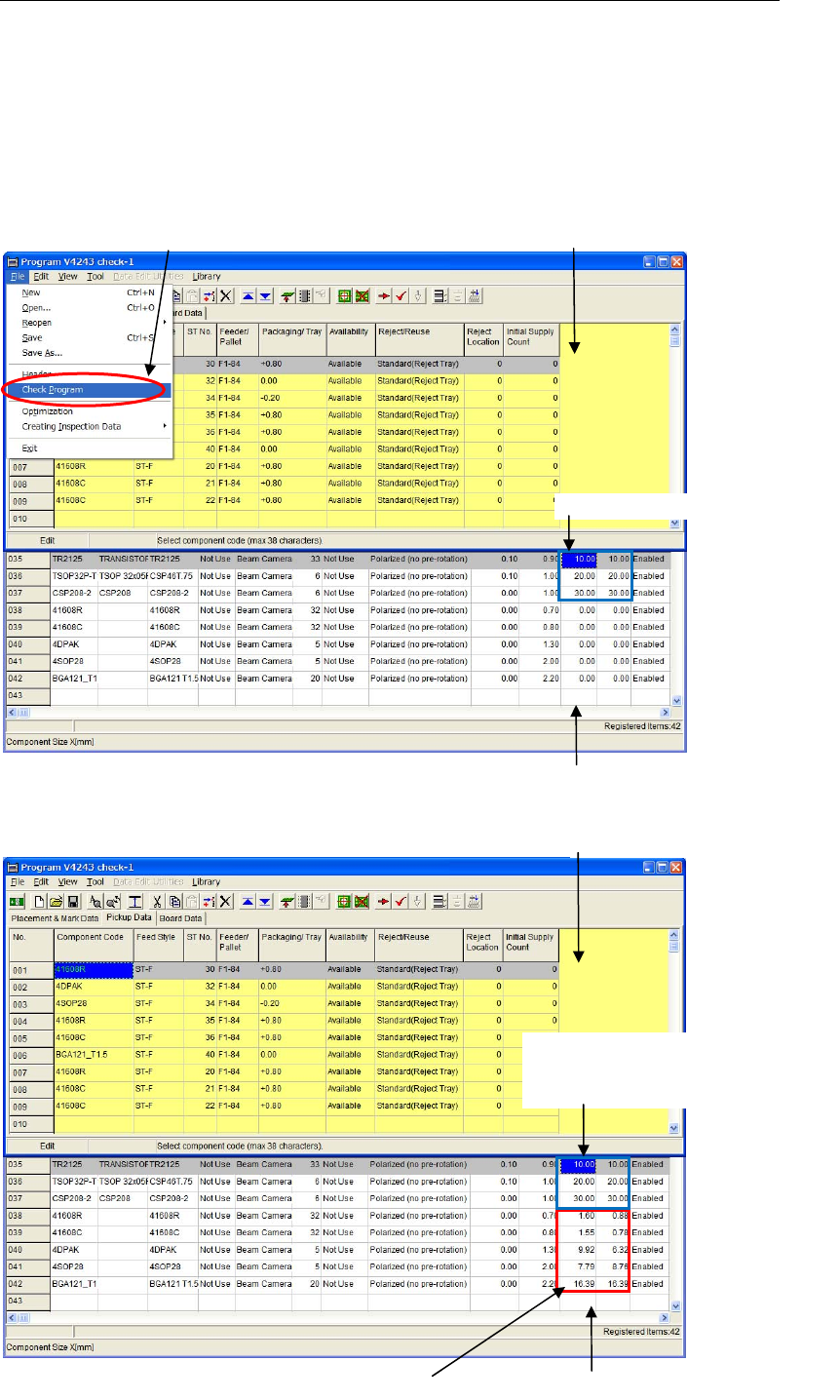
5-1-4 Automatic Acquisition of Component XY Sizes by Program Check
Automatic acquisition of component XY sizes is executed every time when the program check
function is processed.
This automatic acquisition is available for the component codes whose [Size X] and [Size Y] are
“0”.
The automatic acquisition of component XY sizes is not executed for the component codes
whose XY sizes are already input.
■ Before executing the program check
■ After executing the program check
Program edit window
Execute the program check
Sizes are already input.
Component Library window
Program edit window
When sizes are already
entered, Size X/Y won’t be
input by the program check.
When Size X/Y cells are “0”, sizes will be
input by the program check.
Component Library window
Chapter 5 Libraries
5-46
5-1-5 Image Library (Image Data)
Menu: Program>ComponentData>ImageCode
MainMenu>ImageEdit
Component image data are registered to the image library.
5-1-5-1 Selecting a Component
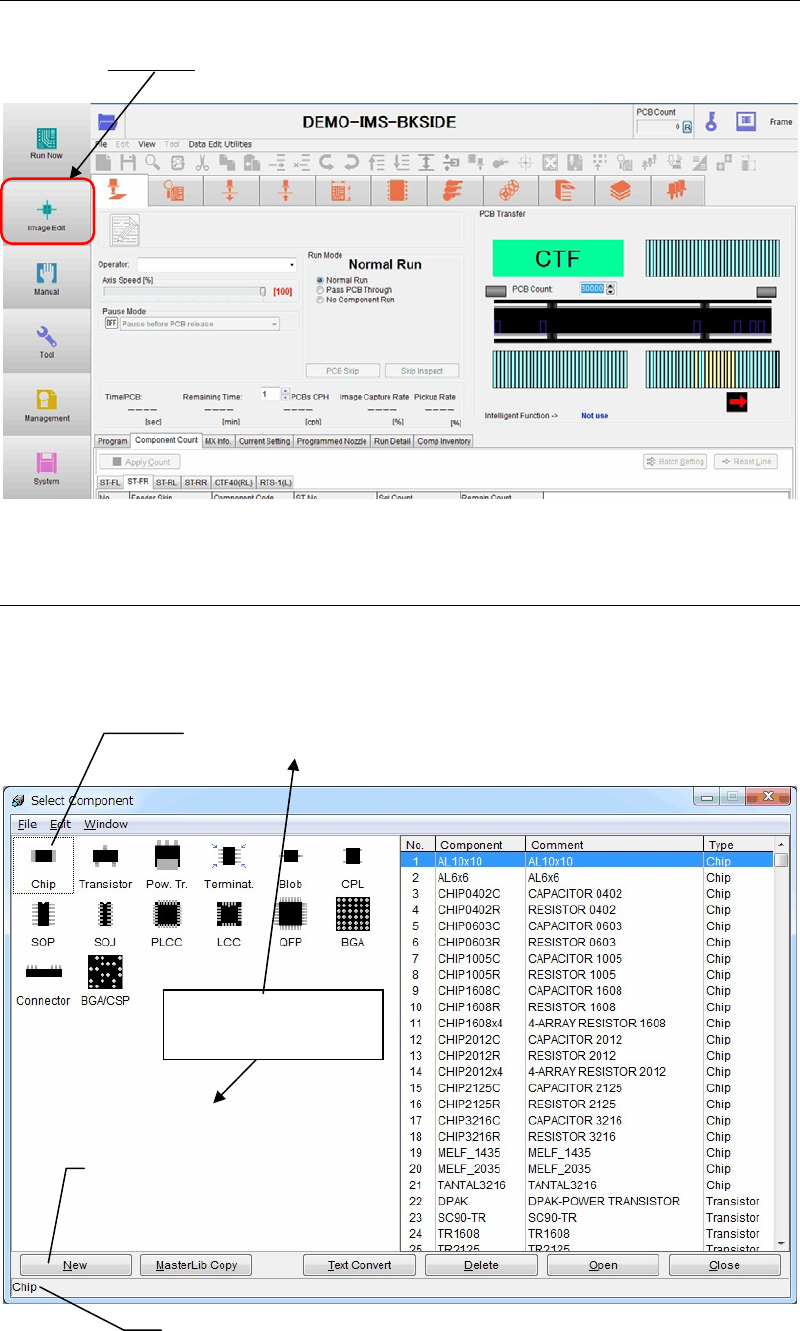
Select the Image or Image Library menu and the below dialog box appears. To create new
component image data, select a component type from the left panel of the window by
double-clicking. You can move on to the editor window.
To create a new image library record, select a component type
by double-clicking.
To create a new image library record,
click a type of component first, then
click on the <New> button.
Description of the selected component type appears.
Both methods cause
the same result.
Chapter 5 Libraries
5-47
To edit an existing data, click a component type on the left pane and the selection cursor moves
to the first line of the selected component type. Select data by double-clicking and the editor
window will open.
Window:
Component: Components are sorted by component type. In addition, the same
types of components are alphabetically arranged.
Comment: Shows the comment entered to the Image Library edit window.
Type: Shows component type.
Txt Convert: Saves the entire list as a text file. Click <Txt. Convert> button and
the Save As dialog box is opened for you to perform saving. The
saved text file in a USB memory stick can be printed out by using
application software in the external PC.
Open: Select a component and click <Open> button to open the Image
Library edit window.
Close: Closes the dialog box and returns to the previous one.
Note: Illumination settings of all Image Data can be reset to initial settings at one time.
Select Library>ImageLibrary>SelectComponent>Edit>InitializeIlluminations.