M20_Ope_E.pdf - 第141页
Chapter 4 Data Conversion 4-3 If CAD-data origin is on different coordina tes from destination-data origin, placement coordinates are automatically corrected by ente ring the distance between these two origins. CAD data …
Chapter 4 Data Conversion
4-2
4-1 CAD Data Conversion
Menu: Tool>CAD_Data
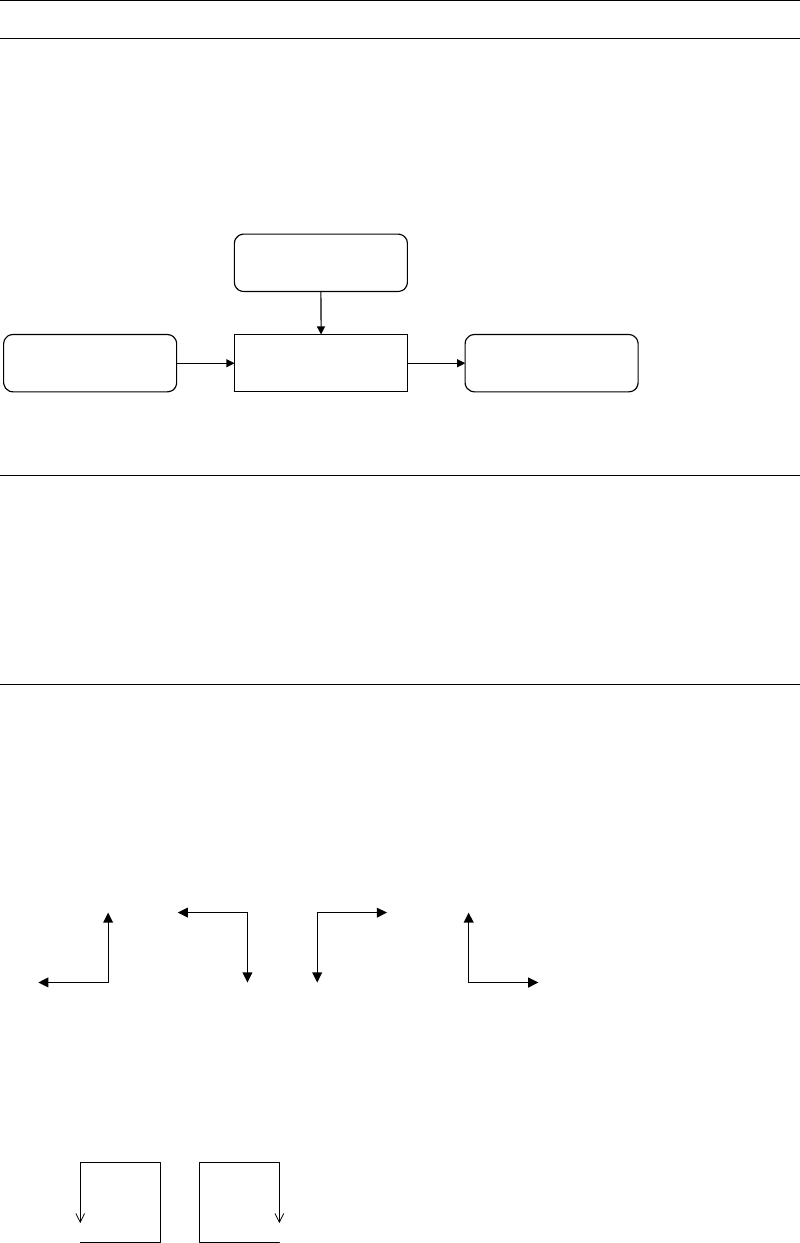
CAD Data menu allows CAD data and NC data for other manufacturers' mounters to be
translated into program data that are compatible with the TenryuTechnics machines. Only
component names, comments, and X, Y, T data can be translated.
Note: CAD data used in this manual refers to text files.
CAD Data
Format File
Program DataCAD Data
CAD Conversion
Program
OutputInput
4-1-1 Use of Converted Data
Converted data can be downloaded to the program editor of the MMI system
(Program>Placement&MarkData).
Component name: downloaded to Code fields
Comment: downloaded to Comment fields
X, Y, T: downloaded to X, Y, T fields
4-1-2 Supplementary Functions
The following assisting features are available in performing CAD data conversion:
mm/inch Conversion
Converts CAD data to either mm or inch that is used in the machine.
Coordinates Direction Conversion (X/Y)
Converts the orientation of the board to match the machine’s X, Y-coordinates system.
Y
X
X
YY
X
X
Y
Coordinate Direction Conversion (T)
Converts the component rotational direction to match that of the machine (counterclockwise is
the plus direction for the TenryuTechnics machines.). In addition, if rotating angle exceeds 180
degrees, to minimize rotating angle, rotating direction is reversed.
+ -
Data Magnify Function
Multiplies or divides the source CAD data according to the RATE setting (data-correction rate).
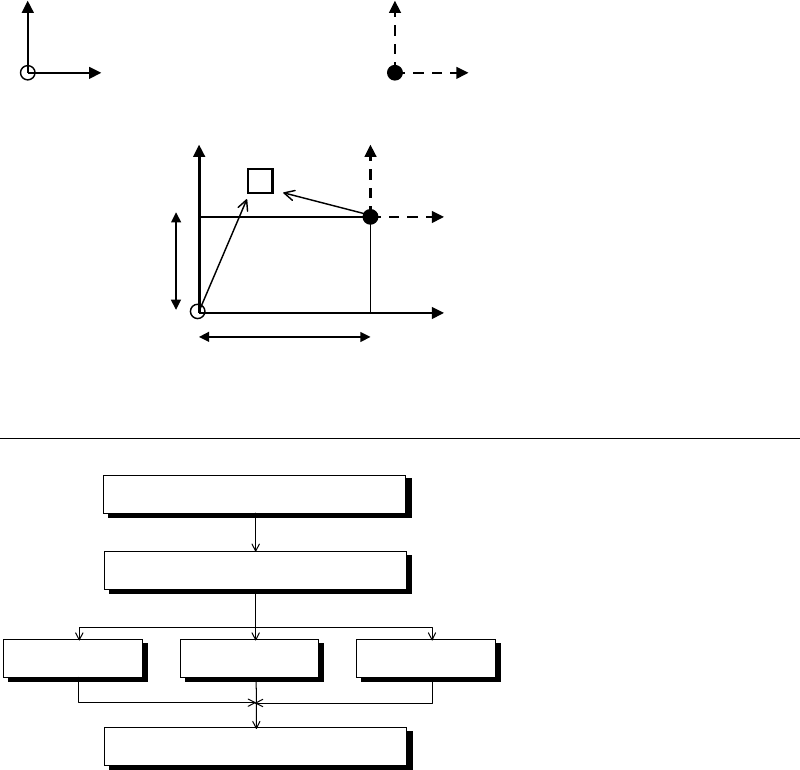
Origin-offset Correction
Chapter 4 Data Conversion
4-3
If CAD-data origin is on different coordinates from destination-data origin, placement
coordinates are automatically corrected by entering the distance between these two origins.
CAD data coordinates Destination data coordinates
YY
Component
X
Y Offset
X
X Offset
4-1-3 Operation Overview
Select a CAD format
Create a new fileEdit an existing fileUse an existing file
Execute conversion
Specify a CAD data file
Chapter 4 Data Conversion
4-4
4-1-3-1 Selecting a CAD Format
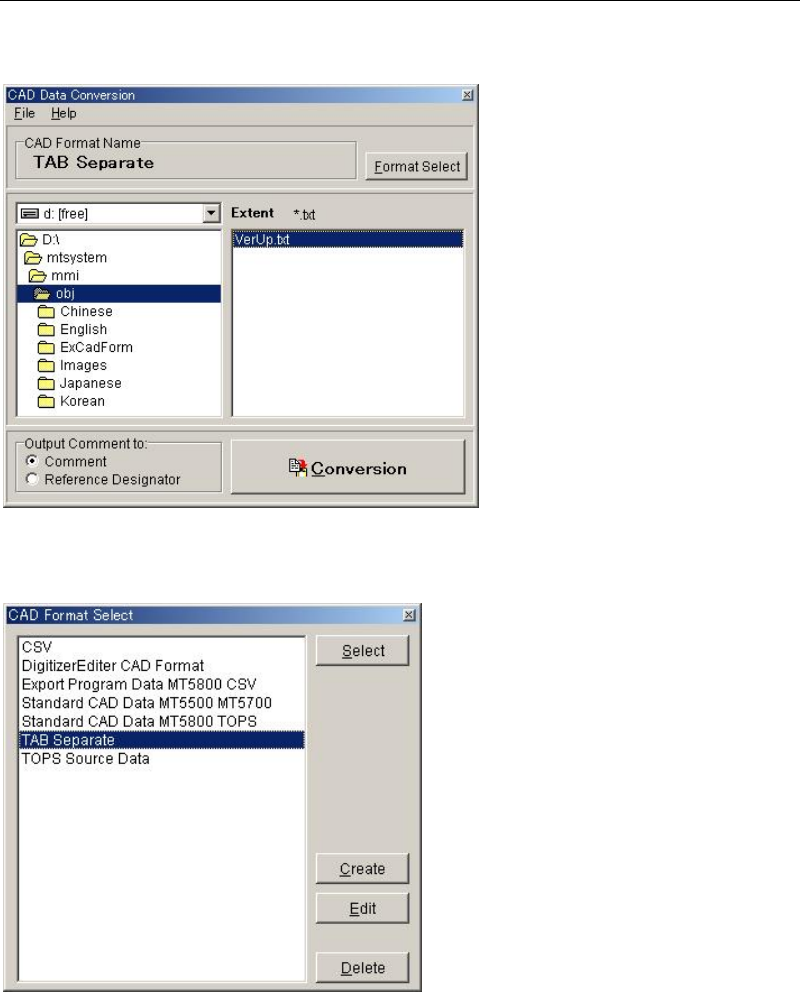
Select Tool>CAD Data and the CAD Data Conversion dialog box appears. Some standard
format files are pre-registered. See Appendix later in this chapter.
Click <Format Select> button in the above dialog box. [CAD Format Select] dialog box will
appear.
Select what to do from the four alternatives stated below:
Using an existing format
Click a format name and then <Select> button. For the remaining steps, see Selecting a CAD
Data later in this chapter.
Editing an existing format
Click an existing format name and [Edit] button.
Creating a new format
Click <Create> button.
Deleting a format
Click the format to be deleted and <Delete> button.