M20_Ope_E.pdf - 第313页
Chapter 10 Replenishing Com ponents and Using Maintenance Menus 10-9 XY ax es: T he hea d mo v e s ho r iz onta l l y i n eight di r ec ti o ns. Z axi s : T he up a nd do w n a rrow button s a r e us e d. T he he ad m ov…

Chapter 10 Replenishing Components and Using Maintenance Menus
10-8
10-3-1 Axis
The Axis menu allows for manual operation of the driving axes. You can make the specified
axis/axes inch (move by very small stages).
Note: The T axis cannot inch.
The Axis menu allows the specified motor, conveyor, or tray feeder pallet to move.
When executing axis movement via this menu, do not stick head, hands, or other parts
of the body inside the mounter. Serious injury can result. Also make sure non-operators
are at a safe distance from the machine.
Before executing axis movement, make sure no foreign obstacles are left in the mounter or tray
feeder. Otherwise, costly machine damage can occur.
Menu: Manual>Axis
Mounter
When moving Z axis, pay enough attention to the head tip position. If Z axis is moved to the
lowest position of what is permissible, it might interfere with the conveyor rail and so on.
Action:
① Under [Axis], select a driving axis/axes.
② Under [Head], select a head.
③ Under [Axis Speed], adjust the axis speed (1-100). To speed up, drag the slider to the right.
④ Hold down the left mouse button on an arrow button to execute axis movement. To stop
the movement, release the mouse.
⑤ Close the dialog box by clicking <X> button.
Warning
Caution
Caution
Indicate the X coordinate. Indicate the Y coordinate.
Select a driving axis/axes.
Select a head.
Adjust the axis speed.
* The number of heads differs depending
on the mounter model.
Chapter 10 Replenishing Components and Using Maintenance Menus
10-9
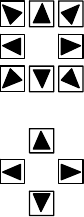
XY axes: The head moves horizontally in eight directions.
Z axis: The up and down arrow buttons are used. The head moves
up or down.
T axis: The right and left arrow buttons are used. With the right
arrow button, the head rotates counter-clockwise in the
downward looking perspective. With the left arrow button,
the head rotates clockwise.
Conveyor
Runs the specified conveyor. Under [Conveyor], select a conveyor and click <Move> button.
Then click <Run> button to run the conveyor.
Head Rotation
Rotates the T axis of the specified head. Select a head and enter rotation angle. Then click
<Rotate> button to rotate the head.
Chapter 10 Replenishing Components and Using Maintenance Menus
10-10
10-3-2 Origin
Performs zeroing of the axes position. This task is used when starting the system, when the
emergency stop is executed, or when the servo motors are turned off due to an error.
The Origin menu allows the specified axes to move. When executing this task, do not
stick head, hands, or other parts of the body inside the mounter. Serious injury can
result. Also make sure non-operators are at a safe distance from the machine.
Before zeroing the axes position, make sure no foreign obstacles are left in the mounter or tray
feeder. Otherwise, costly machine damage can occur.
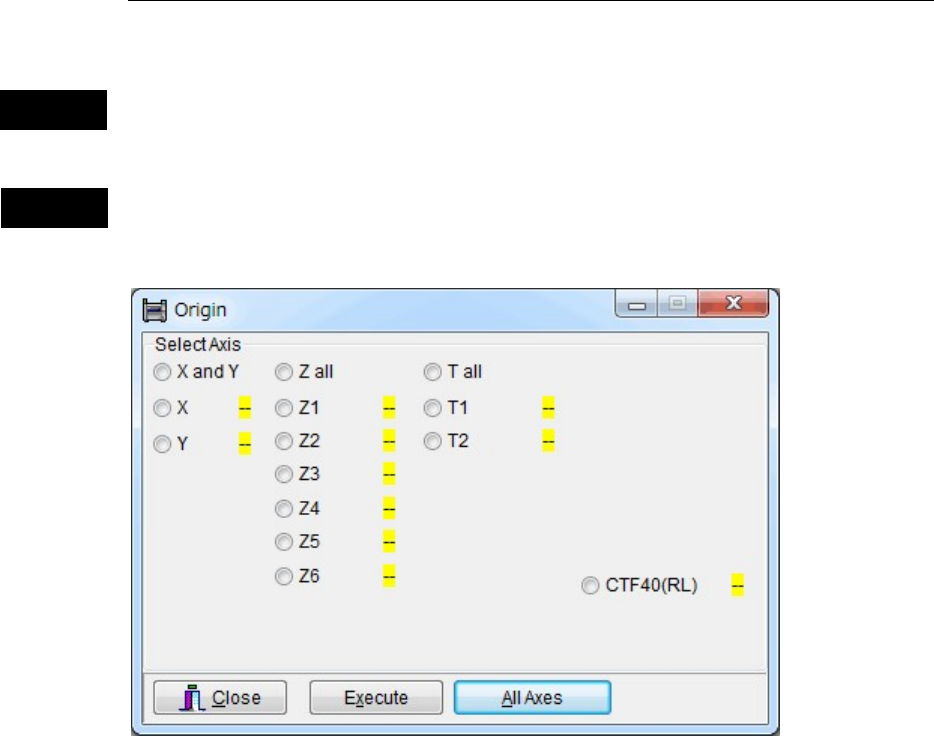
Menu: Manual>Origin
Action:
For zeroing all axes
① Click <All Axes> button.
② “Execute zeroing axes position?” message appears. Click <OK> button to execute or <No>
button to cancel.
For zeroing an axis individually
① Select the axis that needs to be returned to its origin.
② Click <Execute> button.
③ “Execute zeroing axes position?” message appears. Click <OK> button to execute or <No>
button to cancel.
Note: The machine origin of the X,Y direction is located at the front right area of the mounter (the
rightmost area of the front feeder bank). The center of Head1 moves to this point in zeroing axes
position.
Note: The yellow indicator “- -“ next to each origin indicates that the axis has not returned to its origin.
The blue indicator “○“ indicates that the zeroing has been done.
Caution
Warning
* The number of heads, number of Z axes, and
number of θ axes differ depending on the mounter
model.