M20_Ope_E.pdf - 第258页
Chapter 5 Libraries 5-108 ⑤ You can select to display the user library or master library. Click the [>>] button to check on a desired library you want to display. You can also display both the user library and mast…

Chapter 5 Libraries
5-107
5-3 Copying Library
5-3-1 Copying User Library and Master Library
A user library and master library are provided for various data such as component data, feeder
data, package data, pallet data, tray data, and nozzle data.
In the user library, you can store the data you have created to use it for other programs. The
master library consists of read-only typical data loaded at the factory prior to shipment. Both
user library and master library are normally hidden. Any desired data in the master library can
be copied into the user library.
Menu: Program>ComponentData/FeederData/PackageData/PalletData/TrayData/NozzleData
Action:
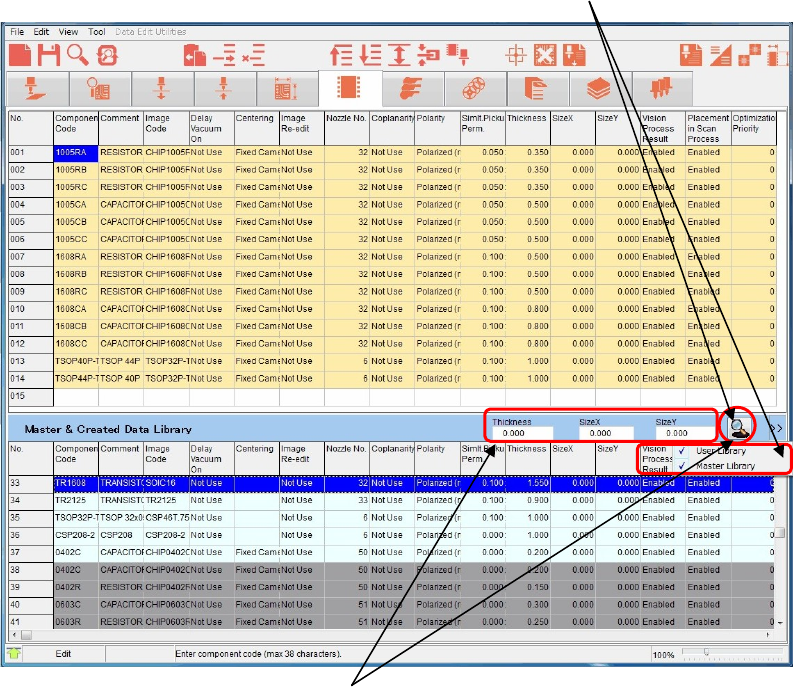
① In each data window, click [Tool]>[Search Library] or the [Search Library] icon.
Or, press the F3 key on the keyboard.
② The user library and master library appear in the lower part of the window.
The user library is shown in white and the master library in gray.
③ Copy data by dragging and dropping it between the data list in the upper part and the
user library or master library in the lower part.
④ You can also copy data from the master library to the user library by dragging and
dropping it.
Note: If data with the same code name exists in the copy destination, that data will be overwritten.
So, it is recommended to change (rename) the code name after the component data has been
copied.
Note: No data can be copied to the master library.
Drag and drop desired
data to copy it.
Master Library (gray)
Various data
User Librar
y
(white)
[Search Library] icon
Chapter 5 Libraries
5-108
⑤ You can select to display the user library or master library.
Click the [>>] button to check on a desired library you want to display. You can also
display both the user library and master library.
Additionally, when you check on [Auto sort] and click the <Hand Glass> button, the data
can be sorted.
⑥ You can search data by filtering.
Enter the size and/or other parameters and click the [Hand Glass] button. Candidates are
then extracted.
⑦ Click [Tool]>[Search Library] or the [Search Library] icon once again.
The user library and master library displays at the lower portion will be closed.
Or, pressing the F3 key on the keyboard will also close the user library and master library
displays.
[Hand Glass] button
[Hand Glass] button
Chapter 5 Libraries
5-109
5-3-2 Copying Image Library (Image Data)
The image library (image data) also has the master library. You can copy a desired image
library from the master library to use it.
Note that the master library contains the standard data that has been entered at the shipment
and is read-only data.
Menu: MainMenu>ImageEdit
Action:
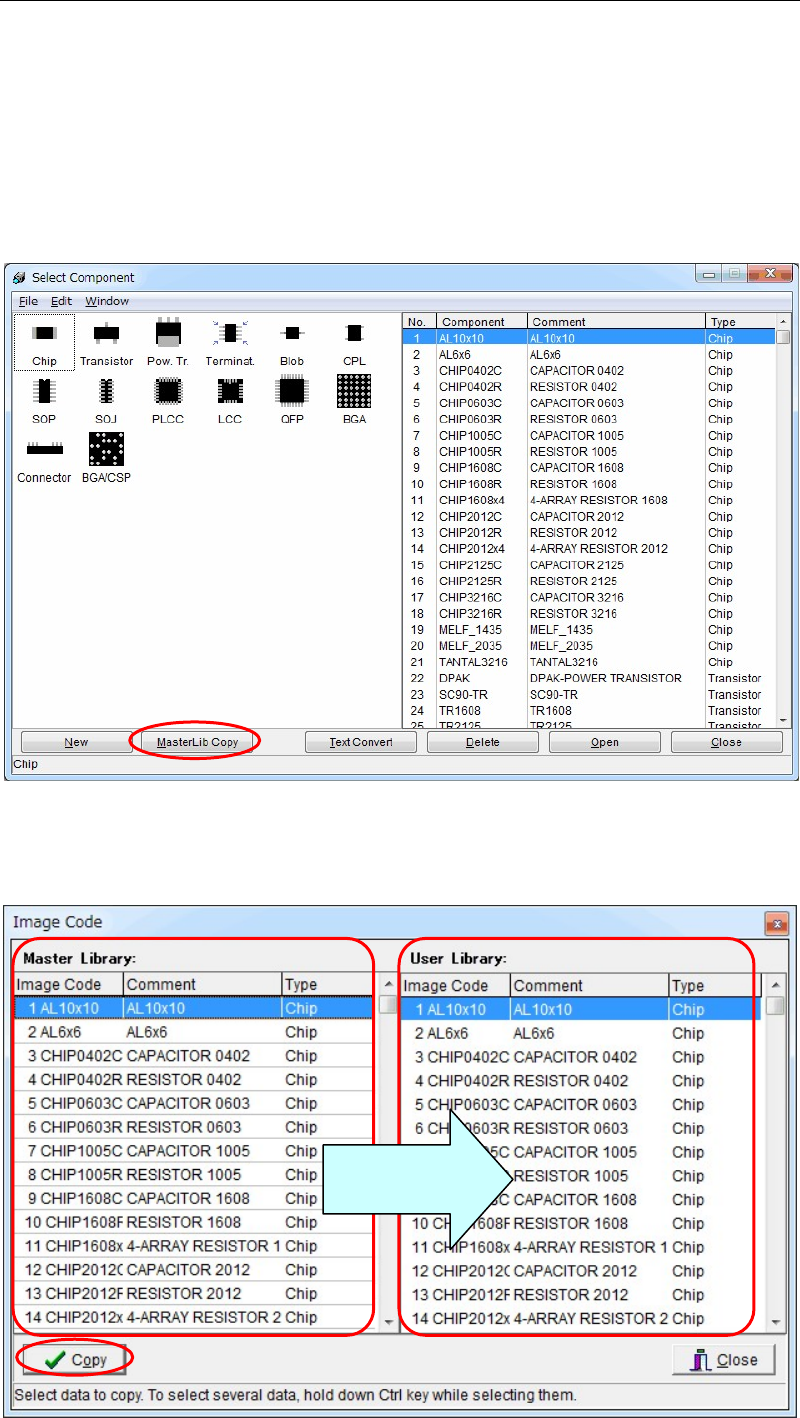
① Click [Image Edit] from the Main Menu. The following [Select Component] window will
appear.
② Click [MasterLib Copy] at the lower portion of this window. The following window will
appear.
Copy from the
left to the right.