M20_Ope_E.pdf - 第260页
Chapter 5 Libraries 5-110 ③ Select image data you want to copy in the [M aster L ibrary:] portion on the left of this window. Additionally, you can drag multiple image da ta lines using the mouse to select them. ④ Click …
Chapter 5 Libraries
5-109
5-3-2 Copying Image Library (Image Data)
The image library (image data) also has the master library. You can copy a desired image
library from the master library to use it.
Note that the master library contains the standard data that has been entered at the shipment
and is read-only data.
Menu: MainMenu>ImageEdit
Action:
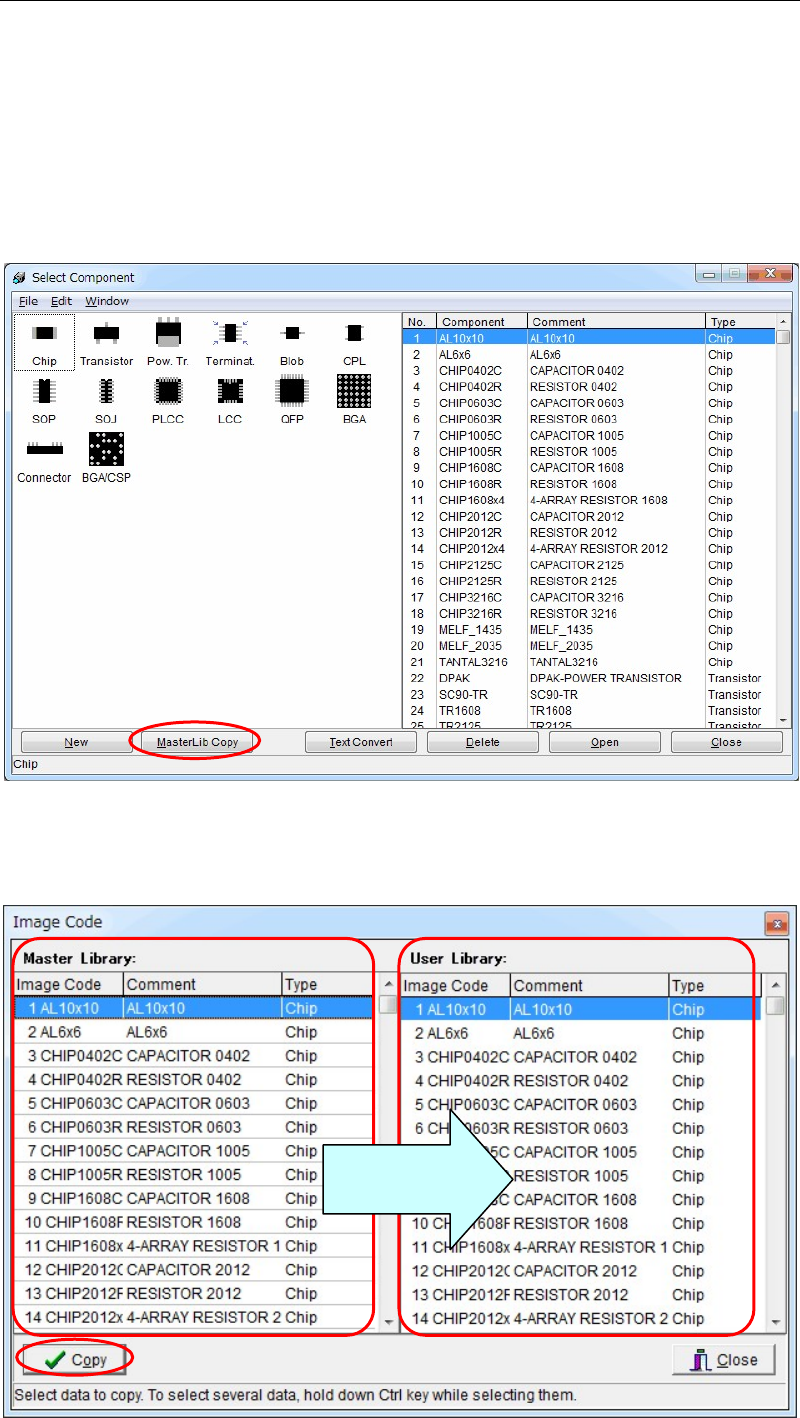
① Click [Image Edit] from the Main Menu. The following [Select Component] window will
appear.
② Click [MasterLib Copy] at the lower portion of this window. The following window will
appear.
Copy from the
left to the right.
Chapter 5 Libraries
5-110
③ Select image data you want to copy in the [Master Library:] portion on the left of this
window.
Additionally, you can drag multiple image data lines using the mouse to select them.
④ Click [Copy] at the lower left portion of the window.
The image data is then copied to the [Use Library:] portion on the right of the window.
⑤ Close this window.
⑥ The image data that has been copied is then added to the [Select Component] window
described in step ①.
Note: If data with the same code name is already present in the copy destination, that data will be
overwritten.
So, it is recommended to change (rename) the code name after the image data has been copied.
Chapter 6 Coplanarity Checker
6-1
Chapter 6
Coplanarity Checker
6-1 Specifications
6-2 Data Settings
6-3 Maintenance